
SIXTOP 4+64G Android Car Stereo
SIXTOP Android Car Stereo User Manual
Model: 4+64G Android Car Stereo for Ford Mustang 2010-2014
1. Introduction
This manual provides detailed instructions for the installation, operation, and maintenance of your SIXTOP 4+64G Android Car Stereo. This unit is designed for Ford Mustang models manufactured between 2010 and 2014, compatible with both manual and automatic air conditioning systems, and vehicles equipped with a Shaker amplifier system.
Please read this manual thoroughly before installation and operation to ensure proper use and to prevent damage.
2. Safety Information
- Ensure the vehicle's ignition is off and the battery is disconnected before beginning installation.
- Professional installation is recommended for optimal performance and to avoid damage to the vehicle or unit.
- Do not operate the unit in a manner that distracts you from driving. Always prioritize road safety.
- Avoid exposing the unit to extreme temperatures, direct sunlight for prolonged periods, or excessive moisture.
- Use only specified power cables and accessories.
3. Applicable Models and Package Contents
3.1 Applicable Vehicle Models
This Android car stereo is compatible with the following vehicles:
- Ford Mustang 2010-2014 (with Manual Air Conditioning)
- Ford Mustang 2010-2014 (with Automatic Air Conditioning)
- Ford Mustang 2010-2014 (with Shaker Amplifier System)

Image: Comparison of Ford Mustang dashboards before and after installation, highlighting compatibility with manual and automatic AC systems.
3.2 Package Contents
Verify that all items are present in the package:
- Android Car Stereo with Frame
- AHD Backup Camera
- External Microphone
- Power Cable Harness
- GPS Antenna
- USB Cables
- RCA Cables
- Mounting Hardware
4. Installation Guide
Installation requires basic automotive electrical knowledge. If you are unsure, seek professional assistance.
4.1 Pre-Installation Steps
- Disconnect the vehicle's negative battery terminal.
- Carefully remove the factory radio and trim panels.
- Identify the vehicle's wiring harness and compare it with the provided harness.
4.2 Wiring Diagram for Rear Camera
Connect the AHD rear view camera according to the diagram below. Ensure proper connection for power, video signal, and reverse trigger.

Image: Detailed wiring diagram for connecting the rear view camera to the car stereo system.
- Power Cable: Connect to the camera's power input.
- RCA Cable: Connect the yellow video output from the camera to the "Camera Input" on the stereo.
- Reverse Lamp Trigger: Connect the red wire from the RCA cable to the vehicle's reverse lamp power wire. This triggers the camera display when reverse gear is engaged.
- Ground (GND): Connect the black wire to a suitable ground point.
4.3 General Installation Tips
- Ensure all connections are secure to prevent intermittent issues.
- Route cables carefully to avoid pinching or interference.
- Test all functions (audio, display, camera, steering wheel controls) before fully reassembling the dashboard.

Image: Visual representation of the car stereo's appearance in the dashboard before and after installation.
5. Operating Instructions
5.1 System Overview
The unit operates on Android 13 with 4GB RAM and 64GB ROM, providing a responsive user experience on its 10.1-inch 1280x720 HD touchscreen.

Image: Diagram illustrating the Android 13 operating system, 4GB RAM, and 64GB ROM.

Image: Visual comparison of the 1280x720 Ultra HD screen with a standard 1024x600 screen, highlighting IPS technology and 170° viewing angles.
5.2 Wireless CarPlay and Android Auto
The unit supports wireless Apple CarPlay and Android Auto for seamless smartphone integration.
- Ensure your phone's Wi-Fi and Bluetooth are enabled.
- Connect your phone to the car stereo via Bluetooth.
- Open the [ApplePlay] or [Android Auto] application on the stereo to automatically connect.
- Once connected, you can access phonebook, messages, navigation apps, and music apps directly from the stereo display.

Image: Screenshot of the car stereo display showing various applications accessible via Wireless CarPlay and Android Auto.
5.3 Mirror Link Function
Mirror Link allows you to project your smartphone screen onto the car stereo display.
- Connect your phone to the stereo via Wi-Fi.
- For iPhone, select [Airplay]. For Android phones, select [Android Link].
- Your phone's screen content will be mirrored on the stereo.

Image: Visual representation of Wireless CarPlay, Android Auto, and Mirror Link functionality, showing phone screen content mirrored on the stereo.
5.4 Bluetooth 5.0 Connectivity
Bluetooth 5.0 provides stable connections for hands-free calls and music streaming.
- Hands-free Calling: Make and receive calls directly from the stereo. Synchronize your phone's address book.
- Music Playback: Stream audio from your smartphone to the car stereo.

Image: Screenshot of the Bluetooth 5.0 interface, demonstrating hands-free calling and music playback.
5.5 WiFi 6 and App Installation
Connect to a Wi-Fi network to access online features and download applications.
- Go to Settings > Wi-Fi and connect to an available network.
- Once connected, you can download various applications from the Play Store.
- Stream online music, videos, and use other internet-dependent apps.

Image: Display of the car stereo screen showing various applications available via Wi-Fi connectivity.
5.6 GPS Navigation
The unit supports GPS positioning for navigation. You can use both online and offline maps.
- Download offline navigation maps directly from the Play Store for use without an internet connection.
- Online maps function optimally when connected to Wi-Fi.

Image: Screenshot of the GPS navigation interface displaying map routes and positioning.
5.7 FM/RDS Radio
Access FM radio stations with RDS (Radio Data System) support.
- Tune into your favorite radio stations for news, music, and traffic information.
- RDS provides additional information like station name and song title where available.

Image: Screenshot of the FM/RDS radio interface, showing frequency display and station list.
5.8 32-Band EQ Audio Adjustment
Customize your audio experience with the integrated 32-band equalizer and various sound effects.
- Adjust frequency bands to achieve desired sound profiles.
- Select from preset sound effects such as 3D optimized, Panorama, and HiFi scene.

Image: Screenshot of the 32-band equalizer interface, showing adjustable frequency sliders and sound effect options.
5.9 AI Intelligent Voice Control
Activate the AI voice assistant for hands-free control of various functions.
- Click the Voice APP icon to activate the voice assistant.
- Issue commands such as "Call [Contact Name]", "Play [Song Title]", "FM tuning", or "Open [Application Name]".
- Note: Some advanced voice features may require activation.

Image: Display showing the AI voice assistant interface and the split-screen mode in action.
5.10 Split Screen Function
The split-screen feature allows two applications to be displayed and operated simultaneously.
- Click the rectangle icon at the top of the screen.
- Select an application and drag it to either the left or right side of the screen.
- Both applications can be operated independently.

Image: Screenshot demonstrating the split-screen mode, showing navigation and another application side-by-side.
5.11 Steering Wheel Control (SWC)
Utilize your vehicle's original steering wheel buttons to control the car stereo.
- Access the "Steering Wheel Control" settings in the car stereo menu.
- Follow the on-screen instructions to program each button (e.g., volume up/down, track skip, mode).
- This feature enhances convenience and driving safety.

Image: Screenshot of the steering wheel control programming interface, showing various functions that can be assigned to vehicle buttons.
5.12 AHD Rear View Camera Display
The included AHD waterproof night vision camera provides a clear reversing image.
- When the vehicle is shifted into reverse gear, the stereo automatically displays the camera feed.
- The display includes guidelines for safer parking.

Image: Screenshot of the car stereo displaying the AHD rear view camera feed with parking assistance lines.
5.13 Customizable Desktop Themes
Personalize the user interface by changing desktop themes.
- Long-press on a blank area of the homepage.
- Select from the available themes to change the visual appearance of your stereo.
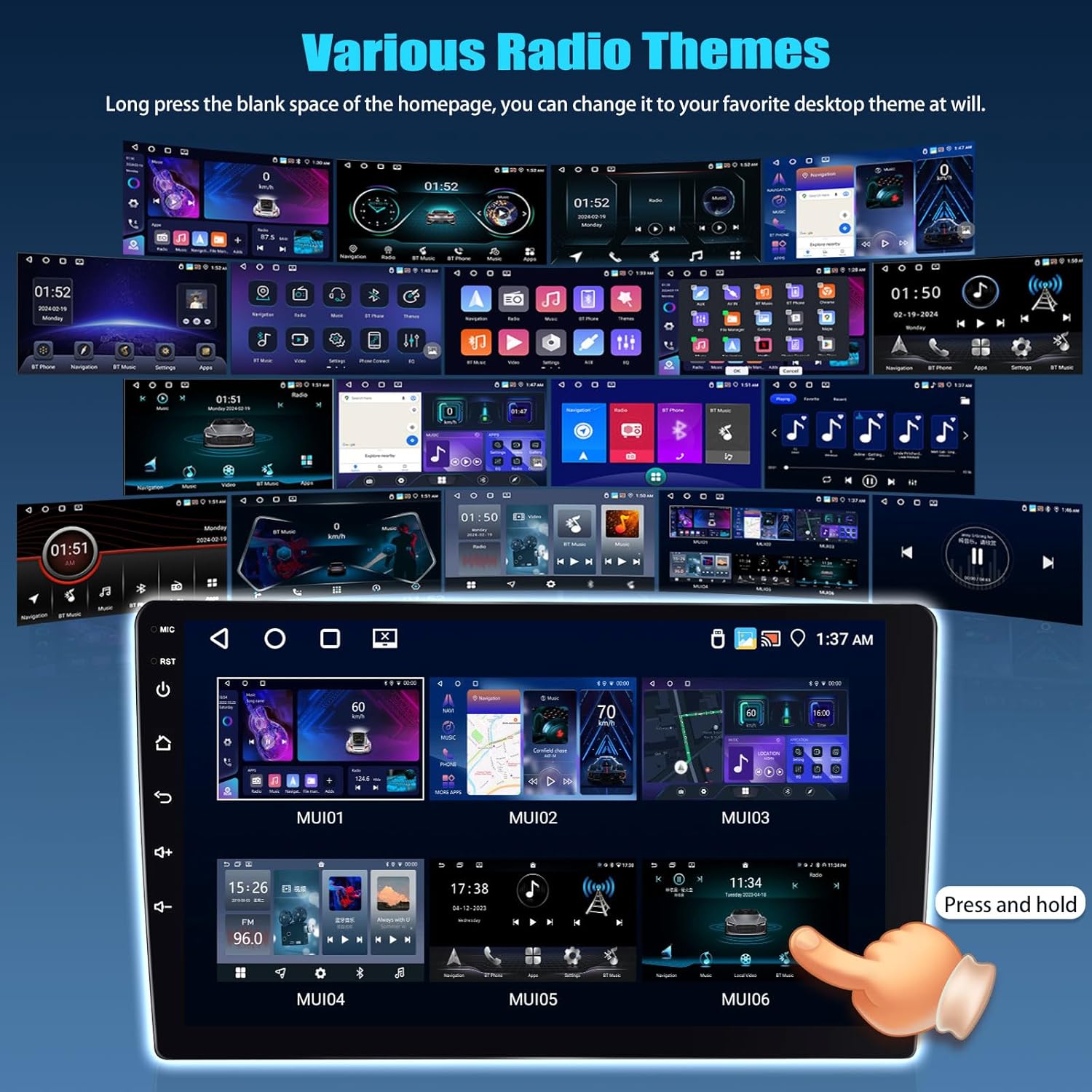
Image: Collage of different desktop themes available for customization on the car stereo.
6. Maintenance
- Screen Cleaning: Use a soft, lint-free cloth to clean the touchscreen. Avoid abrasive cleaners or solvents.
- Software Updates: Periodically check for system updates to ensure optimal performance and access to new features. Connect to Wi-Fi and navigate to System Settings > About Device > System Update.
- General Care: Keep the unit free from dust and debris. Avoid spilling liquids on the unit.
7. Troubleshooting
| Problem | Possible Cause | Solution |
|---|---|---|
| Unit does not power on. | Incorrect wiring, blown fuse, vehicle battery disconnected. | Check power connections, inspect vehicle fuses, ensure battery is connected. |
| No sound. | Volume too low, mute activated, speaker wiring issues. | Increase volume, check mute status, verify speaker connections. |
| CarPlay/Android Auto not connecting wirelessly. | Bluetooth/Wi-Fi off on phone, incorrect pairing, app not launched. | Ensure phone's Bluetooth/Wi-Fi is on, re-pair device, open ApplePlay/Android Auto app on stereo. |
| Rear camera not displaying. | Camera not powered, video cable loose, reverse trigger not connected. | Check camera power, secure video cable, verify reverse trigger wire connection. |
| Steering Wheel Controls not working. | Not programmed, incorrect wiring for SWC. | Go to SWC settings and program buttons. Check SWC wiring. |
If problems persist after attempting these solutions, please contact customer support.
8. Specifications
| Feature | Detail |
|---|---|
| Model Name | Android Car Stereo |
| Operating System | Android 13 |
| Memory (RAM + ROM) | 4GB RAM + 64GB ROM |
| Screen Size | 10.1 Inches |
| Display Resolution | 1280*720 HD |
| Touch Screen Type | Capacitive |
| Bluetooth Version | 5.0 |
| Wi-Fi Standard | Wi-Fi 6 |
| GPS Support | Yes (North America, Worldwide maps) |
| Audio Equalizer | 32-Band EQ |
| Rear Camera | AHD Waterproof Backup Camera Included |
| Connectivity | Wireless CarPlay, Android Auto, Mirror Link |
| Control Method | Touch, Voice, Steering Wheel Control |
| Power Output Mode | Stereo |
| Manufacturer | SIXTOP |
| Country of Origin | China |
9. Warranty and Support
9.1 Warranty Information
This SIXTOP Android Car Stereo comes with a 1-Year Replacement Warranty from the date of purchase. This warranty covers manufacturing defects and malfunctions under normal use. It does not cover damage caused by improper installation, misuse, accidents, or unauthorized modifications.
9.2 Customer Support
For technical assistance, troubleshooting, or warranty claims, please contact our customer support team. We offer lifetime technical support.
- Email Support: SIXTOP123@163.com
- Online Support: You can also reach out through the seller's page on Amazon.


Images: Visuals representing customer support channels and warranty benefits.
Related documents4+64G Android Car Stereo


Ask a question about this manual
Ask about setup, troubleshooting, compatibility, parts, safety, or missing instructions. Manuals+ will review the question and use this page’s manual context to help answer it.