
cozyla Black-15.6-Inch
Cozyla Digital Calendar 15.6'' User Manual
Model: Black-15.6-Inch | Brand: Cozyla
Introduction
This manual provides comprehensive instructions for setting up, operating, maintaining, and troubleshooting your Cozyla Digital Calendar. This smart electronic calendar is designed to streamline family organization with its touch screen interface, customizable dashboard, and integration with popular calendar services.

Image: The Cozyla Digital Calendar, a 15.6-inch touch screen device, showing a monthly calendar view, current time and weather, and sections for chores, meals, and a grocery list. It is designed for family organization.
Setup
Follow these steps to set up your Cozyla Digital Calendar for first use.
- Unboxing and Placement: Carefully remove the calendar from its packaging. Decide whether to use the included stand for desk/countertop viewing or to wall-mount it.
- Power Connection: Connect the power adapter to the calendar and plug it into a power outlet. The device will automatically power on.
- Initial Configuration:
- Follow the on-screen prompts to select your language, connect to a Wi-Fi network, and log in with your Google account to access the Google Play Store.
- Once connected, you can download the Cozyla+ Calendar app or other preferred calendar applications from the Google Play Store.
- Calendar Syncing: Open your chosen calendar app and follow its instructions to sync with your existing Google, Apple, or Outlook calendars. This allows for shared viewing and editing of events.

Image: Rear view of the Cozyla Digital Calendar showing the integrated stand and the power cable connected, illustrating its flexible display options for desk or wall mounting.
Operating Instructions
The Cozyla Digital Calendar offers various features to help manage your family's schedule and tasks.
Family Shared Digital Calendar
The calendar features its own Cozyla+ Calendar app and supports syncing with Google, Apple, and Outlook calendars. This allows all family members to share, view, and edit events collaboratively on one screen.
- To add an event, tap the '+' icon on the calendar interface.
- Events from synced calendars will automatically appear.
- Use the navigation arrows to switch between months or weeks.

Image: The Cozyla Digital Calendar screen with icons representing Google Calendar, Apple Calendar, and Outlook, illustrating its ability to auto-sync family calendars from various platforms.
Digital Chore Chart & Reward System
Assign chores to each family member and track completion with a fun reward system.
- Access the Chore Chart app from the dashboard.
- Assign unique colors and avatars to each family member.
- Create and assign chores, setting points for completion.
- Family members earn points by completing tasks, which can be redeemed for rewards.

Image: A young child interacting with the Cozyla Digital Calendar, which displays a chore chart and reward system, demonstrating how family members can be assigned tasks and earn points.
Customizable Dashboard
Personalize your calendar's display by adding and arranging widgets.
- Download any app from the Google Play Store.
- Drag and drop widgets such as calendar, chore chart, meal planner, to-do list, media player, and weather updates directly onto your dashboard.
- Adjust widget sizes and positions to suit your preferences.

Image: The Cozyla Digital Calendar screen showing various applications and widgets, including streaming services and productivity tools, highlighting its functionality as a digital calendar and tablet in one.
Meal Planning
Plan meals in advance, manage recipes, and generate shopping lists.
- Access the Meal Planner app.
- Schedule meals for specific days.
- Upload your own custom recipes or use pre-existing ones.
- Automatically generate shopping lists based on your meal plan.
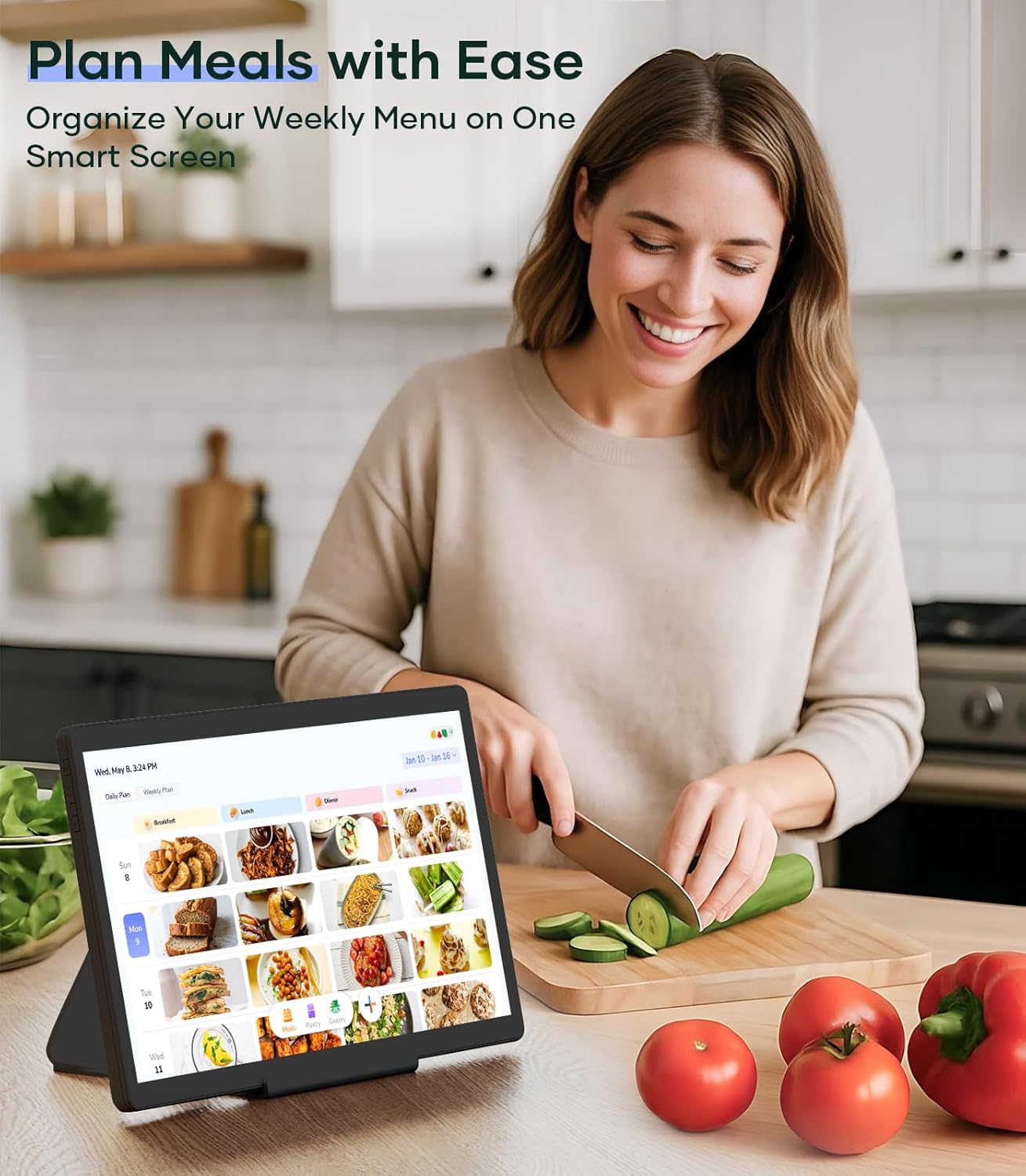
Image: A woman in a kitchen preparing food, with the Cozyla Digital Calendar on a stand displaying a meal plan, demonstrating the ease of organizing weekly menus.
Maintenance
Proper maintenance ensures the longevity and optimal performance of your Cozyla Digital Calendar.
- Cleaning:
- Use a soft, lint-free cloth to clean the screen and exterior.
- For stubborn smudges, slightly dampen the cloth with water or a screen-safe cleaner. Avoid harsh chemicals.
- Ensure the device is powered off and unplugged before cleaning.
- Software Updates:
- Periodically check for system updates in the device settings to ensure you have the latest features and security patches.
- Updates typically require a stable internet connection.
- Environmental Conditions:
- Keep the device away from direct sunlight, extreme temperatures, and high humidity.
- Avoid placing the device near strong magnetic fields.
Troubleshooting
This section addresses common issues you might encounter with your Cozyla Digital Calendar.
| Problem | Possible Cause | Solution |
|---|---|---|
| Device does not power on. | Power cable not connected properly; power outlet issue. | Ensure power cable is securely connected. Try a different power outlet. |
| Wi-Fi connection issues. | Incorrect password; out of range; router issue. | Double-check Wi-Fi password. Move closer to the router. Restart your router. |
| Touchscreen is unresponsive or delayed. | Temporary software glitch; screen dirty. | Restart the device. Clean the screen with a soft, lint-free cloth. |
| Calendar not syncing. | Incorrect account login; app permissions; internet connectivity. | Verify account credentials in the calendar app. Check app permissions. Ensure stable internet connection. |
| Apps not downloading from Google Play. | Google account issue; insufficient storage; internet connectivity. | Verify Google account login. Check available storage. Ensure stable internet connection. |
Specifications
| Feature | Detail |
|---|---|
| Brand | Cozyla |
| Model Number | Black-15.6-Inch |
| Screen Size | 15.6 inch |
| Item Weight | 11.58 pounds |
| Product Dimensions | 0.93 x 8.99 x 14.5 inches |
| Color | Black |
| Cover Material | Plastic |
| Material Type | Plastic |
| Calendar Type | Weekly (Digital) |
| Operating System | Supports Google Play apps (Android-based) |
Warranty and Support
Your Cozyla Digital Calendar comes with dedicated support to ensure your satisfaction.
- Warranty: The Cozyla electronic calendar for wall comes with a 1-year warranty from the date of purchase.
- Customer Service: For any questions or issues with your digital family calendar, please contact Cozyla customer service. They are available 24/7 to provide assistance.
- Contact Information: Refer to the product packaging or the official Cozyla website for the most up-to-date contact details for customer support.
Related documentsBlack-15.6-Inch


Ask a question about this manual
Ask about setup, troubleshooting, compatibility, parts, safety, or missing instructions. Manuals+ will review the question and use this page’s manual context to help answer it.