
1. Introduction
The Lifemate Lifetag Tracker is a Bluetooth tracking device designed to help you locate your personal items using the Google Find My Device (Find Hub) App on your Android smartphone or tablet. This manual provides detailed instructions for setting up, operating, maintaining, and troubleshooting your Lifetag Tracker to ensure optimal performance.
The Lifetag Tracker is compatible with all Android phones running Android 9 and above, offering a simple and fast setup process without the need for additional subscription fees or third-party applications.

Image: The Lifemate Lifetag Tracker, a Bluetooth device for Google Find My Device, shown with a smartphone displaying the tracking app.
2. Safety Information
Please read all safety instructions before using the Lifetag Tracker to prevent injury or damage to the device.
- Battery Safety: The device uses CR2032 coin cell batteries. Keep batteries out of reach of children. If swallowed, seek immediate medical attention. Do not expose batteries to excessive heat, direct sunlight, or fire. Do not attempt to recharge non-rechargeable batteries.
- Water Resistance: The Lifetag Tracker is IP65 waterproof, meaning it is resistant to splashes and dust. It can survive for up to 30 minutes underwater at 3 feet depth. However, it is not designed for prolonged submersion or high-pressure water exposure. Ensure the battery compartment is securely closed to maintain water resistance.
- Operating Temperature: Operate the device within standard environmental temperatures. Extreme temperatures can affect battery life and device performance.
- Disposal: Dispose of the device and batteries according to local regulations. Do not dispose of batteries in household waste.
3. Package Contents
Verify that all items are present in your package:
- Lifemate Lifetag Tracker (Model HD-P16-3)
- Keyring attachment
- CR2032 Battery (pre-installed or included separately)

Image: The Lifemate Lifetag Tracker attached to a keyring with keys, demonstrating its portability and attachment options for various items like cameras, backpacks, wallets, and keys.
4. Specifications
| Model Number | HD-P16-3 |
| Dimensions | 1.5 x 1.5 x 0.35 inches |
| Item Weight | 1.59 ounces |
| Connectivity | Bluetooth |
| Battery Type | CR2032 (2 required, included) |
| Battery Life | Approximately 6-8 months |
| Water Resistance | IP65 (Dust-resistant, splash-proof, submersible up to 3ft for 30 mins) |
| Compatible Devices | Android smartphones and tablets (Android 9 and above) |
| Material | Plastic |
5. Setup Guide
Follow these steps to set up your Lifemate Lifetag Tracker with the Google Find My Device App:
- Ensure Compatibility: Confirm your Android device is running Android 9 or a newer version.
- Download/Update Google Find My Device App: If not already installed, download the "Google Find My Device" app from the Google Play Store. Ensure it is updated to the latest version.
- Activate the Tracker: If the battery is not pre-installed, open the tracker's casing (refer to Maintenance section for battery replacement) and insert the CR2032 batteries with the positive (+) side facing up. The tracker should emit a sound or light indicator.
- Open Google Find My Device App: Launch the app on your Android device and sign in with your Google account.
- Add New Device: The app should automatically detect nearby Lifetag Trackers. Follow the on-screen prompts to add your new device. You may be asked to press a button on the tracker to confirm pairing.
- Name Your Tracker: Assign a descriptive name to your tracker (e.g., "Keys," "Wallet," "Backpack") to easily identify it in the app.
- Attach to Item: Use the included keyring to attach the Lifetag Tracker to the item you wish to track.
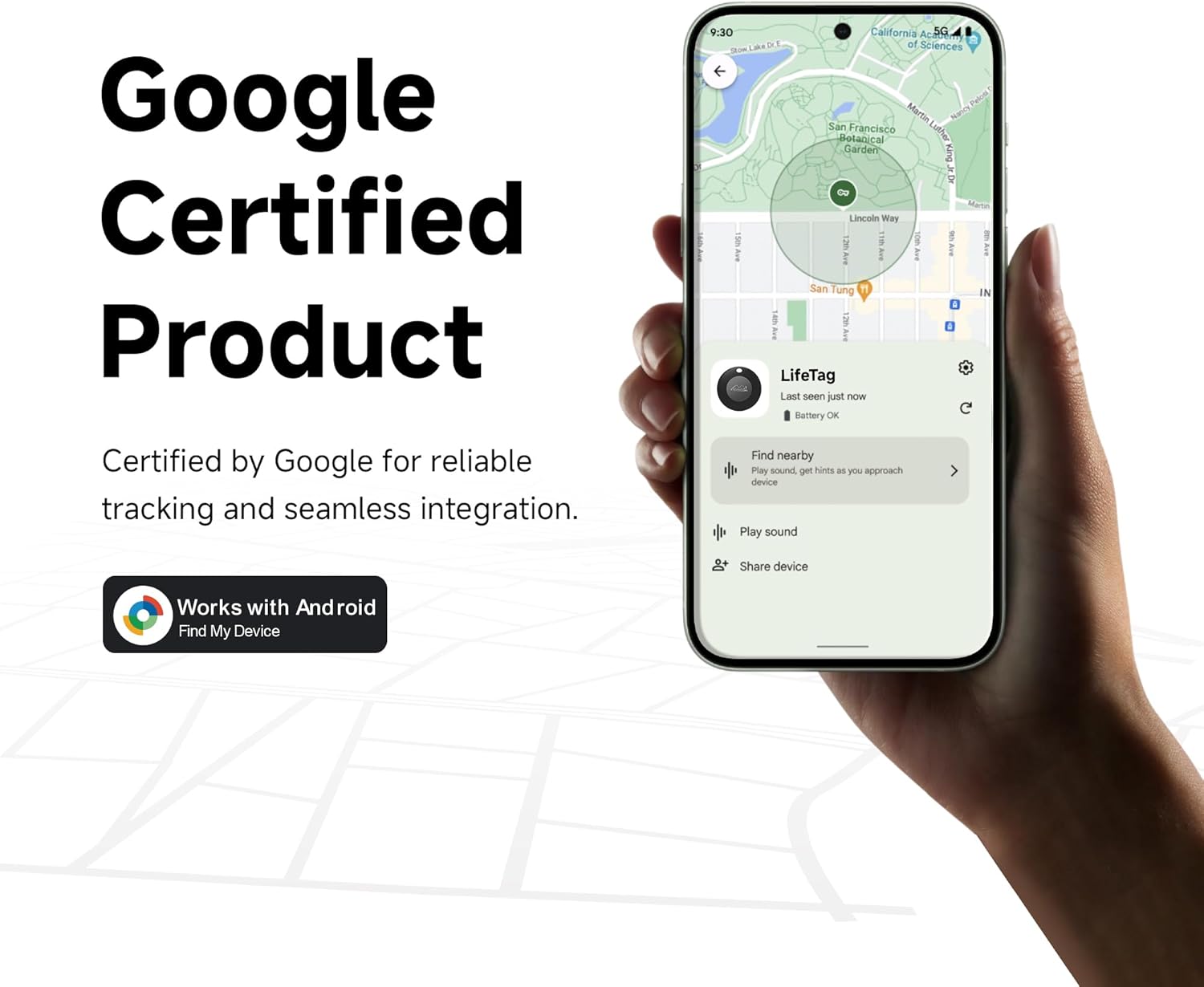
Image: A smartphone displaying the Google Find My Device app, indicating the Lifetag is a Google Certified Product for reliable tracking and seamless integration with Android devices.

Image: A visual representation of various Android phone models, emphasizing the Lifetag Tracker's compatibility with all Android phones.
6. Operating Instructions
Once your Lifetag Tracker is set up, you can use the Google Find My Device App to locate your items.
6.1 Locating Items Nearby (Bluetooth Range)
When your item is within Bluetooth range (up to 150 meters or 500 feet in open areas), you can make the Lifetag Tracker play a sound:
- Open the Google Find My Device App.
- Select the Lifetag Tracker you wish to locate.
- Tap the "Play Sound" option. The tracker will emit a loud sound (up to 100dB) to help you pinpoint its location.
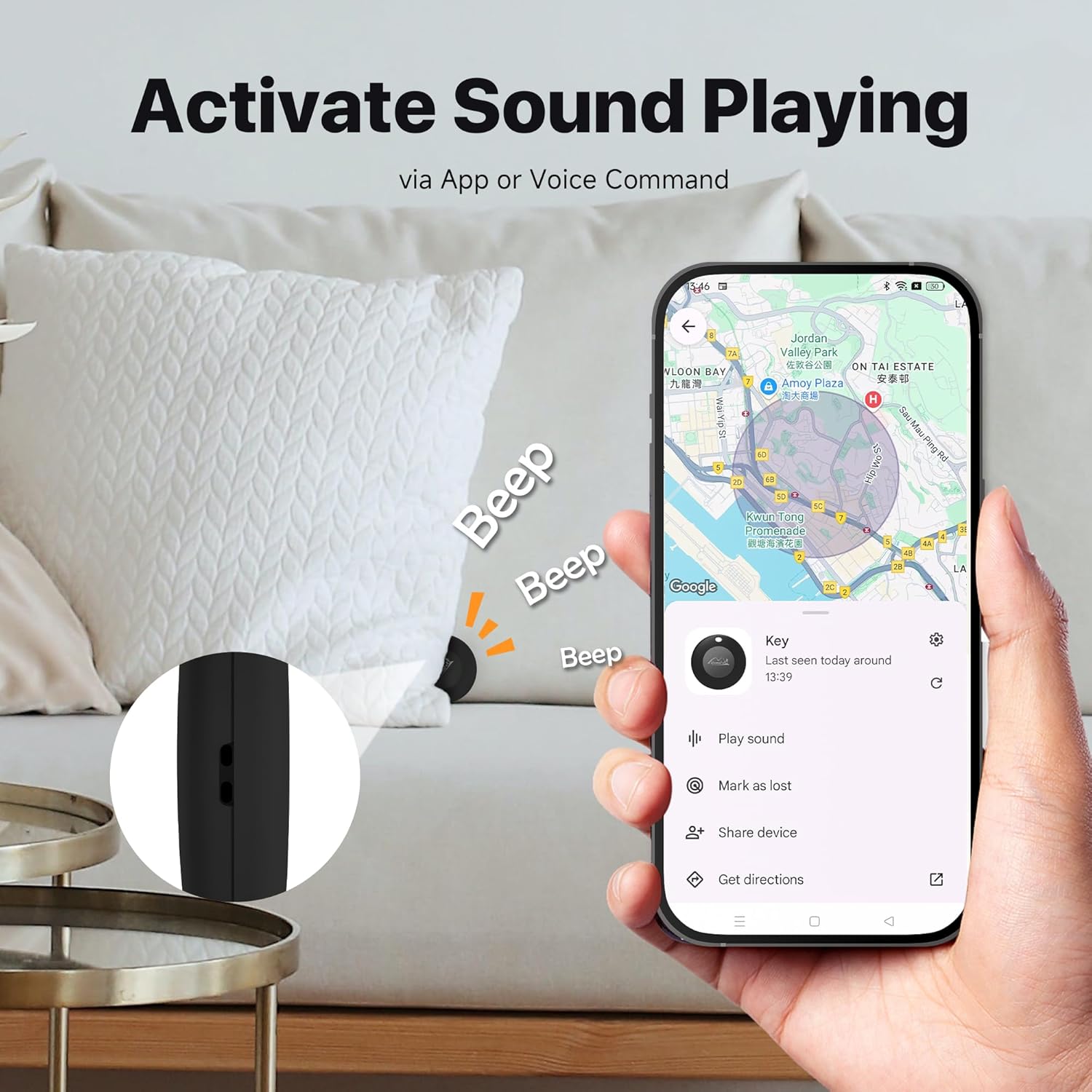
Image: A close-up of the Lifetag Tracker next to a couch, with sound waves indicating it's beeping, and a smartphone screen showing the "Play Sound" option in the Google Find My Device app.

Image: An overhead view of a house interior, showing various items like a purse, wallet, passport, and keys, with location pins. A smartphone displays the Google Find My Device app, indicating the ability to "Hear It and Find It" with a ringing volume up to 100dB.

Image: A Lifetag Tracker attached to keys on a table, with musical notes indicating sound. In the background, a person is looking for something, illustrating the "Nearby? Just Find It!" feature to play sound within Bluetooth range.
6.2 Locating Items Out of Range (Google Find My Network)
If your item is outside of your personal Bluetooth range, the Google Find My Device network can help. This network leverages hundreds of millions of Android devices worldwide to anonymously detect your Lifetag Tracker's location. You will receive non-stop location updates as long as your tracker is near any Android device connected to the network.
- Open the Google Find My Device App.
- Select the Lifetag Tracker you are looking for.
- The app will display the last known location of your tracker on Google Maps.

Image: A globe with numerous location pins, representing the global positioning coverage of the Lifetag Tracker, allowing real-time updates in the app.
6.3 Location Sharing
You can share the location of your Lifetag Tracker with others through Google Maps:
- In the Google Find My Device App, select the desired tracker.
- Look for a "Share device" or "Share location" option within the tracker's details.
- Follow the prompts to share its location with trusted contacts.
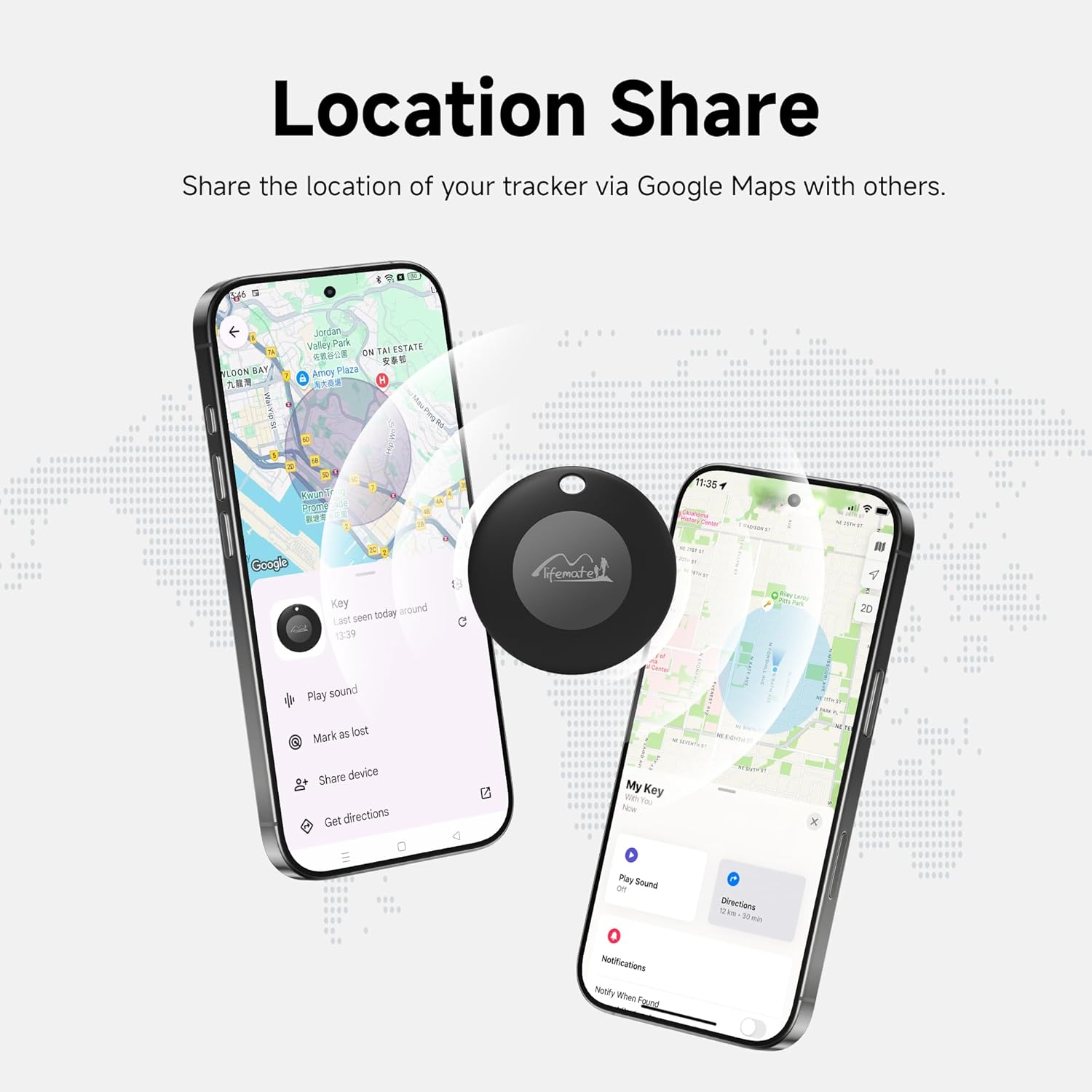
Image: Two smartphones displaying Google Maps with a Lifetag Tracker icon in the center, illustrating the ability to share the tracker's location via Google Maps with others.
6.4 Privacy Protection
The Google Find My Device network is designed with comprehensive privacy protection. Location data is encrypted and anonymized, ensuring your personal information remains secure.

Image: A Lifetag Tracker and a smartphone displaying the Google Find My Device app, overlaid with a shield icon, symbolizing the privacy protection provided by Google's comprehensive security measures.
7. Maintenance
7.1 Battery Replacement
The Lifetag Tracker uses two CR2032 coin cell batteries, which typically last 6-8 months. When the battery level is low, you will receive a notification in the Google Find My Device App.
- Locate the small notch or opening on the side of the Lifetag Tracker.
- Carefully use a small, flat tool (like a coin or a small screwdriver) to gently pry open the casing.
- Remove the old CR2032 batteries.
- Insert two new CR2032 batteries with the positive (+) side facing up.
- Align the two halves of the casing and press firmly until it clicks securely into place. Ensure the seal is tight to maintain water resistance.

Image: An exploded view of the Lifetag Tracker, highlighting the internal components and the easily replaceable CR2032 battery, emphasizing its long-lasting and hassle-free use.
7.2 Cleaning and Care
To maintain your Lifetag Tracker:
- Wipe the device with a soft, dry cloth.
- Avoid using harsh chemicals or abrasive cleaners.
- Ensure the device is dry before closing the battery compartment to maintain its IP65 water resistance.

Image: The Lifetag Tracker partially submerged in water with splashes, illustrating its IP65 waterproof rating and resistance to splashes or sudden immersion.
8. Troubleshooting
If you encounter issues with your Lifetag Tracker, refer to the following common problems and solutions:
- Device not connecting or pairing:
- Ensure your Android device's Bluetooth is enabled.
- Make sure the Lifetag Tracker has fresh batteries and is powered on.
- Bring the tracker closer to your Android device during pairing.
- Restart your Android device and try pairing again.
- Check if the Google Find My Device app is updated to the latest version.
- Sound is too low or short:
- Ensure there are no obstructions covering the tracker's speaker.
- Check the battery level in the Google Find My Device app; low battery can affect sound volume.
- The maximum sound output is 100dB. Environmental noise can affect perceived loudness.
- Location updates are delayed or inaccurate:
- The Lifetag Tracker relies on the Google Find My Device network. Location updates depend on the presence of other Android devices nearby. In areas with fewer Android users, updates may be less frequent.
- The tracker itself does not have GPS functionality; it reports its last known location detected by nearby Android devices, not real-time precise GPS coordinates from the tag itself.
- Ensure your Android device has a stable internet connection for receiving location updates.
- Device removed itself from the app:
- This is an uncommon issue. Try re-pairing the device as per the Setup Guide. If the problem persists, contact customer support.
9. Warranty Information
The Lifemate Lifetag Tracker comes with a standard manufacturer's warranty. Please refer to the product packaging or the seller's website for specific warranty terms and conditions, including duration and coverage details. Keep your proof of purchase for warranty claims.
10. Customer Support
For further assistance, technical support, or warranty inquiries, please contact the seller or manufacturer:
- Seller: MiLi NA
- Manufacturer: SHENZHEN HALI-POWER INDUSTRIAL CO., LTD
Please have your product model number (HD-P16-3) and proof of purchase ready when contacting support.
