
Acuvar MFPOCKET
Acuvar 64GB FHD 1080P Mini Body Camera User Manual
Model: MFPOCKET
Introduction
Thank you for choosing the Acuvar 64GB FHD 1080P Mini Body Camera. This compact and versatile device is designed for hands-free recording, offering high-definition video capture in a portable form factor. Its features make it suitable for a wide range of uses, from personal security to capturing outdoor adventures. Please read this manual carefully to ensure proper operation and to maximize your camera's potential.
What's in the Box
Verify that all items listed below are included in your package:
- Mini Action Camera
- 64GB SD Card
- 10 Pack Accessory (includes Camera Frame, Thumb Screw, Bike H Mount, Waterproof Case, USB Cable, Helmet Mount A, M Mount, Turn 90° Mount, Helmet Mount B, Magnet Pendant, User Manual, F Mount, Back Clip)

Image: All components included in the Acuvar Mini Body Camera package, neatly arranged.
Setup
1. Inserting and Removing the Memory Card
The camera requires a memory card for recording. A 64GB SD card is included.
- Locate the memory card slot on the side of the camera.
- Gently insert the memory card with the correct orientation until it clicks into place.
- To remove, press the memory card again until it springs out, then pull it out.
Video: Demonstrates how to insert and remove the memory card from the camera.
2. Charging the Camera
Before first use, fully charge the camera. Connect the camera to a USB power source using the provided USB cable. The indicator light will show charging status and turn off when fully charged. The camera supports recording while charging for extended use.
Operating Instructions
1. Recording Without Wi-Fi
- Power On: Long press the home button for 3 seconds. A blue LED will illuminate, indicating the camera is powered on.
- Start Recording: Click the home button once. The blue LED will flash slowly, indicating that video recording has started.
- Stop Recording: Click the home button again to stop recording and save the video file.
- Power Off: Long press the home button for 3 seconds. All LEDs will turn off, indicating the camera is powered off.
Video: Demonstrates basic power on/off and recording functions without Wi-Fi.
2. Recording with Wi-Fi (App Control)
For advanced control, live preview, and easy file management, use the dedicated mobile application.
- Download App: Download the "Sports-DV" app from your device's app store.
- Enable Wi-Fi Mode: Power on the camera. Quickly press the home button twice to enter Wi-Fi mode. A green LED will flash, indicating it's waiting for a Wi-Fi connection.
- Connect to Camera Wi-Fi: On your smartphone, go to Wi-Fi settings and connect to the network named "CAMH88" (password: 12345678).
- Open App & Connect: Open the "Sports-DV" app. Click "connected wifi camera" or "Play" to open the live stream. The green LED on the camera will change to solid green once connected.
- Control & Manage: Within the app, you can control snapping photos, starting/stopping video recording, downloading videos/photos, and playing back files from the memory card.
- Camera Configuration: Access the settings menu within the app to configure camera settings such as resolution, timestamp, and recording mode.
Video: Illustrates the process of connecting the camera to a smartphone via Wi-Fi and using the app for control and settings.
Data Management
Transferring Files to Computer
You can transfer recorded videos and photos to your computer using two methods:
- Direct Connection: Connect the camera to your computer using the provided USB cable. A new disk drive representing the camera's memory card will appear on your computer. You can then browse, play back, and copy files.
- Card Reader: Remove the memory card from the camera and insert it into a compatible card reader connected to your computer. This method is often faster for large file transfers.
Note: For optimal video playback, it is recommended to use a media player such as VLC Media Player.
Video: Shows how to connect the camera to a computer via USB cable to access and manage recorded files.
Key Features
- Ultra-Lightweight & Thumb-Sized: Weighing just 1.25 ounces (35.7 grams), this mini action camera is designed for hands-free, wearable recording, blending seamlessly for discreet use.
- Versatile Mounting Options: Features an innovative magnetic design for instant attachment to iron surfaces. Includes a magnetic lanyard pad for chest mounting and a 360° rotating spring clip for attachment to collars, pockets, or belts. Seven additional accessories allow mounting on bicycles, helmets, dashboards, and more.
- Fully Waterproof (with case): Comes with a durable waterproof case, enabling underwater use up to 131 feet (40 meters) for capturing aquatic adventures. Note: The camera itself is not waterproof without the housing.
- Long-Lasting Battery Life: Equipped with an 800mAh rechargeable lithium-ion battery, providing up to 120 minutes of continuous 1080P recording. Supports recording while charging.
- 4K Hands-Free POV Recording: Captures sharp, high-quality video footage in 1080P ultra-HD resolution with a wide-angle view, ideal for various activities and content creation.

Image: The camera resting on a person's palm, highlighting its compact and lightweight design.

Image: A diagram showing the precise dimensions of the camera in inches and centimeters.
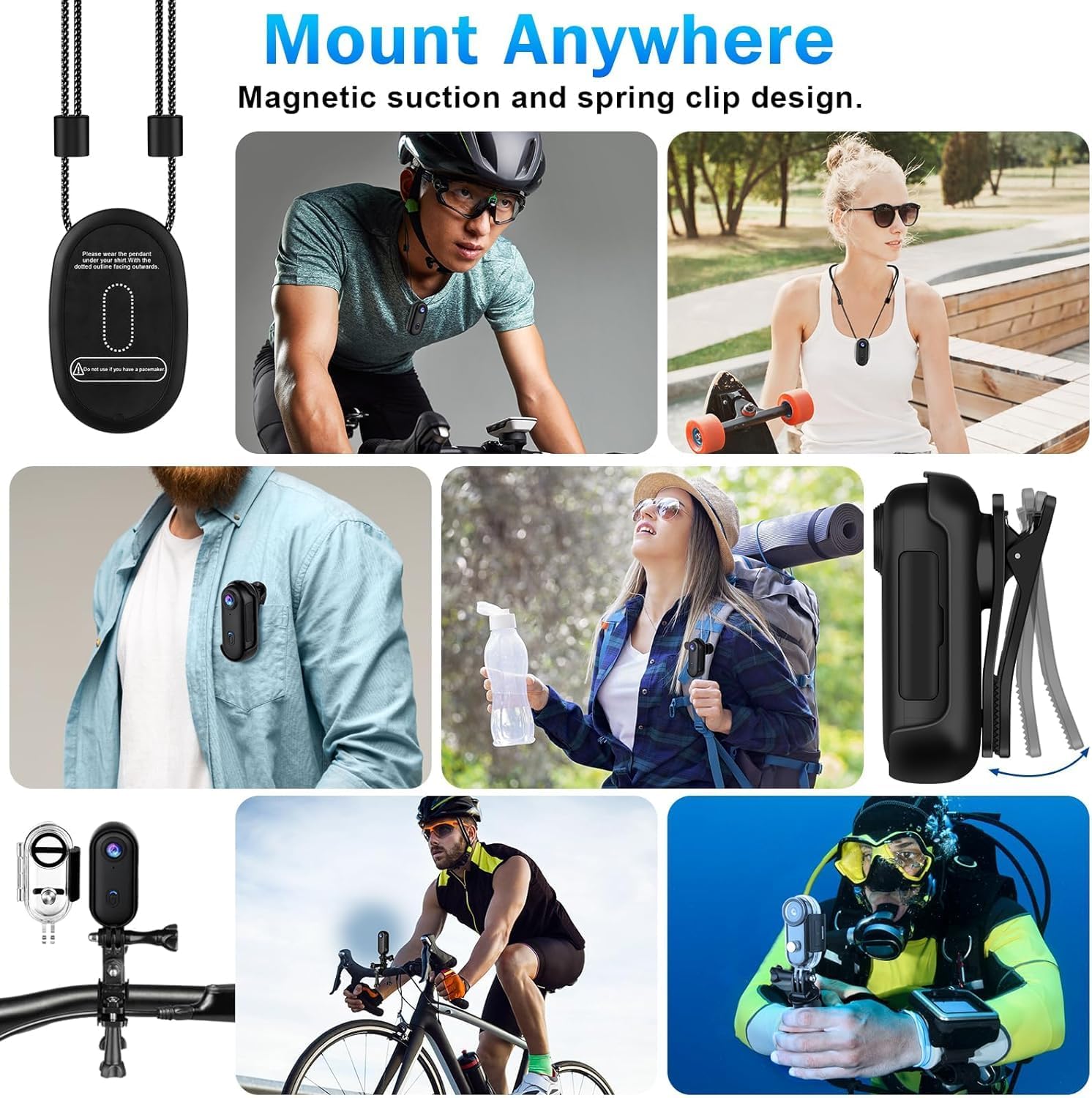
Image: Collage showing the camera mounted on a helmet, chest, backpack, and used underwater, demonstrating its versatility.

Image: A person diving with the camera in its waterproof case, illustrating its underwater capability.

Image: A collage of various scenarios where the camera is used hands-free, such as with a pet, during travel, or sports.

Image: A smartphone showing the camera's app interface for playback and sharing, with the camera held nearby.

Image: The camera connected to both a smartphone and a laptop, illustrating file upload options.
Specifications
| Feature | Detail |
|---|---|
| Brand | Acuvar |
| Model Number | MFPOCKET |
| Item Weight | 2 ounces (approx. 56.7 grams) |
| Product Dimensions | 1 x 1 x 1 inches (approx. 2.54 x 2.54 x 2.54 cm) |
| Color | Black |
| Video Capture Resolution | 1080p |
| Flash Memory Type | SD |
| Video Capture Format | MOV |
| Connectivity Technology | Wi-Fi |
| Special Features | 360 Degree Capture, Compact, Lightweight, Shock Resistance |
| Camcorder Type | Action Camera |
Maintenance
- Keep the camera clean by wiping it with a soft, dry cloth. Avoid using harsh chemicals or abrasive materials.
- Ensure the waterproof case is clean and free of debris before closing to maintain its seal.
- Store the camera in a cool, dry place away from direct sunlight and extreme temperatures.
- Regularly back up your recorded files to prevent data loss.
- Format the SD card periodically (e.g., monthly or after significant use) to maintain optimal performance and prevent corruption. This can be done via the app settings.
Troubleshooting
| Problem | Possible Cause / Solution |
|---|---|
| Camera does not power on. | Battery might be depleted. Connect to a charger and allow it to charge for at least 30 minutes before attempting to power on again. |
| Cannot connect to Wi-Fi / App. |
|
| Videos/Photos are missing or deleted. |
|
| Short battery life. |
|
Warranty and Support
Acuvar products are designed for reliability and quality. For warranty information, technical support, or service inquiries, please refer to the contact information provided with your purchase or visit the official Acuvar website. Keep your proof of purchase for warranty claims.
For additional support, you may visit the Acuvar Store on Amazon.
Ask a question about this manual
Ask about setup, troubleshooting, compatibility, parts, safety, or missing instructions. Manuals+ will review the question and use this page’s manual context to help answer it.