
Generico Generico-KIEQF6OEFQSFP5ZJ
Wireless Phone Camera Remote Control User Manual
Model: Generico-KIEQF6OEFQSFP5ZJ
Introduction
Thank you for choosing the Generico Wireless Phone Camera Remote Control. This compact and versatile device is designed to enhance your mobile photography and videography experience, allowing you to capture moments from a distance with ease and precision. Please read this manual carefully to ensure proper use and optimal performance of your remote control.

Image Description: A central image of the black wireless remote control, with four surrounding smaller images depicting different usage scenarios: a person playing beach volleyball, a hiker on a mountain, a person vlogging, and a family taking a selfie. This illustrates the versatility of the remote for various photographic needs.
Key Features:
- Extended Wireless Range: Capture shots effortlessly from up to 10 meters away, ideal for group photos, selfies, and stable video recording.
- One-Button Activation: Instantly capture photos or start/stop videos with a single press, eliminating the need to touch your phone screen.
- Multi-Application Control: Seamlessly navigate and control various applications, enhancing video browsing and content consumption.
- Long-Lasting Battery: Enjoy extended usage with an advanced battery designed for consistent performance.
- Portable Design: Lightweight and compact, ensuring easy portability for capturing every moment on the go.
Setup Guide
1. Charging the Remote Control
Before first use, ensure the remote control is fully charged. Connect the remote to a USB power source using a compatible charging cable. The indicator light will typically show charging status and turn off or change color when fully charged.

Image Description: The black wireless remote control is shown connected via a USB cable to a laptop or power adapter, indicating it is being charged. A blue light emanates from the USB connector, highlighting the charging process.
2. Pairing with Your Smartphone
- Power On: Press and hold the power button (usually marked with a power symbol) on the remote control until the indicator light starts blinking, indicating it's in pairing mode.
- Enable Bluetooth: On your smartphone, go to Settings and enable Bluetooth.
- Search for Devices: Your phone will automatically search for available Bluetooth devices. Look for a device named similar to "AB Shutter3", "Bluetooth Remote", or "Generico Remote".
- Connect: Select the remote control from the list of available devices. Once connected, the indicator light on the remote will stop blinking and remain solid or turn off.

Image Description: A hand holds the black wireless remote control, with a blue wireless signal icon emanating from it, symbolizing its active Bluetooth connection. A smartphone is partially visible in the background, suggesting the pairing process.
Note: The remote control should automatically reconnect to your phone once paired, provided Bluetooth is enabled on both devices and they are within range.
Operating Instructions
Once paired, your remote control is ready for use with your smartphone's camera and other compatible applications.
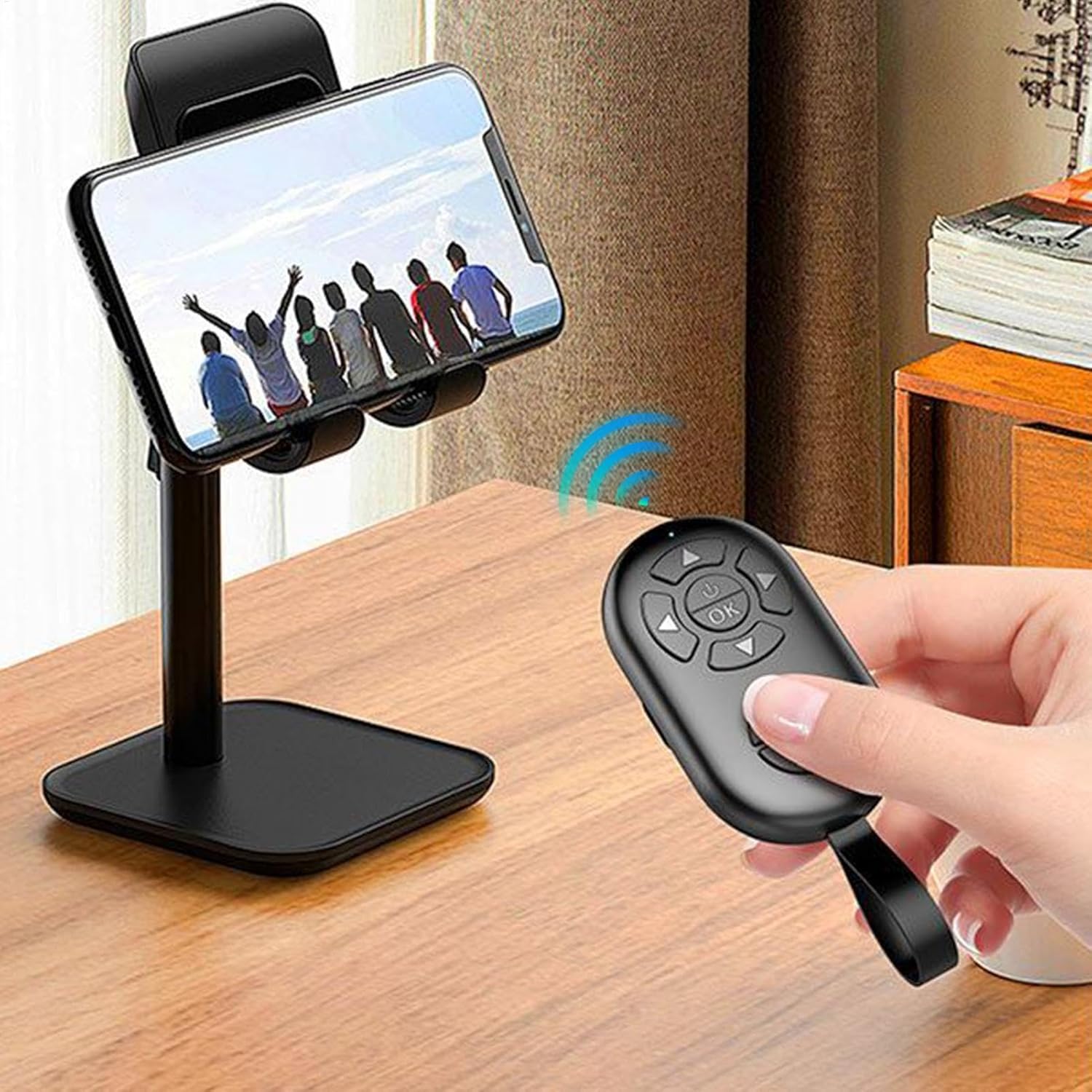
Image Description: A hand holds the wireless remote control, pointing it towards a smartphone that is securely mounted on a desk stand. A blue wireless signal icon is depicted between the remote and the phone, illustrating the remote's function in controlling the phone from a distance.
1. Camera Control
- Taking Photos: Open your phone's camera app. Press the dedicated camera/shutter button (often marked with a camera icon) on the remote control to take a photo.
- Recording Videos: In your phone's camera app, switch to video mode. Press the video button (often marked with a play/record icon) on the remote to start recording. Press it again to stop recording.
- Zoom Function (if applicable): Some remotes may have volume buttons that can control zoom in certain camera apps. Experiment with the '+' and '-' buttons if available.

Image Description: The black wireless remote control is positioned next to a smartphone, which displays its camera application interface. The phone screen shows a person in a hat sitting outdoors, suggesting the remote is being used to capture a photo remotely.
2. Media Navigation (for compatible apps)
The directional buttons (up, down, left, right) and the 'OK' button on the remote can be used to navigate through media content in certain applications, such as video players or e-readers. This functionality depends on the app's compatibility with Bluetooth keyboard/media controls.
Maintenance
Proper care and maintenance will extend the life of your remote control.
- Cleaning: Use a soft, dry cloth to wipe the surface of the remote. Do not use harsh chemicals or abrasive cleaners.
- Storage: Store the remote in a cool, dry place away from direct sunlight and extreme temperatures.
- Battery Care:
- Avoid fully discharging the battery frequently.
- Charge the remote regularly, even if not in frequent use, to maintain battery health.
- If storing for a long period, charge the battery to about 50% before storage.
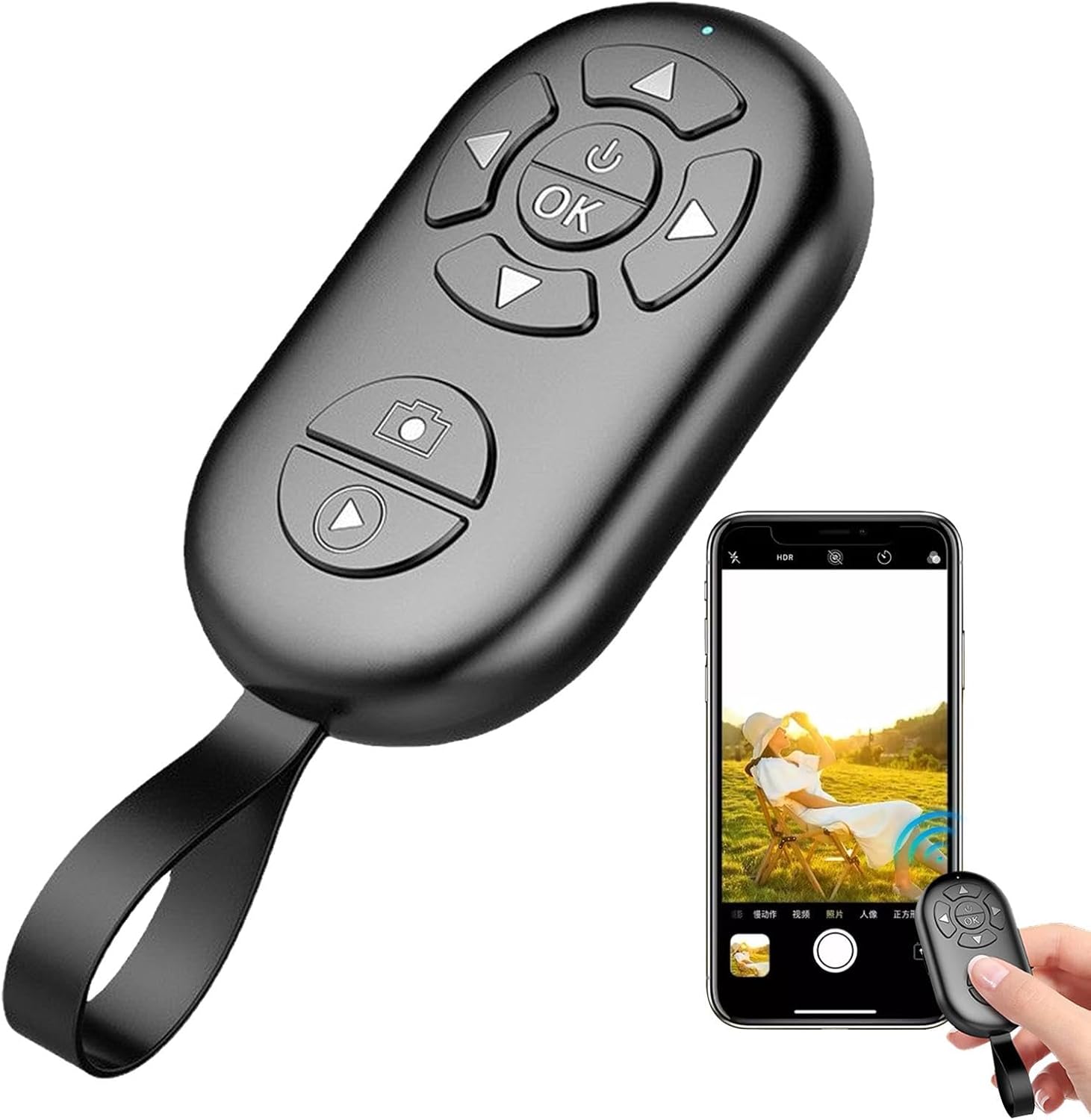
Image Description: An exploded view of the wireless remote control reveals its internal components, including the circuit board and a rechargeable battery. Text overlays indicate "20,000+ photos" and "No need to change batteries," highlighting the product's long battery life and rechargeable nature.
Troubleshooting
| Problem | Possible Cause | Solution |
|---|---|---|
| Remote does not power on. | Low battery. | Charge the remote control fully. |
| Cannot pair with smartphone. | Bluetooth not enabled on phone; remote not in pairing mode; too far from phone. | Ensure Bluetooth is on. Press and hold power button on remote to enter pairing mode. Bring remote closer to phone (within 10m). |
| Remote connected but buttons don't work. | Incorrect app settings; app not compatible; remote in wrong mode (if applicable). | Ensure your camera app is open and active. Some apps may require specific settings for external shutter controls. Try restarting both phone and remote. |
| Short wireless range. | Obstructions; interference; low battery. | Ensure no major obstructions between remote and phone. Avoid areas with strong electromagnetic interference. Charge the remote. |
Specifications

Image Description: The black wireless remote control is displayed with a white line and text indicating its length is 8cm (3.14 inches), providing a clear visual representation of its compact size.
- Brand: Generico
- Model Name: Generico-KIEQF6OEFQSFP5ZJ
- Connectivity Technology: Bluetooth (Wireless)
- Color: Black (Single Attribute)
- Wireless Range: Up to 10 meters (33 feet)
- Dimensions: Approximately 8 cm / 3.14 inches (Length)
- Battery Life: Estimated 20,000+ photos per charge
- Compatibility: Most iOS and Android smartphones (check device Bluetooth compatibility)
Warranty and Support
This product is sold by a third-party seller, genbmw, on Amazon.it. For specific warranty information or technical support, please refer to the seller's policies or contact them directly through the Amazon platform. General return policies may apply as per Amazon's terms and conditions.
For further assistance, please visit the product page on Amazon.it: Product Link
Ask a question about this manual
Ask about setup, troubleshooting, compatibility, parts, safety, or missing instructions. Manuals+ will review the question and use this page’s manual context to help answer it.