
Introduction
Create incredible images every day with the FUJIFILM GFX100RF digital camera. With classic rangefinder styling and a premium tactile design, it offers a classic photography experience, while the large format sensor, wide dynamic range, and low noise floor deliver ultimate image quality. A new Aspect Ratio dial provides instant access to nine compositional formats, many from legendary Fujifilm analog cameras. 20 different Film Simulations harness Fujifilm’s 90-years of experience in color science to deliver outstanding in-camera looks suited to every subject. The camera’s precision engineered 35mm lens on a GFX sensor offers the equivalent angle of view of a 28mm lens on a 35mm format camera – optimal for hand-holding – plus it also features digital teleconverter options, an internal ND filter, and a leaf shutter for further flexibility and creative expression. Weighing just 735g (25.9 oz) and compact enough to fit in a pocket, this is the ultimate everyday carry.
Key Features
- Compact, portable rangefinder style design delivers classic camera handling.
- New Aspect Ratio dial for instant access to a variety of compositional image formats.
- 20 Film Simulation modes deliver unique film-inspired looks.
- 102-megapixel sensor for ultimate image quality.
- Optically outstanding fixed 35mm lens, plus digital teleconverter flexibility.
What's in the Box
- Fujifilm GFX100RF Camera Body
- Battery (NP-W235)
- AC Power Adapter
- USB Cable
- Shoulder Strap
- Body Cap
- Lens Cap
- Hot Shoe Cover
- Cable Protector
Camera Overview
Front View

The front of the GFX100RF features the fixed Fujinon 35mm f/4 lens, the rangefinder window, and the front command dial. The camera body has a textured finish for a secure grip.
Top View
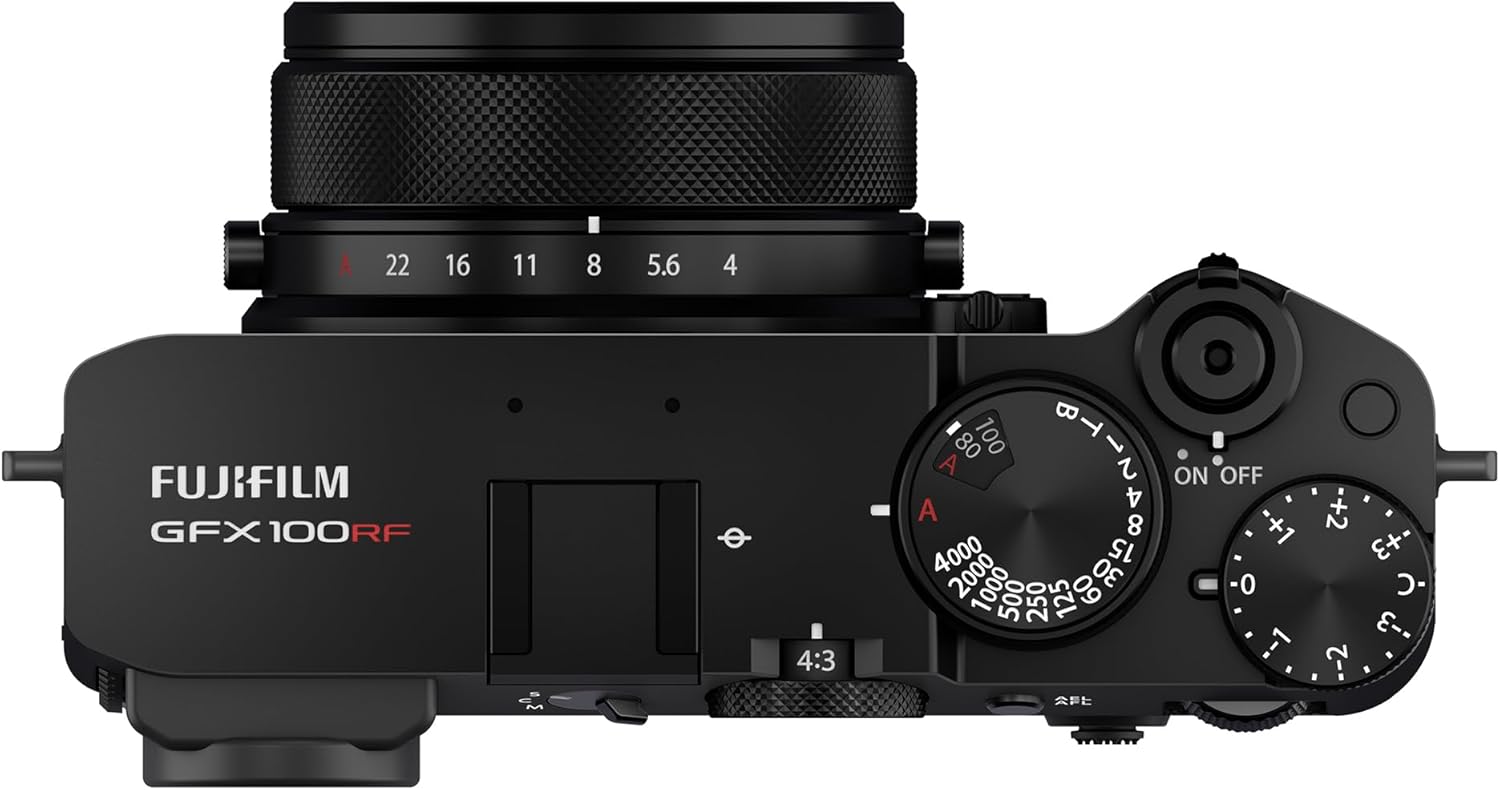
The top plate includes dedicated dials for shutter speed, ISO, and exposure compensation, providing intuitive manual control. The power switch is integrated around the shutter button.
Back View
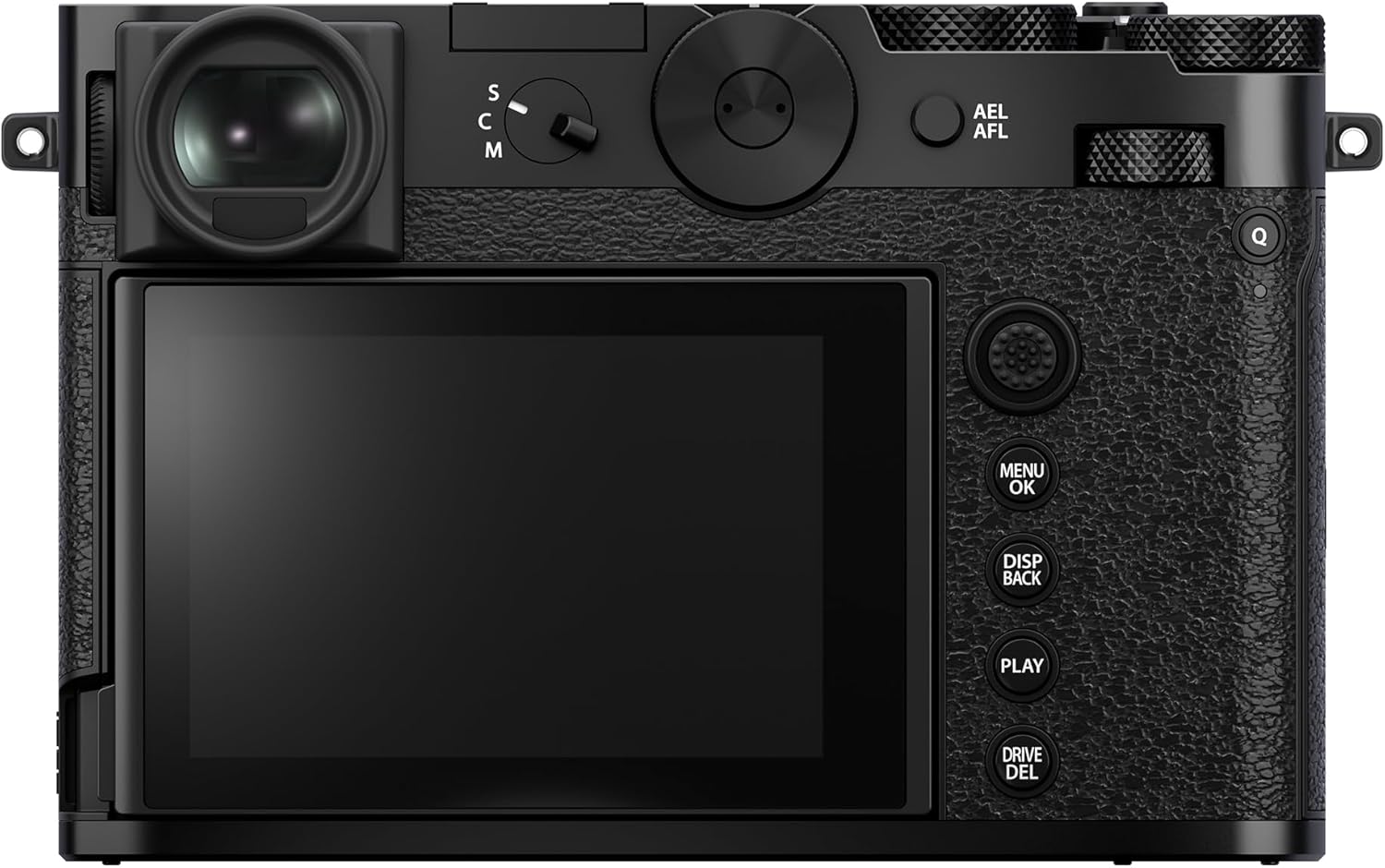
The rear of the camera features a high-resolution electronic viewfinder, a tilting LCD touchscreen for flexible shooting angles, and an array of control buttons including the menu, playback, and directional pad.
Side Views
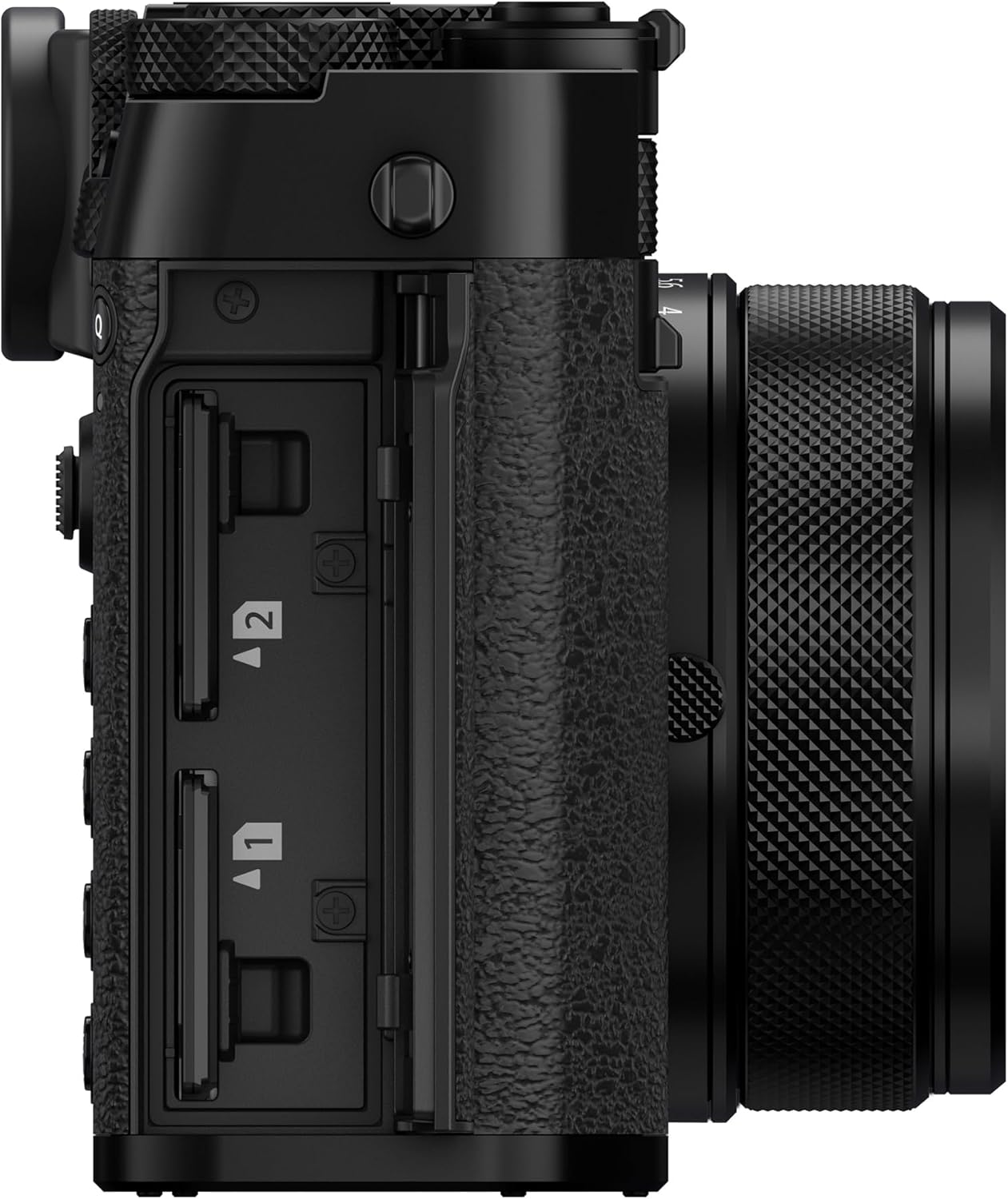
The left side of the camera houses the dual SD card slots, providing ample storage and backup options for high-resolution files.
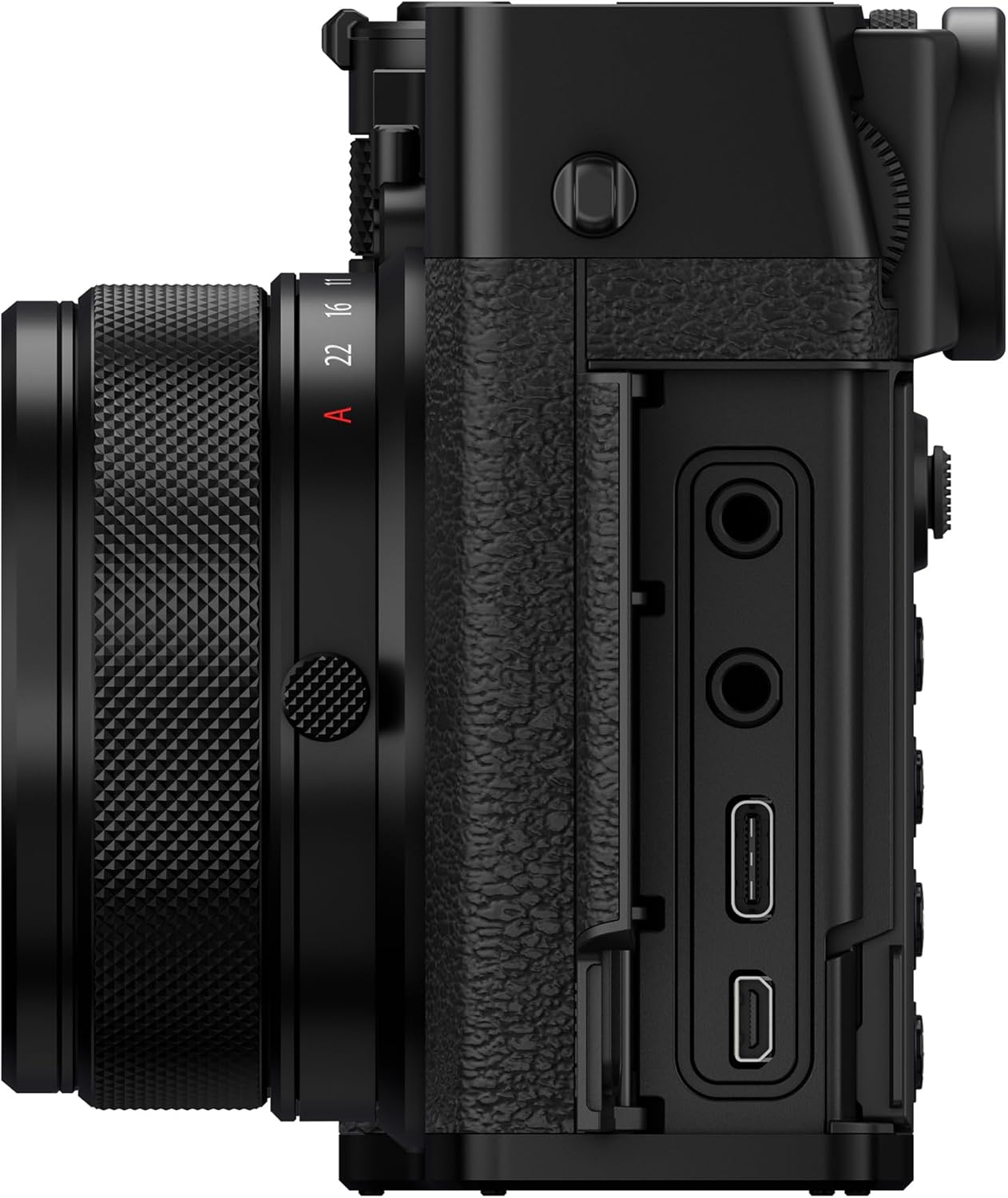
The right side of the camera features connectivity ports, including USB-C for charging and data transfer, and HDMI for external monitor connection.
Bottom View

The bottom of the camera includes the battery compartment and a standard tripod mounting thread.
Setup
Inserting the Battery

Ensure the battery is fully charged before first use.
- Locate the battery compartment cover on the bottom of the camera.
- Slide the latch to open the cover.
- Insert the NP-W235 battery with the contacts facing the correct direction, as indicated by the diagram inside the compartment.
- Gently push the battery until it clicks into place.
- Close the battery compartment cover securely.
Inserting Memory Cards
The GFX100RF supports two SD memory cards. Use UHS-II compatible cards for optimal performance.
- Open the memory card slot cover on the left side of the camera.
- Insert the SD cards into slots 1 and 2 with the label facing the front of the camera until they click into place.
- Close the memory card slot cover securely.
- Format new memory cards in the camera before first use via the camera menu.
Attaching the Shoulder Strap
Thread the provided shoulder strap through the strap lugs on both sides of the camera body. Ensure the strap is securely fastened to prevent accidental drops.
Basic Operation
Powering On/Off
To power on the camera, rotate the power switch located around the shutter button to the "ON" position. To power off, rotate it to "OFF".
Adjusting Settings
- Shutter Speed Dial: Rotate the dial on the top plate to set the desired shutter speed.
- ISO Dial: Adjust the ISO sensitivity using the dedicated dial on the top plate.
- Exposure Compensation Dial: Use this dial to fine-tune exposure.
- Aspect Ratio Dial: The new dial on the top allows quick selection of various compositional formats.
- Aperture Ring: Rotate the aperture ring on the lens to control the lens aperture.
- Film Simulation: The control ring on the lens can be customized, often set to change Film Simulations.
- Menu System: Press the MENU/OK button to access the camera's comprehensive menu system for advanced settings. Navigate using the directional pad or touchscreen.
Taking Photos
- Select your desired shooting mode (e.g., Program, Aperture Priority, Shutter Priority, Manual).
- Frame your shot using the electronic viewfinder or the LCD screen.
- Press the shutter button halfway down to activate autofocus and exposure metering.
- Press the shutter button fully down to capture the image.
Recording Videos
The GFX100RF supports high-resolution video recording. Refer to the camera's menu for detailed video settings, including resolution, frame rate, and audio options.
- Switch the camera to video mode (if applicable, or select video recording from the drive settings).
- Press the dedicated video record button (if available) or the shutter button to start/stop recording.
Playback
To review captured images and videos, press the PLAY button on the back of the camera. Use the directional pad or touchscreen to navigate through your media.
Maintenance
Cleaning the Camera
- Lens: Use a lens blower to remove dust, then gently wipe with a microfiber lens cloth and lens cleaning solution if necessary. Avoid touching the lens surface directly.
- Sensor: Sensor cleaning should be performed with extreme care, preferably by a professional, or using a dedicated sensor cleaning kit following manufacturer instructions.
- Body: Wipe the camera body with a soft, dry cloth. For stubborn dirt, a slightly damp cloth can be used, but ensure no moisture enters the camera.
Battery Care
- Always use the original Fujifilm charger and battery.
- Store batteries in a cool, dry place when not in use.
- Avoid fully discharging the battery frequently to prolong its lifespan.
- Charge the battery at least once every six months if not used regularly.
Firmware Updates
Fujifilm periodically releases firmware updates to improve camera performance and add new features. Check the official Fujifilm website for the latest firmware and instructions on how to update your camera.
Troubleshooting
Common Issues and Solutions
| Problem | Solution |
|---|---|
| Camera does not power on. | Ensure the battery is fully charged and correctly inserted. Check if the battery contacts are clean. |
| Images are blurry. | Check shutter speed (too slow for handheld), focus mode, and ensure the lens is clean. Use a tripod if necessary. |
| Memory card error. | Ensure the card is inserted correctly. Try formatting the card (this will erase all data). If the issue persists, try a different memory card. |
| LCD screen is blank. | Check display settings in the menu. Ensure the eye sensor is not obstructed if using the EVF. |
| Camera freezes. | Remove and reinsert the battery. If the problem persists, consider a factory reset (note: this will reset all custom settings). |
Specifications
| Feature | Detail |
|---|---|
| Brand | Fujifilm |
| Model Name | GFX100RF |
| Maximum Webcam Image Resolution | 102 MP |
| Photo Sensor Technology | CMOS |
| Photo Sensor Size | Medium Format (>35mm) |
| Lens Type | Fixed 35mm lens with digital teleconverter flexibility |
| Maximum Aperture | 4 f |
| Minimum Aperture | 22 f |
| Optical Zoom | 1 x |
| Real Angle Of View | 28 Millimeters (35mm equivalent) |
| Supported File Format | MOV (Video), JPEG/RAW (Stills) |
| Video Resolution | 4320p |
| Screen Size | 3.15 Inches |
| Display Type | LCD |
| Viewfinder | Electronic |
| Connectivity Technology | HDMI, Wi-Fi, USB |
| Item Weight | 735 Grams |
| Battery Cell Type | Lithium Ion |
| Color | Black |
Warranty and Support
Warranty Information
The Fujifilm GFX100RF Medium Format Camera comes with a 1 Year Limited Warranty from the date of purchase. This warranty covers manufacturing defects and workmanship under normal use. Please retain your proof of purchase for warranty claims. For full terms and conditions, refer to the warranty card included with your product or visit the official Fujifilm website.
Customer Support
For technical assistance, troubleshooting, or service inquiries, please contact Fujifilm customer support. You can find contact information and additional resources on the official Fujifilm website:
Visit Fujifilm Support Website
Before contacting support, please have your camera's model name (GFX100RF) and serial number ready.


