
FIREBAT AM02
FIREBAT AM02 Mini PC User Manual
Models: AMD 6600H & Intel N100
1. Introduction
Welcome to the user manual for your new FIREBAT AM02 Mini PC. This guide provides comprehensive instructions for setting up, operating, and maintaining your device. The AM02 Mini PC is available with either an AMD Ryzen 5 6600H processor or an Intel N100 processor, offering powerful performance in a compact form factor for various applications including home, business, education, and gaming.
Please read this manual thoroughly before using your Mini PC to ensure optimal performance and longevity.
2. Product Overview
2.1 Key Features
- Compact Design: Ultra-small form factor that saves desk space.
- Powerful Processors: Available with AMD Ryzen 5 6600H (6 cores/12 threads, up to 4.5GHz) or Intel N100 (4 cores/4 threads) for efficient performance.
- Advanced Graphics: AMD Radeon 660M GPU (for 6600H model) for demanding applications and UHD video.
- Expandable Memory & Storage: Supports up to 64GB DDR5 4800MHz RAM (32GB x 2) and dual M.2 2280 SSDs (PCI-E 4.0 x 4).
- Rich Connectivity: Multiple ports including USB 3.2 Type-A, USB 2.0 Type-A, HDMI 2.1, DisplayPort 2.0, 1Gbps LAN, USB Type-C (data, charging, triple display), and 3.5mm Audio Jack.
- Efficient Cooling: Fan with rear air outlet design for smart cooling and low noise operation.
- Wireless Connectivity: Features WiFi 6 and Bluetooth 5.2 for fast and stable wireless connections.
2.2 Product Components and Interfaces

Figure 2.1: Overview of the FIREBAT AM02 Mini PC, showing both the N100 and AMD 6600H models.
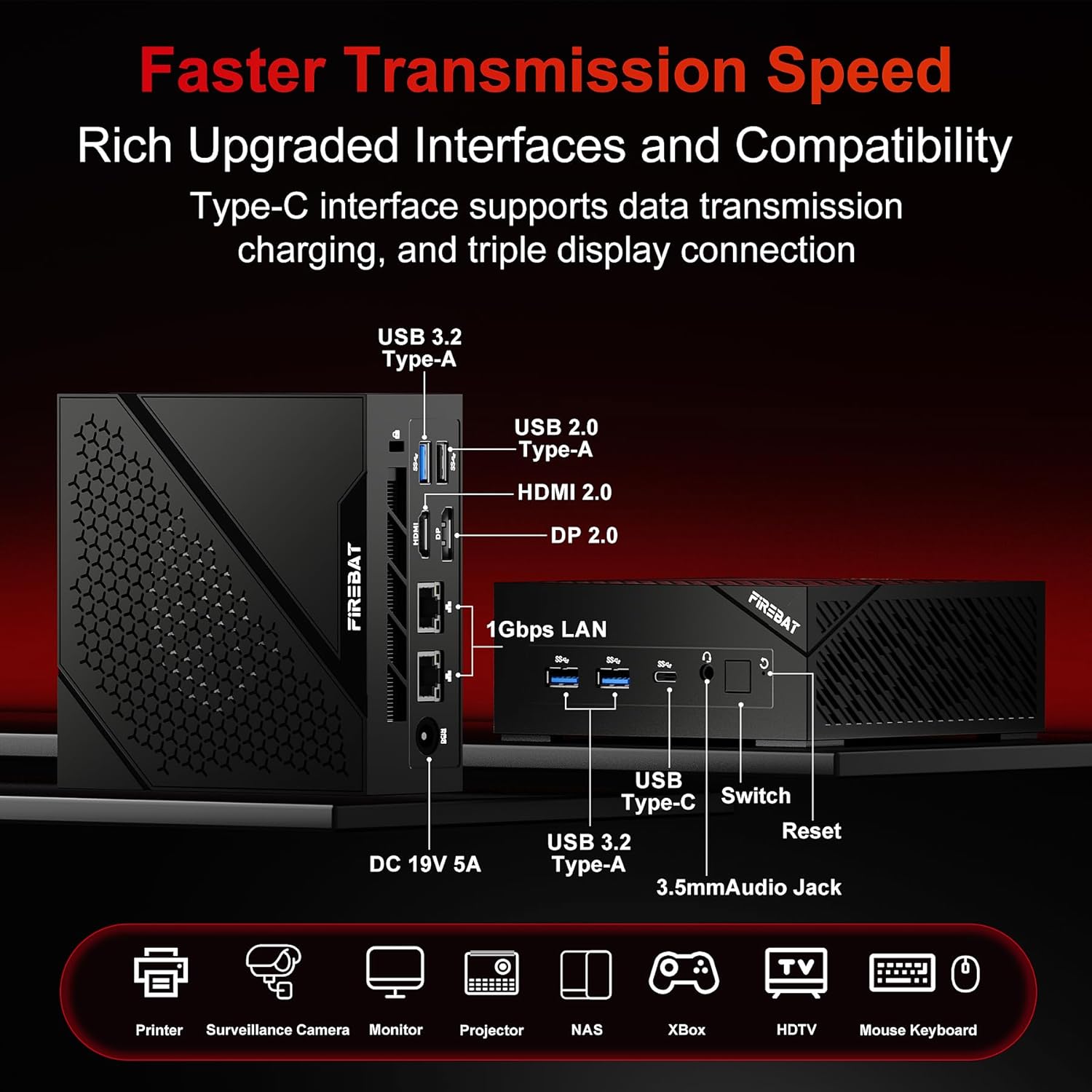
Figure 2.2: Detailed diagram illustrating the various ports and interfaces available on the FIREBAT AM02 Mini PC, including DC 19V 5A, USB 3.2 Type-A, USB 2.0 Type-A, HDMI 2.0, DP 2.0, 1Gbps LAN, USB Type-C, Switch, Reset, and 3.5mm Audio Jack.

Figure 2.3: Internal view highlighting the expandable RAM and ROM capacity, showing DDR5 4800MHz dual-channel RAM slots (up to 64GB) and dual M.2 2280 SSD slots (PCI-E 4.0 x 4).
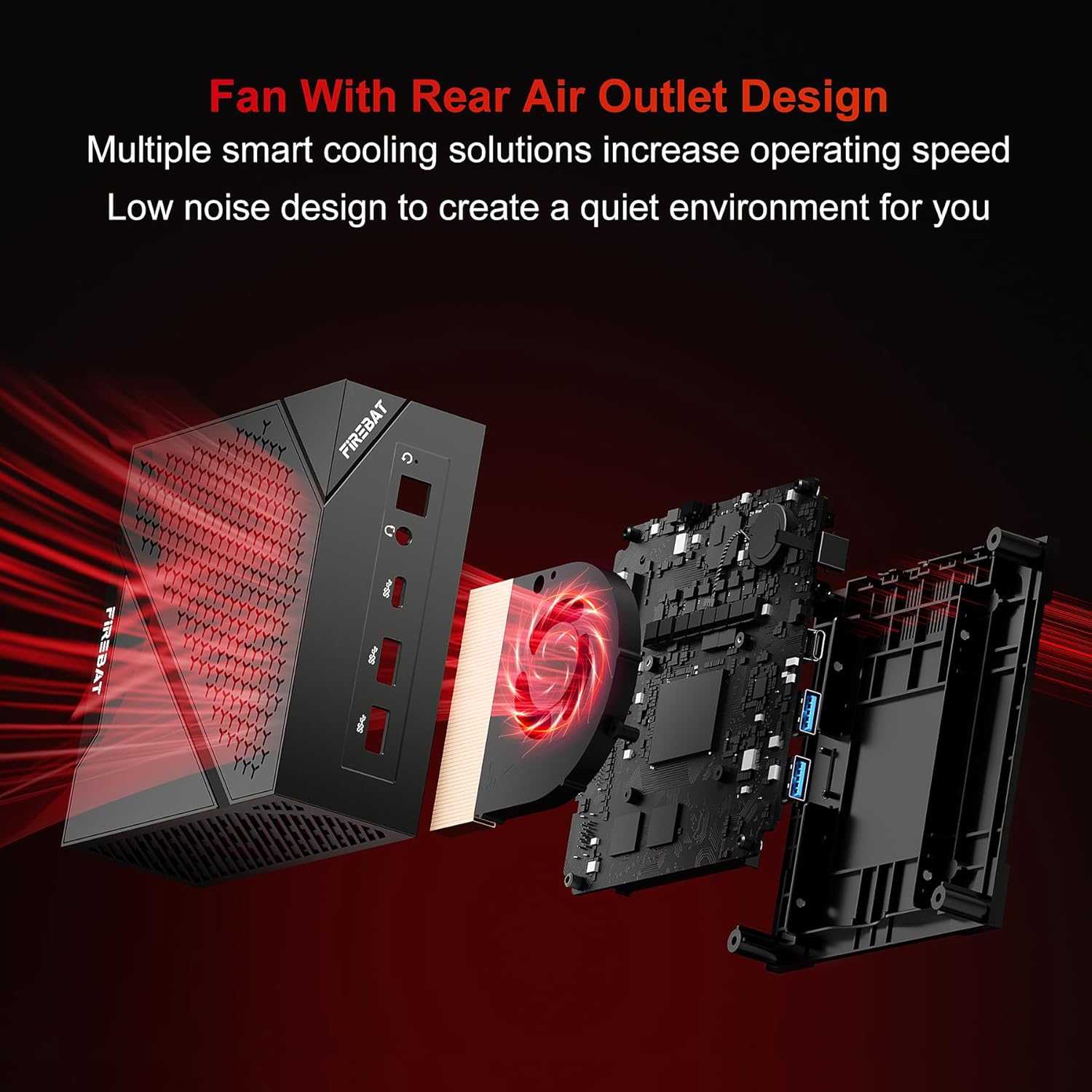
Figure 2.4: Exploded view demonstrating the fan with rear air outlet design, which contributes to smart cooling and low noise operation.
2.3 Performance Highlights

Figure 2.5: Performance chart showcasing the AMD Ryzen 5 6600H CPU with 6 cores/12 threads, highlighting its multi-core performance and power consumption control compared to other processors.

Figure 2.6: Diagram illustrating the Intel Alder Lake-N N100 CPU, a 4 cores/4 threads processor designed for efficient performance and multi-tasking.
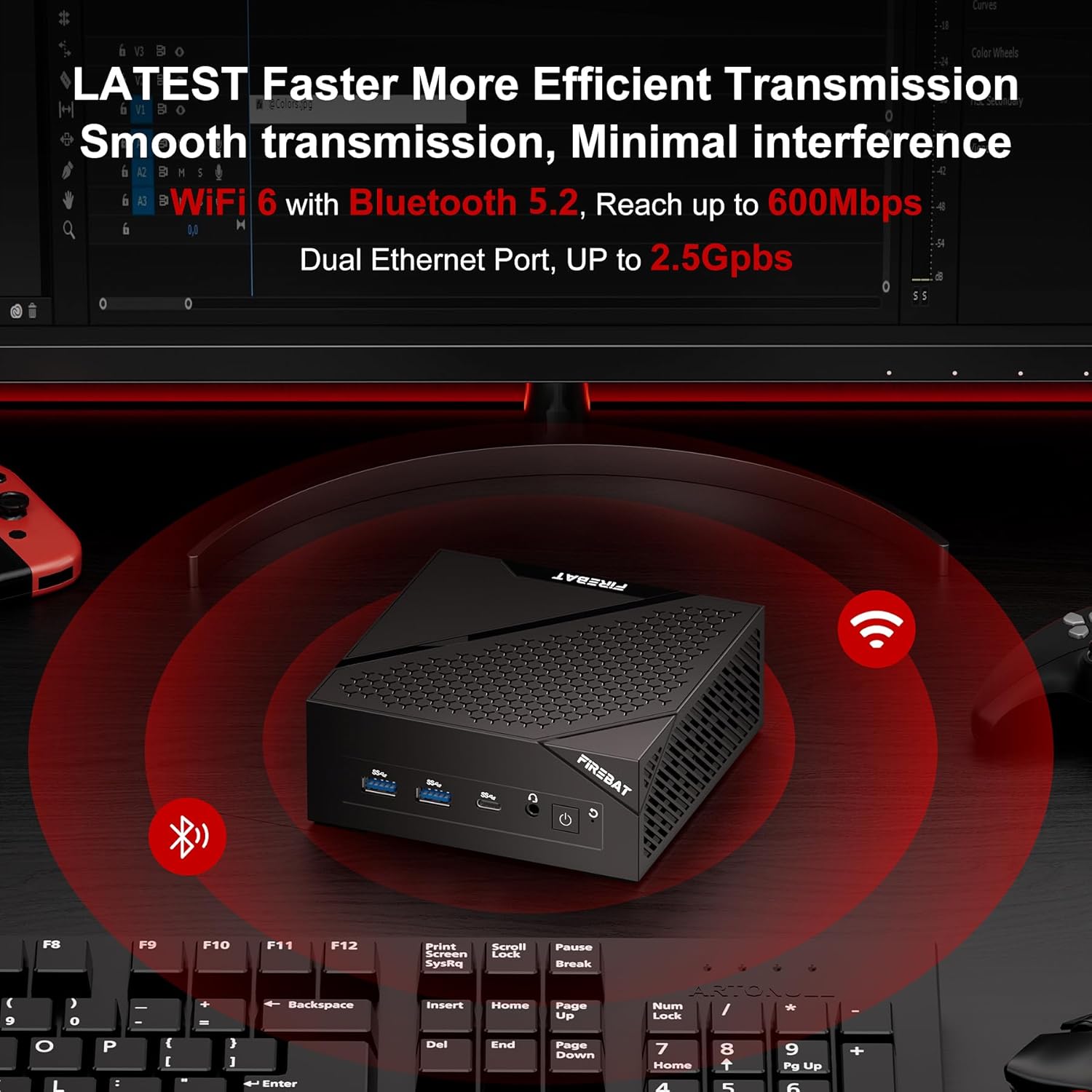
Figure 2.7: The Mini PC on a desk, illustrating its advanced wireless capabilities including WiFi 6 and Bluetooth 5.2 for faster and more efficient data transmission.
3. Setup Guide
3.1 Package Contents
Before you begin, ensure all items are present in the package:
- FIREBAT AM02 Mini PC
- Power Adapter
- HDMI Cable
- User Manual (this document)
- Mounting Bracket (optional, may vary by package)
3.2 Connecting Your Mini PC
- Connect to Display: Use the provided HDMI cable or a DisplayPort cable to connect your Mini PC to a monitor or TV. The Mini PC supports dual display output (DP 2.0, 4K@160Hz; HDMI 2.1 TMDS, 4K@60Hz).
- Connect Peripherals: Plug in your keyboard and mouse to the available USB ports (USB 3.2 Type-A or USB 2.0 Type-A).
- Connect to Network: For a wired connection, connect an Ethernet cable to the 1Gbps LAN port. For wireless, ensure your WiFi network is available after initial setup.
- Connect Power: Insert the power adapter into the DC 19V 5A port on the Mini PC, then plug the adapter into a power outlet.
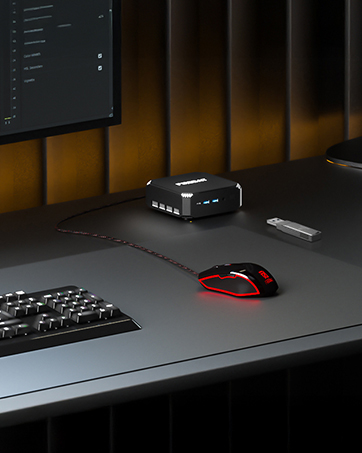
Figure 3.1: The FIREBAT Mini PC set up on a desk, connected to a monitor and a mouse, ready for use.

Figure 3.2: An example of a dual monitor setup with the FIREBAT Mini PC, demonstrating its capability to connect to two displays simultaneously.
4. Operating Instructions
4.1 Powering On/Off
- Power On: Press the power button located on the front of the Mini PC. The power indicator light will illuminate.
- Power Off: To shut down, use the operating system's shutdown function. Alternatively, press and hold the power button for 5-7 seconds to force a shutdown (not recommended for regular use).
- Restart: Use the operating system's restart function. A reset button is also available for emergency restarts.
4.2 Initial Setup (Operating System)
Upon first boot, the Mini PC will guide you through the operating system's initial setup process. Follow the on-screen prompts to configure language, region, network settings, and user accounts.
4.3 Connecting to Wi-Fi
If not using a wired connection, navigate to the network settings in your operating system. Select your desired Wi-Fi network from the list, enter the password, and connect. The Mini PC supports WiFi 6 for high-speed wireless connectivity.
4.4 Using Bluetooth Devices
To connect Bluetooth devices (e.g., headphones, speakers, keyboards), enable Bluetooth in your operating system's settings. Put your device in pairing mode, then select it from the list of available devices on your Mini PC to connect.
4.5 Expanding Storage and Memory
The Mini PC allows for memory and storage upgrades. Refer to Figure 2.3 for the location of RAM and SSD slots. For detailed instructions on upgrading components, please consult the FIREBAT support website or a qualified technician.
5. Maintenance
5.1 Cleaning
- Exterior: Use a soft, dry cloth to wipe the exterior of the Mini PC. Avoid using liquid cleaners or abrasive materials.
- Ventilation: Regularly check the ventilation openings for dust accumulation. Use compressed air to gently clear dust from the vents to ensure proper airflow and cooling.
5.2 Software Updates
Keep your operating system and drivers updated to ensure optimal performance and security. Check for updates regularly through your operating system's settings.
5.3 Environmental Considerations
Operate the Mini PC in a well-ventilated area, away from direct sunlight, excessive heat, and moisture. Ensure stable power supply to prevent damage.
6. Troubleshooting
| Problem | Possible Cause | Solution |
|---|---|---|
| No power / Does not turn on | Power adapter not connected; Power outlet issue; Faulty power adapter. | Ensure power adapter is securely connected. Try a different power outlet. Test with a known good power adapter if available. |
| No display on monitor | Display cable loose or faulty; Incorrect input source on monitor; Monitor off. | Check display cable connections. Ensure monitor is on and set to the correct input (HDMI/DP). Try a different display cable or monitor. |
| No internet connection (wired) | Ethernet cable loose; Router/modem issue; Network driver issue. | Check Ethernet cable connection. Restart router/modem. Check network adapter status in Device Manager. |
| No internet connection (wireless) | WiFi disabled; Incorrect password; Router too far. | Ensure WiFi is enabled in OS settings. Re-enter WiFi password. Move closer to router or check router settings. |
| System slow or freezing | Too many applications running; Insufficient RAM; Overheating. | Close unnecessary applications. Consider upgrading RAM if frequently slow. Ensure proper ventilation and clean vents. |
7. Technical Specifications
| Feature | Specification |
|---|---|
| Brand | FIREBAT |
| Model Name | AM02 (US AM02 N100, 6600H, 16+512) |
| Processor Options | AMD Ryzen 5 6600H (6C/12T, up to 4.5GHz) or Intel N100 (4C/4T) |
| Graphics | AMD Radeon 660M (for 6600H model) |
| RAM | 16GB DDR5 4800MHz (Expandable to 64GB, 32GB x 2) |
| Storage | 512GB M.2 2280 SSD (Dual M.2 SSD interface, supports PCI-E 4.0 x 4) |
| Operating System | Default (Pre-installed) |
| Video Output | HDMI 2.1 (4K@60Hz), DisplayPort 2.0 (4K@160Hz), USB Type-C (Triple Display Support) |
| USB Ports | USB 3.2 Type-A, USB 2.0 Type-A, USB Type-C |
| Network | 1Gbps LAN, WiFi 6, Bluetooth 5.2 |
| Audio | 3.5mm Audio Jack |
| Power Input | DC 19V 5A |
8. Warranty and Support
FIREBAT is committed to providing high-quality products and excellent customer service. Your Mini PC comes with a standard manufacturer's warranty. Please refer to the warranty card included in your package for specific terms and conditions.
For technical support, troubleshooting assistance, or warranty claims, please contact FIREBAT customer support:
- Email: support@firebatpc.com
- Website: www.firebatpc.com
Our support team is available to assist you with any questions or issues you may encounter.
Related documentsAM02


Ask a question about this manual
Ask about setup, troubleshooting, compatibility, parts, safety, or missing instructions. Manuals+ will review the question and use this page’s manual context to help answer it.