1. Introduction
Thank you for choosing the EZClicker Big Button Roku TV Replacement Remote Control. This remote is designed for simplicity and ease of use, featuring large, tactile buttons for enhanced accessibility. It is specifically engineered to work seamlessly with Roku TVs, providing a straightforward solution for controlling your entertainment.
This manual provides essential information on setting up, operating, and maintaining your new remote control.
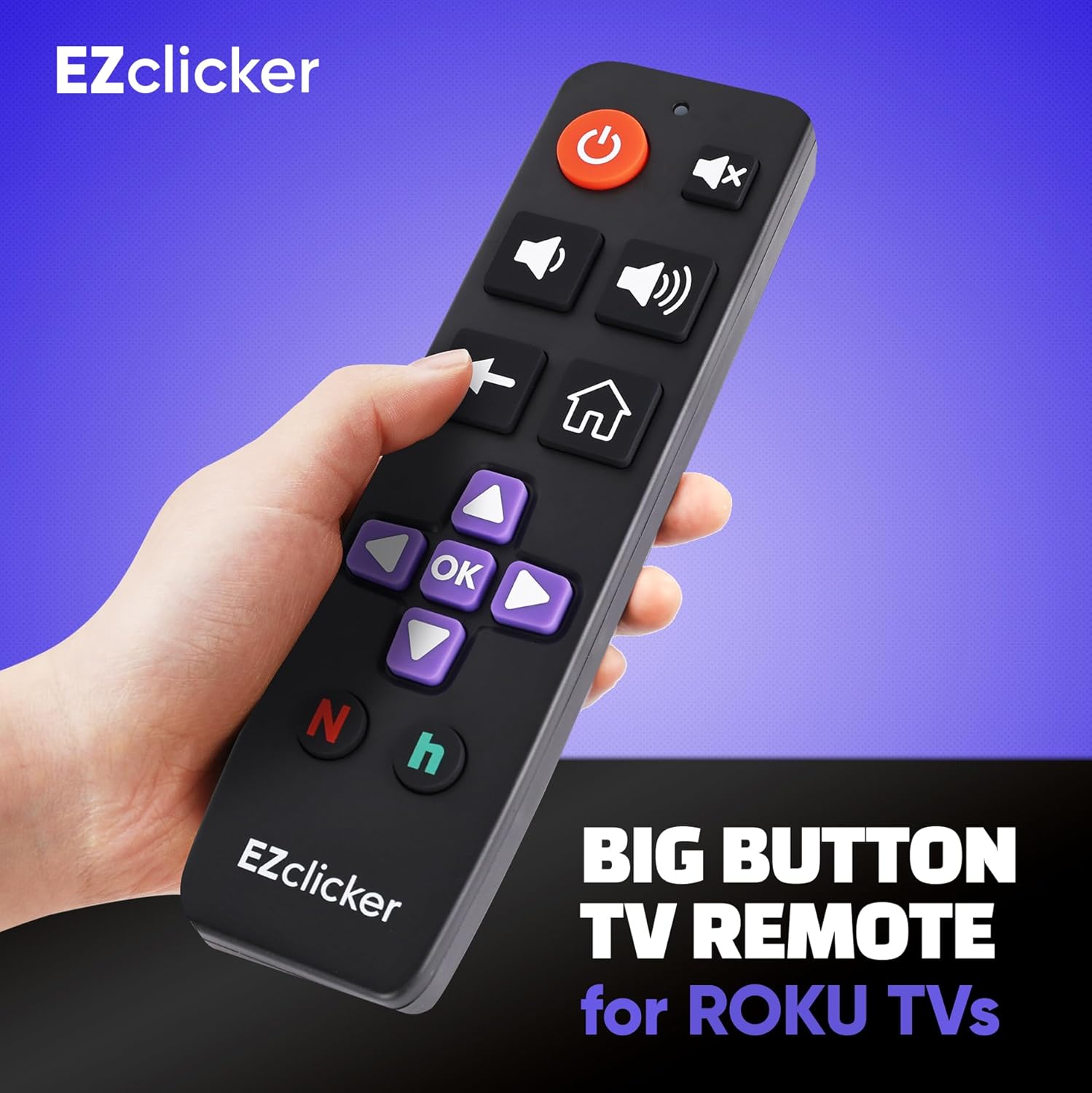
Image: The EZClicker Big Button TV Remote, showcasing its large, easy-to-read buttons and ergonomic design.
2. Setup
2.1 Battery Installation
- Locate the battery compartment on the back of the remote control.
- Slide the battery cover downwards to open the compartment.
- Insert two (2) AAA batteries (not included), ensuring correct polarity (+ and -) as indicated inside the compartment.
- Replace the battery cover by sliding it back into place until it clicks securely.

Image: Side view of the EZClicker remote control, highlighting the battery compartment on the back.
2.2 Pairing Instructions
The EZClicker remote is designed for easy setup with most Roku TVs, often requiring no complex programming. Follow these steps:
- Ensure your Roku TV is powered on.
- Point the EZClicker remote directly at your Roku TV.
- Press and hold the Mute button on the remote for up to 60 seconds.
- As soon as the volume indicator on your TV changes, release the Mute button. The remote should now be programmed and ready to use.
Video: A demonstration of installing batteries and the simple pairing process for the EZClicker remote with a Roku TV.
3. Operating Instructions
The EZClicker remote features a simplified layout with large, clearly labeled buttons for intuitive control of your Roku TV.

Image: Detailed view of the EZClicker remote control with each button clearly labeled for its function, including Power, Mute, Volume controls, Navigation, OK, Back, Home, Netflix, and Hulu.
- Power Button (Red Circle with Line): Turns your Roku TV on or off.
- Mute Button (Speaker with X): Mutes or unmutes the TV audio.
- Volume Up/Down Buttons (Speaker Icons): Adjusts the TV volume.
- Back Button (Left Arrow): Returns to the previous screen or menu.
- Home Button (House Icon): Navigates to the Roku TV home screen.
- Navigation Pad (Purple Arrows): Use Up, Down, Left, and Right arrows to move through menus and selections.
- OK Button (Purple 'OK'): Confirms a selection or action.
- Netflix Button (Red 'N'): Direct access to the Netflix application.
- Hulu Button (Green 'h'): Direct access to the Hulu application.
Video: A user demonstrating the ease of use and button functionality of the EZClicker remote control.
4. Compatibility
This remote control is designed exclusively for Roku TVs. It is NOT compatible with Roku streaming sticks, Roku boxes, or external Roku players.
Compatible Roku TV Brands:
- TCL Roku
- Hisense Roku
- Onn Roku
- Insignia Roku
- Westinghouse Roku
- Hitachi Roku
- Philips Roku
- Sharp Roku
- JVC Roku
- RCA Roku
- Sanyo Roku
- Element Roku

Image: The EZClicker remote control displayed alongside a list of various Roku TV brands it is compatible with, such as TCL, Hisense, Onn, and others.
5. Specifications
- Product Dimensions: 2 x 1 x 7 inches
- Item Weight: 3.52 ounces
- Power Source: 2x AAA Batteries (Not Included)
- Compatible Devices: Roku Televisions ONLY
- Special Feature: Universal (for Roku TVs)
- Model Number: 2727d9e7-0bb0-4146-b5ea-edd45bec04e4
6. Troubleshooting
- Remote Not Responding:
- Check if the batteries are inserted correctly with the proper polarity.
- Replace old batteries with new AAA batteries.
- Ensure there are no obstructions between the remote and the TV's infrared receiver.
- Remote Not Pairing/Controlling TV:
- Confirm your TV is a Roku TV model. This remote is not compatible with Roku sticks or external players.
- Repeat the pairing process: Turn on your TV, point the remote at the TV, and press and hold the Mute button for up to 60 seconds until the volume changes.
- Specific Buttons Not Working:
- Ensure the remote is pointed directly at the TV.
- If only certain buttons are unresponsive, try replacing the batteries.
7. Maintenance
- Keep the remote clean by wiping it with a soft, dry cloth. Avoid using liquid cleaners.
- Do not expose the remote to extreme temperatures, humidity, or direct sunlight.
- If the remote will not be used for an extended period, remove the batteries to prevent leakage.
8. Warranty and Support
For any questions, concerns, or technical support regarding your EZClicker Big Button Roku TV Replacement Remote Control, please refer to the retailer's return policy or contact the manufacturer directly through their official support channels. Please retain your proof of purchase for warranty claims.
Video: An official overview of the EZClicker for Roku TV Remote, highlighting its features and benefits.