1. Introduction
The Huidun H50 N150 Mini PC is a compact and efficient computing solution designed for various tasks, from office productivity to home entertainment. Powered by the 12th Gen N150 processor, it offers enhanced performance and energy efficiency. This manual provides essential information for setting up, operating, and maintaining your device.

Figure 1: Huidun H50 N150 Mini PC. A compact and powerful computing device.
2. Key Features
- High Performance Processor: Equipped with the 12th Gen N150 processor (up to 3.6GHz), offering 6-10% improved performance over the N100.
- Efficient Memory and Storage: Features 16GB DDR4 RAM and a 512GB M.2 SSD, with storage expandable up to 2TB.
- Dual 4K Display Support: Connects to two 4K monitors (4096x2160@60Hz) via HDMI and DisplayPort for enhanced multitasking.
- Advanced Connectivity: Includes WiFi 6 (up to 10 Gbps), Bluetooth 5.2, and Gigabit Ethernet for fast and stable network connections.
- Compact and Versatile: Small form factor (10cm x 10cm x 3.5cm) with multiple ports (USB 3.0, USB 2.0, RJ45, HDMI, DP, DC) for broad compatibility.
- Energy Efficient: Minimum power consumption of only 6W.
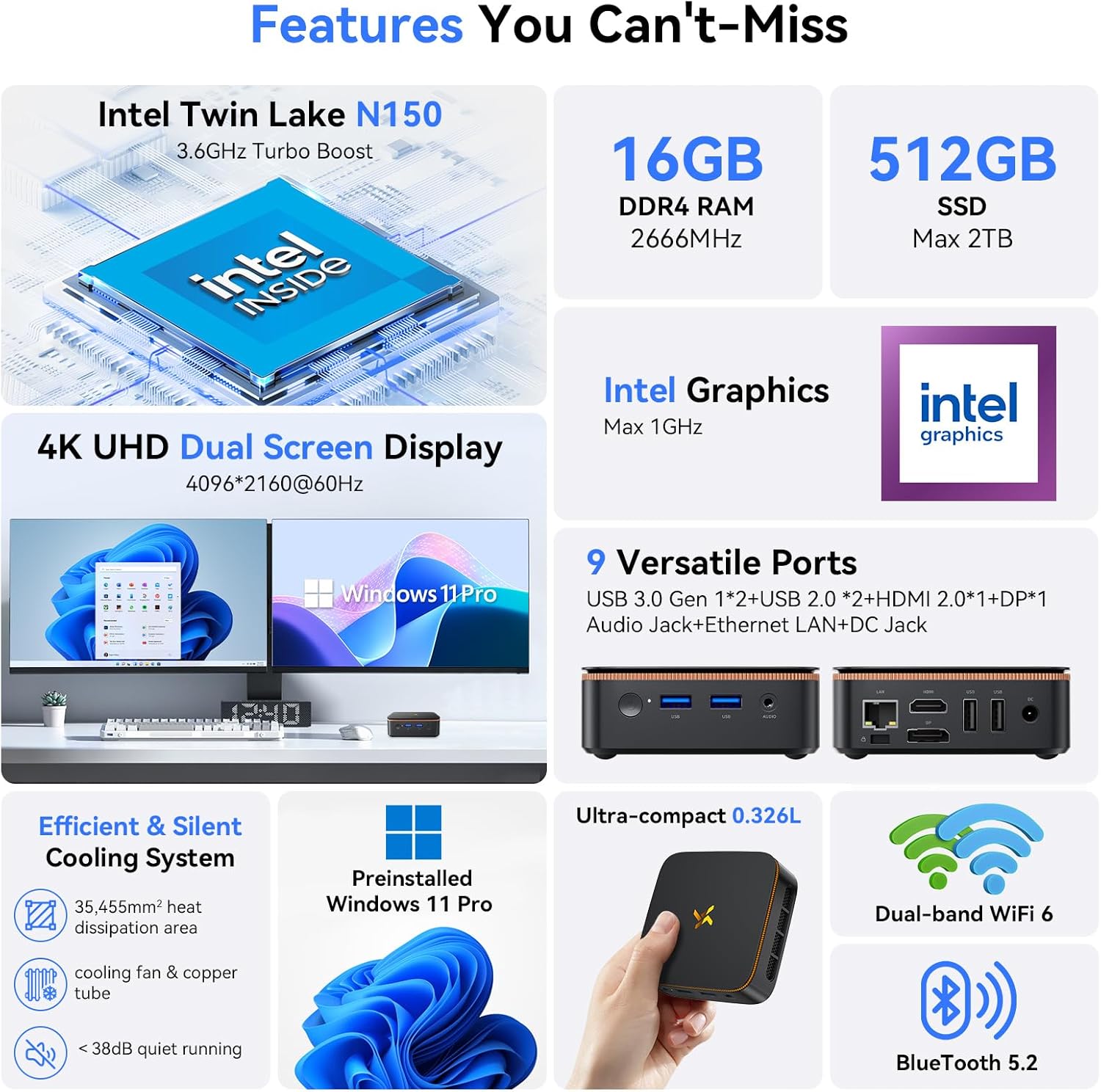
Figure 2: Overview of the Huidun H50 N150 Mini PC's key features.
3. What's in the Box
- 1 x Huidun H50 Mini PC
- 1 x Power Adapter
- 1 x User Manual
- 1 x VESA Mount with Screws
- 1 x HDMI Cable
4. Setup Guide
4.1 Connecting Peripherals
- Connect Display: Use the provided HDMI cable to connect your monitor or TV to the HDMI port on the Mini PC. Alternatively, use a DisplayPort cable for the DP port.
- Connect Keyboard and Mouse: Plug your USB keyboard and mouse into the available USB 3.0 or USB 2.0 ports. For wireless peripherals, insert their USB receiver.
- Connect Power: Plug the power adapter into the DC port on the Mini PC, then connect the adapter to a power outlet.
- Network Connection: For a wired connection, plug an Ethernet cable into the RJ45 Gigabit Ethernet port. For wireless, ensure your Wi-Fi network is available during initial setup.
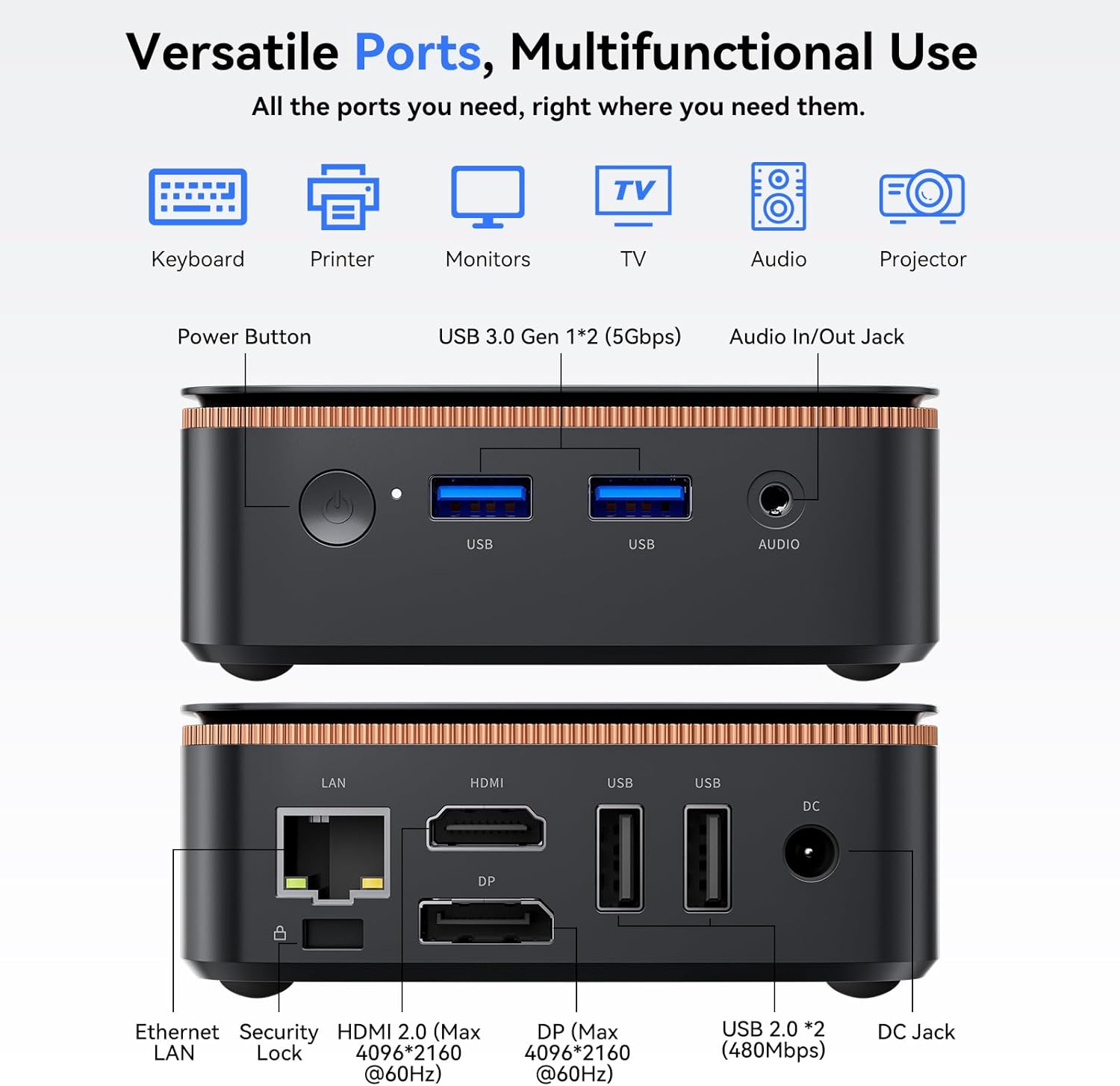
Figure 3: Rear and front ports of the Huidun H50 N150 Mini PC for connecting peripherals.
4.2 Initial Boot and Windows Setup
- Power On: Press the power button located on the front of the Mini PC.
- Follow On-Screen Prompts: The Mini PC comes pre-installed with Windows 11 Pro. Follow the on-screen instructions to complete the initial setup, including language selection, network configuration, and user account creation.
- Updates: Allow Windows to check for and install any necessary updates for optimal performance and security.
Video 1: Huidun H50 N150 Mini PC initial boot-up and Windows setup process.
4.3 VESA Mount Installation (Optional)
The included VESA mount allows you to attach the Mini PC to the back of a compatible monitor or TV, saving desk space.
- Attach Mount to PC: Secure the VESA mount bracket to the bottom of the Mini PC using the provided screws.
- Attach to Display: Align the mount with the VESA holes on your monitor or TV and secure it with appropriate screws.
5. Operating Instructions
5.1 Basic Operation
- Power On/Off: Press the power button once to turn on the device. To shut down, use the Windows Start menu.
- Restart: Use the Windows Start menu to restart the system.
- Sleep Mode: The system can enter sleep mode via the Windows Start menu or by pressing the power button briefly.
5.2 Dual Display Setup
To utilize dual 4K displays, connect your primary monitor to the HDMI port and your secondary monitor to the DisplayPort. Windows will automatically detect both displays. You can configure display settings (extend, duplicate, etc.) via Windows Display Settings.
Video 2: Huidun H50 N150 Mini PC in a home office setup, demonstrating dual display capabilities.
6. Maintenance
6.1 General Care
- Keep the Mini PC in a well-ventilated area to prevent overheating.
- Avoid exposing the device to dust, moisture, or extreme temperatures.
- Clean the exterior with a soft, dry cloth. Do not use liquid cleaners.
6.2 Storage and RAM Upgrade
The Mini PC's M.2 SSD storage can be expanded up to 2TB, and RAM can also be upgraded if needed. Refer to the detailed instructions in the included user manual for specific steps on how to open the device and replace components.

Figure 4: Internal view of the Huidun H50 N150 Mini PC, showing RAM and M.2 SSD slots for potential upgrades.
7. Troubleshooting
- No Display: Ensure all display cables are securely connected and the monitor is powered on and set to the correct input source.
- No Power: Verify the power adapter is correctly plugged into the Mini PC and a working power outlet.
- Slow Performance: Check for background applications consuming resources, ensure Windows is updated, and consider upgrading RAM or SSD if performance issues persist.
- Network Issues: For wired connections, check the Ethernet cable. For Wi-Fi, ensure the network is available and the password is correct.
8. Specifications
| Feature | Specification |
|---|---|
| Processor | 12th Gen Intel N150 (up to 3.6 GHz) |
| RAM | 16 GB DDR4 |
| Storage | 512 GB M.2 SSD (Expandable to 2TB) |
| Graphics | Integrated Intel UHD Graphics |
| Operating System | Windows 11 Pro |
| Max Display Resolution | 4096 x 2160@60Hz (Dual 4K) |
| Wireless Connectivity | WiFi 6, Bluetooth 5.2 |
| Wired Connectivity | Gigabit Ethernet (RJ45) |
| USB Ports | 2 x USB 3.0, 2 x USB 2.0 |
| Video Output | 1 x HDMI, 1 x DisplayPort |
| Dimensions | 3.94 x 3.94 x 1.42 inches (10cm x 10cm x 3.5cm) |
| Weight | 9.3 ounces |
9. Warranty and Support
The Huidun H50 Mini PC comes with a 3-Year Warranty. For any technical assistance, product inquiries, or support needs, please contact Huidun's customer service. Lifetime support and 24/7 service are available.


