1. Introduction
This manual provides detailed instructions for the safe and efficient operation of your Creality CR-Scan Ferret SE 3D Scanner. Please read this manual thoroughly before use to ensure proper setup and functionality. Retain this manual for future reference.

Figure 1.1: The Creality CR-Scan Ferret SE 3D Scanner mounted on its included tripod.
2. Package Contents
Verify that all items are present in the package:
- CR-Scan Ferret SE 3D Scanner
- Tripod
- USB Cable
- User Manual (this document)
3. Setup Instructions
3.1 Hardware Connection
- Mount the Scanner: Attach the CR-Scan Ferret SE to the provided tripod. Ensure it is securely fastened.
- Connect to Computer: Connect the scanner to your computer using the supplied USB cable. For optimal performance and stability, it is recommended to connect the USB cable to a rear port on your desktop computer or a direct port on your laptop, avoiding USB hubs if possible.
3.2 Software Installation
The CrealityScan software is required for operating the CR-Scan Ferret SE. Download the latest version from the official Creality website.
- System Requirements:
- Windows: i5-Gen8 CPU or later, Windows 10/11 (64-bit), RAM: >8GB, Software: >V2.3.0
- Mac OS: M1/M2/M3/M4 series, macOS 11.7.7+ or Intel i5-Gen8+, RAM: >8GB
- Android: OS: Android 10.0+, RAM: >8GB, Connectivity: Wi-Fi 6, App: V2.0.2
- iOS: Model: iPhone 11+, iOS 15+, RAM: >4GB
- Installation: Follow the on-screen instructions to install CrealityScan.
- Driver Installation: Ensure all necessary drivers are installed during the software setup.
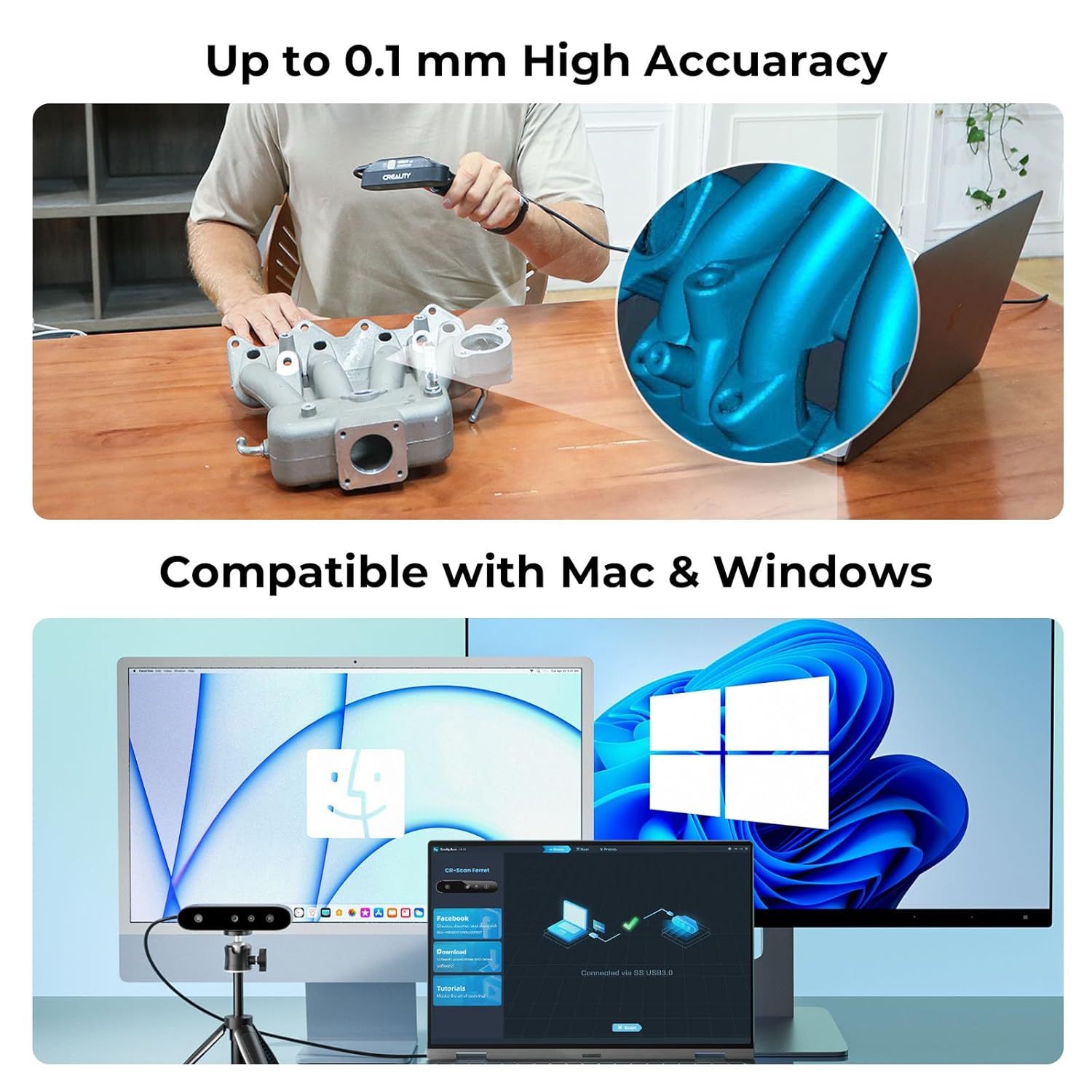
Figure 3.1: The CR-Scan Ferret SE is compatible with both Mac and Windows operating systems.
3.3 Initial Calibration
Upon first use or if scanning accuracy is compromised, calibration may be required. Refer to the CrealityScan software's built-in tutorials or official online resources for detailed calibration procedures. Proper calibration is crucial for achieving the stated 0.1mm accuracy.
4. Operating Instructions
4.1 Basic Scanning Process
- Launch Software: Open the CrealityScan application on your computer.
- Select Mode: Choose the appropriate scanning mode (e.g., handheld, turntable, face/body) based on your object and desired outcome.
- Position Object: Place the object to be scanned within the scanner's optimal working distance (150-700mm).
- Start Scan: Initiate the scan within the software. Follow the on-screen guidance for movement and coverage.
- Process Model: After scanning, use the software's tools for one-click processing, alignment, and editing to generate the final 3D model.
4.2 Key Features
- Anti-shake Tracking: The CR-Scan Ferret SE incorporates anti-shake technology to minimize the impact of hand tremors during scanning, ensuring stable and accurate data capture. This enhances the success rate of scans, even with slight movement.
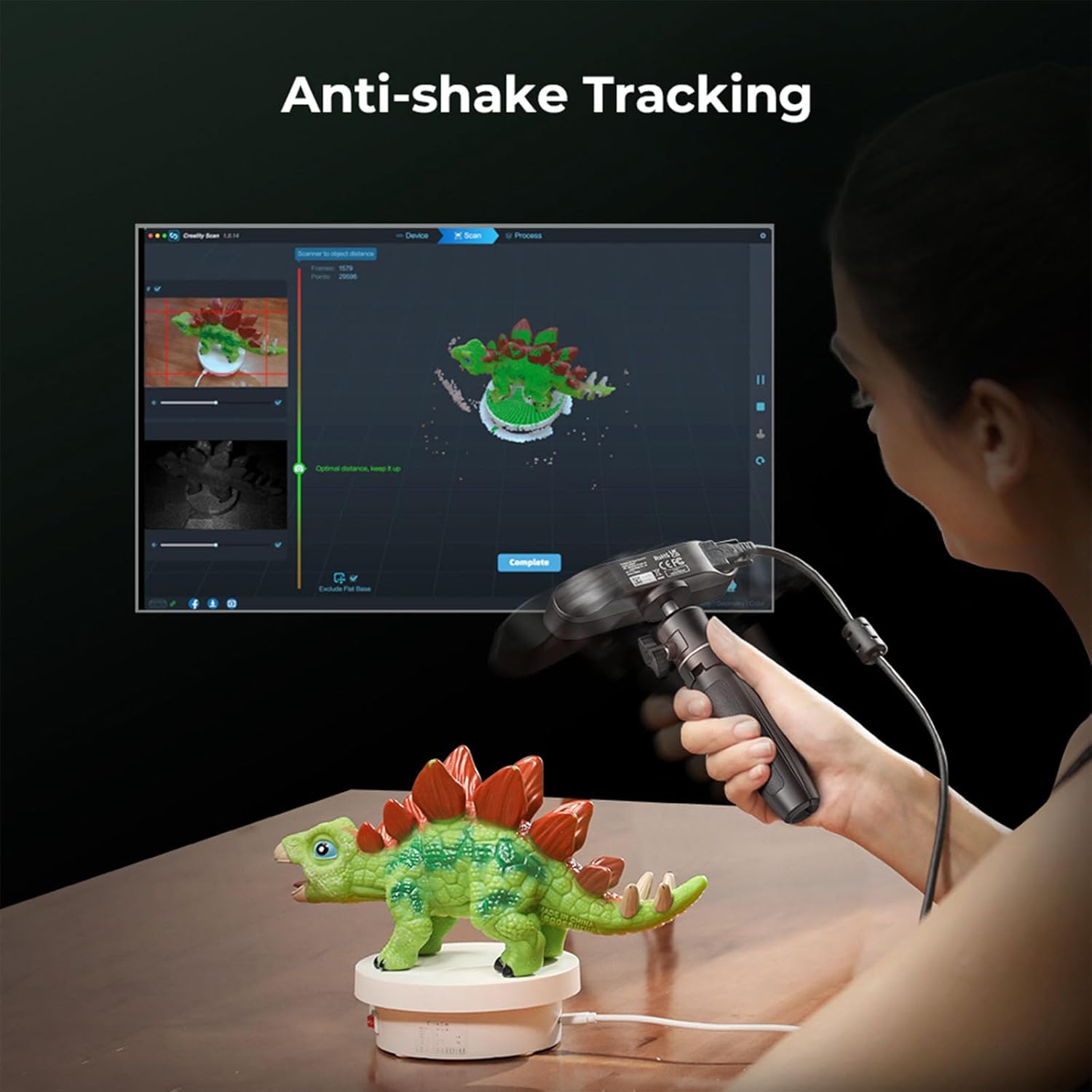
Figure 4.1: Anti-shake tracking technology ensures smooth and accurate scanning.
- 24-bit Full-Color Scanning: The built-in 2MP high-resolution color camera captures vibrant 3D models, reproducing the original colors of scanned objects with intricate detail.

Figure 4.2: Example of 24-bit full-color scanning capturing object textures and colors.
- Scanning Black/Metal Objects: The scanner is capable of capturing black or metallic objects without the need for scanning spray, which is beneficial for items like car parts or tires.
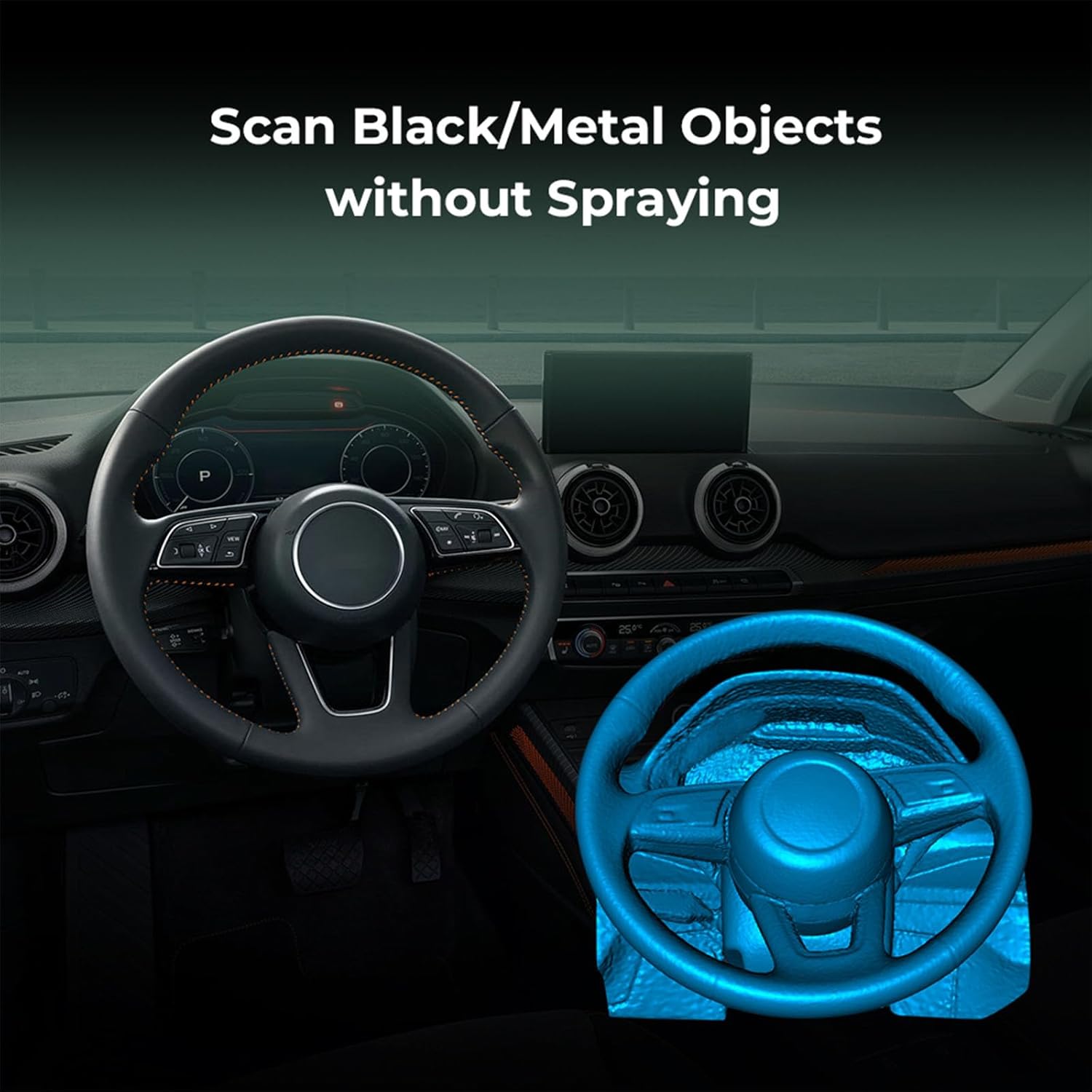
Figure 4.3: Scanning black or metallic objects without requiring spray.
- Flexible Scanning Range: The CR-Scan Ferret SE supports a scanning range of 150mm to 2000mm, accommodating various object sizes from small to medium-large. The single capture range is up to 560*820mm.

Figure 4.4: The scanner can be used for both desktop and handheld scanning of various object sizes.
- Human Face & Body Scanning: Equipped with a face mapping algorithm, the scanner can restore detailed facial features for vivid human models.

Figure 4.5: The scanner supports detailed human face and body scanning.
- User-friendly Software: CrealityScan offers a professional platform with robust image processing, step-by-step tutorials, one-click model processing, and editing capabilities.

Figure 4.6: The CrealityScan software interface for processing 3D models.
- One-stop 3D Printing Experience: The scanner integrates with Creality Cloud for a seamless workflow from 3D scanning to slicing and 3D printing.

Figure 4.7: Integrated workflow from scanning to 3D printing via Creality Cloud.
5. Maintenance
To ensure the longevity and optimal performance of your CR-Scan Ferret SE, follow these maintenance guidelines:
- Cleaning: Gently wipe the scanner's lenses and body with a soft, dry, lint-free cloth. Avoid using abrasive cleaners or solvents.
- Storage: Store the scanner in a cool, dry place away from direct sunlight and extreme temperatures. Use the original packaging or a protective case when not in use.
- Software Updates: Regularly check for and install the latest CrealityScan software updates to benefit from performance improvements and new features.
6. Troubleshooting
If you encounter issues with your CR-Scan Ferret SE, refer to the following common problems and solutions:
- Scanner Not Detected:
- Ensure the USB cable is securely connected to both the scanner and a direct USB 3.0 port on your computer (preferably a rear port on desktops).
- Verify that the CrealityScan software is installed correctly and is up to date.
- Check your computer's Device Manager (Windows) or System Information (Mac) to see if the scanner is recognized.
- Poor Scanning Quality/Tracking Issues:
- Perform a calibration as described in Section 3.3.
- Ensure adequate lighting in the scanning environment. Avoid direct strong light sources that can cause glare.
- Maintain a steady hand if scanning handheld. The anti-shake feature helps, but excessive movement can still affect results.
- Ensure the object is within the optimal working distance (150-700mm).
- For complex or featureless objects, consider using scanning markers (if supported by your software version) to aid tracking.
- Software Crashes or Freezes:
- Ensure your computer meets the minimum system requirements (CPU, RAM, OS).
- Update your graphics card drivers.
- If using Windows, temporarily disable any recent Windows security updates (e.g., KB5049981) if they are known to cause conflicts with scanning software.
- If your system has multiple display adapters, try disabling the basic integrated graphics (e.g., Intel UHD Graphics) and use the dedicated graphics card.
- Close other demanding applications while scanning.
- Inaccurate or Distorted Scans:
- Re-calibrate the scanner.
- Ensure the object is stable and not moving during the scan.
- Review scanning techniques through online tutorials or the software's guides.
If these steps do not resolve the issue, please contact Creality customer support for further assistance.
7. Specifications
| Feature | Specification |
|---|---|
| Scanning Technology | NIR Structured Light |
| Accuracy | Up to 0.1mm |
| Resolution | 0.16mm |
| Single Capture Range | Max. 560 x 820mm at 700mm |
| Working Distance | 150-700mm |
| Full-Color Scanning | 24-bit (2MP camera) |
| Scanning Speed | Up to 30fps |
| Wireless Scanning | Supported in conjunction with wireless scanning accessories |
| Product Dimensions | 4.57 x 2.76 x 8.15 inches |
| Weight | 1.1 Pounds (approx. 105g for scanner unit) |
| Manufacturer | Creality |
| Model Number | CR-Scan Ferret SE |
7.1 System Support
| Operating System | Requirements |
|---|---|
| Windows | i5-Gen8 CPU or later, Windows 10/11 (64-bit), RAM: >8GB, Software: >V2.3.0 |
| Mac OS | M1/M2/M3/M4 series, macOS 11.7.7+ or Intel i5-Gen8+, RAM: >8GB |
| Android | Chip: Qualcomm Snapdragon 888++, OS: Android 10.0+, RAM: >6GB, Connectivity: Wi-Fi 6, App: V2.0.2 |
| iOS | Model: iPhone 11+, iOS 15+, RAM: >4GB |
8. Warranty and Support
The Creality CR-Scan Ferret SE comes with a standard manufacturer's warranty. Please refer to the warranty card included with your product or visit the official Creality website for detailed warranty terms and conditions.
For technical support, troubleshooting assistance, or warranty claims, please contact Creality customer service. Be prepared to provide your product model number and purchase information. Due to international operations, response times may vary.
Contact Information: Refer to the official Creality website or your product packaging for the most current support contact details.


