
Introduction
The INPHIC IN10P is an ultra-lightweight wireless gaming mouse designed for precision and versatility. Featuring tri-mode connectivity (Bluetooth 5.0, 2.4G Wireless, and Type-C Wired), a high-performance PAW3395 sensor with up to 26,000 DPI, and an 8K polling rate, it offers a responsive and customizable experience for various gaming and work scenarios. Its solid shell design ensures durability while maintaining a mere 60g weight.
What's in the Box
- INPHIC IN10P Gaming Mouse (x1)
- 8K Nano USB Receiver (x1)
- Receiver Extension Adapter (x1)
- 1.8m Type-C Braided Paracord Cable (x1)
- User Manual (x1)
- Anti-slip Mouse Grip Tape Set (x1)
Product Overview

Figure 1: INPHIC IN10P Mouse Components
The IN10P mouse features a sleek, ergonomic design with a solid shell, preventing dust buildup while maintaining an ultra-lightweight profile of approximately 60g. Key components include:
- Lightforce Hybrid Switches: Designed for durability with a lifespan of 100 million clicks.
- Scroll Wheel: For navigation and input.
- Customizable Side Buttons: Two buttons on the left side for user-defined functions.
- DPI Switching and Bluetooth Pairing Button: Located on the underside for quick adjustments and pairing.
- Connectivity Switch: A three-position switch (OFF, 2.4G, BT) on the underside to select the connection mode.
- USB Receiver Storage: A dedicated compartment on the underside for the 2.4G USB receiver.
- Zero-Additive PTFE Feet: For smooth gliding across surfaces.
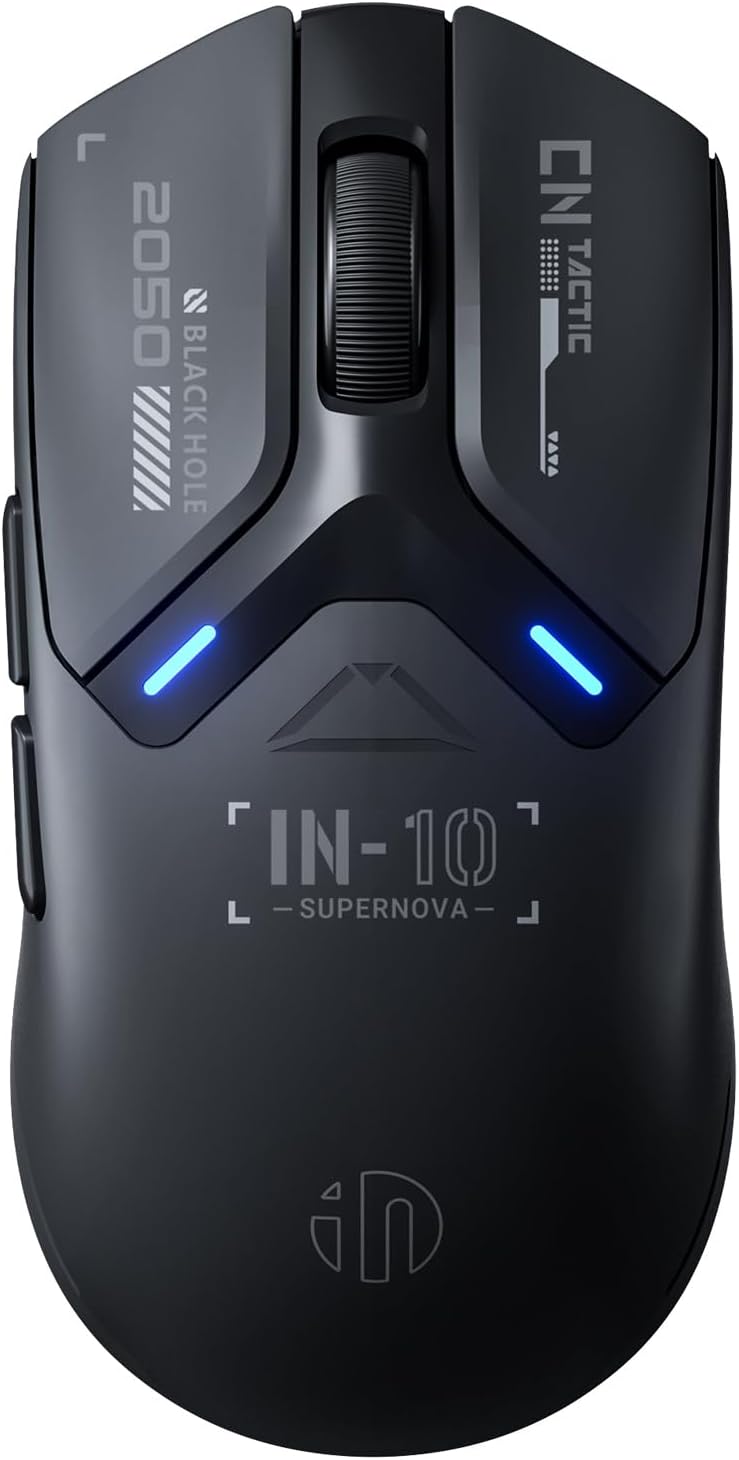
Figure 2: Top View of INPHIC IN10P Mouse

Figure 3: Ultra-Lightweight Design (60g)
Setup
1. Connecting via 2.4G Wireless
- Locate the 8K Nano USB receiver in the storage compartment on the underside of the mouse.
- Plug the USB receiver directly into an available USB-A port on your computer. For extended range or convenience, use the provided receiver extension adapter by connecting the USB-C cable to the adapter and then plugging the receiver into the adapter.
- Slide the connectivity switch on the mouse's underside to the "2.4G" position. The mouse should automatically connect to your device.
2. Connecting via Bluetooth 5.0
- Slide the connectivity switch on the mouse's underside to the "BT" position.
- Press and hold the DPI/PAIR button on the underside of the mouse for 3-5 seconds until the RGB indicator light starts blinking, indicating pairing mode.
- On your computer or device, navigate to Bluetooth settings and search for new devices. Select "INPHIC IN10P" from the list to complete the pairing process.
3. Connecting via Type-C Wired Mode
- Connect one end of the provided 1.8m Type-C braided paracord cable to the USB-C port on the front of the mouse.
- Connect the other end of the cable to an available USB-A port on your computer.
- The mouse will automatically switch to wired mode and begin charging.

Figure 4: Tri-Mode Connectivity Options
4. Applying Anti-slip Mouse Grip Tape
For enhanced grip and comfort, you can apply the included anti-slip mouse grip tape. Carefully peel the adhesive backing from the tape pieces and apply them to the designated areas on the mouse, typically the sides and main click buttons, as desired.
Video 1: Unboxing and Initial Setup of INPHIC IN10P Mouse. This video demonstrates the unboxing process, showing the mouse and its accessories, and how to connect the USB receiver.
Operating Instructions
1. Switching Connection Modes
Use the physical switch on the underside of the mouse to toggle between OFF, 2.4G wireless, and Bluetooth (BT) modes. This allows seamless transition between different devices or connection types.
2. Adjusting DPI Settings
The IN10P mouse features 6 adjustable DPI levels ranging from 800 to 26,000. Press the DPI/PAIR button on the underside of the mouse to cycle through the preset DPI levels. The built-in RGB indicator system will change color to reflect the current DPI setting.

Figure 5: PAW3395 Sensor and Performance Metrics
3. Using Programmable Buttons and Software Customization
The mouse is equipped with 5 programmable buttons. To fully customize these buttons, adjust DPI levels, remap functions, set macros, and configure RGB lighting, download and install the official INPHIC driver software. The software allows for extensive personalization to suit your gaming and productivity needs. Note that some advanced features may only be available in wired or 2.4G wireless modes.

Figure 6: INPHIC InCloud MACRO Software Interface
Maintenance
1. Charging the Mouse
The IN10P mouse is powered by a 400mAh high-efficiency rechargeable battery. When the battery is low, the RGB indicator will provide a low-power warning. Connect the mouse using the provided Type-C braided paracord cable to a USB power source to charge. The mouse can be used in wired mode while charging.
2. Battery Care
To maintain optimal battery health and prevent damage from prolonged periods without power, it is recommended to charge the product at least once every three months.
3. Cleaning
Due to its solid shell design, the IN10P is resistant to dust buildup. For general cleaning, use a soft, dry cloth to wipe the surface of the mouse. Avoid using harsh chemicals or abrasive materials.

Figure 7: 400mAh Battery for Extended Use
Troubleshooting
1. Polling Rate Discrepancy
The IN10P mouse is advertised with an 8000Hz polling rate. While this rate is achievable in 2.4G wireless mode using the 8K receiver, the wired mode typically supports a 1000Hz polling rate. Ensure you are using the 2.4G wireless connection with the provided 8K receiver for the highest polling rate performance.
2. Software Limitations in Bluetooth Mode
Some advanced customization features within the INPHIC driver software may have limited functionality or not be available when the mouse is connected via Bluetooth mode. For full customization options, use the wired or 2.4G wireless connection.
3. Connectivity Issues
- 2.4G Wireless: Ensure the USB receiver is securely plugged into a working USB port and the mouse switch is set to "2.4G". Try using the receiver extension adapter to improve signal strength if experiencing interruptions.
- Bluetooth: Verify Bluetooth is enabled on your device and the mouse is in pairing mode (blinking RGB indicator). Re-pair the device if connection is lost.
- Wired: Check that the Type-C cable is firmly connected to both the mouse and the computer.
Specifications
| Feature | Specification |
|---|---|
| Model Number | IN10P |
| Connectivity | 2.4G Wireless, Bluetooth 5.0, USB-C Wired |
| Sensor | PixArt PAW3395 Optical Sensor |
| DPI Range | 800 - 26,000 DPI (6 levels) |
| Polling Rate | Up to 8000Hz (2.4G Wireless) |
| Tracking Speed | 650 IPS |
| Acceleration | 50G |
| Weight | Approx. 60g (2.05 ounces) |
| Dimensions | 4.8 x 2.44 x 0.04 inches |
| Battery | 400mAh Rechargeable (Up to 120 hours continuous use) |
| Switch Lifespan | 100 Million Clicks |
| Compatibility | Windows, macOS, Linux |
Safety Instructions
Please read and follow these safety instructions carefully to ensure proper use and longevity of your INPHIC IN10P mouse:
- Normal operating environment: 0°C-40°C, 40%-85%RH.
- Do not immerse the product in any liquid or expose it to hot/humid environments.
- If the product is exposed to temperatures outside the specified range, immediately turn off the power switch (unplug the USB cable for wired mouse) until the temperature stabilizes within the specified operating range.
- Do not charge rechargeable products in hot/humid environments. Ensure that the charging cable, keyboard, mouse, and USB ports are dry and free of debris during charging.
- If the product's connection cable or charging cable is damaged in any way, stop using it immediately.
- This product contains no user-serviceable parts. If the product does not function properly, please contact customer service.
- Do not attempt to modify or repair the product yourself, as this will void the warranty.
- If rechargeable products are not used for a long period, fully charge them first, turn off the power switch, and store them in a cool, dry place. Charge the product every three months to prevent damage to the battery from long periods without power.

Figure 8: Excerpt from Safety Instructions
Warranty & Support
For product support, warranty information, or if your product does not function properly, please contact INPHIC customer service. Do not attempt to modify or repair the product yourself, as this will void the warranty.
You can find more information and contact details on the official INPHIC website: www.inphic.com
For direct support, you may also email: support@inphic.cn


