1. Product Overview
The TABWEE T20 is a versatile 10-inch Android tablet designed for both productivity and entertainment. It features a high-resolution Incell display, a powerful Octa-Core processor, and ample memory and storage, making it suitable for a wide range of applications from content creation to multimedia consumption.
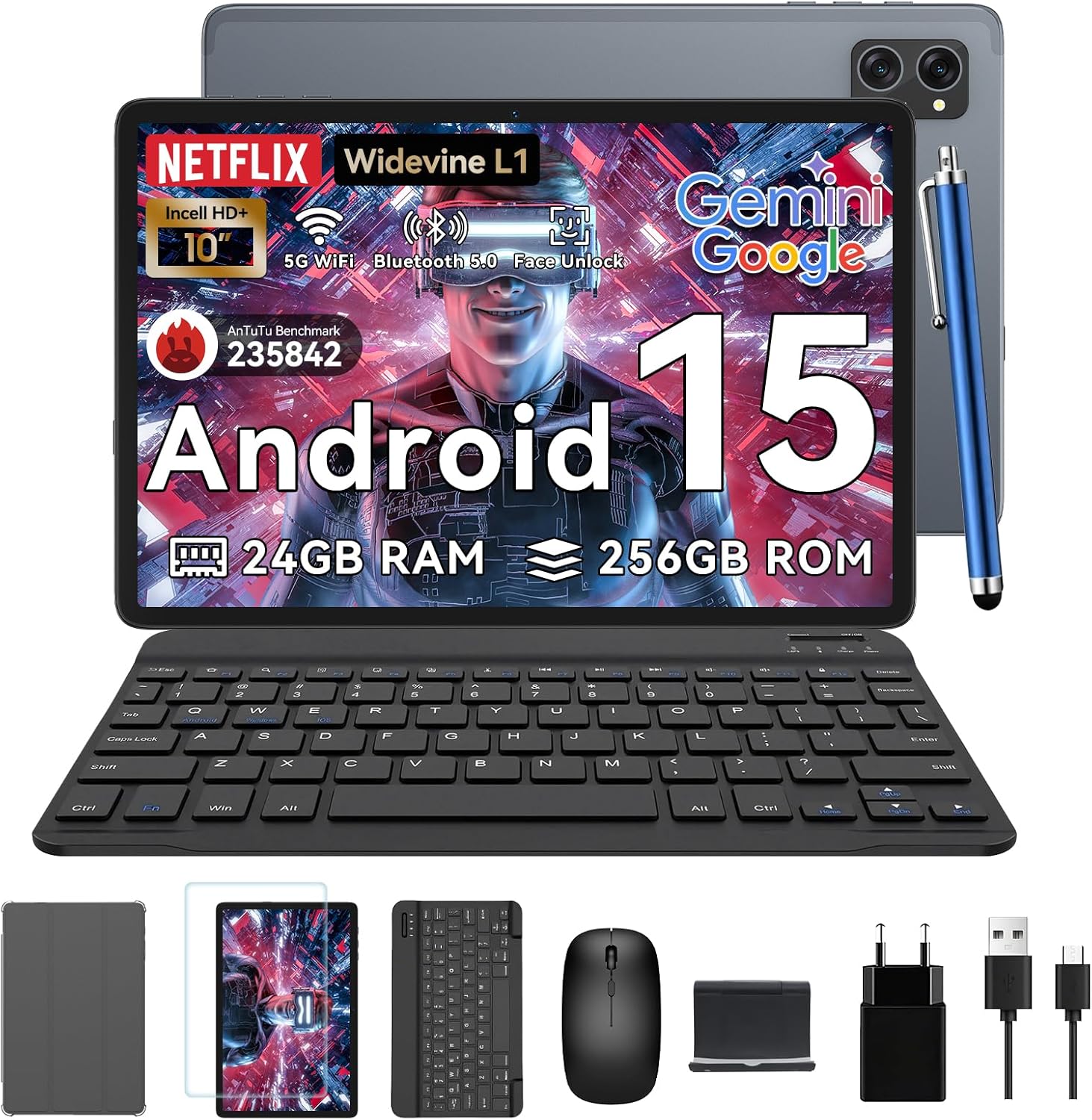
Figure 1.1: TABWEE T20 Tablet and its complete accessory package, including a Bluetooth keyboard, mouse, stylus, protective case, screen protector, charger, and USB cable.
What's in the Box
Upon unboxing your TABWEE T20 Tablet, verify that all components are present:

Figure 1.2: Contents of the TABWEE T20 Tablet retail package.
- 1x TABWEE T20 Tablet
- 1x Bluetooth Keyboard
- 1x Mouse
- 1x Stylus
- 1x Protective Case
- 1x Screen Protector
- 1x Tablet Stand
- 1x Charger
- 1x USB Cable
2. Setup and Initial Use
Charging the Tablet
Before first use, fully charge the tablet using the provided charger and USB cable. Connect the charger to a power outlet and the USB cable to the tablet's charging port. The charging indicator will illuminate.
Powering On/Off
- To Power On: Press and hold the Power button until the TABWEE logo appears on the screen.
- To Power Off: Press and hold the Power button until the power options menu appears. Select "Power Off" and confirm.
- To Restart: From the power options menu, select "Restart" and confirm.
Initial Setup Wizard
Upon first power-on, the tablet will guide you through an initial setup wizard. Follow the on-screen prompts to:
- Select your language.
- Connect to a Wi-Fi network.
- Sign in with your Google account or create a new one.
- Set up screen lock (PIN, pattern, password, or Face Unlock).
- Review and accept terms and conditions.
Connecting Accessories
The TABWEE T20 comes with a Bluetooth keyboard and mouse for enhanced productivity.
- Bluetooth Keyboard:
- Ensure the keyboard is charged and powered on.
- On the tablet, go to Settings > Connected devices > Bluetooth.
- Turn on Bluetooth and tap "Pair new device".
- Select the keyboard from the list of available devices and follow pairing instructions.
- Bluetooth Mouse:
- Ensure the mouse is powered on and in pairing mode.
- On the tablet, go to Settings > Connected devices > Bluetooth.
- Tap "Pair new device" and select the mouse from the list.
- Stylus: The included stylus can be used directly on the screen for navigation, drawing, and note-taking. It features palm-rejection precision.
3. Operating the Tablet
Android 15 Operating System
The TABWEE T20 runs on Android 15, offering enhanced privacy controls, seamless cross-device collaboration, and improved multitasking capabilities.

Figure 3.1: Key features of the Android 15 operating system.
Gemini AI Integration
The tablet integrates Google Gemini AI, which intelligently optimizes tasks, from photo editing to document formatting, while prioritizing security with a dedicated encrypted privacy space.

Figure 3.2: Overview of Gemini AI capabilities on the tablet.
Display and Multimedia
The 10.1-inch Incell HD+ display (1280x800 resolution) provides vivid colors and crisp details. With Widevine L1 certification, you can enjoy 1080P streaming on platforms like Netflix, Disney+, and Hulu.

Figure 3.3: Display features and eye-friendly modes.
The tablet also features Dual Smart-K Box Speakers for an immersive audio experience.

Figure 3.4: Dual Smart-K Box Speakers for enhanced audio.
Camera Features
Equipped with an 8MP rear camera and a 5MP front camera, the tablet supports Google Lens integration for smart scanning and object recognition. Face Unlock is also supported for convenient security.

Figure 3.5: Camera specifications and features.

Figure 3.6: Smart Google Lens functionalities.
Connectivity
The TABWEE T20 supports dual-band 5G WiFi and Bluetooth 5.0 for fast and stable connections.
- Wi-Fi: Connect to 2.4GHz or 5GHz networks for seamless streaming and quick downloads.
- Bluetooth 5.0: Pair with wireless earbuds, speakers, or other Bluetooth-enabled devices with 20% faster data transfer speed.
- OTG Support: Allows for easy transfer of files to and from external storage devices.

Figure 3.7: Advanced Bluetooth 5.0 connectivity.

Figure 3.8: Lightning Fast WiFi 5 Technology.
4. Maintenance and Care
Proper maintenance ensures the longevity and optimal performance of your TABWEE T20 Tablet.
Battery Management
The 5000mAh battery provides extended usage times. To maximize battery life:
- Avoid extreme temperatures.
- Use the provided charger.
- Enable smart power-saving modes in settings.
- Close unused applications running in the background.

Figure 4.1: 5000mAh Mega Battery performance metrics.
Cleaning the Tablet
- Use a soft, lint-free cloth to clean the screen and body.
- For stubborn smudges, slightly dampen the cloth with water or a screen cleaner.
- Avoid using harsh chemicals or abrasive materials.
Storage and Memory Management
The tablet comes with 256GB of internal storage and supports up to 2TB TF card expansion. It also features 24GB RAM (8GB physical + 16GB virtual) for smooth multitasking.

Figure 4.2: Storage and RAM expansion capabilities.
To optimize performance and storage:
- Regularly clear cache and temporary files.
- Uninstall unused applications.
- Utilize the 2TB TF card slot for large files like 4K videos and design documents.
5. Troubleshooting
This section addresses common issues you might encounter with your TABWEE T20 Tablet.
| Problem | Possible Cause | Solution |
|---|
| Tablet does not power on. | Low battery; system crash. | Charge the tablet for at least 30 minutes. If still unresponsive, press and hold the Power button for 10-15 seconds to force a restart. |
| Wi-Fi connection issues. | Incorrect password; router issues; out of range. | Verify Wi-Fi password. Restart your router. Ensure tablet is within Wi-Fi range. Forget the network and reconnect. |
| Bluetooth accessories not pairing. | Accessory not in pairing mode; Bluetooth off on tablet. | Ensure accessory is in pairing mode. Turn Bluetooth off and on again on the tablet. Restart both devices. |
| Slow performance or app crashes. | Too many apps running; low storage; outdated software. | Close background apps. Clear app caches. Free up storage space. Check for system updates in Settings > System > System update. |
| Screen unresponsive. | Temporary software glitch. | Force restart the tablet by holding the Power button for 10-15 seconds. |
If the issue persists after attempting these solutions, please contact customer support.
7. Warranty and Support
TABWEE is committed to providing excellent customer service and support for your T20 Tablet.
Warranty Information
Your TABWEE T20 Tablet is covered by a 2-Year Warranty from the date of purchase. This warranty covers manufacturing defects and ensures risk-free ownership.
Customer Support
For any technical assistance, troubleshooting, or warranty claims, please contact our support team:
- Email Support: serviceplus.linda@gmail.com
- Online Call Support: Available 24/7 for US/CA customers.
- Repair Support: 2-Year Repair Support is provided.

Figure 7.1: TABWEE Customer Support Services.
Please have your purchase details and tablet model number ready when contacting support to expedite the process.


