
1. Introduction
Thank you for choosing the ASURE 13.1" 2K Android 15 Car Stereo. This manual provides detailed instructions for installation, operation, and maintenance of your new infotainment system. Please read this manual thoroughly before installation and use to ensure proper functionality and safety.
2. Applicable Models
This ASURE car stereo is designed for:
- Toyota Tundra: 2014, 2015, 2016, 2017, 2018, 2019 models.
Note: Compatible with OEM NON-JBL amplifier and OEM Reversing Camera. For vehicles with OEM JBL amplifier and 2020-2021 models, extra kits and adapters may be required for rear speakers. Additional wiring may also be needed. If your vehicle has these configurations, please ensure compatibility before proceeding.

Image: Comparison of the Toyota Tundra dashboard before and after installation of the ASURE 13.1 inch car stereo, highlighting the larger screen size and modern interface.
3. Key Features
- Android 15 System: Latest operating system for faster performance and enhanced security.
- 13.1" 2K QLED Touchscreen: 1920x1200 HD resolution for stunning clarity and instant touch response.
- Wireless CarPlay & Android Auto: Seamless smartphone integration for navigation, calls, and music.
- Octa-Core CPU & 4GB RAM + 64GB ROM: Ensures lightning-fast performance and smooth multitasking.
- Built-in 4G LTE & Dual Wi-Fi Bands (2.4GHz & 5.0GHz): Uninterrupted streaming and connectivity.
- Bluetooth 5.0: Hands-free calls, music streaming, and instant wireless connection.
- DSP Audio: Richer sound experience.
- HD Backup Camera: Waterproof camera with 170° viewing angle for safe reversing.
- Offline Maps & Smart Navigation: Google Maps offline navigation and precise GPS tracking.
- OEM Fit: Maintains steering wheel controls and AC display.
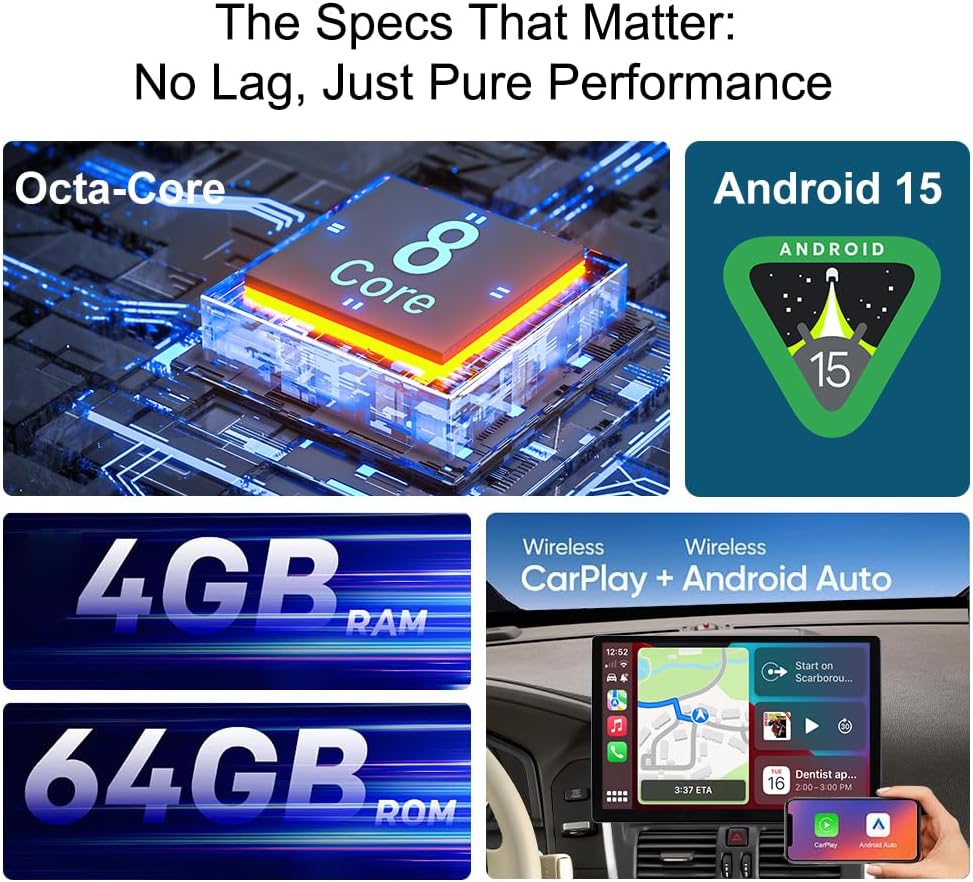
Image: Visual representation of the core specifications including the Octa-Core CPU, Android 15, memory (4GB RAM + 64GB ROM), and wireless connectivity options like CarPlay and Android Auto.
4. Package Contents
The package includes the following items:
- 1x 2K Screen
- 1x Screen Base
- 1x Frame
- Power harnesses for Low-end vehicles
- CAN BUS (Raise) for a low-end car
- Power harnesses for high-end cars with JBL amplifier
- CAN BUS (Simple) for a high-end car
- 1x Backup A/V ports
- 1x OEM USB Adapter
- Audio Video Anschluss
- 1x GPS Cable
- 2x USB Cable
- 1x Microphone
- 1x Wifi/BT antenna
- 4G LTE Antenna
- Screwdriver and User Manual
- Reversing Camera

Image: A comprehensive layout of all components and accessories included in the ASURE 13.1 inch car stereo package, including the screen, frame, various cables, antennas, and a reversing camera.
5. Installation Guide
5.1. Pre-Installation Steps
- Remove Factory Head Unit: Carefully remove the existing car stereo and climate control unit from your Toyota Tundra dashboard. Use plastic trim removal tools to avoid damage.
- Secure Wiring: Route the rear camera cable and microphone cable towards the center console, ensuring they are away from the steering column and brake pedal.
- Prepare Rear Camera Wiring: Tap the black wire onto the negative and the red wire onto the positive wire of the backup light. This will trigger the display to switch to the backup view.
5.2. Screen Assembly
- Attach Mounting Brackets: Use the included screws to attach the mounting brackets to the back of the new head unit.
- Install Screen Base and Frame: Determine the desired installation position of the screen (higher or lower, 25mm difference between top and bottom positions). Install the screen base, then the 9" to 10.1" frame adapter (if applicable for your dedicated frame), and finally your 10.1" dedicated adapter frame. Fix the screen and adapter frame together with four screws.

Image: Detailed diagram illustrating how to adjust the screen base and install the frame for optimal positioning within the dashboard.
5.3. Wiring Connections
- Connect GPS Antenna: Screw the GPS antenna onto the top connector at the back of the head unit.
- Connect 4G Antenna: Connect the 4G antenna to its designated port.
- Connect Rearview Camera Input: Plug the rearview camera input cable into the first 10-pin connector. If the camera does not work, try the other yellow RCA input.
- Connect USB Cables: Plug the USB cables for thumb drives (6-pin connector) and smartphones (4-pin connector) into their respective ports.
- Connect Power Harness: Select the appropriate power harness (low-end or high-end with CAN-BUS decoder) based on your vehicle's factory head unit. Plug it into the back of the head unit.
- Connect Radio Antenna: Connect the plug for the radio antenna.
- Connect Steering Wheel Control (SWC) Harness: Connect the 8-pin connector for steering wheel buttons.
- Connect RCA Cables: Connect any necessary RCA cables for audio output, auxiliary input, subwoofer, and video output.

Image: Detailed wiring diagram for connecting the rearview camera, showing connections to the backup light and the head unit.
5.4. Final Assembly
- Test Connections: Before fully assembling, turn on the ignition and test all functions of the head unit, including power, audio, navigation, and rearview camera.
- Secure Head Unit: Carefully slide the assembled head unit into the dashboard opening and secure it with the bolts removed earlier.
- Reinstall Panels: Reattach all removed trim panels and the climate control unit.
Video: This video demonstrates the installation process of the ASURE 13.1 inch car stereo, including screen positioning and frame assembly.
Video: A detailed car radio installation guide specifically for the Toyota Tundra 2014-2019, covering removal of old unit and connection of new components.
Video: This video provides a guide for installing a third-party backup camera, including wiring and mounting instructions.
6. CAN-BUS Setup
After powering up the radio, you need to set CAN-BUS correctly to get your steering wheel controls to work. The procedure is as follows:
- Go to SETUP > Factory.
- Enter the password 3368.
- Select Car Model.
- Choose your CAN-BUS type according to your vehicle. Refer to the provided sample illustration for different car models and CAN-BUS setups.
If your car has no CAN-BUS, disregard this step.

Image: Screenshot showing the factory settings menu for CAN-BUS configuration, including password input and car model selection.
Video: This video demonstrates the process of mapping steering wheel control buttons to the ASURE car stereo functions.
7. Operating Instructions
7.1. Home Screen Overview
The main menu displays a layout of commonly used functions. You can long-press the pop-up wallpaper button to adjust the layout according to personal preferences. The home screen typically features:
- Clock and Date: Tap to access date and time settings.
- Music Player: Quick access to play/pause, skip tracks. Tap to open full-screen music player and access playlists.
- Navigation: Access Google Maps or other downloaded navigation apps. Supports satellite, terrain, transit, traffic, bicycling, and street view.
- Bluetooth: Make and manage phone calls, stream music from your device.
- Radio: Access local AM/FM radio. Search for and save favorite stations.
- Apps: Access preloaded apps like App Store, AUX, Bluetooth, Calculator, Car Link 2.0, Chrome, DAB Plus, Equalizer, File Manager, Gallery, Google, Hide Button, Instructions, Maps, Music, Navi, Operation Guide, Play Store, SWC, Touch-Assistant, Vehicle Settings, Video, Voice Search, and YouTube.
- EQ (Equalizer): Adjust audio settings, choose from factory presets, or control sound output zones.
- Video: Quick access to movies stored on internal memory or external USB drives.
- Settings: Access various system settings including WLAN, Device, General, Factory, User, and System.
7.2. Quick Access Menu
Swipe down from the top of the screen to access quick control buttons for Wi-Fi, Eye Comfort, Data, Airplane Mode, Screen Off, Clean Memory, Standby, and Reboot. A volume control slider is also available.
Video: This video provides a comprehensive function introduction for the Toyota Tundra 2014-2019 car stereo, detailing various features and their usage.
8. Maintenance
- Screen Cleaning: Use a soft, lint-free cloth to clean the QLED touchscreen. Avoid abrasive cleaners or solvents.
- Software Updates: Regularly check for system updates via the App Store or contact customer support for the latest firmware.
- Cable Connections: Periodically check all cable connections to ensure they are secure and free from damage.
9. Troubleshooting
- Air Conditioner Overheating/Auto Shutdown: In winter, avoid running the air conditioner in heating mode for extended periods when outside temperature is low. Continuous heating may cause overheating due to limited space and slow heat dissipation, leading to auto shutdown. If auto shutdown frequently occurs at room temperature, check cable connections. Contact support for system updates if needed.
- Backup Camera Not Working: If the rearview camera does not display, check the yellow RCA input connections. There are two similar inputs; try swapping them. Ensure the red trigger wire is correctly connected to the positive wire of the backup light.
- Steering Wheel Controls Not Functioning: Ensure the correct CAN-BUS type is selected in the factory settings (password 3368). Follow the SWC app instructions to program the buttons.
- Bluetooth Connectivity Issues: If Bluetooth is unstable, ensure your phone is within range and properly paired. Restarting the head unit or updating the system may resolve issues.
- No Sound from Factory Amplifier (Non-JBL): If using a factory amplifier (non-JBL), ensure the head unit's wire leading to the amp is spliced into an ignition wire to provide constant power when the key is on. Check the "Antenna normally on" option in factory settings.
10. Specifications
| Feature | Specification |
|---|---|
| Item Weight | 6.21 pounds |
| Product Dimensions | 11.8 x 7.7 x 1.4 inches |
| Display Size | 13.1 Inches |
| Screen Size | 13.1 Inches |
| Screen Resolution | 1920x1200 (2K QLED) |
| Operating System | Android 15 |
| Processor | Octa-Core ARM |
| RAM | 4GB |
| ROM | 64GB |
| Connectivity Technology | Bluetooth, 4G LTE, Dual Wi-Fi (2.4GHz & 5.0GHz) |
| Special Feature | Bluetooth, Touchscreen, Wireless CarPlay, Android Auto, DSP, GPS, Backup Camera |
| Audio Output Mode | Stereo |
| Vehicle Service Type | Truck |
| Mounting Type | Dashboard Mount |
| Map Type | Worldwide |
11. Warranty and Support
Warranty: The ASURE 13.1" 2K Android 15 Car Stereo comes with a 30-day free return/replacement policy and a 1-year repair warranty.
Customer Support: For any technical assistance, troubleshooting, or warranty claims, please contact ASURE customer service. Refer to the contact information provided in your purchase documentation or on the official ASURE website.

