
1. Introduction
Thank you for purchasing the KJK Model 202T Trail Camera. This device is designed for versatile surveillance and wildlife observation, offering high-quality video and photo capture with advanced features such as motion detection, night vision, and robust weather resistance. This manual provides essential information for setting up, operating, and maintaining your trail camera.
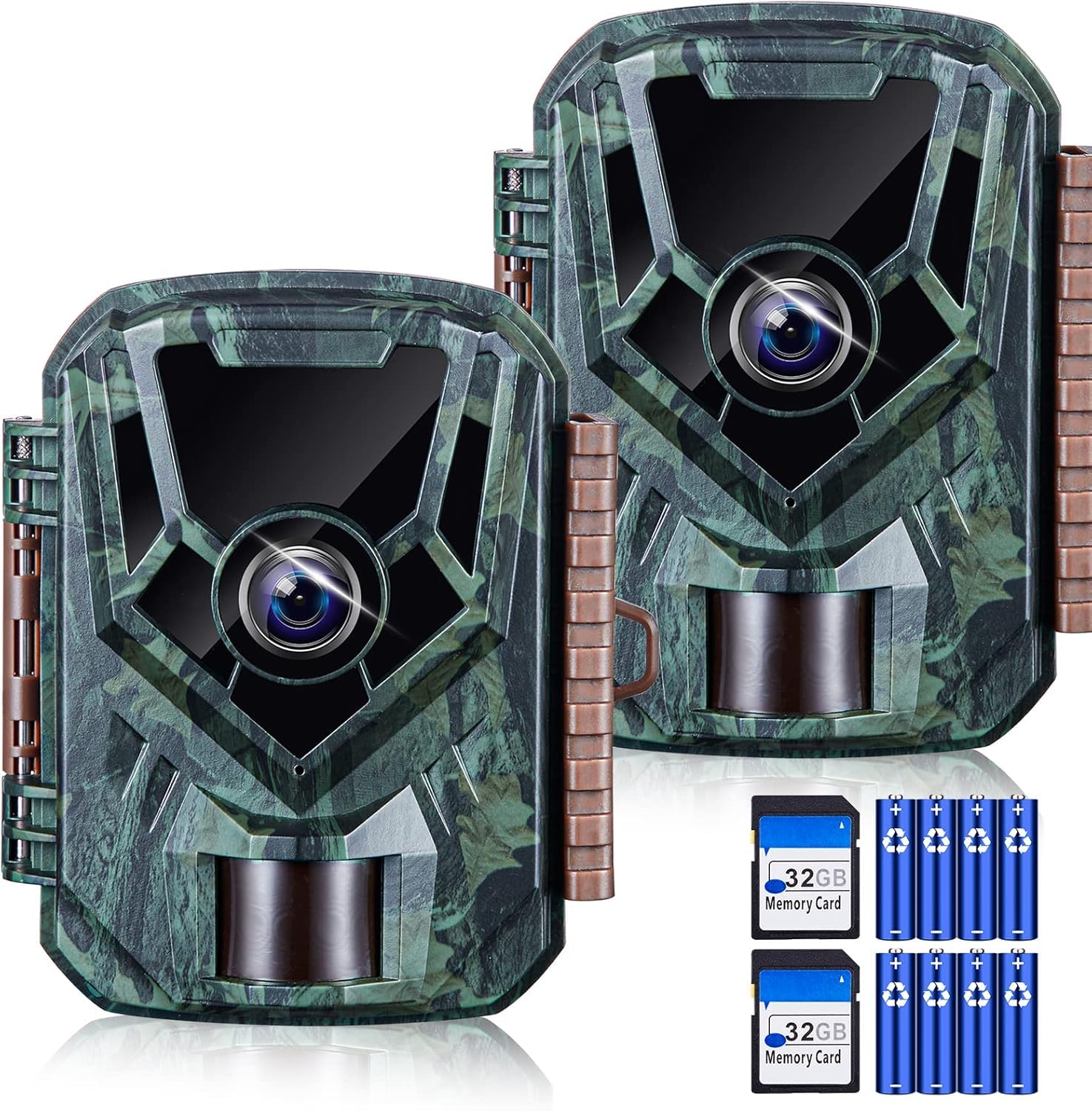
Image 1: KJK Model 202T Trail Camera highlighting 2.7K video, 36MP photos, 0.1s trigger speed, 130° PIR sensor, 22m infrared range, IP66 waterproof rating, and built-in microphone.
2. Package Contents
Please verify that all items listed below are included in your package:
- 2 x KJK Model 202T Camera Units
- 1 x User Manual (Japanese)
- 2 x Stand Base
- 2 x 32GB Memory Card (pre-installed in camera slot)
- 8 x AA Batteries
- 2 x Mounting Straps
- 1 x Micro USB Cable
3. Key Features
- Ultra-High Speed Trigger & 130° Detection Angle: Captures motion with a rapid trigger speed, ensuring no movement is missed. The 130° detection angle covers a wide area up to 10 meters, accurately capturing distant animals or movements.
- High-Quality 2.7K Video & 36MP Clear Images: Equipped with an improved lens and image sensor, this trail camera delivers vivid 2.7K FHD video with clear sound and ultra-high resolution 3600-megapixel images. Ideal for observing wildlife or home surveillance.
- Low-Light Infrared & PIR Motion Detection Sensor: Built-in infrared lights enable clear photo and video capture in dark environments. The human motion sensor automatically detects movement, capturing photos and videos. Note: PIR sensors cannot record through glass or other obstructions. Perfect for outdoor security and wildlife observation.
- IP66 Waterproof & Battery Powered: The waterproof and dustproof design allows for both indoor and outdoor use. Battery operation eliminates the need for wiring, offering flexible placement options. Suitable for temporary home security, warehouse monitoring, farmland, and parking lot surveillance, as well as wildlife observation.
- Versatile Applications & 12-Month Warranty: Infrared LED lights enable shooting in complete darkness. Suitable for wildlife observation, security, neighborhood issues, illegal dumping countermeasures, pet monitoring, and investigating movement in warehouses or offices. Japanese language support simplifies setup. Includes a 12-month warranty for support.
4. Setup
4.1 Battery Installation
Open the camera casing. Insert 4 AA batteries into the battery compartment, ensuring correct polarity (+/-). The camera operates on 8 AA batteries in total (4 per unit).
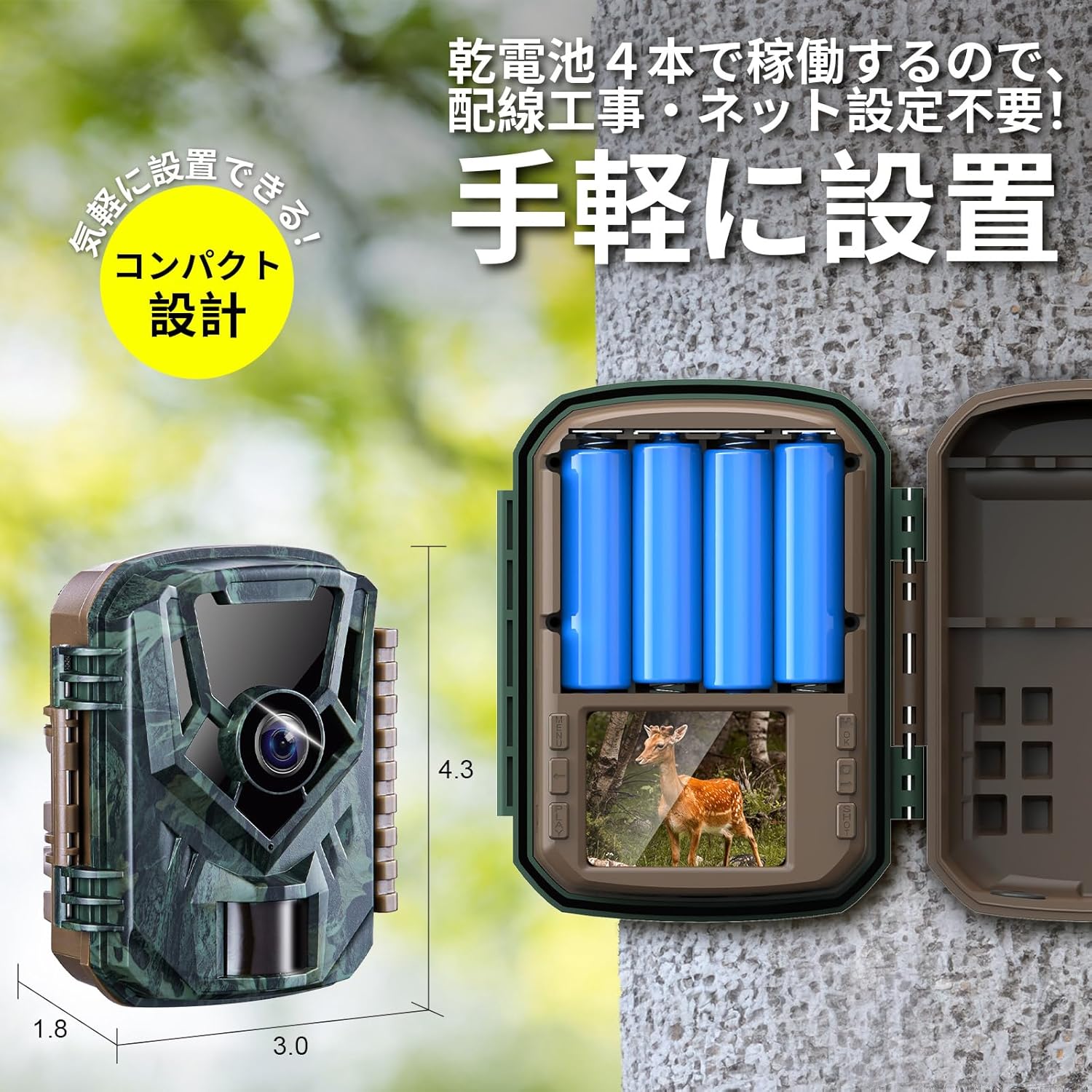
Image 2: The camera unit with its casing open, showing the battery compartment for 4 AA batteries and the internal display.
4.2 SD Card Installation
Insert the provided 32GB Micro SD card into the designated slot. Ensure the card is inserted correctly until it clicks into place. The camera supports up to 128GB Micro SD cards. It is recommended to format the SD card before first use via the camera's menu.
4.3 Mounting the Camera
The camera can be mounted using the included straps, stand base, or screws. Choose the method best suited for your surveillance location.
- Strap Mounting: Thread the mounting strap through the slots on the back of the camera and secure it around a tree or pole.
- Stand Base Mounting: Attach the camera to the stand base using the tripod screw mount at the bottom. Secure the stand base to a flat surface.
- Screw Mounting: Use the provided screws to fix the camera to a wall or other suitable surface.

Image 3: Demonstrates different ways to mount the KJK Trail Camera, including using a strap on a tree, placing it on a flat surface, and screwing it to a wall.
5. Operating Instructions
5.1 Power On/Off
Locate the ON/OFF switch inside the camera casing. Slide it to 'ON' to power on the camera. Slide to 'OFF' to power off.
5.2 Menu Navigation
Use the navigation buttons (up, down, OK, Menu) to browse through the settings menu on the internal 2.0-inch LCD screen. You can set date/time, recording modes, resolution, and more.
5.3 Recording Modes
The camera offers three recording modes:
- Video Mode: Records video clips.
- Photo Mode: Captures still images.
- Photo & Video Mode: Captures a photo followed by a video clip.
Select the desired mode from the menu based on your surveillance needs. The camera also supports interval shooting for time-lapse recordings.

Image 4: The camera's display illustrating the three available recording modes: video, photo, and combined photo & video.
5.4 Playback
Recorded photos and videos can be viewed directly on the camera's internal LCD screen. Alternatively, connect the camera to a computer using the Micro USB cable or remove the SD card and use a card reader to view media on a larger screen.

Image 5: Shows three ways to play back recorded media: directly on the camera's screen, connecting the camera to a PC via USB, or using an SD card reader with a PC.
5.5 Night Vision and Motion Detection
The camera automatically switches between day and night modes based on ambient light. In low-light conditions, the infrared lights activate for clear black-and-white night vision. The PIR motion sensor detects movement and heat, triggering recording only when activity is present.

Image 6: Illustrates the camera's invisible infrared LED lights for night vision, showing a cat in daylight and then in monochrome night vision.
Video 1: A seller-provided video demonstrating the KJK Trail Camera's unboxing, features, and basic setup, including battery and SD card installation, and menu navigation.
Video 2: A seller-provided video showcasing the KJK Trail Camera's performance in various outdoor settings, capturing wildlife and demonstrating its motion detection capabilities.
Video 3: A seller-provided video demonstrating the FKPCAM FK60 Trail Camera, highlighting its night vision capabilities for observing animals and plants, and its use as a security camera.
6. Maintenance
- Regularly check battery levels and replace them as needed to ensure continuous operation.
- Periodically clean the camera lens and PIR sensor window with a soft, dry cloth to maintain optimal image quality and detection accuracy.
- Ensure the camera casing is securely closed and latched to maintain its IP66 waterproof and dustproof rating.
- Format the SD card regularly to free up space and prevent data corruption.
7. Troubleshooting
- Camera not powering on: Check if batteries are inserted correctly and fully charged. Ensure the ON/OFF switch is in the 'ON' position.
- No recordings: Verify that the SD card is inserted correctly and has sufficient free space. Check the recording mode settings and PIR sensor sensitivity. Ensure there are no obstructions in front of the PIR sensor.
- Poor image/video quality: Clean the camera lens. Check the resolution settings in the menu. Ensure sufficient lighting for color images during the day.
- PIR sensor not triggering: Adjust the PIR sensor sensitivity in the settings. Ensure the camera is placed in an area where the target movement is within the detection range and angle.
8. Specifications
| Model Name | 202T |
| Night Vision Range | 10 meters |
| Material | Plastic |
| Water Resistance Level | Waterproof (IP66) |
| Package Size | 23.6 x 16.2 x 7.7 cm |
| Item Weight | 820 g |
| Battery Type | Alkaline (AA) |
| Batteries Included | Yes (8 x AA) |
| Connectivity Technology | Wired (for data transfer) |
| Special Features | Night Vision, Weatherproof |
| Indoor/Outdoor Use | Outdoor |
| Mounting Type | Tree Mount |
9. Warranty and Support
Your KJK Model 202T Trail Camera comes with a 12-month warranty. If you have any questions or encounter issues with your product, please contact customer support for assistance. Contact details can be found in the user manual.


