
Introduction
The Apexcam M80 Action Camera is designed to capture high-quality video and photos in various environments. This manual provides essential information for setting up, operating, and maintaining your camera to ensure optimal performance.
Key Features:
- Professional 4K/60FPS Video and 48MP Photos: Capture vivid and realistic images with 6 layers of optical glass lenses.
- 8X Digital Zoom: Expand your adventure with sharper and more realistic landscapes.
- 128GB MicroSD Card Support: Accommodates extensive shooting needs (camera comes with a 64GB card).
- Wi-Fi and 2.4G Remote Control: Connect via the Live DV App for remote shooting up to 15 meters. Note: The remote is not waterproof.
- Driving Mode and Pre-recorded Mode: Features for car installation, automatic recording with power-on/off, and pre-recording 5-second videos.
- Wide Angle and Multifunction Modes: Automatic wide-angle correction, time-lapse, looping video, burst photos, and continuous lapse.
- Multiple Accessories: Includes various mounts and 2 x 1350mAh rechargeable batteries for extended use, suitable for water and outdoor sports.
Setup
1. Battery Installation and Charging
To install the battery, press and hold the bottom latch and push outwards to open the battery compartment cover. Insert the battery with the slot facing the screen, then close the cover and push it inwards until it clicks securely. For charging, use the included USB-C cable to connect the camera directly or insert the batteries into the dual charging case and connect the case to a power source.

Image: Apexcam M80 Action Camera with its battery compartment open, illustrating how to insert the battery. The battery is partially inserted, showing its orientation.
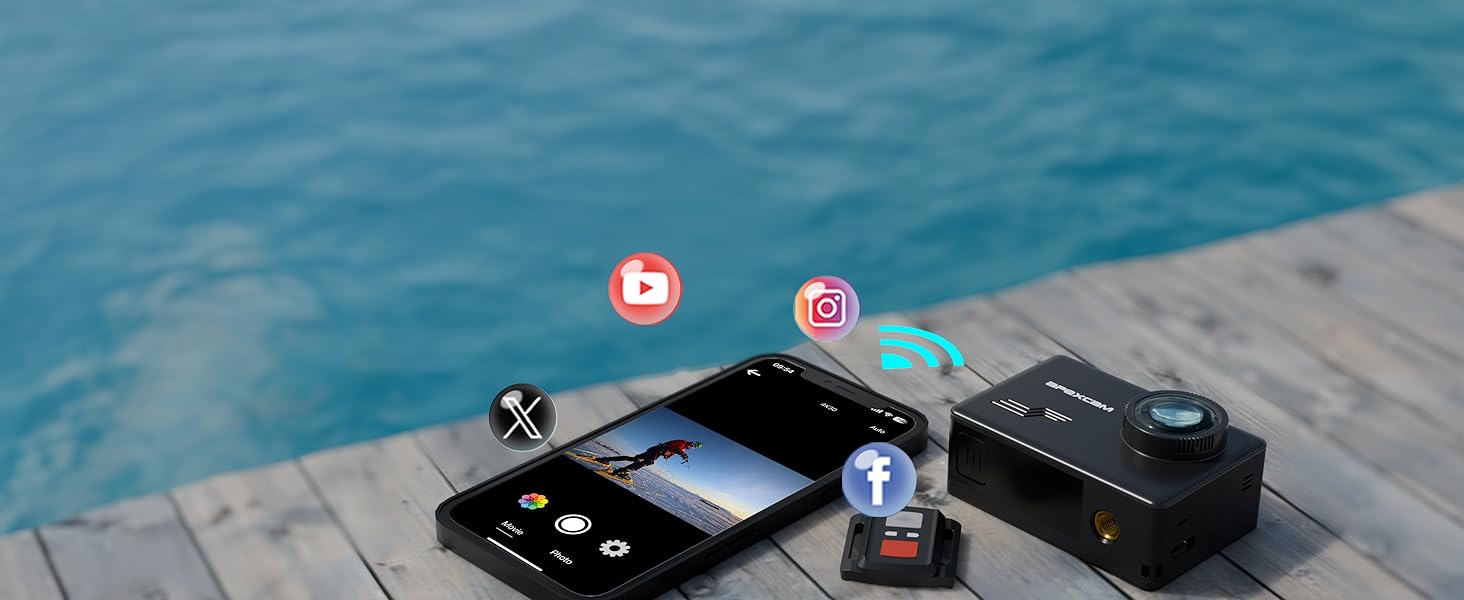
Image: The Apexcam M80 dual battery charger, also functioning as a card reader, connected to a laptop via a USB-C cable. Two batteries are visible inside the charger.
Video: Instructions on how to use and charge the batteries for the Apexcam M80 series camera.
2. SD Card Insertion and Formatting
Before first use, insert a Micro SD card (Class 10 or higher, up to 128GB recommended) into the designated slot. It is crucial to format the SD card within the camera's settings to ensure compatibility and optimal performance. To format, turn on the camera, navigate to System Settings, select "Format," and confirm. You can also insert the SD card into the charging case's slot and connect it to a computer via USB-C to read the card.
Video: Guide on how to insert and format the SD card for the Apexcam M80 series camera.
Operating Instructions
1. Power On/Off and Mode Switching
To power on the camera, press and hold the power button. Press the power button again to switch between video, photo, and system settings modes. Use the shutter button to confirm selections within menus.
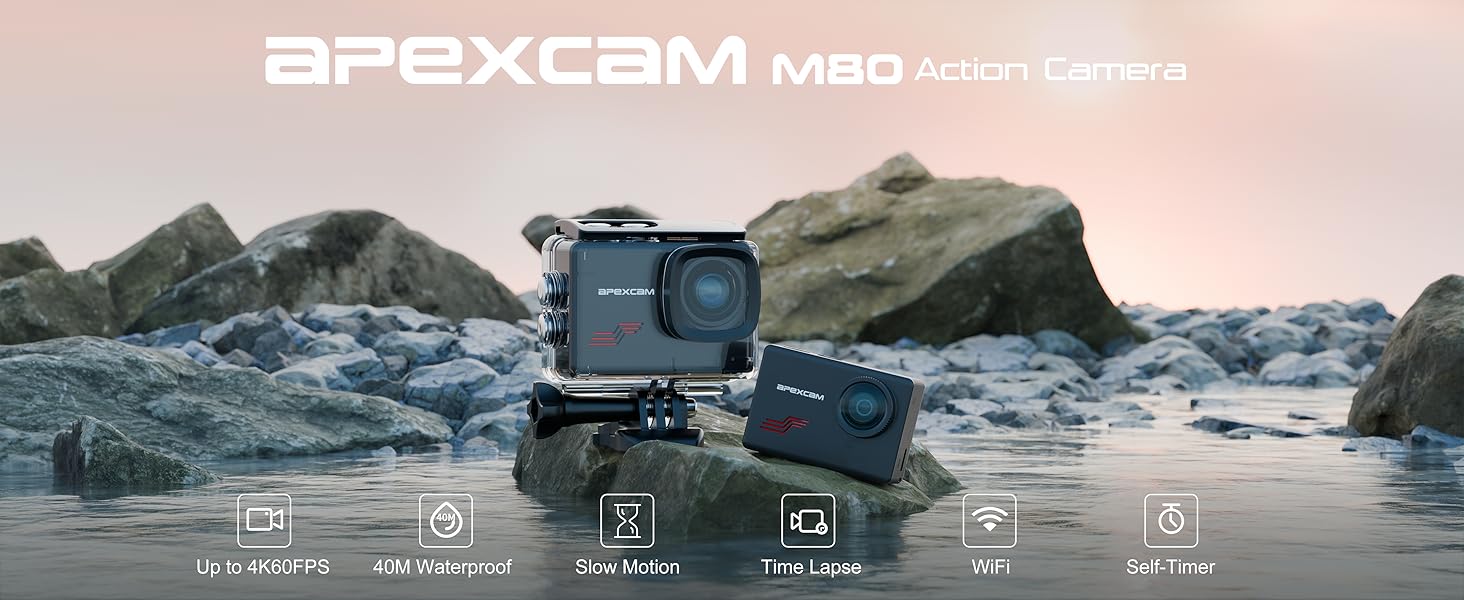
Image: The Apexcam M80 Action Camera showcasing its native 4K 60FPS video capability on its display.
2. Wireless Remote Control
The camera comes with a 2.4G wireless remote control for convenient operation. To activate, turn on the camera, navigate to settings, and enable "Remote Control." Once enabled, you can use the remote to start/stop video recording or take photos. The effective distance for the remote is up to 5 meters, but please note that the remote control is not waterproof.
Video: Demonstration of how to use the wireless remote control with the Apexcam M80 series camera.
3. Wi-Fi Connection
Connect your camera to your smartphone or tablet via Wi-Fi using the "Live DV" app. First, turn off cellular data on your mobile device and enable Wi-Fi. On the camera, press and hold the UP button to turn on the Wi-Fi function; the Wi-Fi information (SSID and password) will be displayed. Connect your mobile device to the camera's Wi-Fi network. Open the Live DV app, click "Start Connection," and the camera's viewfinder image will appear on your phone, allowing you to control shooting and download media.

Image: The Apexcam M80 Action Camera connected wirelessly to a smartphone, showing the camera's live feed on the phone's display, with social media icons suggesting easy sharing.
Video: Step-by-step instructions on how to connect the Apexcam M80 series camera to a mobile device via Wi-Fi.
4. Multi-Function Modes
The M80 camera offers various shooting modes to enhance your creative possibilities. These include:
- Video Mode: Standard video recording.
- Slow Motion: Capture fast-paced action in slow motion.
- Time Lapse: Condense long events into short, dynamic videos.
- Photo Mode: Capture high-resolution still images.
- Self-Timer: Set a delay before taking a photo.
- Photo Lapse: Capture a series of photos at set intervals.
- Driving Mode: Automatically records when the vehicle starts and stops.
- Pre-recorded Mode: Captures 5 seconds of video before the shutter is pressed, ensuring no moment is missed.
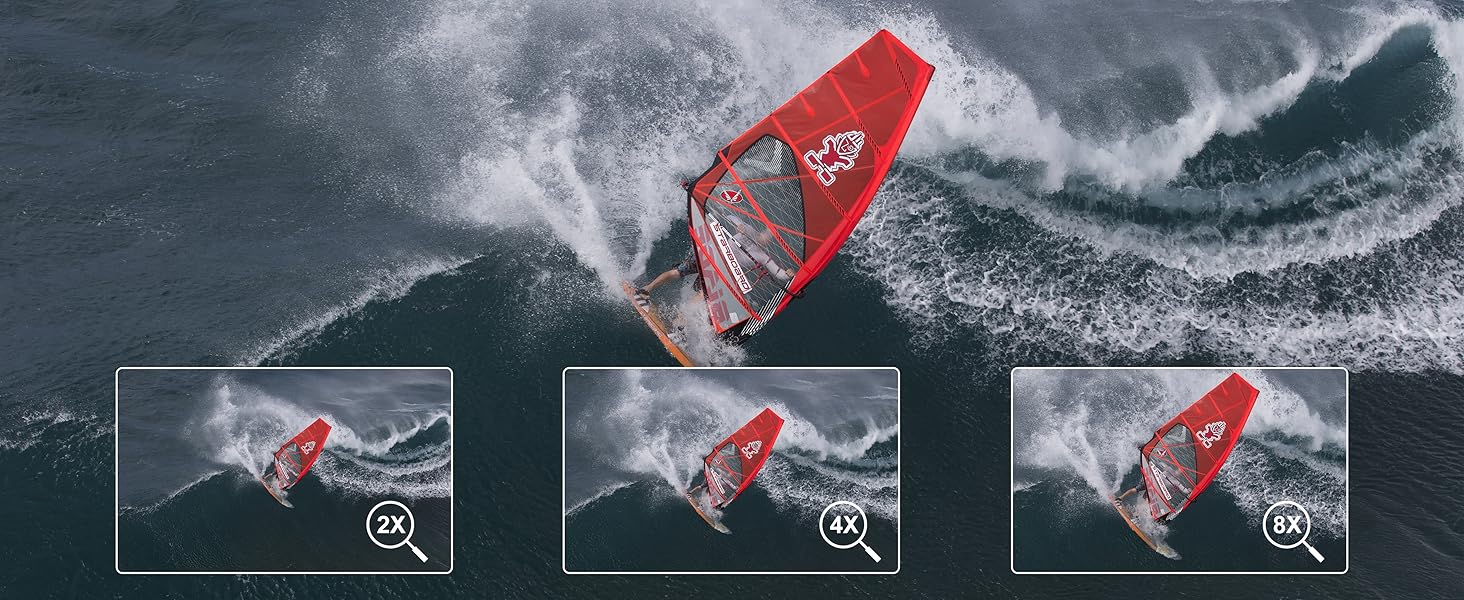
Image: The Apexcam M80 Action Camera's mode selection screen, showing various options for video and photo capture, including slow motion and time lapse.

Image: The Apexcam M80 Action Camera's display showing the 8X digital zoom feature, with a person performing a trick on a BMX bike in the background.
Video: A demonstration of the multi-function operation modes available on the Apexcam M80 series camera.
Accessories
The Apexcam M80 Action Camera comes with a comprehensive set of accessories to support various activities and mounting needs.
1. Waterproof Case
The included waterproof case allows the camera to be submerged up to 40 meters (131 feet), making it ideal for swimming, diving, surfing, and other water sports. Ensure the case is properly sealed before underwater use.

Image: The Apexcam M80 Action Camera enclosed in its transparent waterproof case, submerged in water, demonstrating its water resistance up to 40 meters.
2. Mounting Accessories
A variety of mounts are provided for attaching the camera to helmets, bicycles, and other gear. These accessories enable stable recording during activities like rock climbing, cycling, and mountain climbing.

Image: A comprehensive display of the Apexcam M80 Action Camera and its numerous accessories, including different mounting options, spare batteries, charging cables, and the user manual.
3. Dual Charger and Card Reader
The included dual charger not only charges two batteries simultaneously but also functions as a Micro SD card reader, allowing for easy transfer of photos and videos to your computer.
Maintenance
- Cleaning: Use a soft, dry cloth to clean the camera body and lens. For the waterproof case, rinse with fresh water after saltwater use and allow to air dry.
- Storage: Store the camera and accessories in a cool, dry place away from direct sunlight and extreme temperatures. Remove batteries if storing for extended periods.
- Battery Care: Fully charge batteries before each use. Avoid overcharging or completely draining batteries to prolong their lifespan.
- Firmware Updates: Check the official Apexcam website periodically for any available firmware updates to ensure your camera has the latest features and bug fixes.
Troubleshooting
- Camera Not Turning On: Ensure the battery is fully charged and correctly inserted. Try using a different charged battery if available.
- SD Card Error: Reformat the SD card in the camera's settings. If the issue persists, try a different, compatible Micro SD card.
- Wi-Fi Connection Issues: Ensure cellular data is off on your mobile device. Verify the Wi-Fi password and try reconnecting. Restart both the camera and your mobile device.
- Poor Video/Photo Quality: Check the selected resolution and frame rate settings. Ensure the lens is clean and free from smudges. For underwater use, ensure the waterproof case lens is clean.
- Remote Control Not Responding: Ensure the remote control function is enabled in the camera settings. Check the remote's battery.
Specifications
| Brand | Apexcam |
| Model Number | M80 |
| Video Capture Resolution | 4K (60FPS) |
| Photo Resolution | 48MP |
| Zoom Function | 8X Digital Zoom |
| Waterproof Depth | Up to 40 meters (131 feet) with case |
| Connectivity Technology | Wi-Fi, Bluetooth |
| Screen Size | 2 Inches |
| Flash Memory Type | Micro SD (up to 128GB) |
| Batteries | 2 x 1350mAh CR5 batteries (included) |
| Item Weight | 4.2 ounces |
| Product Dimensions | 1.18 x 2.36 x 2.36 inches |
Warranty and Support
Apexcam products typically come with a manufacturer's warranty. Please refer to the warranty card included in your product packaging for specific terms and conditions. For technical support, troubleshooting assistance, or any inquiries regarding your Apexcam M80 Action Camera, please visit the official Apexcam website or contact their customer service directly. Keep your purchase receipt as proof of purchase for warranty claims.
You can visit the Apexcam Store on Amazon for more information and support resources.


