Introduction
This manual provides essential information for the safe and efficient use of your INSIGNIA 85" Class F50 Series LED 4K UHD Smart Fire TV. Please read all instructions carefully before operating your television and retain this manual for future reference.
The INSIGNIA F50 Series Fire TV offers a 4K Ultra HD viewing experience with integrated Fire TV features, including access to streaming services and Alexa voice control.
Setup
1. Unboxing and Initial Placement
Carefully remove the television from its packaging. It is recommended to have at least two people for safe handling due to the size and weight of the 85-inch model. Ensure the screen is protected during this process. Place the TV on a stable, flat surface or prepare for wall mounting.

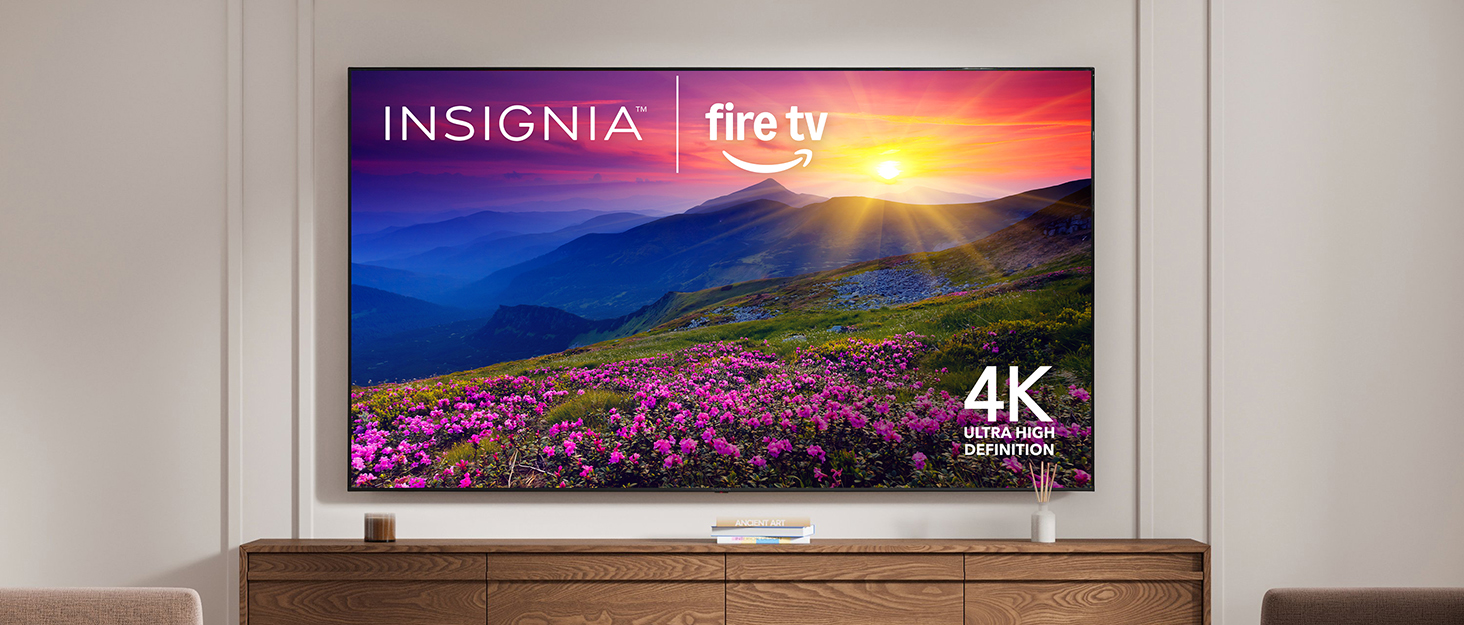
Front view of the INSIGNIA 85-inch Fire TV with its stand.
2. Stand Installation (Optional)
If not wall-mounting, attach the included stand legs to the bottom of the television using the provided screws. Refer to the quick setup guide included in the box for specific instructions on leg orientation and screw placement.
3. Wall Mounting (Optional)
For wall mounting, use a VESA-compatible wall mount (sold separately) that supports the weight and size of your 85-inch television. Follow the instructions provided with your wall mount. Ensure the wall can support the TV's weight (approximately 97 pounds) and that mounting is done securely.
4. Connecting Peripherals
Your TV features multiple ports for connecting external devices:
- HDMI Ports: Three HDMI ports are available, including HDMI ARC/eARC for enhanced audio return. Connect your Blu-ray player, game console, or other HDMI devices.
- USB Ports: For connecting USB storage devices.
- Digital Optical Output: For connecting to a soundbar or AV receiver.
- 3.5 mm Jack: For headphones or external speakers.
- Composite (AV) Jacks: For older devices using RCA cables.
- Coaxial Jack: For cable/antenna connection.
- Ethernet Port: For a wired internet connection.

Rear view of the TV with port locations.

Side-facing connectivity options.

Bottom-facing connectivity options.
5. Power Connection
Connect the power cable to the TV's power input and then to a wall outlet. The power input is typically located on the back of the TV, often recessed or on the side.
6. Initial Setup and Wi-Fi
Upon first power-on, the TV will guide you through the initial setup process. This includes connecting to your Wi-Fi network, pairing the Alexa Voice Remote, and logging into your Amazon account to activate Fire TV features. Follow the on-screen prompts.
This video demonstrates the unboxing and initial physical setup of an Insignia F50 Series TV, including connecting the power and reviewing the back panel.
Operating Your TV
1. Fire TV Interface and Streaming
The integrated Fire TV provides a unified interface for accessing various streaming services such as Prime Video, Netflix, Disney+, Hulu, and HBO Max. You can also stream free content from apps like Fire TV Channels, Tubi, and Pluto TV. Navigate using the Alexa Voice Remote.

The Fire TV home screen with streaming service access.
2. Alexa Voice Remote
Use the Alexa Voice Remote to control your TV with voice commands. Press the microphone button and speak your command to search for content, launch apps, control playback, and manage smart home devices.
The Alexa Voice Remote for easy control.
3. Picture and Sound Quality
- 4K Ultra HD (2160p): Experience content in stunning 4K resolution, four times that of Full HD. The TV also upscales lower-resolution content to near-4K quality.
- High Dynamic Range (HDR10): Enjoy a wider range of colors and sharper contrast, from bright whites to deep blacks, for a more lifelike picture.
- DTS Studio Sound: This audio enhancement suite provides immersive and realistic sound with expanded spatial awareness, even with two-speaker playback.

Visual representation of DTS Virtual X sound technology.
4. Smart Home Integration
Pair your Fire TV with compatible smart home devices to view live camera feeds, control lighting, adjust thermostats, and more, all through your TV or Alexa Voice Remote.
5. Parental Controls
Manage your children’s viewing by blocking content based on program ratings or entire channels. Access these settings through the TV's menu and secure them with a PIN.
This video provides a general overview of the Insignia Smart TV's features, including its smart capabilities and remote control.
Maintenance
1. Cleaning the Screen
To clean the screen, first unplug the TV. Gently wipe the screen with a soft, dry, lint-free cloth. For stubborn marks, lightly dampen the cloth with water or a screen-specific cleaning solution (avoid harsh chemicals or abrasive materials).
2. Cleaning the TV Body and Remote
Wipe the TV's frame and the remote control with a soft, dry cloth. Do not use liquid cleaners directly on these surfaces.
3. Software Updates
Your Fire TV automatically receives software updates over the internet. Ensure your TV is connected to Wi-Fi for these updates to download and install, which helps maintain optimal performance and security.
Troubleshooting
If you encounter issues with your TV, try the following basic troubleshooting steps:
- No Power: Check if the power cord is securely plugged into both the TV and the wall outlet. Try a different outlet.
- No Picture/Sound: Verify that the correct input source is selected. Check all cable connections (HDMI, audio) for looseness.
- Remote Not Responding: Replace the AAA batteries in the Alexa Voice Remote. Ensure there are no obstructions between the remote and the TV. Re-pair the remote if necessary (refer to the TV's on-screen help).
- Wi-Fi Connectivity Issues: Restart your Wi-Fi router and modem. Go to the TV's network settings to reconnect to your Wi-Fi network. Ensure the Wi-Fi password is correct.
- App Lagging/Freezing: Close and restart the problematic application. If the issue persists, try restarting the TV by unplugging it from the power outlet for a few minutes and then plugging it back in.
For more detailed troubleshooting or persistent issues, refer to the online support resources available through your Fire TV or the INSIGNIA customer support website.
Specifications
| Feature | Specification |
|---|---|
| Brand | INSIGNIA |
| Model Number | NS-85F501NA26 |
| Screen Size | 85 Inches |
| Display Technology | LED |
| Resolution | 4K Ultra HD (2160p) |
| Refresh Rate | 60 Hz |
| Special Features | Apple AirPlay, Alexa Voice Remote, Fire TV Built-in |
| Connectivity Technology | Wi-Fi |
| HDMI Ports | 3 (including ARC/eARC support) |
| USB Ports | 1 |
| Audio Output | Digital Optical, 3.5mm Headphone Jack |
| Other Ports | Composite (AV) jacks, Coaxial jack, Ethernet port |
| Item Weight | 97 pounds |
| Product Dimensions (D x W x H) | 14.7" x 74.41" x 42.61" |
| Included Components | Power Cable, Alexa Voice Remote (2 AAA batteries required) |
Warranty and Support
For detailed warranty information, product registration, and customer support, please visit the official INSIGNIA website or refer to the documentation included with your television. Online resources often include FAQs, troubleshooting guides, and contact information for technical assistance.


