
1. Introduction
This manual provides comprehensive instructions for the installation, operation, and maintenance of your SIXTOP Android Car Stereo. This unit is specifically designed for Hyundai Elantra models from 2014 to 2016, featuring a 9-inch touch screen, 4GB RAM, 64GB ROM, and a 4-core processor. It integrates advanced features such as wireless Apple CarPlay, Android Auto, Bluetooth 5.0, GPS navigation, FM/RDS radio, DSP audio processing, and AI voice control to enhance your driving experience.

Image 1.1: SIXTOP Android Car Stereo unit with its user interface.

Image 1.2: Overview of the Android 13 system with 4GB RAM and 64GB ROM.

Image 1.3: Display specifications, showing Ultra HD 1280x720 resolution and IPS 170-degree viewing angle.
2. Setup and Installation
Before beginning installation, ensure your vehicle is compatible with this unit. This stereo is designed for Hyundai Elantra models from 2014 to 2016. It is not compatible with vehicles that have a large screen, a factory navigation system, or J-B-L premium sound systems.

Image 2.1: Compatibility guide for Hyundai Elantra 2014-2016 models.
2.1 Package Contents
Verify that all components are present in the package:
- Car Stereo with Frame
- AHD Rear View Camera
- Microphone
- RCA Cable
- GPS Antenna
- Power Cable
- Brackets
- USB Cables
- Rear View Input Cable
- Installation Tool
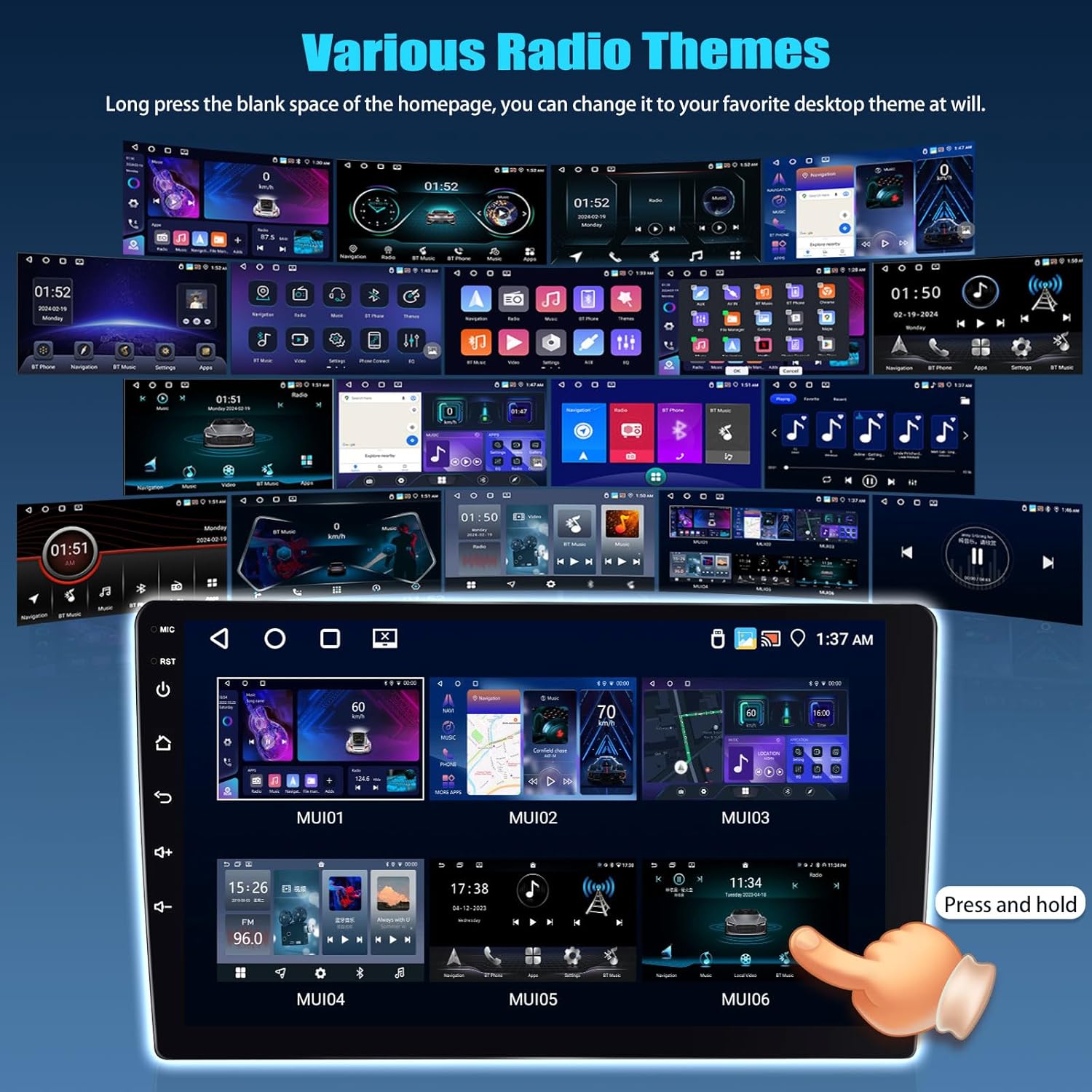
Image 2.2: Package contents and unit dimensions.
2.2 Wiring Diagram (Rear Camera)
Follow the diagram below for connecting the AHD Rear View Camera. Proper connection is crucial for the camera to function correctly.

Image 2.3: Rear Camera Wiring Diagram.
Note: For optimal performance and to avoid potential issues, professional installation is recommended. Ensure all connections are secure before powering on the unit.
3. Operating Instructions
3.1 Basic Interface and Navigation
The unit features a responsive 9-inch touch screen. Navigate through applications and settings by tapping icons and swiping across the screen. The main screen displays various applications for easy access.
3.2 Steering Wheel Control
The stereo supports your vehicle's original steering wheel buttons for convenient control of audio functions. To set up steering wheel controls:
- Access the car settings menu on the stereo.
- Locate the 'Steering Learn' or 'Steering Wheel Control' option.
- Follow the on-screen prompts to assign functions to each button.

Image 3.1: Steering Wheel Control setup interface.
3.3 AI Intelligent Voice Control
Activate the AI voice assistant by clicking the Voice APP icon. You can then issue commands for various functions, such as making calls, playing music, tuning the radio, or opening installed applications.
- Example: Say "Play Michael Jackson's song" to play music.
- Example: Say "Call [Contact Name]" to initiate a call.

Image 3.2: AI Intelligent Voice Control functionality.
3.4 Split Screen Function
The unit supports displaying two applications simultaneously. To use split screen:
- Click the rectangle icon at the top of the screen.
- Select an application and drag it to either the left or right side of the screen.
- Choose a second application for the other side.

Image 3.3: Split Screen Mode in action.
3.5 Desktop Themes
Customize the appearance of your stereo by changing desktop themes. Long-press on a blank space on the homepage to access theme options and select your preferred visual style.

Image 3.4: Various Desktop Themes.
3.6 Bluetooth 5.0
Connect your smartphone via Bluetooth 5.0 for hands-free calling, contact synchronization, and music playback. Bluetooth 5.0 offers faster and more stable connections.
- Pairing: Go to Bluetooth settings on the stereo and your phone, search for available devices, and pair.
- Calls: Make and receive calls directly from the stereo screen.
- Music: Stream audio from your phone to the car stereo.

Image 3.5: Bluetooth 5.0 features for calls and music.
3.7 WiFi Connectivity and Apps
Connect the stereo to a WiFi network to download various applications from the Play Store, stream online music, and watch videos. This transforms your car stereo into a smart device.

Image 3.6: Built-in WiFi for app access.
3.8 GPS Navigation
The unit supports GPS positioning. You can download offline navigation maps directly from the Play Store. When connected to WiFi, online maps can also be used for real-time traffic and navigation updates.

Image 3.7: GPS Navigation features.
3.9 FM/RDS Radio
Enjoy listening to news, music, weather forecasts, and traffic information via the built-in FM/RDS radio tuner. The RDS function provides additional information like station names and song titles.

Image 3.8: FM/RDS Radio interface.
3.10 Apple CarPlay & Android Auto
The stereo supports wireless Apple CarPlay and Android Auto, allowing you to seamlessly integrate your smartphone. This enables access to phonebook, email, notifications, map navigation, and music apps directly on the stereo screen. Voice control through your phone's assistant is also supported.
- Ensure your phone's WiFi and Bluetooth are enabled.
- Open the [ApplePlay] or [Android Auto] app on the stereo to connect automatically.
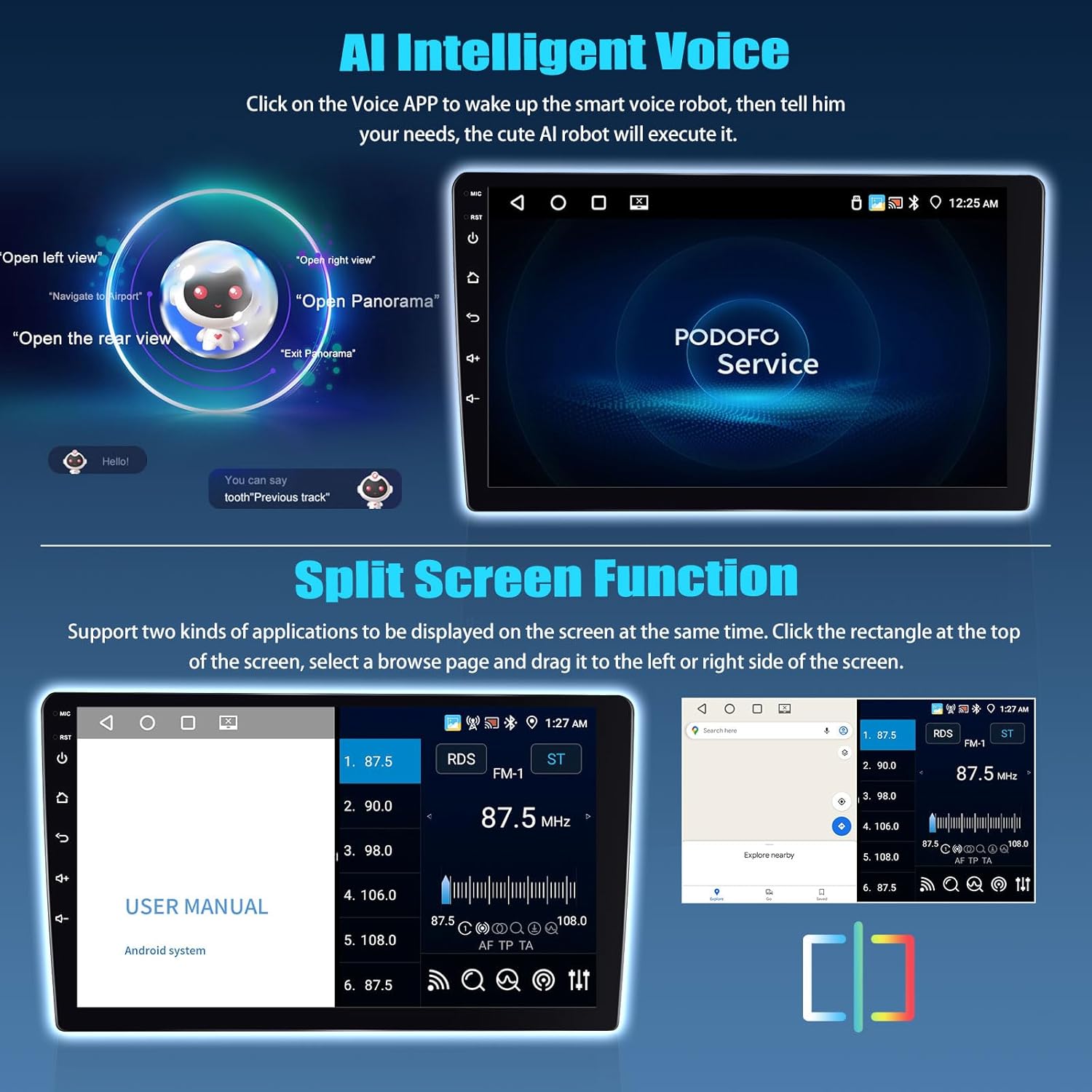
Image 3.9: Apple CarPlay and Android Auto functionality.
3.11 Mirror Link
Mirror Link allows you to transmit your mobile phone screen to the car stereo. This is useful for viewing downloaded videos or other content from your phone.
- For iPhone, select [Airplay].
- For Android phones, select [Android Link].
- Connect via WiFi for optimal performance.
3.12 DSP Audio and 32-Band EQ
The built-in Digital Sound Processor (DSP) with a 32-band equalizer allows for precise audio customization. Choose from various sound effects like 3D optimized, Panorama, and HiFi scene to compensate for original car speaker limitations and achieve better lossless sound quality.

Image 3.10: DSP Sound Effects and 32-Band Equalizer.
3.13 AHD Rear View Camera
The included AHD (Analog High Definition) rear view camera provides a clear reversing image when the vehicle is in reverse gear, enhancing parking safety.

Image 3.11: AHD Rear View Camera display.
4. Maintenance
To ensure the longevity and optimal performance of your SIXTOP Android Car Stereo, follow these maintenance guidelines:
- Cleaning: Use a soft, dry cloth to clean the screen and exterior. Avoid abrasive cleaners or solvents.
- Software Updates: Periodically check for software updates through the system settings to ensure you have the latest features and bug fixes. A stable internet connection is required for updates.
- Temperature: Avoid exposing the unit to extreme temperatures, both hot and cold, for extended periods.
- Power: Ensure the vehicle's electrical system is in good condition to prevent power fluctuations that could damage the unit.
5. Troubleshooting
If you encounter issues with your car stereo, refer to the following common troubleshooting steps. If the problem persists, please contact customer support.
| Problem | Possible Cause | Solution |
|---|---|---|
| No power/Unit does not turn on | Incorrect wiring, blown fuse, vehicle battery issue. | Check power cable connections. Verify vehicle fuse. Ensure battery has sufficient charge. |
| No sound | Speaker wiring issues, volume too low, mute activated, incorrect audio output settings. | Check speaker connections. Increase volume. Disable mute. Verify audio settings in DSP/EQ. |
| Bluetooth connection issues | Bluetooth not enabled, device not discoverable, interference. | Ensure Bluetooth is on for both devices. Make phone discoverable. Try re-pairing. Move closer to the unit. |
| GPS signal loss/inaccurate | GPS antenna not properly installed, poor satellite reception. | Ensure GPS antenna is securely connected and placed in an unobstructed location. Update maps if necessary. |
| Rear camera not displaying | Incorrect camera wiring, camera faulty, software setting. | Review the rear camera wiring diagram (Image 2.3). Check camera connections. Verify camera settings in the stereo menu. |
| Screen unresponsive/frozen | Software glitch, temporary system error. | Perform a soft reset (refer to device settings for reset option or power cycle the unit by turning off the car ignition and restarting). |
6. Specifications
| Feature | Specification |
|---|---|
| Operating System | Android |
| RAM | 4GB |
| ROM | 64GB |
| Processor | 4 Core |
| Screen Size | 9 Inches |
| Display Resolution | 1280*720 |
| Bluetooth Version | 5.0 |
| Connectivity | Bluetooth, Wi-Fi |
| Special Features | AHD Backup Camera, Steering Wheel Control, GPS Navigation, Touchscreen, Split Screen, Wireless CarPlay and Android Auto, Mirror Link, AI Voice, DSP 32EQ |
| Audio Output Mode | Stereo |
| Mounting Type | Dashboard Mount |
| Item Weight | 3.09 pounds |
| Package Dimensions | 15.35 x 11.81 x 4.33 inches |
7. Warranty and Support
7.1 Warranty Information
The SIXTOP Android Car Stereo comes with a 1-Year Warranty from the date of purchase. This warranty covers manufacturing defects and malfunctions under normal use. Please retain your proof of purchase for warranty claims.
7.2 Customer Support
For technical assistance, troubleshooting, or warranty inquiries, please contact SIXTOP customer support. We offer:
- 24 Hours/7 Days Quick Response
- 1-Year Replacement (under warranty terms)
- Lifetime Technical Support
You can reach our online support team via email:
SIXTOP123@163.com
Alternatively, if you purchased through Amazon, you can contact the seller directly:
- Click on the seller's name (e.g., "xinshunhang") on the product page.
- Click the "Ask a question" button to send a message.

Image 7.1: SIXTOP Support Features.

Image 7.2: SIXTOP Online Support Contact.


