
1. Introduction
The ATTACK SHARK X1 is an ultralight wireless gaming mouse designed for high-performance use. It features a magnetic RGB charging dock, a PixArt PAW3395 Pro sensor, and offers tri-mode connectivity (Wired, 2.4GHz Wireless, Bluetooth). This manual provides detailed instructions for setting up, operating, and maintaining your X1 gaming mouse.

Image 1.1: ATTACK SHARK X1 Gaming Mouse with its Magnetic RGB Charging Dock.
2. Package Contents
Verify that all items are present in your package:
- ATTACK SHARK X1 Ultralight Wireless Gaming Mouse
- Magnetic RGB Charging Dock
- USB Type-C Charging Cable
- 2.4GHz USB Receiver
- Anti-Slip Grip Tape
- User Manual (this document)
3. Product Overview
Familiarize yourself with the components of your ATTACK SHARK X1 mouse and charging dock.
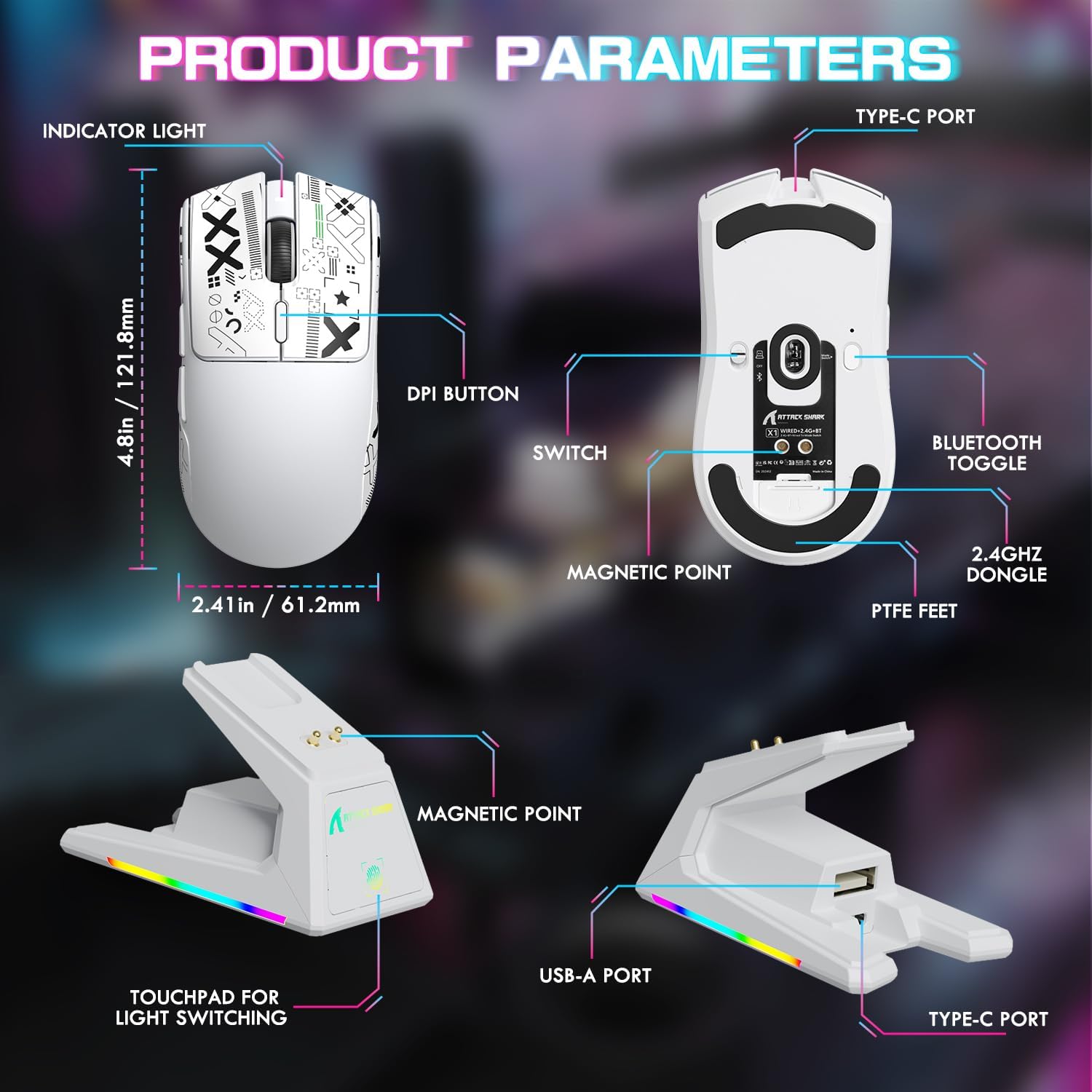
Image 3.1: Detailed diagram of the mouse and charging dock components.
Mouse Components:
- Indicator Light: Displays battery status and connection mode.
- DPI Button: Cycles through preset DPI levels.
- Switch: Power and connection mode selector (OFF, 2.4G, BT).
- Magnetic Point: For secure attachment to the charging dock.
- PTFE Feet: Low-friction glides for smooth movement.
- Type-C Port: For wired connection and charging.
- Bluetooth Toggle: Activates Bluetooth pairing.
- 2.4GHz Dongle Storage: Compartment for the USB receiver.
Charging Dock Components:
- Magnetic Point: Connects with the mouse for charging.
- USB-A Port: For connecting the 2.4GHz USB receiver.
- Type-C Port: For connecting the dock to a power source.
- Touchpad for Light Switching: Controls the RGB lighting effects on the dock.
4. Setup
4.1 Charging the Mouse
Before first use, it is recommended to fully charge the mouse. The mouse can be charged via the magnetic charging dock or directly via the Type-C cable.
- Connect the magnetic RGB charging dock to a power source using the provided Type-C cable.
- Place the mouse onto the charging dock. The magnetic points will align, and the mouse will begin charging. The dock's RGB lighting will indicate charging status.
- Alternatively, connect the Type-C cable directly to the mouse's Type-C port and a power source.
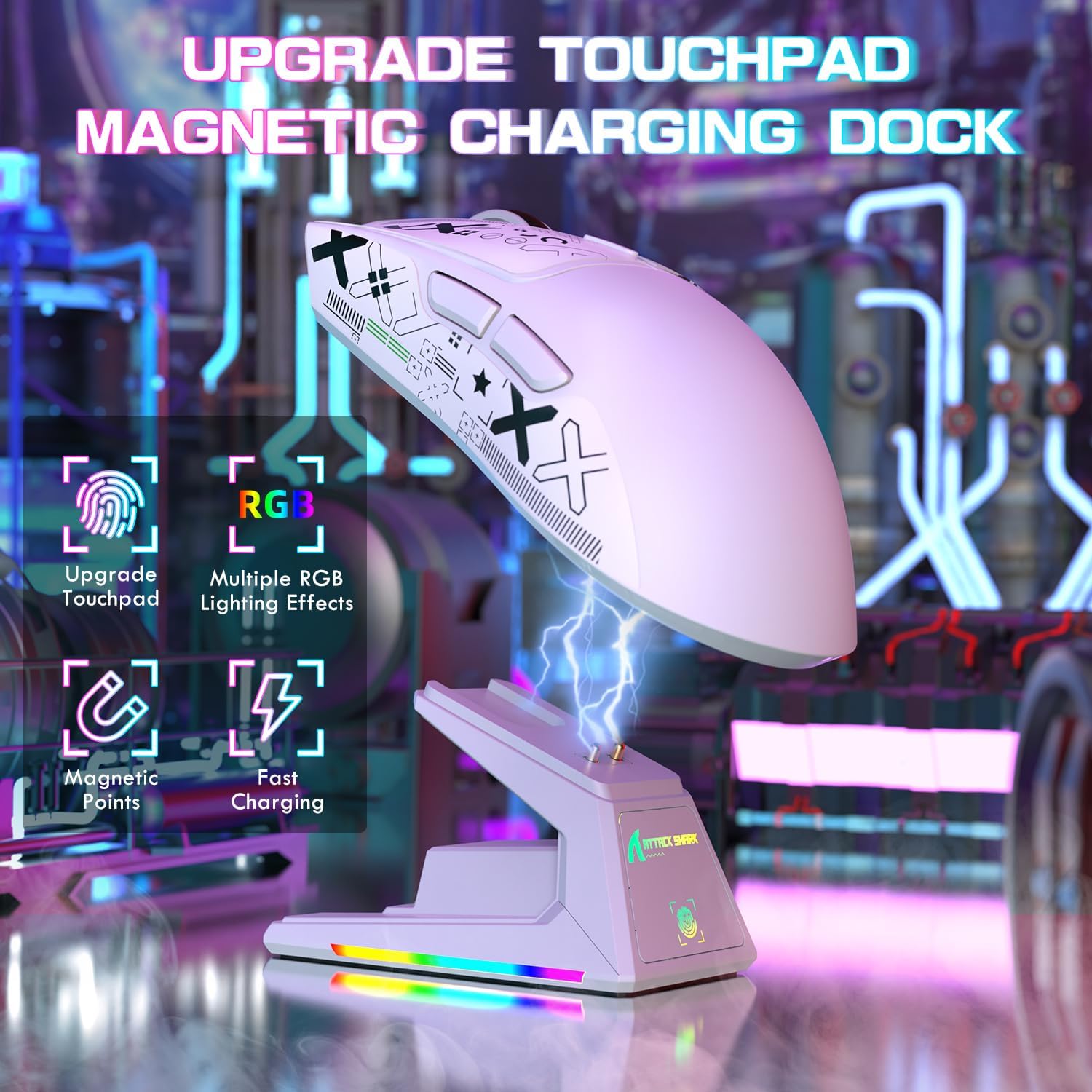
Image 4.1: Charging the X1 mouse using the magnetic dock.
4.2 Applying Anti-Slip Grip Tape
The included anti-slip grip tape can be applied to the mouse for enhanced grip and comfort. Carefully peel the backing and adhere the tape to the desired areas on the mouse body.
4.3 Connecting the Mouse
The ATTACK SHARK X1 supports three connection modes: Wired, 2.4GHz Wireless, and Bluetooth.
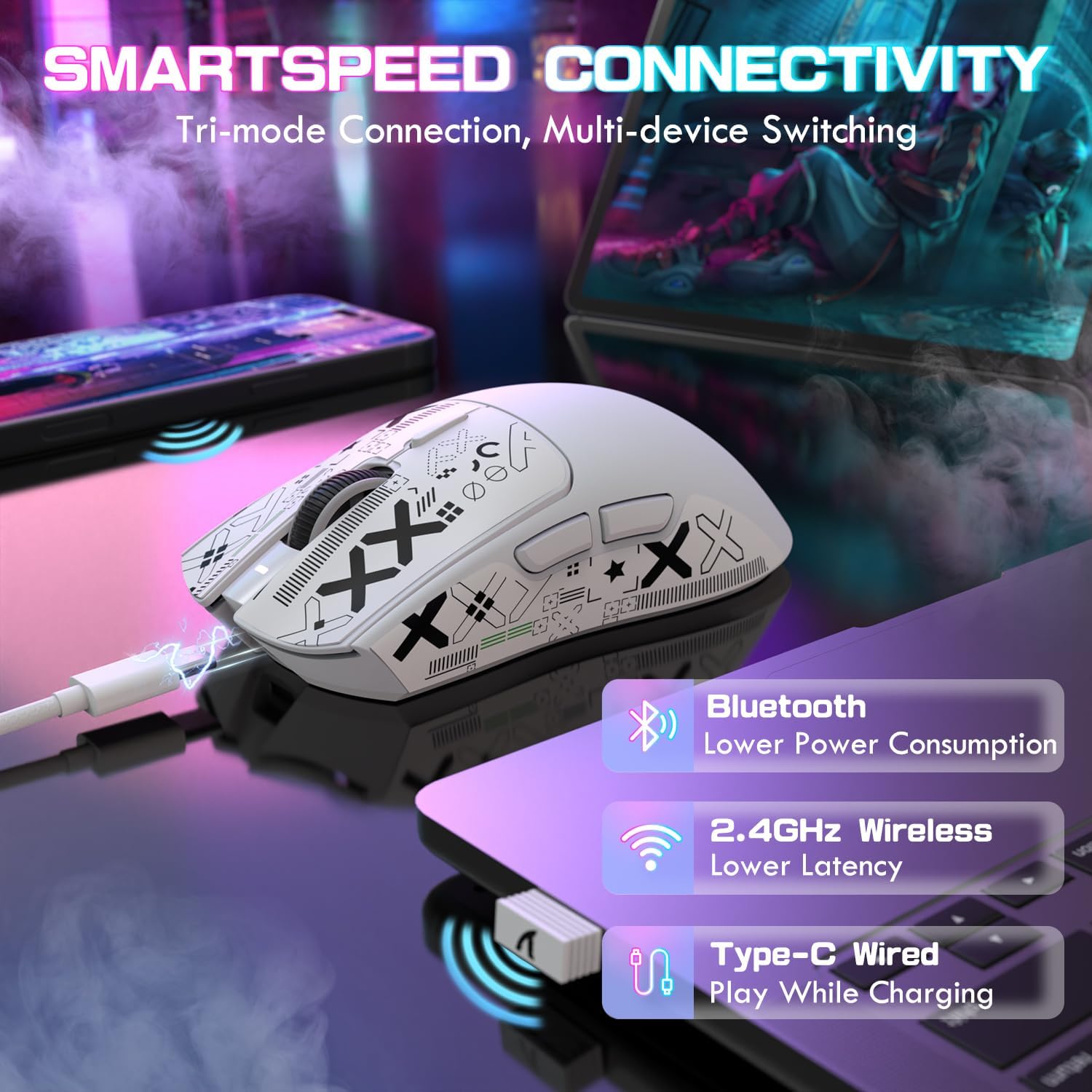
Image 4.2: Overview of the tri-mode connectivity options.
Wired Connection:
- Ensure the mouse power switch (located on the bottom) is set to the 'OFF' position.
- Connect the Type-C cable directly from the mouse to your computer's USB port. The mouse will function immediately and charge simultaneously.
2.4GHz Wireless Connection:
- Remove the 2.4GHz USB receiver from its storage compartment on the bottom of the mouse.
- Plug the USB receiver into an available USB-A port on your computer or into the USB-A port on the charging dock.
- Set the mouse power switch to the '2.4G' position. The mouse will automatically connect to the receiver.
Bluetooth Connection:
- Set the mouse power switch to the 'BT' position.
- Press and hold the Bluetooth toggle button (located on the bottom of the mouse) for 3 seconds until the indicator light flashes rapidly, indicating pairing mode.
- On your computer or device, navigate to Bluetooth settings and search for new devices.
- Select 'ATTACK SHARK X1' from the list of available devices to pair. The indicator light will become solid once connected.
- The mouse can connect to up to three Bluetooth devices (BT1, BT2, BT3). Switch between them by briefly pressing the Bluetooth toggle button.
5. Operating Instructions
5.1 DPI Adjustment
The mouse features a dedicated DPI button on its top surface. Press this button to cycle through preset DPI levels. For fine-tuning and custom DPI settings (50-unit increments up to 40000 DPI), use the programmable web driver software.
5.2 RGB Lighting Control
The magnetic charging dock features dynamic RGB lighting effects. These can be adjusted by tapping the touchpad control located on the front of the dock.
5.3 Web Driver Software
The ATTACK SHARK X1 gaming mouse supports full customization through its web-based driver software. This software allows you to:
- Create and assign macros.
- Re-assign mouse keys.
- Fine-tune DPI settings.
- Adjust polling rate (up to 1000Hz).
- Configure other performance parameters.
Access the web driver software at: bit.ly/4mqcdwo
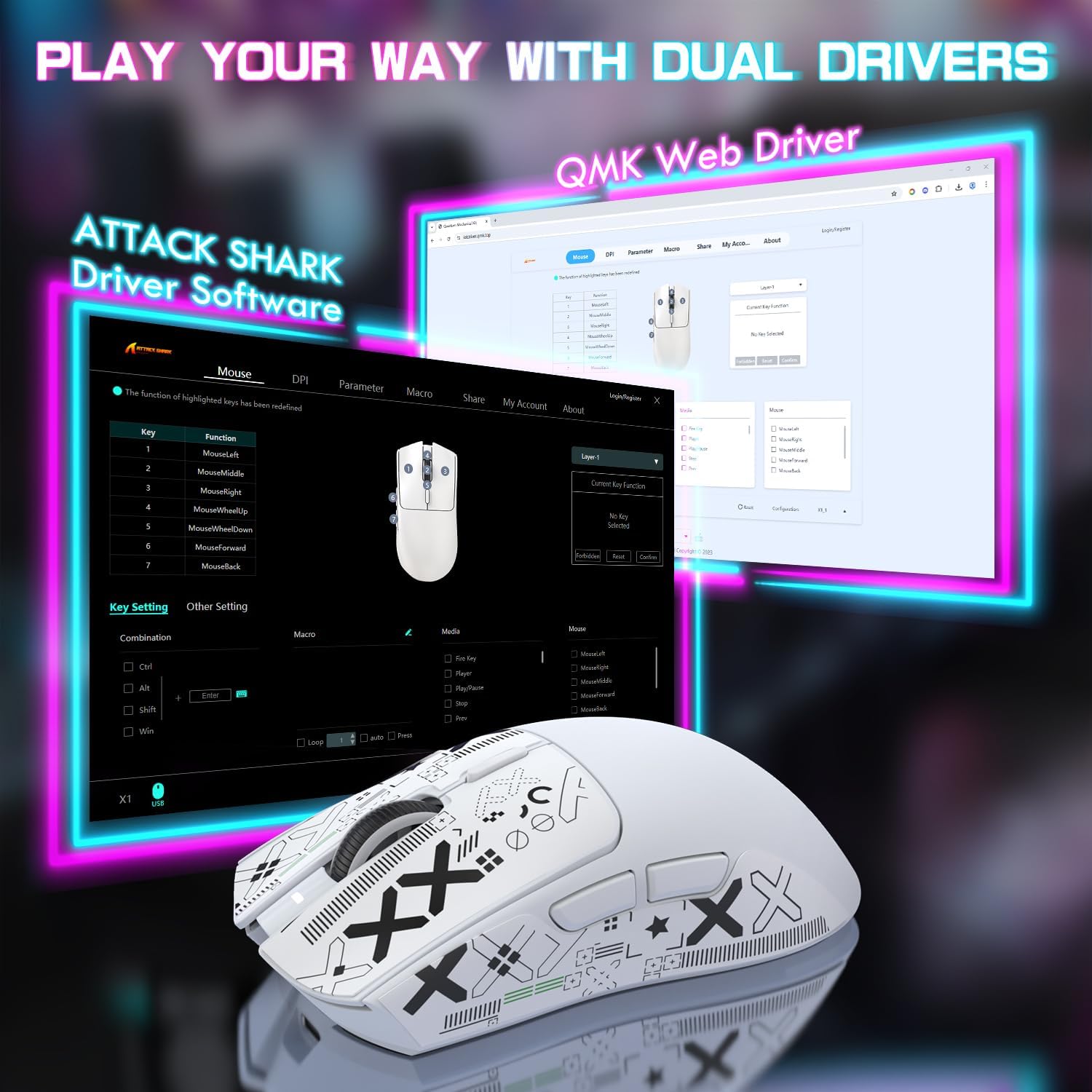
Image 5.1: The ATTACK SHARK X1 web driver software interface.
5.4 Switching Connection Modes
To switch between wired, 2.4GHz wireless, and Bluetooth modes, use the physical switch located on the bottom of the mouse. For Bluetooth, briefly press the Bluetooth toggle button to cycle between paired devices (BT1, BT2, BT3).
6. Maintenance
6.1 Cleaning
Regularly clean your mouse to ensure optimal performance and longevity.
- Use a soft, dry cloth to wipe the surface of the mouse and charging dock.
- For stubborn dirt, slightly dampen the cloth with water or a mild cleaning solution. Avoid harsh chemicals.
- Use a soft brush or compressed air to clean dust from crevices, buttons, and the optical sensor.
6.2 Battery Care
To maximize battery life:
- Avoid fully discharging the battery frequently.
- Store the mouse in a cool, dry place when not in use for extended periods.
- The mouse features a smart sleep mode to conserve power during inactivity.
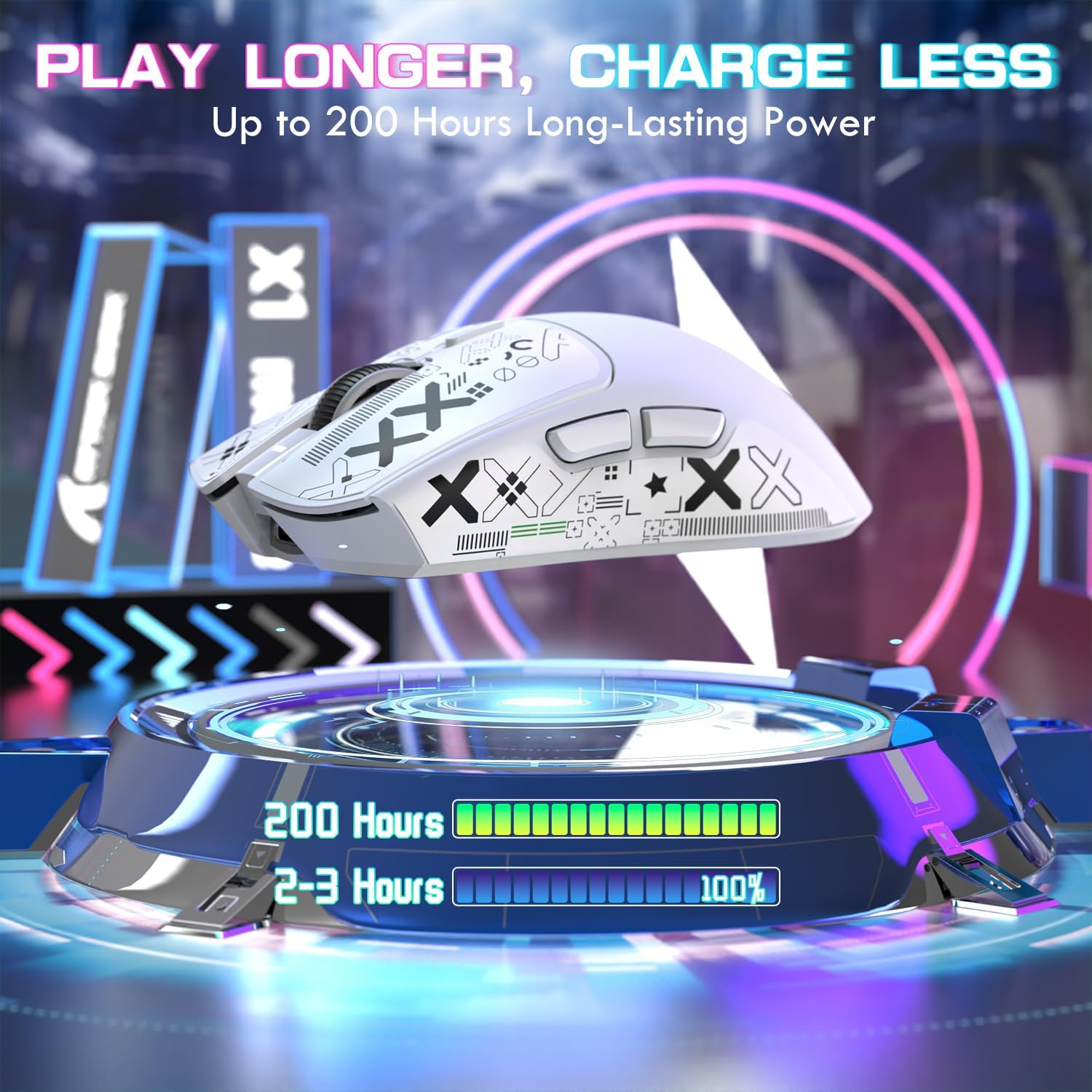
Image 6.1: The X1 mouse offers extended battery life and efficient charging.
7. Troubleshooting
If you encounter issues with your ATTACK SHARK X1 mouse, refer to the following common problems and solutions:
| Problem | Possible Cause | Solution |
|---|---|---|
| Mouse not responding (Wireless) | Low battery; Incorrect connection mode; USB receiver not connected; Driver issue. | Charge the mouse; Ensure switch is on '2.4G' or 'BT'; Plug in USB receiver; Reinstall/update drivers via web software. |
| Mouse not charging | Cable not connected properly; Dock not powered; Magnetic points misaligned. | Check Type-C cable connection to dock/mouse and power source; Ensure mouse is correctly seated on the magnetic dock. |
| RGB lighting not working on dock | Dock not powered; Lighting turned off. | Ensure dock is connected to power; Tap the touchpad on the dock to cycle through lighting modes. |
| DPI not changing | DPI button malfunction; Software conflict. | Ensure DPI button is pressed firmly; Check web driver software for custom profiles or conflicts. |
| Lag or disconnections | Interference; Distance from receiver; Low battery. | Reduce distance to receiver; Remove sources of interference; Charge the mouse. |
8. Specifications
Key technical specifications for the ATTACK SHARK X1 Ultralight Wireless Gaming Mouse:
| Feature | Detail |
|---|---|
| Model | X1 |
| Sensor | PixArt PAW3395 Pro Optical Sensor |
| DPI Range | 50 - 40,000 DPI (adjustable in 50-unit increments via web driver) |
| Polling Rate | Up to 1000Hz |
| Acceleration | 50g |
| Tracking Speed | 650 IPS |
| Switches | OMRON Optical Micro Switches (100 million click lifespan) |
| Encoder | F-Switch Encoder |
| Connectivity | Tri-Mode: USB Type-C Wired, 2.4GHz Wireless, Bluetooth (BT1/BT2/BT3) |
| Weight | 53g (approximate) |
| Charging | Magnetic RGB Charging Dock or USB Type-C |
| Battery Life | Up to 200 hours (usage dependent) |
| Dimensions | Approximately 121.8mm (L) x 61.2mm (W) |

Image 8.1: The PixArt PAW3395 Pro Sensor provides high-performance tracking.
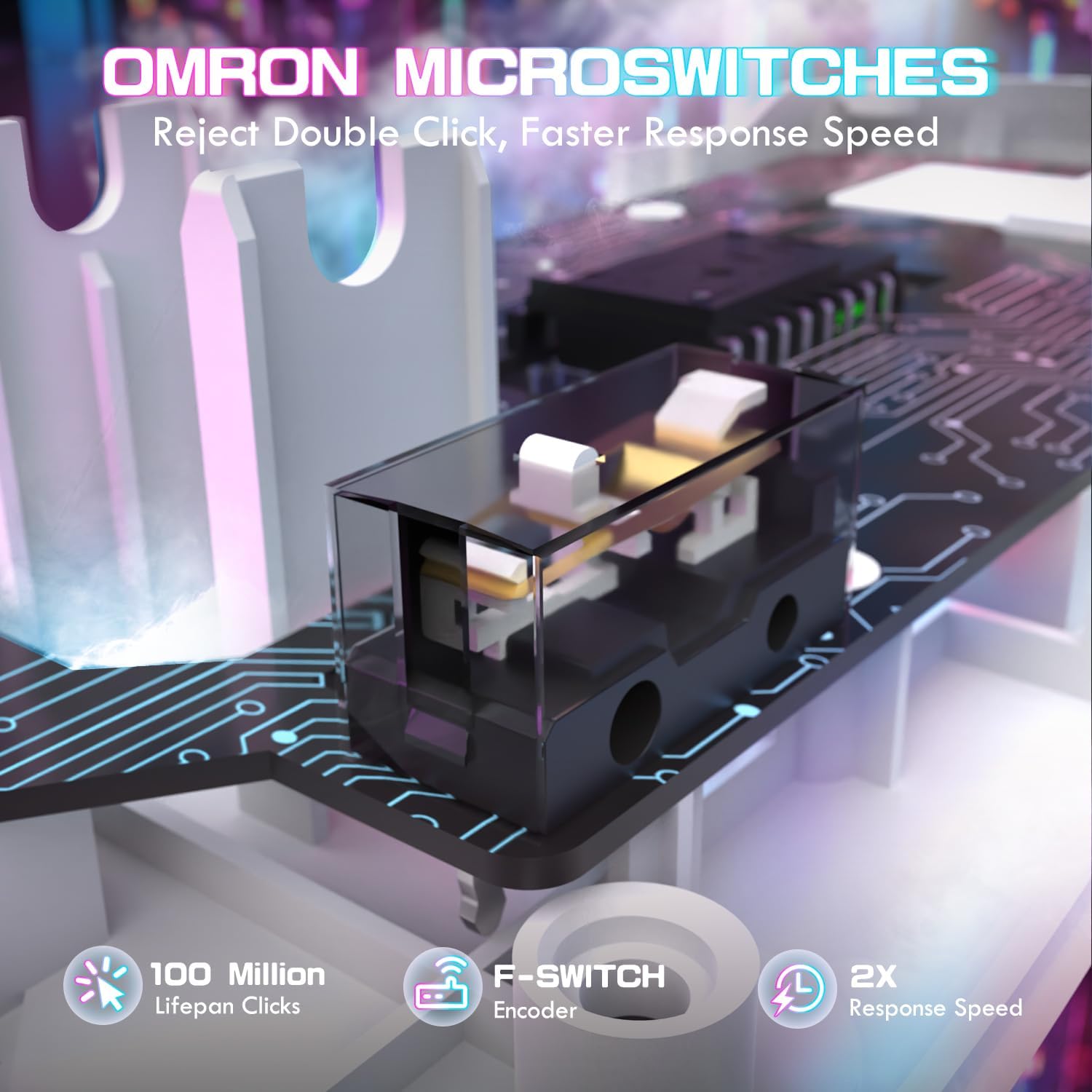
Image 8.2: OMRON optical micro switches ensure durability and responsive clicks.
9. Warranty and Support
ATTACK SHARK products are manufactured to high quality standards. For warranty information and technical support, please refer to the official ATTACK SHARK website or contact your retailer. Keep your proof of purchase for warranty claims.
10. Product Video
Watch the official product video for a visual guide on the ATTACK SHARK X1 mouse features and usage.
Video 10.1: ATTACK SHARK X1 Tri Mode Ultra Light Gaming Mouse overview. This video demonstrates the magnetic charging dock, connectivity options, and key features of the mouse.


