
CORBOBO 60 HE
AULA WIN60 HE MAX Mechanical Gaming Keyboard Instruction Manual
Brand: CORBOBO | Model: 60 HE
1. Introduction
The AULA WIN60 HE MAX is a high-performance 60% mechanical gaming keyboard designed for competitive gaming and efficient typing. It features advanced Hall Effect magnetic switches, adjustable actuation, rapid trigger mode, and an 8000Hz polling rate for ultra-fast response times. Its compact design saves desk space, while dynamic RGB lighting and a web-based driver offer extensive customization.
This manual provides detailed instructions for setting up, operating, maintaining, and troubleshooting your AULA WIN60 HE MAX keyboard to ensure optimal performance and longevity.
2. What's in the Box
Upon opening your AULA WIN60 HE MAX package, please verify that all the following items are included:
- Keyboard x 1
- USB-C Cable x 1
- Keycap Puller x 1

Image: The AULA WIN60 HE MAX keyboard with its USB-C cable and keycap puller, as typically found in the box.
Video: An unboxing demonstration of the AULA WIN60 HE MAX keyboard, showing the contents of the package.
3. Setup
3.1 Initial Connection
- Unpack the keyboard and the USB-C cable from the box.
- Connect the USB-C end of the cable to the port on the AULA WIN60 HE MAX keyboard.
- Connect the other end of the USB-C cable to an available USB port on your computer (Laptop, PC Windows).
- The keyboard will automatically be recognized by your operating system. The RGB lighting will illuminate, indicating it is powered on.
Note: This keyboard is not compatible with PlayStation 5/4 (PS5/PS4) and OBOX.
3.2 Web-Based Driver Setup
The AULA WIN60 HE MAX features a powerful web-based driver for customization, eliminating the need for software downloads. To access the driver:
- Ensure your keyboard is connected to your computer and your computer has an active internet connection.
- Open your preferred web browser.
- Navigate to the official AULA driver website (refer to the product packaging or manufacturer's website for the exact URL).
- The web interface will detect your keyboard, allowing you to customize settings such as key remapping, macros, and RGB lighting effects in real-time.
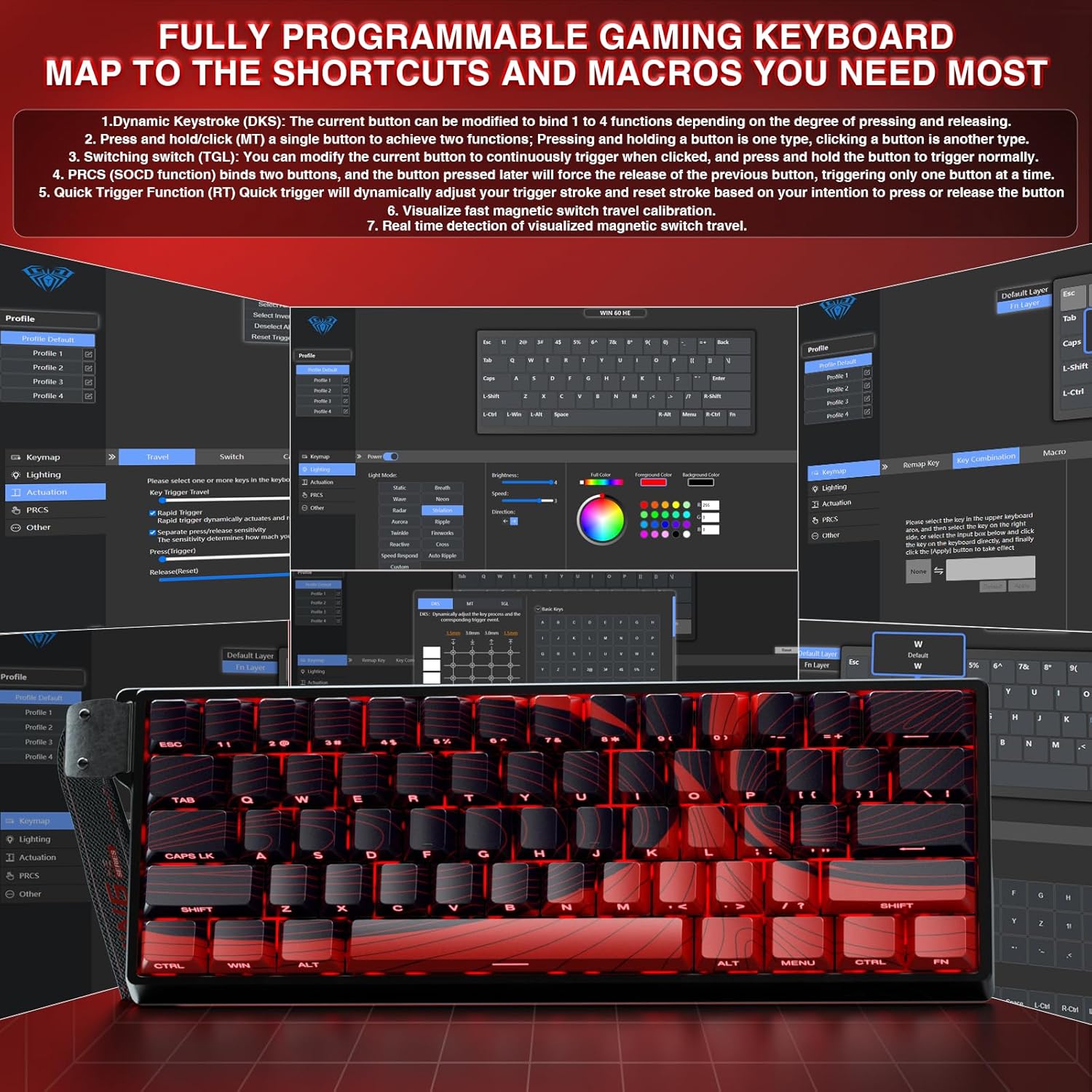
Image: The web-based driver interface for the AULA WIN60 HE MAX, showing options for key remapping, lighting, and other settings.
4. Operating Your Keyboard
4.1 Hall Effect Magnetic Switches and Rapid Trigger
The AULA WIN60 HE MAX is equipped with advanced Hall Effect magnetic switches, offering precise and customizable actuation. The Rapid Trigger mode allows for ultra-fast response times, ideal for competitive gaming.
- Adjustable Actuation: The magnetic switches allow you to set the actuation point (the distance a key needs to travel to register a press) from 0.02mm to 3.44mm. This can be adjusted via the web-based driver to suit your preference for typing or gaming.
- Rapid Trigger Mode: With an ultra-low RT step distance of just 0.01mm, keys can be released and re-pressed at an incredibly fast rate, providing a significant advantage in games requiring quick, repeated inputs.

Image: A close-up diagram showing the adjustable actuation range (0.02mm to 3.44mm) and the rapid trigger functionality of the magnetic switches.

Image: An illustration demonstrating the innovative magnetic switch technology for smooth feel and precise trigger response.
4.2 Hot-Swappable PBT Double Shot Keycaps
The keyboard features full-key hot-swappable PBT double shot keycaps, allowing for easy customization and maintenance of switches and keycaps.
- Switch Compatibility: Compatible with most magnetic switches on the market.
- Durability: PBT keycaps offer high wear resistance and a frosted hand feeling, providing superior durability compared to regular keycaps.

Image: The AULA WIN60 HE MAX keyboard demonstrating its full-key hot-swappable PBT double shot keycaps, with individual switches visible.
4.3 Dynamic RGB Lighting
Customize your keyboard's aesthetics with 16.8 million customizable RGB colors and 14 backlight effects. The lower light position design illuminates side-printed PBT keycaps for enhanced visual appeal.
- Customization: Use the web-based driver to select from a wide spectrum of colors and lighting effects.
- On-the-Fly Controls: Utilize FN key combinations for quick adjustments:
- FN + Backspace: Turn off keyboard lighting effect
- FN + Tab: Switch light effect mode
- FN + \: Switch light effect color
- FN + F: Light brightness increases
- FN + J: Light brightness decreases
- FN + Alt: Left Alt light speed increase
- FN + Ctrl: Right Alt light speed decrease
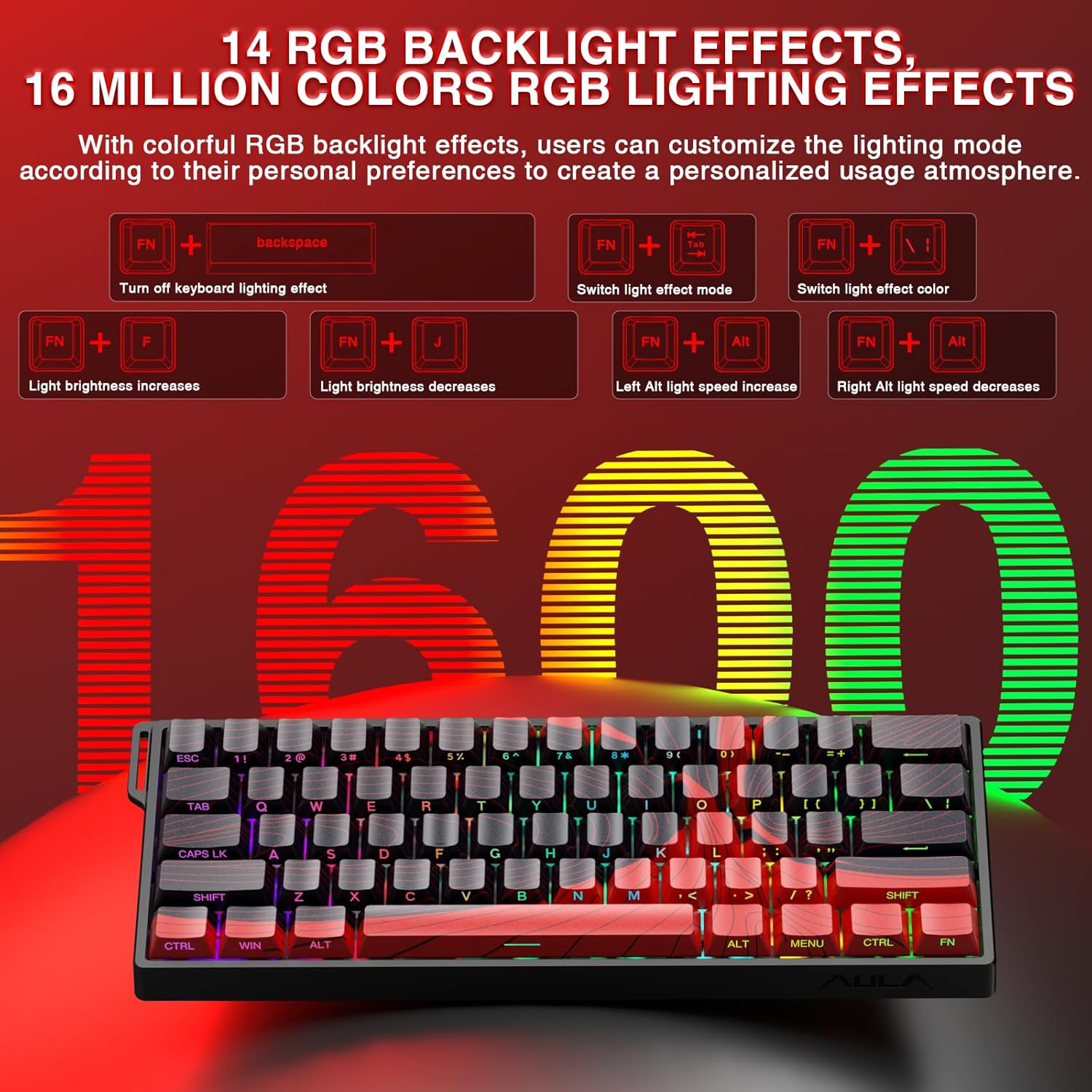
Image: The AULA WIN60 HE MAX keyboard showcasing its 14 RGB backlight effects and 16 million color options, along with key combinations for control.
4.4 Compact 60% Design
The space-saving 60% layout of the AULA WIN60 HE MAX makes it ideal for gaming, work, or travel. Its compact size optimizes desk space without compromising functionality.

Image: The AULA WIN60 HE MAX keyboard positioned on a desk, demonstrating its compact 60% design for space-saving and portability.
4.5 High Polling Rate
Experience ultra-fast response times with an 8000Hz polling rate, ensuring every keystroke is registered almost instantaneously for a competitive edge in fast-paced games.

Image: Visual comparison highlighting the benefits of rapid trigger technology for FPS and MOBA games, showing faster reset and active states.
5. Maintenance
Proper maintenance ensures the longevity and optimal performance of your AULA WIN60 HE MAX keyboard.
5.1 Cleaning
- General Cleaning: Use a soft, lint-free cloth slightly dampened with water or a mild cleaning solution to wipe down the keycaps and keyboard surface. Avoid excessive moisture.
- Dust Removal: Use compressed air to remove dust and debris from between the keycaps and switches.
- Deep Cleaning (Keycaps): For a more thorough clean, use the provided keycap puller to carefully remove keycaps. Wash them with mild soap and water, rinse thoroughly, and ensure they are completely dry before reattaching.
5.2 Switch and Keycap Care
- When removing or installing keycaps, apply gentle, even pressure to avoid damaging the switch stems.
- If replacing switches, ensure they are properly aligned with the hot-swap sockets before pressing them into place. Do not force switches.
6. Troubleshooting
If you encounter issues with your AULA WIN60 HE MAX keyboard, refer to the following common solutions:
- Keyboard Not Responding:
- Ensure the USB-C cable is securely connected to both the keyboard and the computer.
- Try connecting the keyboard to a different USB port on your computer.
- Test the keyboard on another computer to rule out a computer-specific issue.
- Restart your computer.
- RGB Lighting Not Working/Incorrect:
- Check the FN key combinations (e.g., FN + Backspace) to ensure lighting hasn't been turned off.
- Access the web-based driver to verify lighting settings and apply changes.
- Ensure the keyboard firmware is up to date via the web driver.
- Keys Not Registering or Double-Typing:
- Carefully remove the keycap and inspect the switch for any visible debris. Use compressed air to clean around the switch.
- If a specific switch is faulty, it can be replaced due to the hot-swappable design.
- Check the actuation settings in the web-based driver; a very low actuation point might cause unintended presses.
- Web-Based Driver Not Detecting Keyboard:
- Ensure your computer has a stable internet connection.
- Try a different web browser.
- Clear your browser's cache and cookies.
- Temporarily disable any VPN or firewall that might be blocking the connection to the driver website.
7. Specifications
| Feature | Detail |
|---|---|
| Product Dimensions | 11 x 5 x 1.1 inches |
| Item Weight | 2.23 pounds |
| Manufacturer | AULA |
| ASIN | B0F195TK4B |
| Item Model Number | 60 HE |
| Brand | CORBOBO |
| Compatible Devices | Laptop, PC Windows (Not compatible with PlayStation 5/4 (PS5/PS4) and OBOX) |
| Connectivity Technology | USB-C, Wired Keyboard |
| Keyboard Description | Hall Effect Magnetic Switches Rapid Trigger Mechanical Gaming Keyboard |
| Recommended Uses | Everyday Use, Gaming, Programming |
| Special Features | Backlit, Hot-Swappable, Hotkeys and Media Keys, Portable, Programmable Keys |
| Color | Red (for this variant) |
| Number of Keys | 61 |
| Keyboard Backlighting | RGB (16.8 million colors) |
| Style | Contemporary |
8. Warranty and Support
For warranty information, technical support, or further inquiries regarding your AULA WIN60 HE MAX keyboard, please contact CORBOBO customer service or visit the official CORBOBO website. Details can typically be found on the product packaging or the manufacturer's official online presence.
Please retain your proof of purchase for any warranty claims.
Ask a question about this manual
Ask about setup, troubleshooting, compatibility, parts, safety, or missing instructions. Manuals+ will review the question and use this page’s manual context to help answer it.