
Product Overview
The ATTACK SHARK R5Ultra is a high-performance wireless gaming mouse designed for speed and precision. It features an ultra-lightweight carbon fiber composite construction, weighing only 39g, ensuring durability and comfort during extended use. Equipped with the advanced PixArt PAW3950 MAX sensor and Nordic 52840 MCU chip, it offers exceptional accuracy and a high polling rate for competitive gaming.
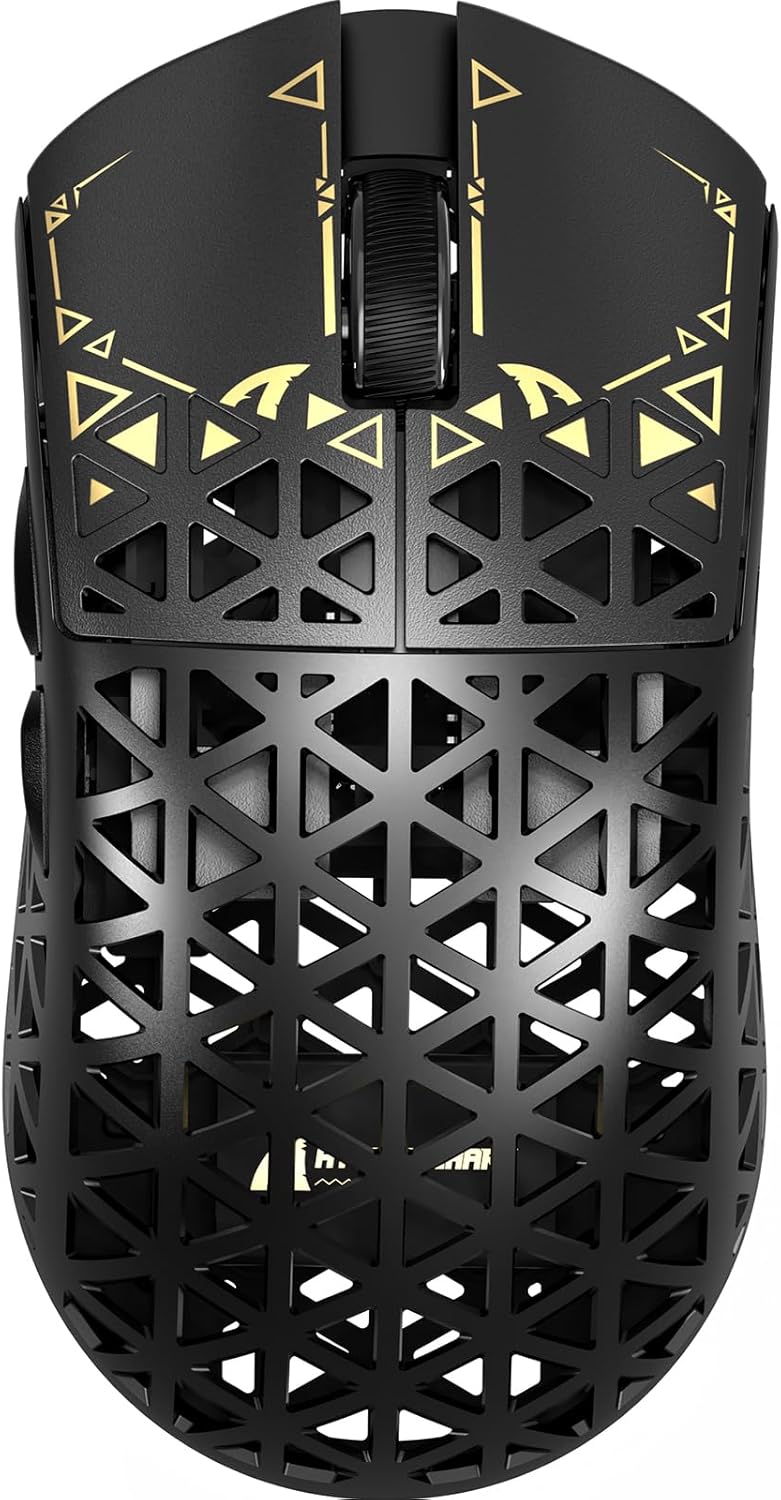
Image: Top view of the ATTACK SHARK R5Ultra gaming mouse, showcasing its lightweight carbon fiber design and intricate patterns.
This mouse supports tri-mode connectivity, allowing seamless switching between 2.4GHz wireless, Bluetooth, and wired USB connections. Its programmable features are managed via an innovative cloud-driven webpage, eliminating the need for traditional software installations.
Package Contents
- ATTACK SHARK R5Ultra Wireless Gaming Mouse
- USB-C Charging Cable
- 8K Mini Receiver (USB Dongle)
- User Manual (this document)
- Additional PTFE feet (may be included)
Setup Guide
1. Initial Charging
Before first use, it is recommended to fully charge the mouse. Connect the provided USB-C cable to the mouse's charging port and the other end to a USB power source (e.g., computer USB port, USB wall adapter).
2. Connectivity Modes
The R5Ultra mouse supports three connection modes: 2.4GHz Wireless, Bluetooth, and Wired USB. A switch on the back of the mouse allows you to select your preferred mode.

Image: Diagram illustrating the tri-mode connectivity options: 2.4G Wireless with receiver, Bluetooth, and USB-C wired connection, along with charging.
2.1. 2.4GHz Wireless Mode
- Locate the 8K Mini Receiver (USB dongle) included in the package.
- Plug the USB receiver into an available USB port on your computer.
- Switch the mode selector on the bottom of the mouse to the 2.4GHz wireless icon.
- The mouse should automatically connect to the receiver.
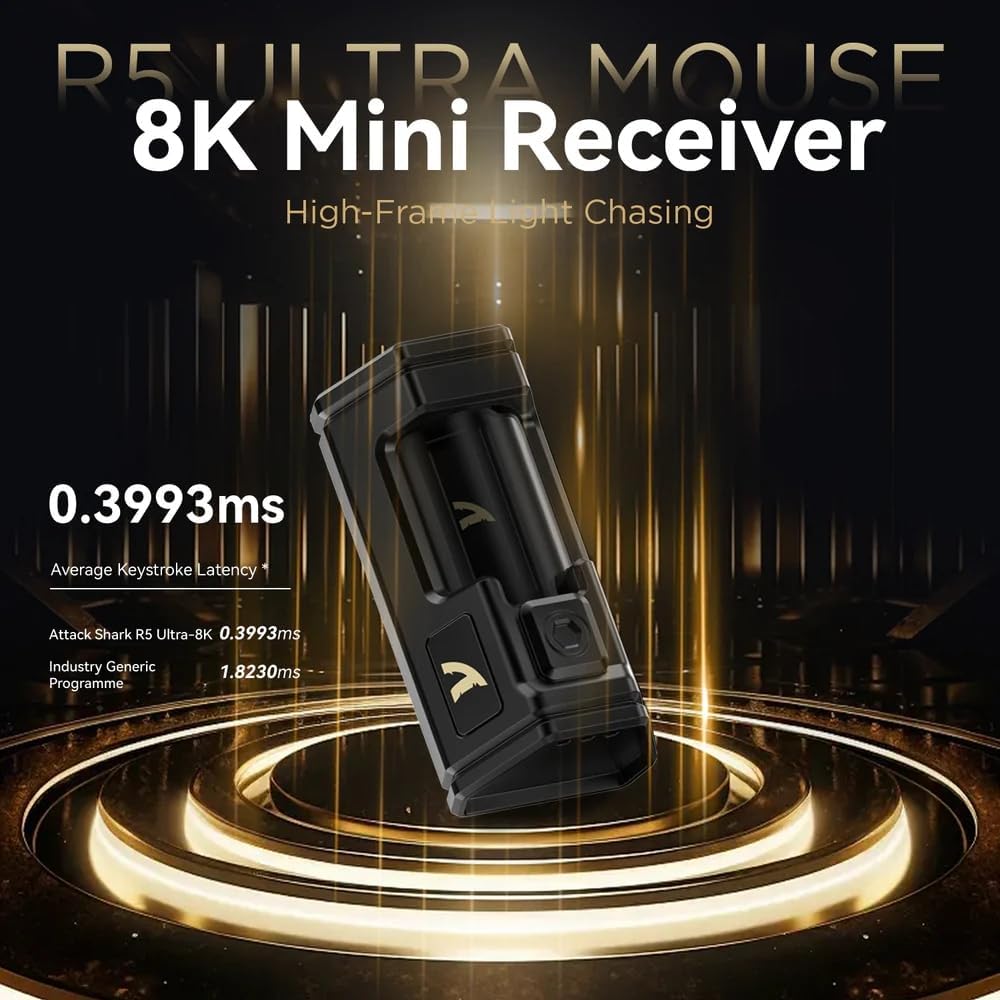
Image: Close-up of the compact 8K Mini Receiver, highlighting its low latency capabilities.
2.2. Bluetooth Mode
- Switch the mode selector on the bottom of the mouse to the Bluetooth icon.
- On your computer or device, open Bluetooth settings and search for new devices.
- Select "ATTACK SHARK R5Ultra" from the list of available devices to pair.
2.3. Wired USB Mode
- Connect the provided USB-C cable to the mouse and the other end to a USB port on your computer.
- The mouse will automatically switch to wired mode and begin charging.
3. Driver and Customization
The R5Ultra utilizes an AI-designed cloud-driven webpage for customization, eliminating the need for traditional software downloads. Access the customization options by visiting the official ATTACK SHARK website and navigating to the R5Ultra product page or driver section. The webpage will automatically detect your system.
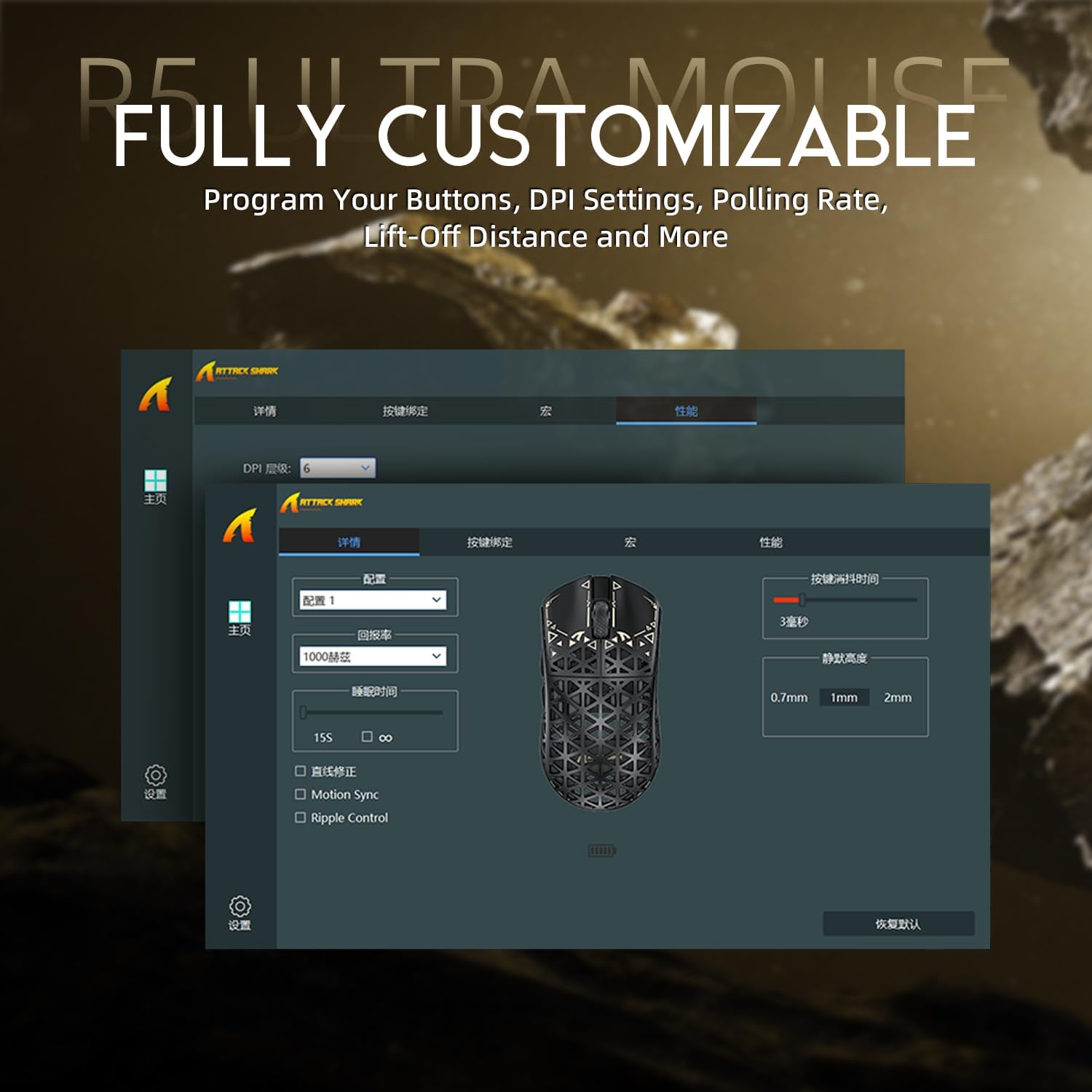
Image: Screenshot of the R5Ultra's web-based customization interface, showing options for DPI, polling rate, and button mapping.
Operating Instructions
DPI Adjustment
The R5Ultra mouse features a PixArt PAW3950 MAX sensor capable of up to 42,000 programmable DPI. DPI settings can be adjusted through the cloud-driven customization webpage. You can set multiple DPI stages and switch between them using a dedicated button on the mouse (if configured) or through the software.

Image: Detailed view of the PixArt PAW3950 MAX sensor, highlighting its advanced capabilities for high DPI and acceleration.
Polling Rate
The mouse supports an 8KHz wireless polling rate, providing extremely low latency and fast data transmission. In wired mode, a 1KHz polling rate is maintained. Higher polling rates consume more battery power. You can adjust the polling rate via the customization webpage to balance performance and battery life.
Programmable Buttons
The R5Ultra features multiple programmable buttons. Through the cloud-driven customization webpage, you can:
- Remap button functions.
- Create and assign macros.
- Adjust lift-off distance.
- Configure competitive modes.
Battery Management
To optimize battery life, consider adjusting the polling rate to a lower setting (e.g., 1KHz or 2KHz) when not engaged in competitive gaming. The mouse can be charged while in wired mode, allowing continuous use.
Key Features
- Ultra-lightweight Design: Weighing only 39g, constructed from injection-molded carbon fiber material with a hollow design for enhanced durability and reduced weight.

Image: Multiple views of the R5Ultra mouse, showcasing its carbon fiber composite housing and lightweight structure.
- Advanced Sensor: Features the PixArt PAW3950 MAX sensor, offering up to 42,000 DPI, 750 IPS speed, and 50g acceleration for precise tracking.
- High Polling Rate: Supports an 8KHz wireless polling rate for minimal latency and rapid response, crucial for competitive gaming.
- Tri-mode Connectivity: Seamlessly switch between 2.4GHz wireless, Bluetooth, and wired USB connections for versatile use across various devices and platforms.
- Durable Switches: Equipped with OMRON microswitches, rated for over 100 million clicks, ensuring long-lasting performance and crisp feedback.
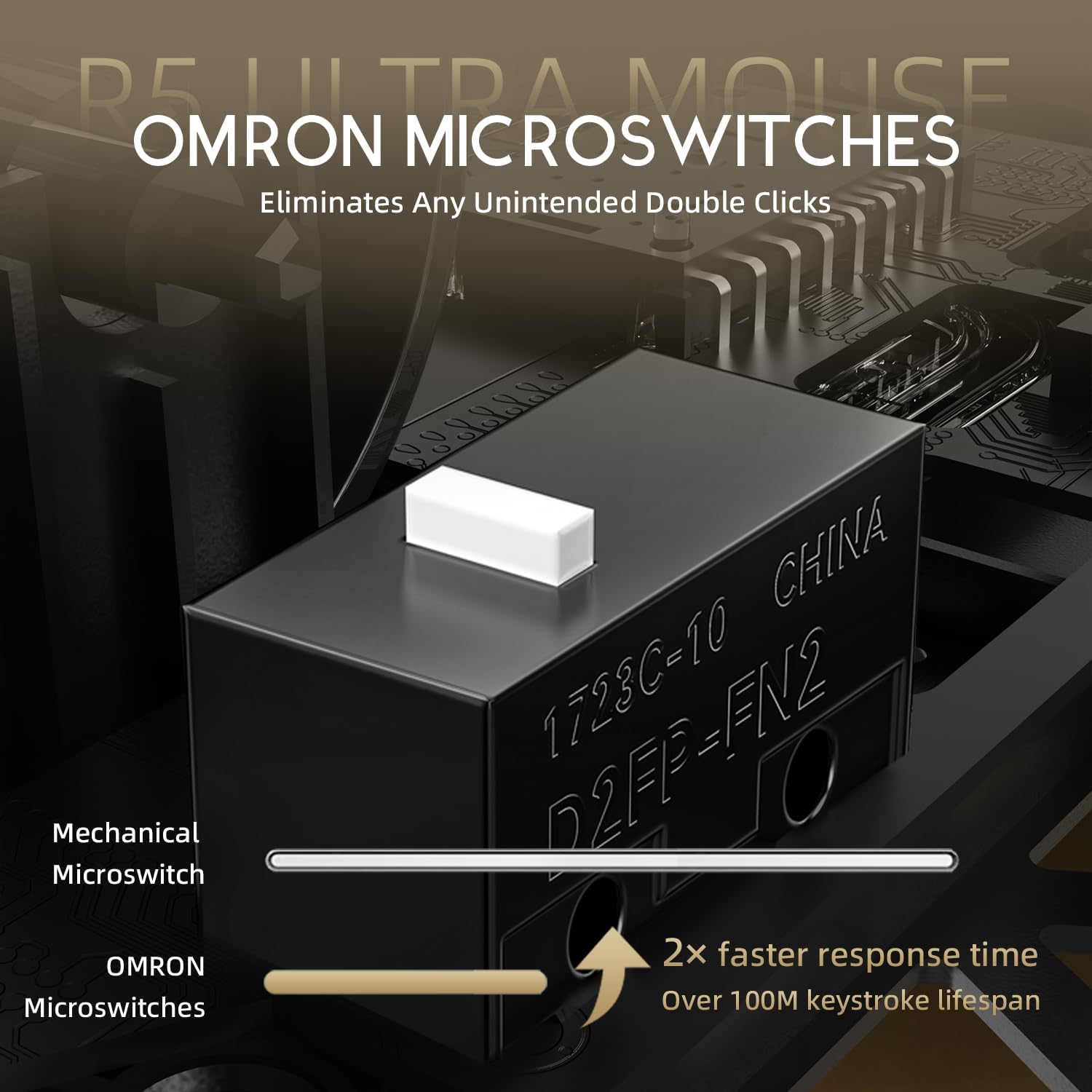
Image: Close-up of the OMRON microswitches, illustrating their mechanical design and durability for over 100 million clicks.
- Cloud-Based Driver: Innovative AI-designed driver accessible via a webpage, allowing for comprehensive customization without software installation.
- PTFE Feet: 100% Virgin Grade PTFE feet provide consistent and smooth glide for optimal mouse movement.
Maintenance and Care
- Cleaning: Use a soft, dry cloth to wipe the mouse surface. For stubborn dirt, a slightly damp cloth can be used, ensuring no liquid enters the mouse. Avoid harsh chemicals or abrasive materials.
- Sensor Maintenance: Keep the optical sensor area on the bottom of the mouse clean and free from dust or debris to ensure accurate tracking.
- Storage: Store the mouse in a cool, dry place away from direct sunlight and extreme temperatures.
- Battery Care: Avoid fully discharging the battery frequently. For long-term storage, charge the mouse to about 50% to prolong battery life.
Troubleshooting
Connectivity Issues
- 2.4GHz Wireless: Ensure the USB receiver is securely plugged in and the mouse is switched to 2.4GHz mode. Try plugging the receiver into a different USB port.
- Bluetooth: Verify Bluetooth is enabled on your device and the mouse is in Bluetooth pairing mode. Remove previous pairings and re-pair if necessary.
- Wired: Check the USB-C cable connection at both ends. Try a different USB port or cable if available.
Tracking Problems
- Clean the optical sensor on the bottom of the mouse.
- Ensure you are using the mouse on a suitable surface (e.g., a mouse pad). Highly reflective or uneven surfaces can affect tracking.
- If experiencing issues at higher polling rates (e.g., 8KHz), try reducing the polling rate via the customization webpage to 1KHz, 2KHz, or 4KHz to see if performance improves.
- Check the mouse feet (PTFE skates) for wear or damage. Worn feet can affect glide and tracking consistency.
Battery Draining Quickly
- Higher polling rates (e.g., 8KHz) consume more power. Reduce the polling rate if extended battery life is desired.
- Ensure the mouse is fully charged.
- If the issue persists, contact customer support.
Specifications
| Feature | Detail |
|---|---|
| Model Number | R5 |
| Connectivity | 2.4G Wireless, Bluetooth, USB Wired |
| Sensor | PixArt PAW3950 MAX Optical Sensor |
| DPI Range | Up to 42,000 DPI (Programmable) |
| Polling Rate | 8000Hz Wireless, 1000Hz Wired |
| Acceleration | 50g |
| IPS Speed | 750 IPS |
| Switches | OMRON Microswitches (100 Million Clicks Lifespan) |
| Weight | Approximately 39g (Ultra-lightweight) |
| Material | Carbon Fiber Composite |
| Feet Material | 100% Virgin Grade PTFE |
| Dimensions | 6.85 x 4.21 x 2.8 inches (Package Dimensions) |
| Compatibility | Windows, macOS, PCs, Laptops, Mac, Tablet Devices, Consoles |
Warranty and Support
For warranty information, please refer to the warranty card included with your product or visit the official ATTACK SHARK website. If you encounter any issues not covered in this manual or require further assistance, please contact ATTACK SHARK customer support through their official website or the contact information provided with your purchase.
You can visit the ATTACK SHARK Store for more information and support: ATTACK SHARK Store on Amazon


