1. Introduction
This manual provides detailed instructions for the setup, operation, maintenance, and troubleshooting of your PELADN Mini PC N97. Please read this manual thoroughly before using the device to ensure proper and safe operation.
The PELADN Mini PC N97 is a compact desktop computer designed for home and business use, featuring the 12th Gen Alder Lake N97 processor, 16GB DDR4 RAM, and a 512GB SSD. It supports triple-display output at 4K/60Hz and offers various connectivity options.
2. What's in the Box
Upon opening the package, verify that all the following items are included:
- 1 x N97 WI-6 Mini PC 16GB RAM 512GB SSD
- 1 x HD cable
- 1 x VESA Mount with Screws
- 1 x Power Adapter
- 1 x User Manual

Figure 2.1: Package Contents. This image displays the PELADN WI-6 Mini PC, user manual, HD cable, wall-mounted bracket, and power adapter.
3. Product Overview
3.1 Front and Rear Ports

Figure 3.1: Front and Rear Port Layout. The front panel includes an Audio Jack (HP&MIC), Type-C (Data/Video), 2x USB 3.0 ports, and a Power Button. The rear panel features 2x HD ports (HDMI), 2x USB 2.0 ports, an RJ45 LAN port, and a DC 12V power input.
- Front Panel:
- Audio Jack (HP&MIC): For headphones and microphone.
- Type-C Port: Supports data transfer and video output.
- USB 3.0 Ports (x2): For high-speed peripheral connections.
- Power Button: To turn the device on/off.
- Reset Button: Small pinhole for system reset.
- Rear Panel:
- HD Ports (HDMI x2): For connecting to displays.
- USB 2.0 Ports (x2): For peripheral connections.
- RJ45 LAN Port: For wired network connection (1000M).
- DC Jack: For power input (12V).
3.2 Key Features
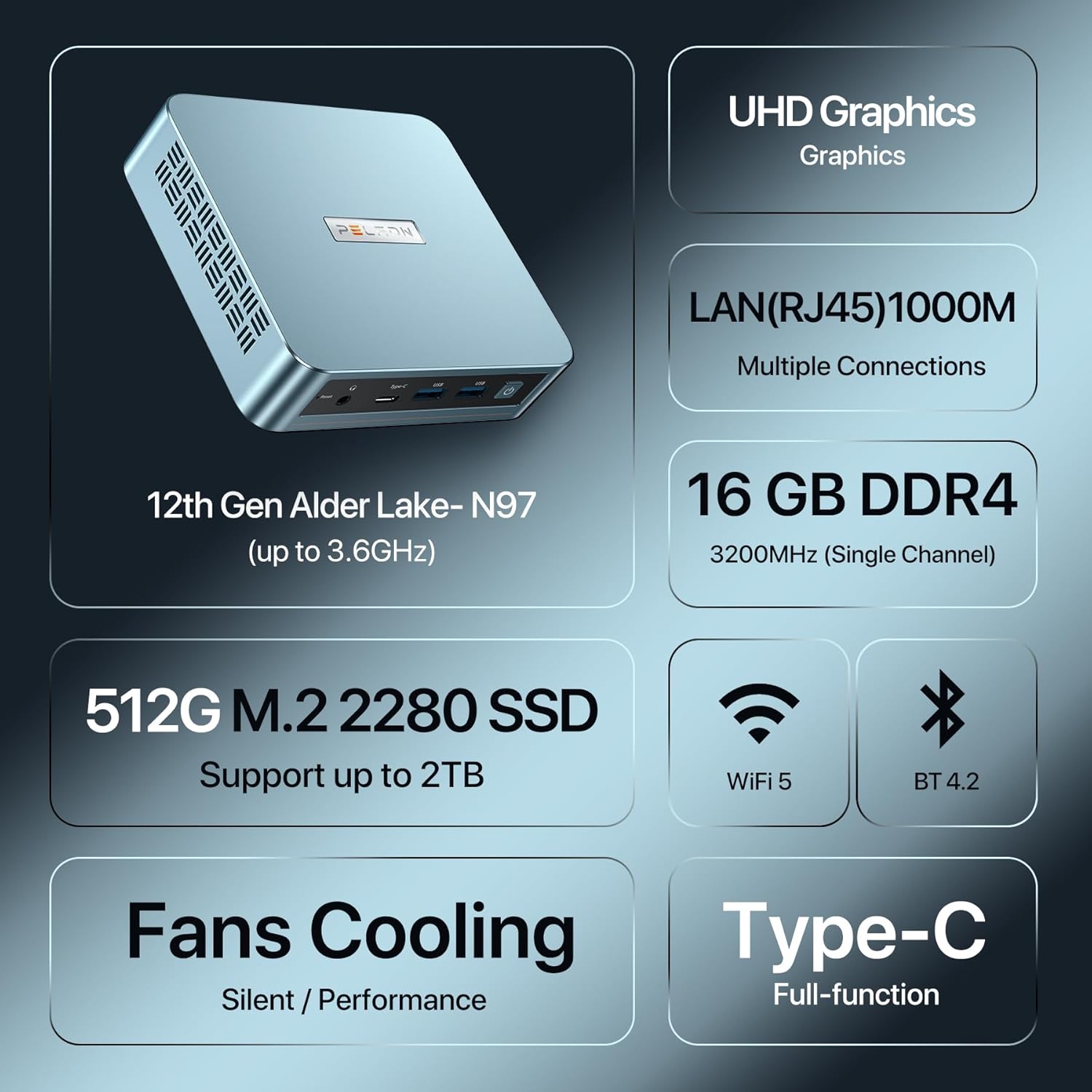
Figure 3.2: Key Features Overview. This image highlights the UHD Graphics, LAN (RJ45) 1000M, 16GB DDR4 RAM (3200MHz Single Channel), 512G M.2 2280 SSD (supports up to 2TB), WiFi 5, BT 4.2, Fans Cooling (Silent/Performance), and Type-C (Full-function).
- Processor: 12th Gen Intel Alder Lake N97 (up to 3.6GHz).
- Graphics: Integrated UHD Graphics, supporting 4K/60Hz.
- Memory: 16GB DDR4 RAM (3200MHz, single channel).
- Storage: 512GB M.2 2280 SSD (expandable up to 2TB).
- Connectivity: WiFi 5, Bluetooth 4.2, Gigabit Ethernet (RJ45 1000M LAN).
- Cooling: Efficient fan cooling system for silent and performance operation.
- Display Output: Supports triple display output via 2x HD ports and 1x Type-C port.
4. Setup
4.1 Initial Connection
- Connect to Display: Use the provided HD cable to connect the Mini PC to your monitor or TV. You can connect up to three displays using the two HD ports and one Type-C port.
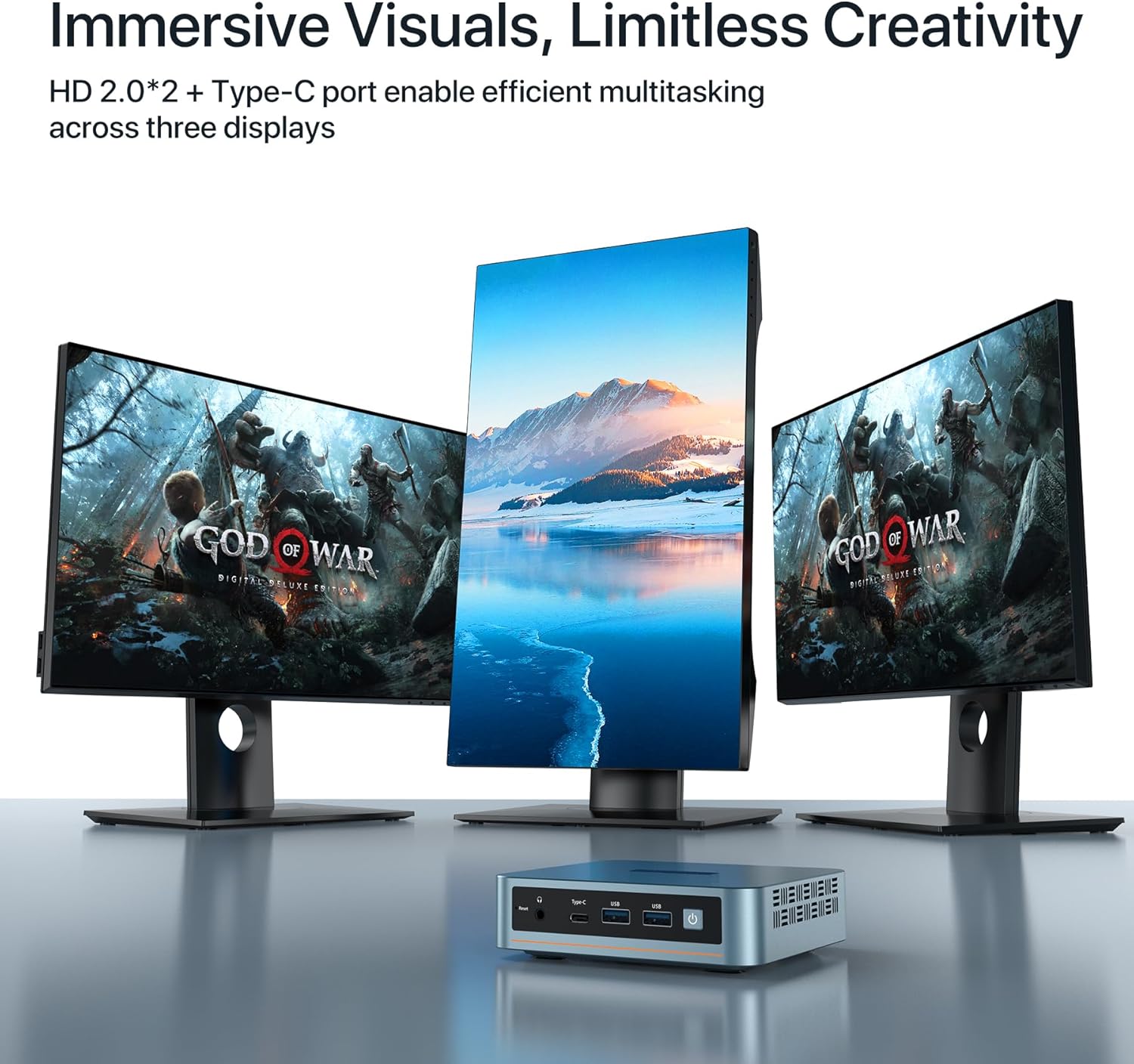
Figure 4.1: Triple Display Setup. The mini PC supports connecting to three 4K displays simultaneously via its HD 2.0 and Type-C ports.
- Connect Peripherals: Connect your keyboard, mouse, and other USB devices to the available USB 3.0 or USB 2.0 ports.
- Connect to Network: For a wired connection, connect an Ethernet cable from your router to the RJ45 LAN port on the Mini PC. For wireless, ensure your WiFi network is available.
- Connect Power: Plug the power adapter into the DC Jack on the Mini PC, then plug the adapter into a power outlet.
4.2 VESA Mount Installation (Optional)
The PELADN Mini PC N97 comes with a VESA mount, allowing you to attach it to the back of a compatible monitor or TV, saving desk space.
- Attach Bracket to Mini PC: Secure the VESA mount bracket to the Mini PC using the provided screws.
- Attach Bracket to Display: Secure the bracket to the VESA mounting holes on the back of your display using the appropriate screws.
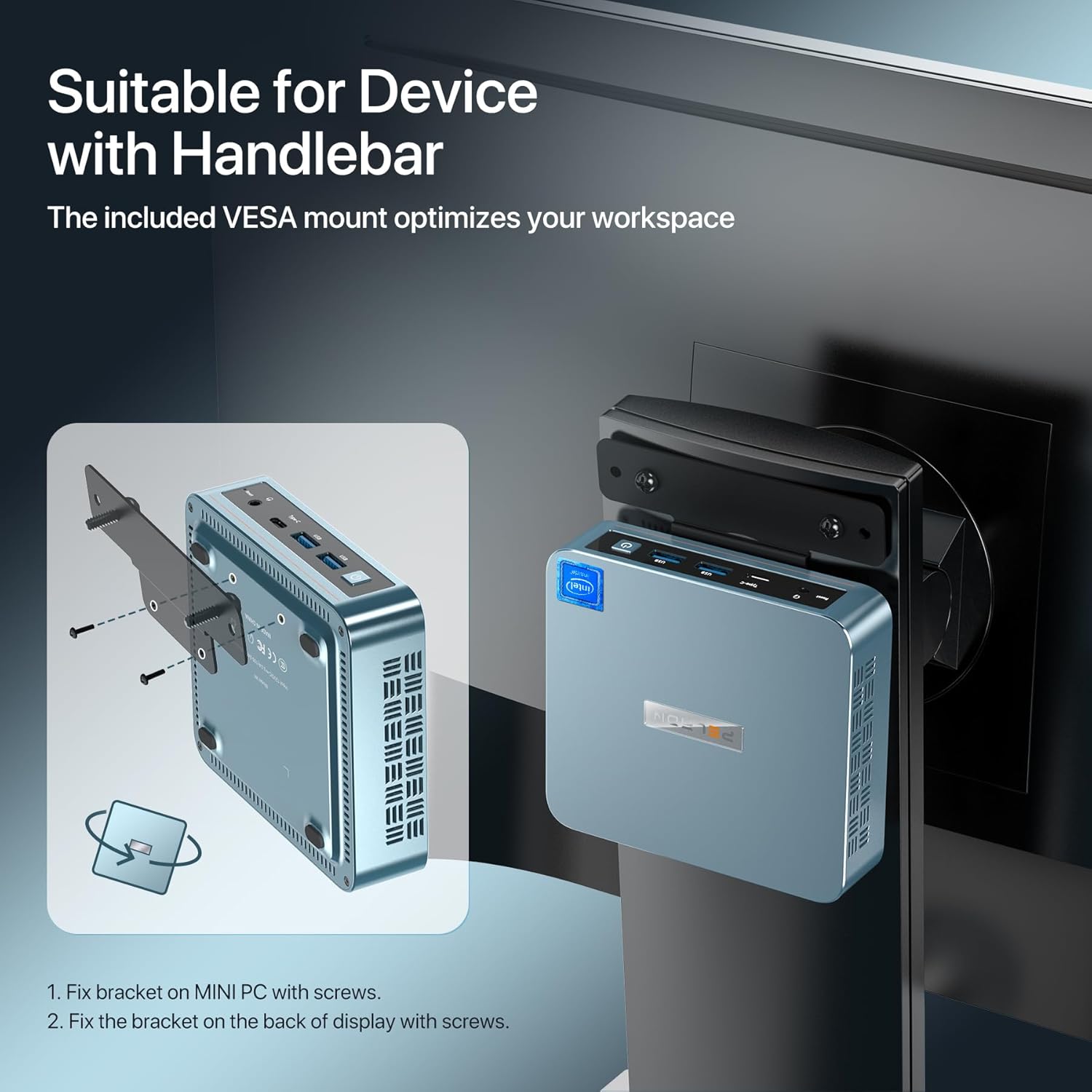
Figure 4.2: VESA Mount Installation. This diagram illustrates the two steps: fixing the bracket to the mini PC with screws, and then fixing the bracket to the back of the display with screws.
5. Operating Instructions
5.1 Power On/Off
- To Power On: Press the power button located on the front panel. The power indicator light will illuminate.
- To Power Off:
- Standard Shutdown: Click the Start button in the operating system, then select "Power" and "Shut down."
- Force Shutdown: If the system is unresponsive, press and hold the power button for approximately 5-7 seconds until the device powers off. Use this method only when necessary to prevent data loss.
5.2 Operating System
The Mini PC comes with an operating system preinstalled. It also supports other operating systems such as Linux and Ubuntu. Refer to the respective operating system's documentation for detailed usage instructions.
5.3 Network Connection
- Wired Connection: Once an Ethernet cable is connected to the RJ45 LAN port, the system should automatically detect and connect to the network.
- Wireless Connection (WiFi):
- Navigate to the network settings in your operating system.
- Select your desired WiFi network from the list of available networks.
- Enter the network password if prompted.
- Confirm connection.
6. Maintenance
- Cleaning: Use a soft, dry cloth to clean the exterior of the Mini PC. Do not use liquid cleaners or aerosols directly on the device. Ensure ventilation vents are clear of dust and debris.
- Ventilation: Ensure the Mini PC is placed in a well-ventilated area. Do not block the ventilation holes. Proper airflow is crucial for maintaining optimal operating temperature.
- Software Updates: Regularly update your operating system and drivers to ensure optimal performance and security.
- Data Backup: Periodically back up important data to an external storage device or cloud service to prevent data loss.
7. Troubleshooting
| Problem | Possible Cause | Solution |
|---|---|---|
| No power | Power adapter not connected; Power outlet faulty; Power button not pressed correctly. | Ensure power adapter is securely connected to the Mini PC and a working power outlet. Press the power button firmly. |
| No display output | HD cable loose or faulty; Incorrect input selected on monitor; Monitor off or faulty. | Check HD cable connections. Ensure monitor is on and set to the correct input source (HDMI/Type-C). Test with another display or cable if possible. |
| No internet connection (wired) | Ethernet cable loose or faulty; Router/modem issue; Network driver issue. | Check Ethernet cable connection. Restart router/modem. Check network adapter status in Device Manager. |
| No internet connection (wireless) | WiFi disabled; Incorrect WiFi password; Router/modem issue; WiFi driver issue. | Ensure WiFi is enabled in OS settings. Re-enter WiFi password. Restart router/modem. Update WiFi drivers. |
| System slow or unresponsive | Too many applications running; Low disk space; Overheating. | Close unnecessary applications. Free up disk space. Ensure proper ventilation and clean vents. Restart the PC. |
8. Specifications
| Feature | Detail |
|---|---|
| Model Name | N97 16GB DDR4 RAM 512GB SSD (WI-6 N97) |
| Processor | Intel 12th Gen Alder Lake N97 (up to 3.6GHz, 4 Cores, 4 Threads) |
| Graphics | Integrated UHD Graphics |
| RAM | 16GB DDR4 SDRAM (3200MHz) |
| Storage | 512GB M.2 2280 SSD (supports up to 2TB) |
| Max Screen Resolution | 4096x2160 (4K) |
| Video Output | 2x HD (HDMI 2.0), 1x Type-C (supports video) |
| USB Ports | 2x USB 3.2, 2x USB 2.0 |
| Network | RJ45 1000M LAN, WiFi 5, Bluetooth 4.2 |
| Audio | 1x Audio Jack (HP&MIC) |
| Operating System | Preinstalled OS (also supports Linux, Ubuntu) |
| Dimensions | Approximately 6.14 x 6.1 x 3.7 inches |
| Weight | Approximately 1.5 pounds |
| Color | Blue |
9. Warranty and Support
This PELADN Mini PC comes with a 1-year warranty. For warranty service or technical support, please follow these steps:
- Log in to your Amazon account.
- Go to "My Orders".
- Find the order ID for your PELADN Mini PC.
- Click on "Contact Seller" to reach PELADN customer support.
For additional support or frequently asked questions, you may visit the official PELADN store on Amazon: PELADN Store.


