
INFINMIND K913+Y670
INFINMIND Wireless Keyboard and Mouse User Manual
Model: K913+Y670
1. Product Overview
The INFINMIND Wireless Keyboard (K913) and Wireless Bluetooth Mouse (Y670) combo provides a versatile and efficient solution for your computing needs. This set features a full-size, ultra-slim keyboard with a number pad and a multi-device mouse with advanced scrolling capabilities, designed for quiet operation and enhanced productivity.
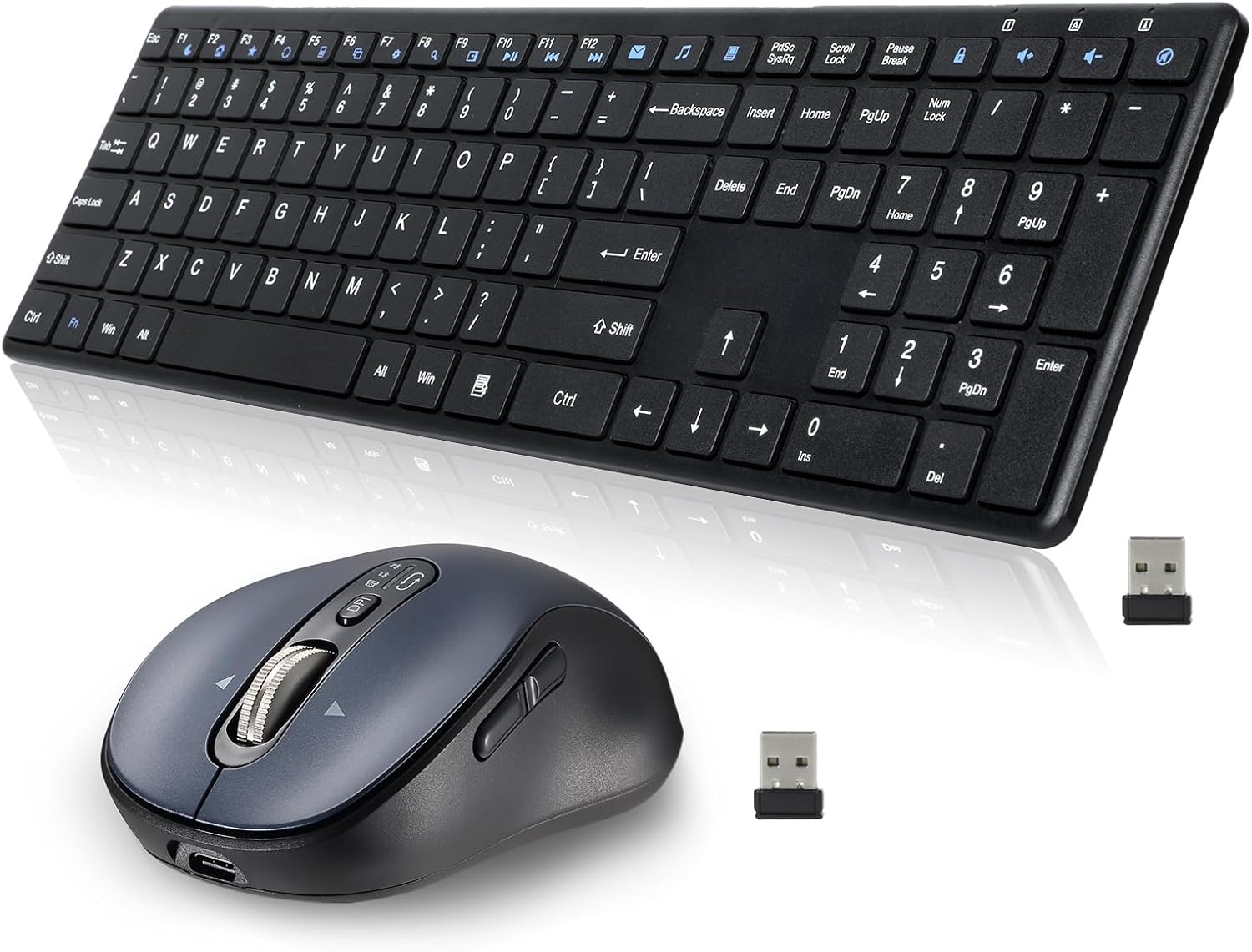
Image: The INFINMIND wireless keyboard and mouse, along with two USB receivers, laid out on a white surface.
Package Contents:
- 1 × Wireless Keyboard (K913)
- 1 × Wireless Bluetooth Mouse (Y670)
- 1 × 2.4GHz USB Receiver (for keyboard and mouse)
- 1 × USB Charging Cable (for mouse)
- User Manual
2. Setup Guide
2.1. Initial Setup
- Locate the USB Receiver: The 2.4GHz USB receiver for both the keyboard and mouse is conveniently stored under the magnetic surface cover of the mouse. Gently lift the cover to access it.
- Connect the USB Receiver: Insert the 2.4GHz USB receiver into an available USB port on your computer.
- Power On the Keyboard: The keyboard is powered by two AAA batteries (not included). Open the battery compartment on the underside of the keyboard and insert the batteries, ensuring correct polarity. There is no separate power switch for the keyboard; it will activate upon battery insertion and connection to the receiver.
- Power On the Mouse: Locate the ON/OFF switch on the underside of the mouse and slide it to the "ON" position.
- Automatic Connection: The keyboard and mouse should automatically connect to your computer via the 2.4GHz USB receiver. No additional drivers are typically required for Windows or Mac operating systems.

Image: Diagram showing how to open the magnetic surface cover of the mouse to remove the USB receiver.

Image: A wireless keyboard connected to a laptop via a USB receiver, with icons indicating compatibility with Windows and Mac operating systems.
2.2. Bluetooth Pairing (Mouse Only)
The mouse supports two Bluetooth channels for multi-device connectivity.
- Select Bluetooth Mode: Press the "Devices Switch Button" on the top of the mouse (near the scroll wheel) to cycle through connection modes. The LED indicators (White, Blue, Green) will show the active connection:
- White LED: 2.4G USB mode
- Blue LED: Bluetooth Mode 1
- Green LED: Bluetooth Mode 2
- Enter Pairing Mode: Once you've selected a Bluetooth mode (Blue or Green LED), press and hold the "Devices Switch Button" for 3-5 seconds until the corresponding LED indicator starts blinking rapidly. This indicates the mouse is in pairing mode.
- Pair with Your Device: On your computer or device, open Bluetooth settings and search for new devices. Select "INFINMIND Mouse" (or similar name) from the list to complete the pairing process.
- Switching Devices: To switch between connected devices (2.4G USB, Bluetooth 1, Bluetooth 2), simply press the "Devices Switch Button" once.
3. Operating Instructions
3.1. Keyboard Functions
- Full-Size Layout: The keyboard features a standard full-size layout, including a dedicated number pad and arrow keys for comprehensive input.
- Multimedia Keys: Access common functions like volume control, media playback, and more using the function keys (F1-F12) in combination with the Fn key. Refer to the keycap legends for specific functions.
- Quiet Typing: The keyboard is designed with short-throw, laptop-style keys and innovative noiseless click technology to reduce typing noise by up to 90%.
3.2. Mouse Functions

Image: Top and side views of the INFINMIND mouse, with labels pointing to its various buttons and features, including Left/Right Button, Smart Flying Scroll, DPI Button, Devices Indicators, Devices Switch Button, Windows/Mac System Switch Button, ON/OFF Button, Forward, and Back buttons.
- DPI Adjustment: The mouse offers 4 adjustable DPI levels (1000, 1600, 2400, 3200) to change the pointer's moving speed. Press the DPI Button (located below the scroll wheel) to cycle through the settings.
- 4-Way Hyper-Fast Scrolling: The stainless steel scroll wheel supports both vertical and horizontal scrolling. Scroll vertically for line-by-line precision or tilt the scroll wheel left/right for horizontal navigation.
- Side Buttons: The mouse includes "Forward" and "Back" buttons on the side for quick navigation in web browsers or file explorers.
- Multi-Device Switching: As detailed in the setup section, use the "Devices Switch Button" to seamlessly switch between 2.4G USB, Bluetooth 1, and Bluetooth 2 connections.
- System Switch Button: The mouse includes a button to switch between Windows/Mac system modes, optimizing functionality for different operating systems.

Image: A hand operating the mouse, with an overlay showing the four adjustable DPI levels: 1000, 1600, 2400, and 3200.

Image: Close-up of the mouse's scroll wheel, highlighting its "Smart Flying Scroll and 4 Way Navigation" capabilities with directional arrows.

Image: The INFINMIND mouse shown alongside icons representing various compatible operating systems: Windows, Linux, Chrome OS, Mac, iOS, and Android.
4. Maintenance and Battery Information
4.1. Cleaning
- To clean the keyboard and mouse, use a soft, lint-free cloth.
- For stubborn dirt, slightly dampen the cloth with water or a mild, non-abrasive cleaning solution.
- Do not immerse the devices in water or use harsh chemicals.
4.2. Battery Information
- Keyboard: The keyboard requires two AAA batteries. Battery life can extend up to 12 months depending on usage. Replace batteries when performance degrades.
- Mouse: The mouse is rechargeable. Use the provided USB charging cable to charge the mouse when its battery is low. A full charge typically provides extended usage.
- Power Saving: Both the keyboard and mouse feature intelligent power-saving modes to conserve battery life when not in use. They will enter sleep mode after a period of inactivity and can be woken by pressing any key or moving the mouse.

Image: A wireless keyboard with two battery icons above it, indicating "Long battery life" and "Includes two AAA batteries for 12 months of use."
5. Troubleshooting
| Problem | Solution |
|---|---|
| Keyboard/Mouse not responding (2.4GHz mode) |
|
| Mouse not connecting via Bluetooth |
|
| Lag or intermittent connection |
|
| Mouse pointer erratic or not moving smoothly |
|
6. Specifications
- Model: K913 (Keyboard), Y670 (Mouse)
- Connectivity: 2.4GHz Wireless (Keyboard & Mouse), Bluetooth (Mouse only)
- Wireless Range: Up to 33 feet (10 meters)
- Keyboard Layout: Full-size with number pad
- Keyboard Dimensions: Approximately 16.12 x 4.7 x 0.79 inches (40.94 x 11.94 x 2.01 cm)
- Keyboard Battery: 2 x AAA batteries (not included)
- Mouse DPI: 1000, 1600, 2400, 3200 adjustable levels
- Mouse Buttons: 10 buttons (including 4-way scroll, DPI, forward/back, device switch)
- Mouse Battery: Rechargeable (via USB cable)
- Compatibility: Windows OS, Mac OS, Linux, Chrome OS, iOS, Android (mouse)
- ASIN: B0F18TW9G2
- Date First Available: March 12, 2025

Image: Diagram illustrating the dimensions of the ultra-slim wireless multimedia keyboard: 16.12 inches length, 4.7 inches width, and 0.79 inches thickness.
7. Warranty and Support
INFINMIND products are designed for reliability and performance. For warranty information, technical support, or assistance with your product, please refer to the contact information provided on the product packaging or visit the official INFINMIND website. Please retain your proof of purchase for warranty claims.
For further assistance, you may also contact the seller directly through the platform where the product was purchased.
Ask a question about this manual
Ask about setup, troubleshooting, compatibility, parts, safety, or missing instructions. Manuals+ will review the question and use this page’s manual context to help answer it.