Introduction
This manual provides detailed instructions for the assembly, operation, and maintenance of your TIQLAB 63-inch L-Shaped Standing Desk. This desk features an integrated LED light strip, a convenient power outlet, height adjustment capabilities, and an ergonomic monitor stand. Please read this manual thoroughly before use to ensure proper setup and safe operation.
Important Safety Information
- Ensure the desk is properly anchored to the wall to prevent tipping.
- Do not exceed the maximum weight limit of 264 lbs (120 kg).
- Keep all electrical components dry and away from water.
- Avoid placing heavy objects on the edges of the desk to maintain stability.
- Keep hands and objects clear of moving parts during height adjustment.
Package Contents
Verify that all components are present before beginning assembly. Refer to the included assembly diagram for a complete list of parts.

Figure 1: Exploded view of desk components, showing individual parts and hardware for assembly.
Setup and Assembly
Follow these steps to assemble your TIQLAB L-Shaped Standing Desk. It is recommended to have two people for certain steps due to the size and weight of the components.
- Assemble the Desktop Sections: Connect the desktop panels using the provided connectors and screws. Ensure all connections are secure.
- Attach the Leg Sections: Securely fasten the desk legs to the desktop frame. Ensure proper orientation for the left, middle, and right desk legs as indicated in the assembly diagram.
- Install the Crossbars and Frame: Attach the crossbars to the leg sections to provide stability. Do not fully tighten bolts until all components are aligned.
- Connect the Control Panel and Motors: Route the motor cables and connect them to the control box. Install the digital control panel in the designated slot on the desktop.
- Install the LED Light Strip: Carefully adhere the LED light strip into the recessed channel on the top shelf. Connect it to the power source.
- Attach the Power Outlet Unit: Secure the integrated power outlet unit into its designated cutout on the desktop.
- Final Tightening: Once all components are in place and aligned, fully tighten all screws and bolts.
Video 1: Assembly guide for an L-shaped electric standing desk, demonstrating step-by-step installation of components including desktop, legs, and electrical connections. This video is provided by Bestergo Direct.
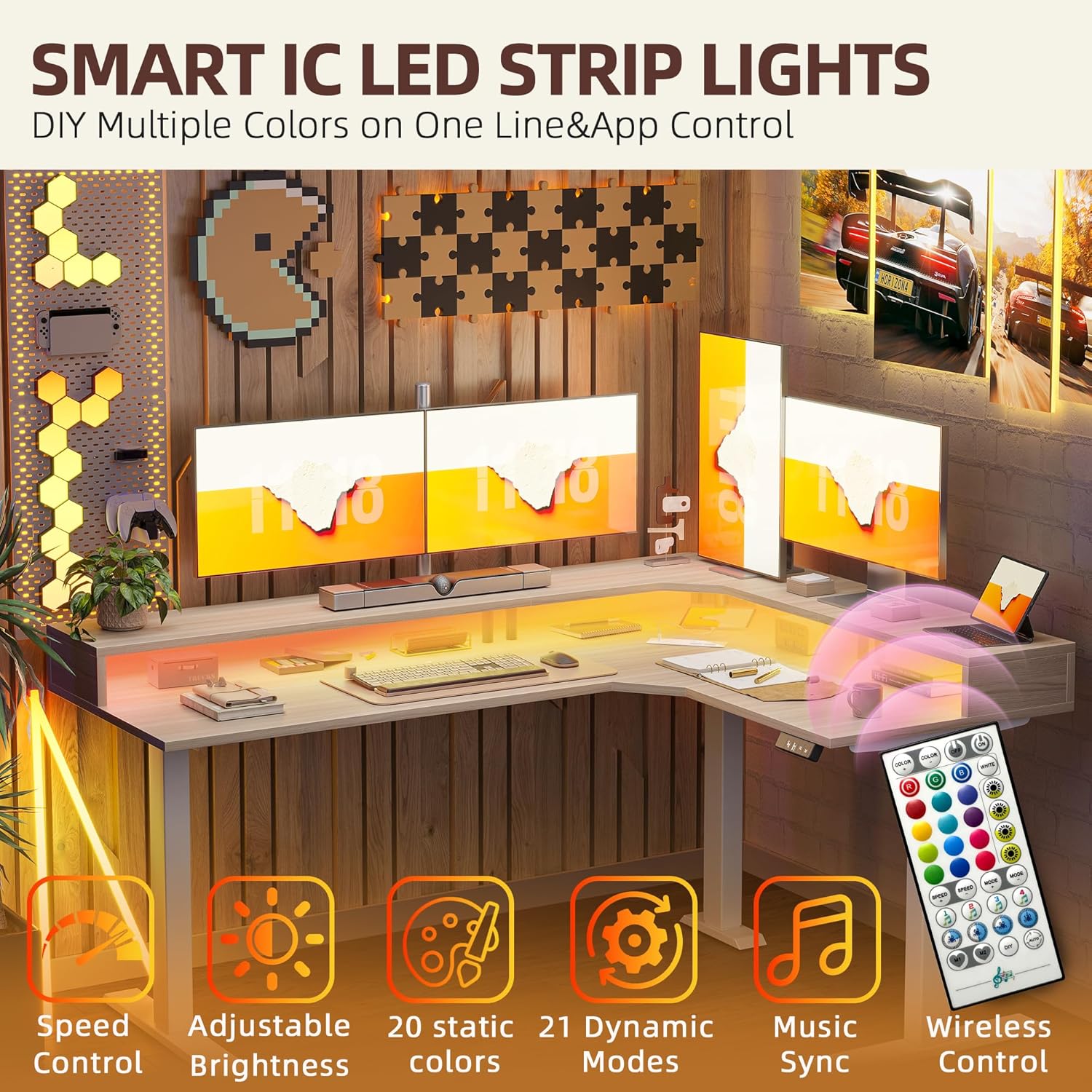
Figure 2: Close-up of various desk components, illustrating the different parts required for assembly.
Operating Instructions
Height Adjustment
The desk features an electric height adjustment system with a digital control panel. The height can be adjusted from 28.3 inches to 45.6 inches.
- Manual Adjustment: Use the ▲ (up) and ▼ (down) arrows on the control panel to manually adjust the desk height. Release the button to stop at the desired height.
- Preset Heights: The control panel includes preset buttons (1, 2, 3) to save and recall your preferred sitting and standing heights.
- Adjust the desk to your desired height using the arrow buttons.
- Press the S (Save) button, then press the desired preset number (1, 2, or 3) within 3 seconds to save the height.
- To recall a saved height, simply press the corresponding preset number button.

Figure 3: Digital control panel for height adjustment, showing buttons for manual control and saving/recalling preset heights.
Video 2: Demonstration of the L-shaped standing desk's height adjustment feature, showing smooth transitions between sitting and standing positions. This video is provided by SanoDesk.
LED Light Strip Operation
The integrated LED light strip offers customizable lighting for your workspace.
- Control the LED strip using the provided remote control or a compatible app.
- Adjust speed, brightness, choose from 20 static colors, and select from 21 dynamic modes.
- Music sync feature allows the lights to react to audio.

Figure 4: The LED light strip integrated into the desk's top shelf, with a remote control for various lighting options.
Power Outlet Usage
The desk includes a built-in power outlet unit for convenient device charging and power access.
- The unit provides 2 AC outlets (125V/12A), 1 Type-C fast charging port (5V/3A USB), and a 5ft power cord.
- Plug your devices directly into the integrated outlets.

Figure 5: Integrated power outlet unit on the desk surface, featuring AC and USB-C ports for charging and power.
Key Features
Ergonomic Monitor Stand / Elevated Design
The desk features an elevated top shelf that acts as an ergonomic monitor stand, promoting better posture and providing additional storage space.

Figure 6: Elevated top shelf providing space for monitors and organizing desk essentials.
Ample Storage Space
Beyond the top shelf, the desk design includes features for maintaining an organized workspace.
- Top Shelf: Provides elevated space for monitors and small items, preventing clutter on the main desktop.
- Storage Hooks: Two integrated hooks are available for hanging headphones, bags, or other accessories.

Figure 7: Visual representation of additional features including storage hooks and cable management.
Anti-Collision System
The desk is equipped with an anti-collision system to prevent damage or injury during height adjustment. If the desk encounters an obstacle while moving, it will automatically stop and reverse slightly.
Cable Management
Integrated cable grommets and a cable management tray help keep your workspace tidy and free from tangled wires.
Maintenance
- Cleaning: Wipe the desk surface with a soft, damp cloth. Avoid harsh chemicals or abrasive cleaners that could damage the finish.
- Electrical Components: Ensure all electrical connections are secure and free from damage. Do not attempt to repair electrical components yourself.
- Regular Checks: Periodically check all screws and bolts to ensure they are tight. Retighten if necessary.
Troubleshooting
- Desk Not Moving:
- Check if the power cord is securely plugged into both the desk and a working wall outlet.
- Ensure all motor cables are properly connected to the control box.
- If an error code appears on the digital display, consult the full troubleshooting guide (if provided separately) or contact customer support.
- Uneven Height Adjustment:
- Perform a reset procedure (usually involves holding down the 'S' button or a combination of buttons as per specific model instructions).
- Ensure the desk is not overloaded or has uneven weight distribution.
- LED Light Strip Not Working:
- Check the power connection for the LED strip.
- Ensure the remote control batteries are functional.
Specifications
| Brand | TIQLAB |
| Model | 63*47 inch with top shelf |
| Product Dimensions | 47"D x 63"W x 28"H |
| Adjustable Height Range | 28.3 inches - 45.6 inches |
| Max Static Load Capacity | 264 lbs (120 kg) |
| Color | Light Walnut |
| Top Material Type | Engineered Wood |
| Base Material | Metal |
| Special Feature | Electric Height Adjustment, LED Light Strip, Power Outlet, Monitor Stand |
| Power Outlet | 2 AC Outlets (125V/12A), 1 Type-C Fast Charging (5V/3A USB), 5ft Power Cord |
Warranty and Support
The TIQLAB 63-inch L-Shaped Standing Desk comes with a Limited Warranty. For specific warranty terms and conditions, please refer to the documentation included with your product or contact TIQLAB customer support.
For technical assistance, troubleshooting, or parts replacement, please contact TIQLAB customer service. Contact information can typically be found on the manufacturer's website or on the product packaging.


