
Introduction
Thank you for choosing the Haier 55S800QT-P 55-inch 4K Ultra HD Smart QLED Google TV. This manual provides essential information for the safe and efficient use of your new television. Please read these instructions thoroughly before operating the device and retain them for future reference.
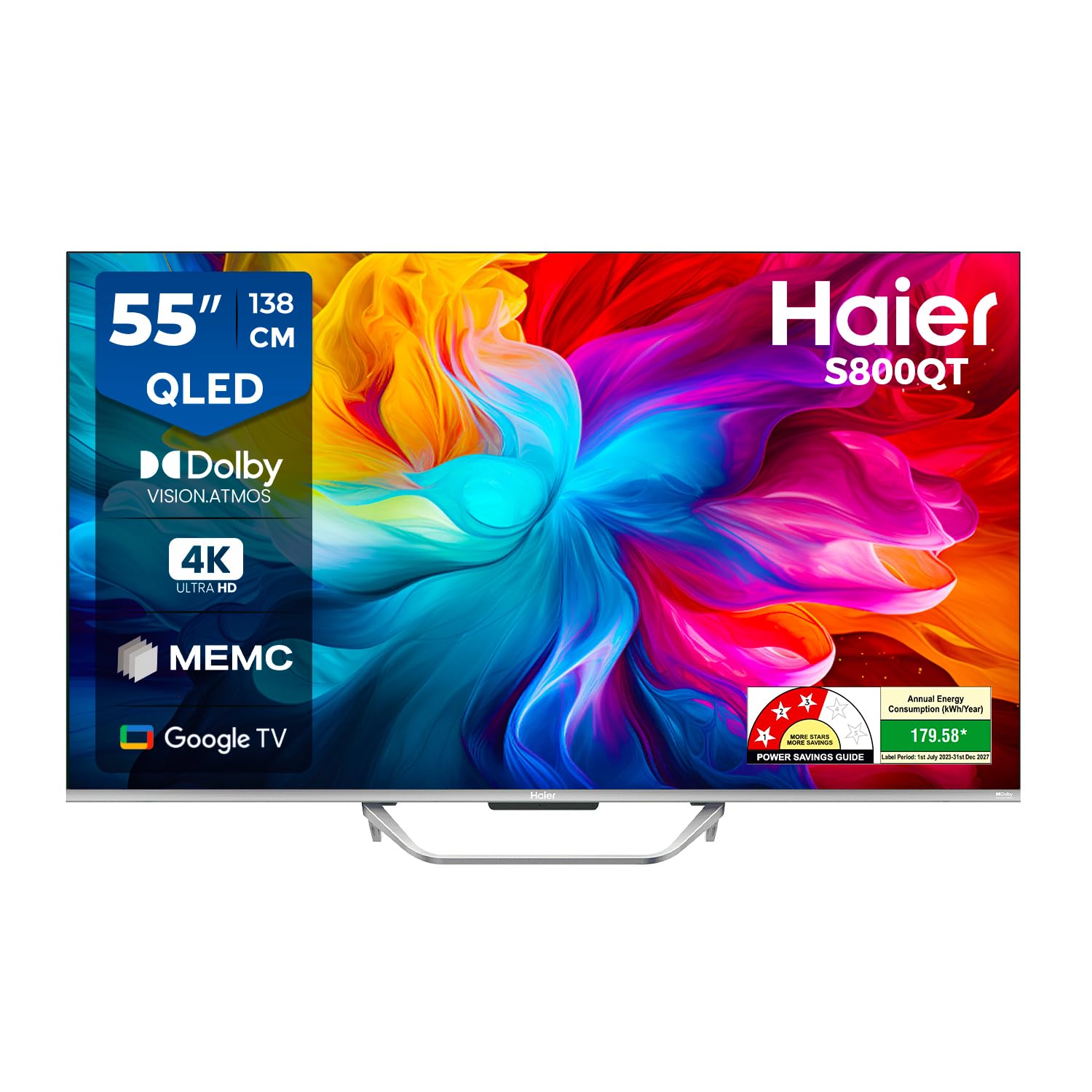
Image: The Haier 55S800QT-P TV showcasing its vibrant QLED display.
What's in the Box
Please check the contents of your product packaging. Ensure all items listed below are present and undamaged.
- 1 LED TV
- 2 Table Stand Bases
- 1 Remote Control
- 1 AV IN Adapter
- 1 AC Cord
- 2 AAA Batteries (for remote control)

Image: Contents of the Haier 55S800QT-P TV packaging.
Setup Guide
1. Physical Installation
Choose a suitable location for your TV. Ensure proper ventilation and avoid direct sunlight or heat sources. The TV can be placed on a table using the provided stand bases or wall-mounted (wall mount kit sold separately).
Attaching the Table Stand:
- Carefully place the TV screen-down on a soft, flat surface to prevent damage.
- Align the table stand bases with the corresponding slots on the bottom of the TV.
- Secure the stand bases using the screws provided (refer to the quick start guide for screw details).
Dimensions:
The TV dimensions are approximately 122.6 cm (W) x 77.2 cm (H) x 27.5 cm (D) with the stand. Without the stand, the depth is 9.6 cm.

Image: Haier 55S800QT-P TV dimensions.
2. Connecting External Devices
Your Haier TV offers multiple connectivity options for various devices.
- HDMI Ports: Connect set-top boxes, gaming consoles, laptops, or other HDMI-enabled devices. The TV features 4 HDMI ports.
- USB Ports: Connect USB storage devices for media playback. The TV has 2 USB ports.
- AV IN: Use the provided AV IN adapter to connect older devices with composite video and stereo audio outputs.
- Ethernet: For a stable wired internet connection.
- Wi-Fi: For wireless internet connectivity.

Image: Side view of TV ports.

Image: Back view of TV ports.
3. Power On and Initial Setup
- Connect the AC power cord to the TV and then to a power outlet.
- Press the power button on the remote control or on the TV itself.
- Follow the on-screen instructions to complete the initial setup, including language selection, network connection (Wi-Fi or Ethernet), and Google account sign-in.
Operating Your TV
Remote Control Functions
The included remote control allows you to navigate your TV's features. Insert the 2 AAA batteries into the remote control, ensuring correct polarity.
- Power Button: Turns the TV on or off.
- Navigation Pad (OK button): Used to move through menus and confirm selections.
- Back Button: Returns to the previous screen.
- Home Button: Accesses the Google TV home screen.
- Volume Up/Down: Adjusts the audio volume.
- Channel Up/Down: Changes TV channels.
- Quick Launch Buttons: Dedicated buttons for popular streaming services like Netflix and Prime Video, and Google Assistant.
- Google Assistant Button: Activates voice control for searching content, controlling smart home devices, and more.

Image: Haier TV remote control with quick launch buttons.
Smart TV Features (Google TV)
Your Haier TV runs on Google TV, providing access to a vast library of apps and content.
- App Access: Download and stream content from popular services like Prime Video, Netflix, Jio Hotstar, Sony Liv, Zee5, Apple TV, and many more.
- Watchlist: Organize your favorite movies and shows across different streaming services.
- Chromecast Built-in: Cast content directly from your smartphone or tablet to the TV.
- Hands-Free Voice Control: Use the integrated Google Assistant for voice commands without the remote.

Image: Google TV interface with various applications.
Display and Audio Enhancements
- QLED Display: Experience enhanced color purity, ultra-high color gamut, and authentic color reproduction for vibrant images.
- 4K Ultra HD Resolution: Enjoy four times the detail of Full HD, delivering sharp and clear visuals.
- Dolby Vision & HDR 10: Optimizes visuals for a cinematic experience with stunning sharpness and dynamic contrast.
- MEMC (Motion Estimation Motion Compensation): Reduces motion blur by inserting extra frames, ensuring smoother visuals, especially for fast-paced content.
- Dolby Atmos & dbx-tv Surround Sound: Provides immersive, 3D surround sound for a rich audio experience.
- 24 Watts Output: Powerful stereo speakers deliver clear and robust audio.

Image: Explanation of QLED display technology.

Image: Dolby Vision and HDR 10 benefits.

Image: Dolby Atmos and dbx-tv sound technologies.

Image: 4K resolution detail.

Image: MEMC technology for smoother motion.
Gaming Features
The Haier 55S800QT-P is equipped with features to enhance your gaming experience:
- ALLM (Auto Low Latency Mode): Automatically switches the TV to a low-latency mode when a gaming console is detected, reducing input lag.
- VRR (Variable Refresh Rate): Synchronizes the TV's refresh rate with the gaming console's frame rate to eliminate screen tearing and stuttering.
- HDMI 2.1: Supports advanced gaming features for compatible devices.

Image: Game Mode features for an optimized gaming experience.
Maintenance
Cleaning the TV Screen:
To clean the screen, gently wipe it with a soft, lint-free cloth. For stubborn marks, lightly dampen the cloth with water or a specialized screen cleaner. Never spray liquid directly onto the screen.
Cleaning the TV Casing:
Wipe the casing with a soft, dry cloth. Avoid using abrasive cleaners or solvents that may damage the finish.
Power Cord Care:
Regularly check the power cord for any damage. Do not use a damaged cord. Always unplug the TV during electrical storms or when it will be unused for extended periods.
Troubleshooting
If you encounter issues with your TV, refer to the following common solutions before contacting customer support.
No Power:
- Ensure the power cord is securely plugged into both the TV and the power outlet.
- Check if the power outlet is working by plugging in another device.
- Try pressing the power button on the TV itself, not just the remote.
No Picture, But Sound is Present:
- Verify that the correct input source is selected (e.g., HDMI 1, AV).
- Check the cable connections between the TV and the external device.
- Adjust brightness and contrast settings in the TV menu.
No Sound, But Picture is Present:
- Increase the volume using the remote control.
- Check if the TV is muted.
- Verify audio cable connections for external devices.
- Check audio output settings in the TV menu (e.g., internal speakers, external audio system).
Remote Control Not Working:
- Ensure the batteries are correctly inserted and not depleted. Replace if necessary.
- Remove any obstructions between the remote control and the TV's IR sensor.
- If using Bluetooth remote, ensure it is paired correctly.
Network Connectivity Issues:
- Restart your Wi-Fi router and the TV.
- Check Wi-Fi password and network settings on the TV.
- If using Ethernet, ensure the cable is securely connected.
Specifications
| Feature | Specification |
|---|---|
| Brand | Haier |
| Model | 55S800QT-P |
| Screen Size | 55 Inches (139 cm) |
| Display Technology | QLED |
| Resolution | 4K Ultra HD (3840 x 2160 Pixels) |
| Refresh Rate | 60 Hz |
| Operating System | Android (Google TV) |
| RAM Memory | 2 GB |
| Storage Capacity | 32 GB |
| Sound Output | 24 Watts |
| Audio Features | Dolby Atmos, dbx-tv Surround Sound, Stereo Surround |
| Video Features | Dolby Vision, HDR 10, MEMC, Low Blue Light |
| Connectivity | 4 HDMI Ports, 2 USB Ports, Wi-Fi 5, Ethernet, Bluetooth |
| Special Features | Chromecast, Haicast, Sound Mirroring, Google Assistant, Hands-Free Voice Control, ALLM, VRR |
| Product Dimensions (with stand) | 122.6W x 77.2H x 27.5D cm |
| Item Weight | 10.7 kg |
| Batteries Required | 2 AAA (included) |
Warranty and Support
Warranty Information:
The Haier 55S800QT-P television comes with a 2-year manufacturer warranty from the date of purchase on the television set and a 6-month warranty on the remote control. To avail warranty services, please retain your Amazon invoice as proof of purchase.
Customer Support:
For further assistance, technical support, or service requests, please refer to the official Haier website or contact Haier customer service. The user manual can also be accessed from the brand's website for additional details.


