
1. Introduction
The CALANDIS™ 2.4G Wireless Gamepad is designed for versatile gaming across various platforms. This controller utilizes 2.4G wireless transmission technology, offering a responsive and comfortable gaming experience. It is compatible with Android smartphones, Tablet PCs, PS3 consoles, and Smart TVs. The ergonomic design ensures comfortable gameplay for extended periods, featuring dual analog joysticks, precise action buttons, and anti-sweat, anti-slip grips.
2. Package Contents
Please verify that all items listed below are included in your package:
- 1x 2.4G Wireless Gamepad
- 1x OTG Adapter
- 1x USB Receiver
- 1x User Manual
3. Product Overview
Familiarize yourself with the components of your CALANDIS™ Wireless Gamepad.
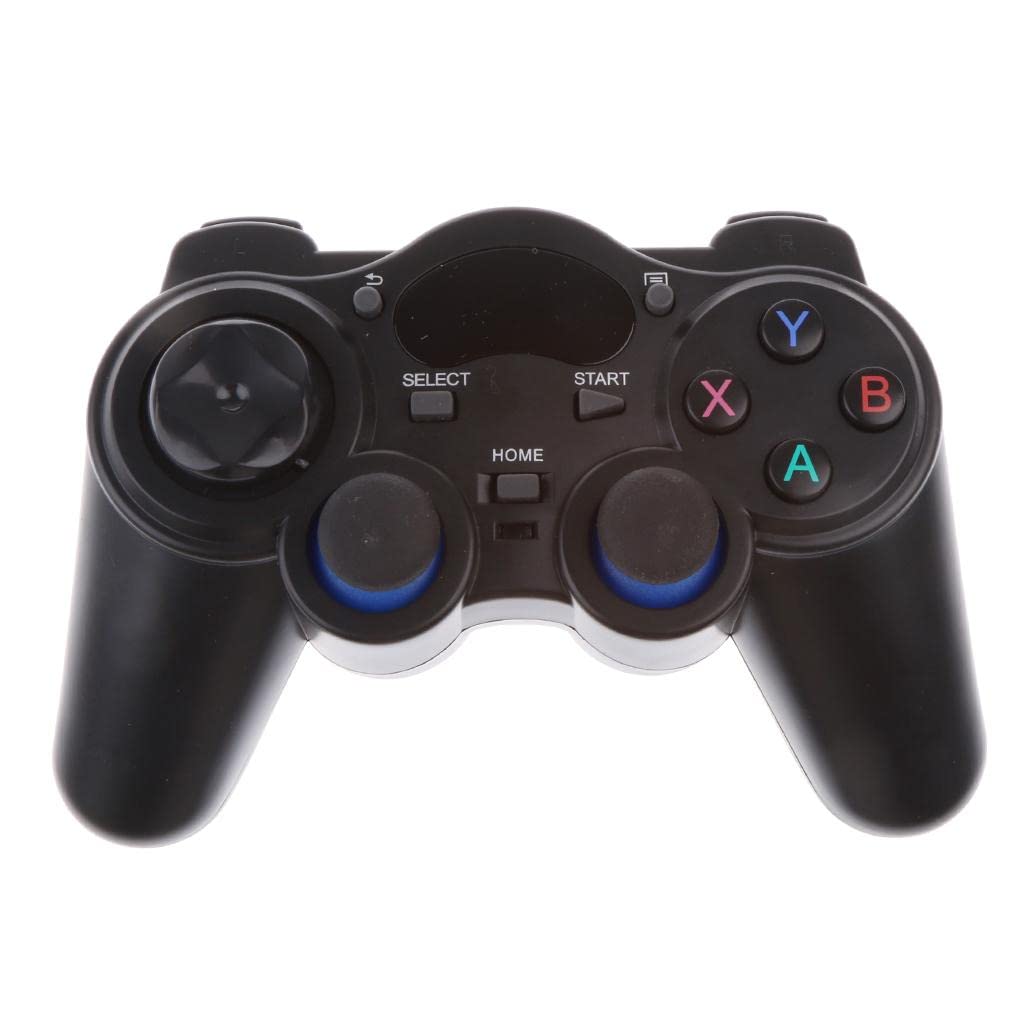
Figure 3.1: Front view of the CALANDIS 2.4G Wireless Gamepad, showing the dual analog sticks, D-pad, action buttons (A, B, X, Y), and central function buttons (SELECT, START, HOME).

Figure 3.2: Angled view of the CALANDIS 2.4G Wireless Gamepad, highlighting the ergonomic design and button layout.

Figure 3.3: The USB receiver (left) and OTG adapter (right) included with the gamepad, used for connecting to various devices.
4. Setup
4.1. Inserting Batteries
- Locate the battery compartment on the back of the gamepad.
- Open the battery compartment cover.
- Insert two (2) AA batteries, ensuring correct polarity (+/-).
- Close the battery compartment cover securely.
4.2. Connecting to Devices
The gamepad uses 2.4G RF wireless transmission technology, allowing for manipulation without delay within a range of approximately 10 meters (30 feet).
4.2.1. Connecting to Android Smart Phone/Tablet PC
- Ensure your Android device supports OTG functionality.
- Connect the USB Receiver to the OTG Adapter.
- Plug the OTG Adapter (with USB Receiver) into your Android smartphone or tablet's charging port.
- Turn on the gamepad. The device should automatically detect the controller.
4.2.2. Connecting to PC
- Plug the USB Receiver directly into an available USB port on your PC.
- Turn on the gamepad. Your PC should install the necessary drivers automatically.
4.2.3. Connecting to PS3 / Smart TV
- Plug the USB Receiver into an available USB port on your PS3 console or Smart TV.
- Turn on the gamepad. The device should recognize the controller.
5. Operating Instructions
5.1. Power On/Off
- To Power On: Press the HOME button located in the center of the gamepad.
- To Power Off: Press and hold the HOME button for a few seconds until the gamepad powers down. The gamepad also features intelligent power-saving and will enter standby mode after a period of inactivity.
5.2. Basic Controls
- Dual Analog Joysticks: Provide precise 360-degree movement control.
- D-Pad: For directional input, typically used for menu navigation or specific game actions.
- Action Buttons (A, B, X, Y): Used for in-game actions such as jumping, attacking, or confirming selections.
- SELECT Button: Often used for opening in-game menus or specific functions.
- START Button: Typically used to pause games or confirm selections.
- HOME Button: Functions as the standard Android menu key, allowing access to Back, Menu, and Home functions on compatible Android devices.
5.3. Multiple Controllers
The gamepad supports the simultaneous use of up to two controllers within an environment, utilizing 20 wireless channels for interference-free operation.
6. Maintenance
6.1. Cleaning
The gamepad features an anti-sweat and anti-oil surface treatment. To clean, gently wipe the surface with a soft, dry cloth. Avoid using harsh chemicals or abrasive materials, which may damage the finish.
6.2. Battery Replacement
When the gamepad's performance degrades or it fails to power on, replace the two AA batteries as described in Section 4.1.
6.3. Storage
Store the gamepad in a cool, dry place away from direct sunlight and extreme temperatures. If storing for an extended period, remove the batteries to prevent leakage.
7. Troubleshooting
7.1. Gamepad Not Connecting
- Check Batteries: Ensure batteries are correctly inserted and have sufficient charge. Replace if necessary.
- Verify Receiver Connection: Make sure the USB Receiver is securely plugged into the device (PC, PS3, Smart TV) or the OTG adapter for Android devices.
- Power Cycle: Turn off the gamepad and the host device, then power them back on.
- Interference: Move closer to the USB receiver or away from other 2.4G wireless devices that might cause interference.
7.2. Buttons or Joysticks Unresponsive
- Check Batteries: Low battery power can affect responsiveness.
- Restart Gamepad: Power off and then power on the gamepad.
- Test on Another Device: If possible, test the gamepad on a different compatible device to determine if the issue is with the gamepad or the original device.
8. Specifications
- Model Number: ELY63006394
- System Support: Android smart phone/Tablet PC/PS3/Smart TV and other compatible equipment.
- Wireless Technology: RF wireless transmission technology
- Wireless Distance: ≥10 meters (30 feet)
- Wireless Channels: 20 (supports up to 20 groups simultaneously)
- Standby Current: < 60µA
- Operating Current: < 15mA
- Batteries: 2 x AA (Not included)
- Surface Treatment: Anti-sweat and oil
- Key Life: 500,000 times
- Rocker Life: 500,000 times
- Item Dimensions (L x W x H): 12 x 5 x 8 Centimeters
9. Warranty and Support
For warranty information or technical support, please contact the manufacturer:
- Manufacturer: Elyssion Designs
- Email: elyssiondesigns@creationist.in
- Phone: 9311494800