
Introduction
This manual provides detailed instructions for the setup, operation, and maintenance of your DAREU EK87PRO 80% TKL Wireless Mechanical Gaming Keyboard and DAREU A955 Wireless Gaming Mouse Combo. Please read this manual thoroughly before using the products to ensure optimal performance and longevity.
Package Contents
- DAREU EK87PRO Wireless Mechanical Gaming Keyboard
- DAREU A955 Wireless Gaming Mouse
- USB-C Cable (for charging and wired connection)
- 2.4GHz USB Receiver
- User Manual
Setup
Keyboard Connection
The EK87PRO keyboard supports three connection modes: Bluetooth (BT 5.1), 2.4GHz wireless, and USB-C wired.

Image: Diagram illustrating the three connection modes (USB wired, 2.4GHz wireless, Bluetooth 5.1) for the DAREU EK87PRO keyboard, showing connection to a laptop, smartphone, and a digital clock device.
- 2.4GHz Wireless Mode:
- Locate the 2.4GHz USB receiver.
- Plug the receiver into an available USB port on your computer.
- Ensure the keyboard's mode switch (usually on the back or side) is set to 2.4GHz mode. The keyboard should automatically connect.
- Bluetooth Mode:
- Set the keyboard's mode switch to Bluetooth mode.
- On your device (computer, smartphone), enable Bluetooth and search for new devices.
- Select "DAREU EK87PRO" from the list of available devices to pair. The keyboard can connect to up to five devices simultaneously. Use Fn + 1/2/3 to switch between paired Bluetooth devices.
- USB-C Wired Mode:
- Connect the provided USB-C cable to the keyboard's USB-C port.
- Connect the other end of the cable to a USB port on your computer.
- The keyboard will automatically switch to wired mode and begin charging.
Mouse Connection
The A955 mouse also supports three connection modes: Bluetooth (BT 5.0), 2.4GHz wireless, and USB-C wired.

Image: Diagram showing the DAREU A955 mouse connecting via Bluetooth 5.0, 2.4GHz, and USB-C to various devices including Windows, Android, and Apple operating systems.
- 2.4GHz Wireless Mode:
- Plug the 2.4GHz USB receiver (shared with keyboard or separate if provided) into your computer.
- Ensure the mouse's mode switch is set to 2.4GHz mode. The mouse should connect automatically.
- Bluetooth Mode:
- Set the mouse's mode switch to Bluetooth mode.
- On your device, enable Bluetooth and search for new devices.
- Select "DAREU A955" from the list to pair.
- USB-C Wired Mode:
- Connect the USB-C cable to the mouse's USB-C port and to your computer.
- The mouse will operate in wired mode and charge simultaneously.
Charging
Both the keyboard and mouse are equipped with rechargeable batteries.
- Keyboard (4000mAh): Connect the USB-C cable to the keyboard and a power source (computer USB port or USB wall adapter). A full charge provides approximately 45 days of playtime with lights off.
- Mouse (930mAh): Connect the USB-C cable to the mouse and a power source. The A955 mouse also supports charging via its magnetic charging dock (if included). A full charge provides approximately 120 hours of playtime.

Image: The DAREU A955 mouse on its RGB rainbow charging stand, connected via USB-C cable, highlighting magnetic fixation and 30 days playtime.
Operation
Keyboard Features (EK87PRO)
- Gasket Mount & PCB Single Key Slotting: The keyboard features a gasket structure with a 1.2mm thick FR4 PCB and single key slotted design for enhanced resilience and stability. Six layers of padding reduce internal noise, providing a focused and crisp sound profile.

Image: Exploded view diagram of the DAREU EK87PRO keyboard's gasket structure, detailing layers like PBT keycaps, customized switch, top cover, center frame, PC positioning plate, latex foam, IXPE under shaft pad, silicone sleeve, PCB circuit board, latex backing foam, and EVA bottom pad.
- Hot-Swappable Switches: The EK87PRO is equipped with a hot-swappable PCB, supporting most 3-pin or 5-pin mechanical switches. This allows for easy customization and replacement of switches without soldering. It comes with pre-lubed Cloud linear switches.

Image: Close-up view of the DAREU EK87PRO keyboard's PCB hot-swappable sockets, showing compatibility with both 3-pin and 5-pin mechanical switches, and an image of a switch being removed with a puller.
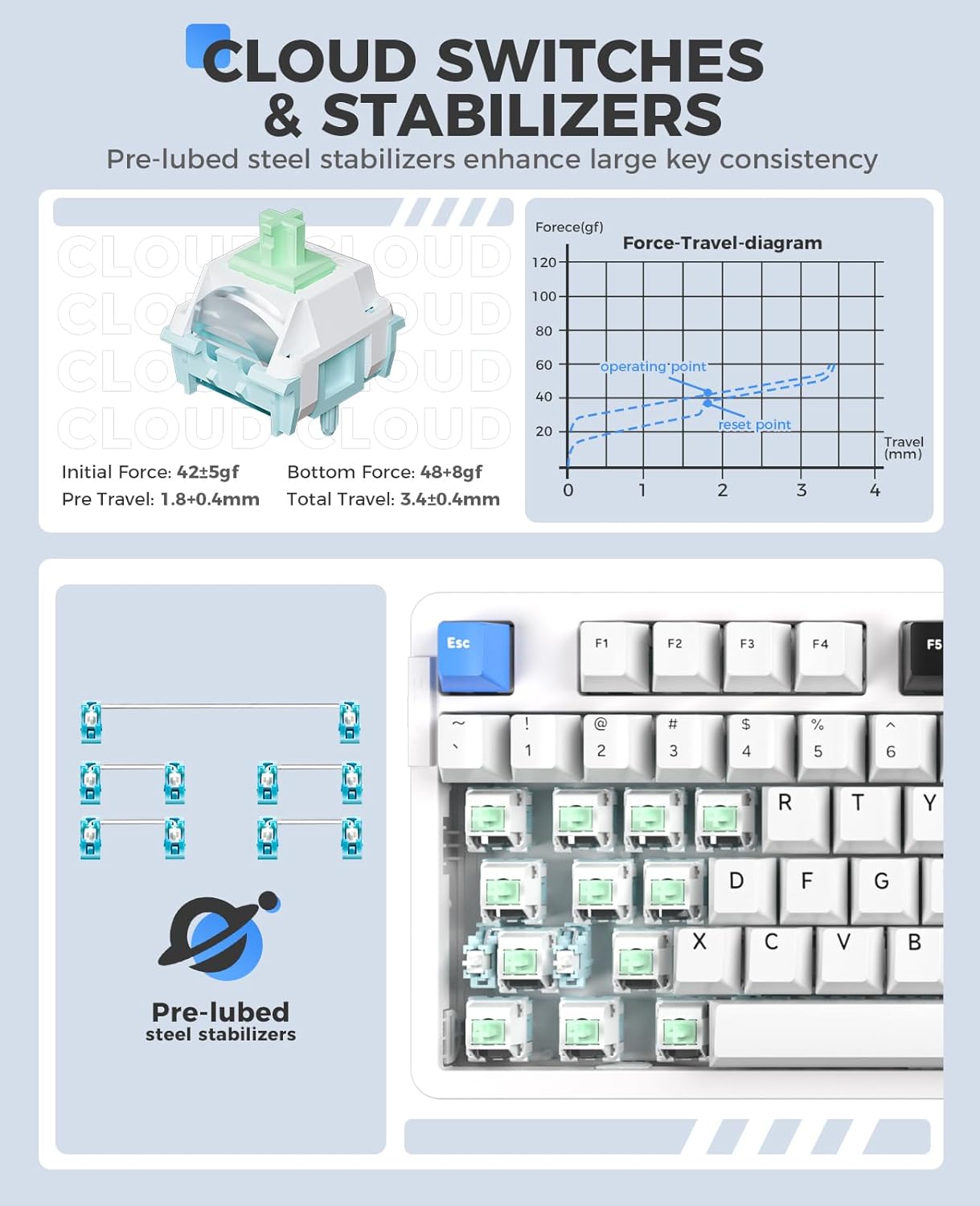
Image: Detailed view of DAREU Cloud switches and pre-lubed steel stabilizers on the EK87PRO keyboard, including a force-travel diagram for the Cloud switch.
- South-Facing RGB Lighting: The keyboard features up to 26 backlight modes and 16.8 million colors. Brightness and speed can be adjusted via the driver software.
- Adjust Brightness: Press Fn + Up Arrow (Brightness+) / Fn + Down Arrow (Brightness-).
- Change Backlight Colors: Press Fn + { / Fn + }.
- More lighting effects and macros are customizable through the official DAREU driver software.

Image: The DAREU EK87PRO keyboard showcasing its 16.8 million RGB lighting with various color patterns, and key combinations for adjusting brightness and backlight colors.
- Key Rollover: All 87 keys are conflict-free, supporting N-key rollover for accurate input during fast typing or gaming.
Mouse Features (A955)
- High Performance Sensor: Equipped with an AIM-WL sensor, offering up to 12000 DPI, 300 IPS tracking speed, and 50G acceleration for precise control.
- KBS II Button: Specific button for enhanced click response.
- Programmable Buttons: The mouse buttons are programmable via the DAREU driver software.
- Lightweight Design: Weighs 88g for comfortable and agile movement.
- Durable Switches: Rated for 80 million clicks.
- Custom RGB Light: Customize over 16.8 million colors and 6 lighting effects via software.

Image: The DAREU A955 mouse with a transparent bottom cover, showcasing its internal components and customizable RGB lighting effects.
Maintenance
- Cleaning:
- Use a soft, dry cloth to wipe the surfaces of the keyboard and mouse.
- For stubborn dirt, slightly dampen the cloth with water or a mild cleaning solution. Avoid harsh chemicals.
- Use compressed air to remove dust and debris from between keycaps and mouse crevices.
- Switch Replacement (Keyboard):
- Power off the keyboard or disconnect it from your computer.
- Use the provided keycap puller to carefully remove the desired keycap.
- Use the provided switch puller to gently extract the switch from its socket.
- Align the pins of the new switch with the holes on the PCB and press firmly until it clicks into place. Ensure pins are not bent.
- Reattach the keycap.
- Battery Care:
- Avoid fully discharging the battery frequently.
- Store the devices in a cool, dry place when not in use for extended periods.
Troubleshooting
| Issue | Possible Solution |
|---|---|
| Device not connecting (Wireless) |
|
| Keys/Mouse clicks not responding |
|
| RGB lighting not working/incorrect |
|
| Mouse cursor erratic/lagging |
|
Specifications
DAREU EK87PRO Keyboard
- Model: EK87PRO
- Layout: 80% TKL (87 keys)
- Connectivity: Bluetooth 5.1, 2.4GHz Wireless, USB-C Wired
- Switches: Pre-lubed Cloud Linear (Hot-swappable, supports 3/5 pin switches)
- Structure: Gasket Mount with FR4 PCB
- Battery: 4000mAh
- Lighting: South-facing RGB (26 modes, 16.8 million colors)
- Key Rollover: N-Key Rollover (all 87 keys conflict-free)
- Compatible Devices: Laptop, Personal Computer, Smartphone
DAREU A955 Mouse
- Model: A955
- Connectivity: Bluetooth 5.0, 2.4GHz Wireless, USB-C Wired
- Sensor: AIM-WL
- DPI: Up to 12000
- IPS: 300
- Acceleration: 50G
- Switches: 80 million clicks lifespan
- Battery: 930mAh (120 hours playtime)
- Weight: 88g
- Lighting: Customizable RGB (16.8 million colors, 6 effects)
- Compatible Devices: Laptop, Personal Computer, Smartphone
Warranty and Support
DAREU products are designed and manufactured to the highest quality standards. For information regarding warranty coverage, please refer to the warranty card included with your product or visit the official DAREU website.
If you encounter any issues or have questions not covered in this manual, please contact DAREU customer support through their official website or the retailer from whom you purchased the product. Please have your product model and purchase information ready when contacting support.
Official DAREU Website: www.dareu.com (Note: This is a placeholder URL, please refer to actual product documentation for correct support links.)


