
1. Product Overview
The iSinbox GC357 is a compact home projector designed for a versatile entertainment experience. It features 1000 ANSI lumens brightness, native 1080P resolution with 4K input compatibility, and integrated smart features for streaming. This manual will guide you through its setup, operation, and maintenance.

Figure 1: Front view of the iSinbox GC357 Projector, showcasing its compact design and lens.
Key Features:
- High Brightness: 1000 ANSI Lumens for clear images.
- Resolution: Native 1080P, supports 4K input.
- Smart OS: Pre-installed streaming apps like Netflix, YouTube, Prime Video.
- Automatic Adjustments: Auto-focus and 6D auto keystone correction.
- Connectivity: Wi-Fi 6, Bluetooth 5.3, HDMI, USB.
- Audio: Dolby Audio and DTS X support.
2. Setup
2.1 Unboxing and Placement
Carefully remove the projector and all accessories from the packaging. Place the projector on a stable, flat surface. Ensure adequate ventilation around the device.
2.2 Power Connection
- Connect the power cable to the projector's power input port.
- Plug the other end of the power cable into a suitable electrical outlet.
2.3 Input Source Connection
The projector supports various input sources:
- HDMI: Connect your device (e.g., laptop, gaming console, streaming stick) to the projector's HDMI port using the provided HDMI cable.
- USB: Insert a USB drive into the USB port to play media files directly.
- AUX: Use the 3.5mm audio jack for external audio devices.
2.4 Network Connection (Wi-Fi)
To access smart features and streaming apps, connect the projector to your Wi-Fi network:
- Power on the projector.
- Navigate to the 'Settings' menu using the remote control.
- Select 'Network' or 'Wi-Fi Settings'.
- Choose your Wi-Fi network from the list and enter the password.
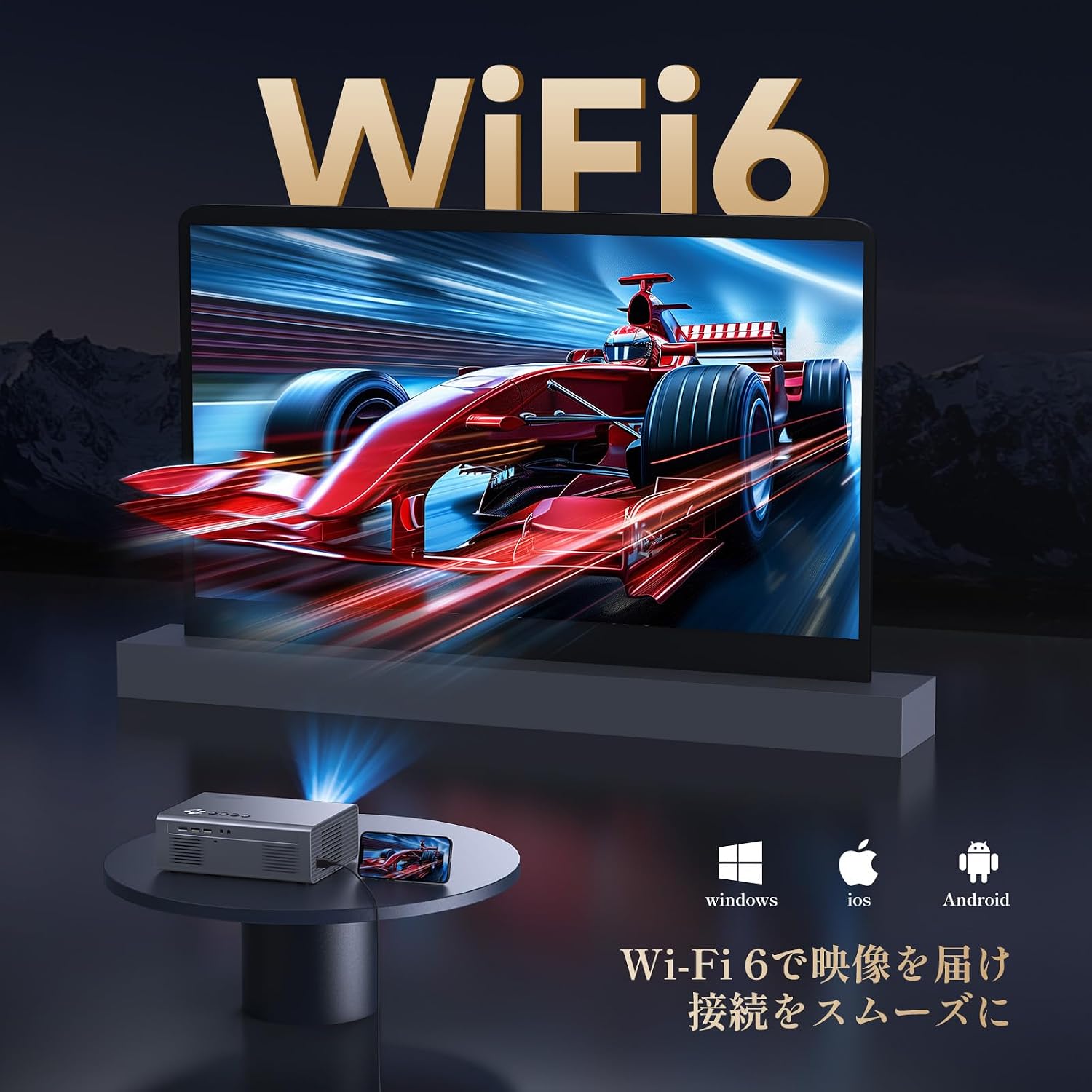
Figure 2: The projector supports WiFi 6 for stable and fast wireless connections, enabling seamless streaming and screen mirroring from various devices.
2.5 Automatic Focus and Keystone Correction
The iSinbox GC357 features automatic focus and 6D auto keystone correction. Upon startup or movement, the projector will automatically adjust the image for clarity and correct trapezoidal distortion. For optimal results, ensure the projector is placed as directly as possible in front of the projection surface.

Figure 3: The projector automatically adjusts focus and corrects image distortion for a clear, rectangular display.
3. Operating Instructions
3.1 Power On/Off
Press the power button on the projector or the remote control to turn the device on or off.
3.2 Navigating the Interface
Use the remote control to navigate the projector's smart interface. The directional buttons allow you to move between apps and settings, while the 'OK' button confirms selections. Dedicated buttons for popular streaming services like Netflix and YouTube are available for quick access.

Figure 4: The smart interface with pre-installed apps and the ergonomic remote control for easy navigation.
3.3 Selecting Input Sources
From the home screen, select the 'Input' icon or press the dedicated input button on the remote to switch between HDMI, USB, and other connected sources.
3.4 Using Built-in Applications
The projector comes with pre-installed applications such as Netflix, YouTube, and Prime Video. Ensure the projector is connected to Wi-Fi to use these services. Select the desired app from the home screen to launch it.
3.5 Adjusting Settings
Access the 'Settings' menu to customize picture, sound, and network options. You can adjust brightness, contrast, color temperature, and audio output modes (including Dolby Audio and DTS X settings).

Figure 5: The projector supports Dolby Audio and DTS X for an immersive sound experience.
3.6 Screen Mirroring
The projector supports screen mirroring from compatible devices via Wi-Fi. Please note that due to copyright restrictions, some streaming platforms may not allow content to be mirrored directly from a phone or tablet. In such cases, use the projector's built-in apps or an HDMI connection.
4. Maintenance
4.1 Cleaning the Lens
Use a soft, lint-free cloth specifically designed for optical lenses to gently wipe the projector lens. Avoid using abrasive cleaners or excessive force, as this can damage the lens coating.
4.2 Dust Filter Maintenance
Regularly check and clean the dust filter to ensure optimal performance and prevent overheating. Refer to the product diagram for the location of the dust filter. Replacement parts for the dust filter are available.
4.3 General Care
Keep the projector in a clean, dry environment. Avoid exposing it to extreme temperatures, humidity, or direct sunlight. When not in use, cover the lens with the protective cap to prevent dust accumulation.
5. Troubleshooting
If you encounter issues with your iSinbox GC357 Projector, refer to the following common problems and solutions:
| Problem | Possible Cause | Solution |
|---|---|---|
| No image displayed | Power not connected, incorrect input source, loose HDMI cable. | Check power connection, select correct input source, ensure HDMI cable is securely connected. |
| Image is blurry | Out of focus, projector moved. | The projector has auto-focus; try moving it slightly or restarting to trigger auto-focus. Ensure the lens is clean. |
| Image is distorted (trapezoid shape) | Incorrect keystone setting, projector not aligned. | The projector has 6D auto keystone correction. Ensure the projector is placed as straight as possible to the screen. |
| No sound | Volume too low, incorrect audio output setting, external speaker issue. | Increase volume. Check audio output settings in the menu. If using external speakers, ensure they are connected correctly and functioning. |
| Wi-Fi connection issues | Incorrect password, out of range, network problem. | Verify Wi-Fi password. Move projector closer to the router. Restart router and projector. |
| Screen mirroring not working for certain apps | Copyright restrictions. | Use the projector's built-in apps or connect via HDMI for protected content. |
| Internal dust spots on image | Dust accumulation inside the optical path. | Contact customer support for assistance. Do not attempt to open the projector yourself. |
6. Specifications
| Feature | Specification |
|---|---|
| Brand | iSinbox |
| Recommended Use | Home Cinema |
| Features | Wi-Fi Compatible |
| Connectivity Technology | Wi-Fi |
| Display Resolution | 1920 x 1080 |
| Native Resolution | 1920 x 1080 |
| Max Display Resolution | 1920 x 1080 Pixels |
| Display Type | LED |
| Color | Gray |
| Wattage | 80 W |
| Max Projection Distance | 5.2 meters |
| Max Image Size | 300 inches |
| Min Projection Distance | 1.22 meters |
| Min Image Size | 39 inches |
| Item Dimensions (L x W x H) | 20 x 16.7 x 8 cm |
| Item Weight | 1.11 kilograms |
| Included Components | HDMI Cable |
| Total Accessories | 1 |
| Manufacturer Name | iSinbox |
| Country of Origin | China |
7. Warranty and Support
The iSinbox GC357 Projector comes with a 3-year manufacturer's warranty. Additionally, the product includes a free 1-year exchange policy and lifetime technical support.
For warranty claims, technical assistance, or any product-related inquiries, please contact iSinbox customer support through the retailer where you purchased the product or visit the official iSinbox website for contact information.


