
msi BE6500
MSI BE6500 WiFi 7 USB Adapter User Manual
Model: BE6500
1. Introduction
This manual provides comprehensive instructions for the installation, operation, and maintenance of your MSI BE6500 WiFi 7 USB Adapter. The BE6500 adapter integrates advanced WiFi 7 technology, including Multi-Link Operation (MLO) and 4096-QAM, to deliver enhanced wireless connectivity, reduced latency, and increased data speeds for your computer.
Please read this manual thoroughly before using the product to ensure proper setup and optimal performance.
2. Package Contents
Verify that all items listed below are present in your product package:
- MSI BE6500 WiFi 7 USB Adapter
- USB Cradle
- Quick Setup Guide

Image: The retail box of the MSI BE6500 WiFi 7 USB Adapter, showing the adapter, its USB cradle, and the quick setup guide. This illustrates the items included in the package.
3. Product Overview
The MSI BE6500 WiFi 7 USB Adapter is designed to provide high-speed wireless connectivity to your desktop or laptop computer. It features a compact design and comes with a USB cradle for flexible placement.
Key Features:
- WiFi 7 Technology: Utilizes the latest WiFi 7 standard for advanced performance.
- Multi-Link Operation (MLO): Enhances WiFi performance by combining multiple links for faster, more stable, and seamless connectivity.
- Tri-Band Speeds: Supports speeds up to 2880 Mbps (6 GHz), 2880 Mbps (5 GHz), and 688 Mbps (2.4 GHz).
- Broader Coverage: Equipped with beamforming and high-gain antennas for extended WiFi range.
- Advanced Security: Features WPA3 WiFi encryption for improved network protection.
- Lower Latency: Designed to reduce latency for a more responsive wireless experience.
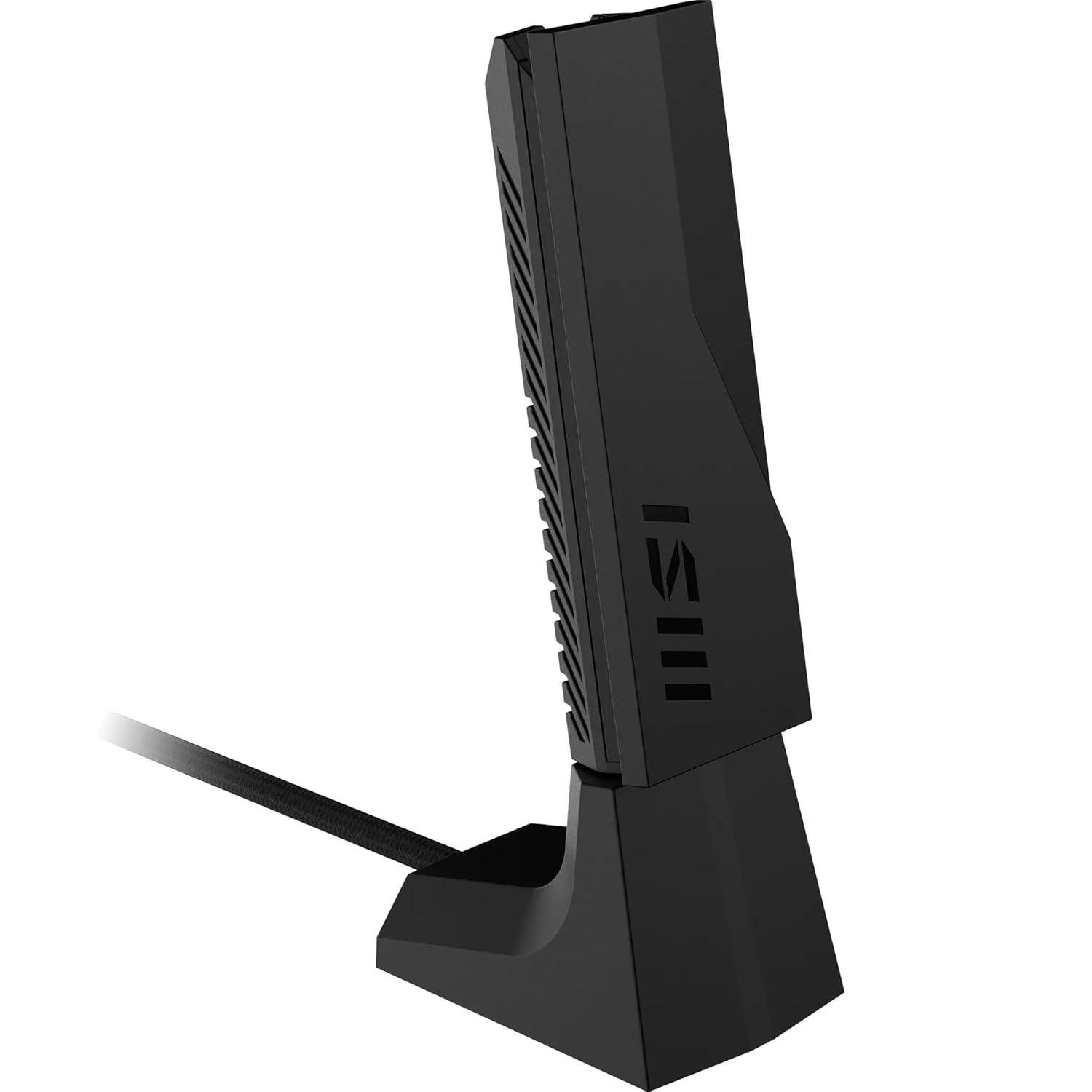
Image: The MSI BE6500 WiFi 7 USB Adapter standing upright in its included USB cradle, connected by a cable. This shows the physical appearance of the adapter and its stand.

Image: A graphic illustrating the key features of WiFi 7, including 6GHz band, 160MHz channel width, WiFi signal icon, security shield, MLO symbol, antenna symbol, Windows compatibility, and USB connectivity.

Image: The MSI BE6500 WiFi 7 USB Adapter shown alongside three colored bars indicating its tri-band capabilities: 6GHz at 2880 Mbps, 5GHz at 2880 Mbps, and 2.4GHz at 688 Mbps.
4. Setup Guide
Follow these steps to install your MSI BE6500 WiFi 7 USB Adapter:
- Connect the Adapter:
Insert the MSI BE6500 WiFi 7 USB Adapter directly into an available USB port on your computer, or connect it to the provided USB cradle and then plug the cradle's USB cable into your computer. Ensure the connection is secure.

Image: The MSI BE6500 WiFi 7 USB Adapter plugged directly into the side USB port of a laptop, demonstrating a direct connection for an instant WiFi 7 upgrade.

Image: The MSI BE6500 WiFi 7 USB Adapter standing in its cradle, which is connected via a USB cable to a desktop computer. This setup is compatible with Windows 11.
- Driver Installation:
For most modern operating systems (e.g., Windows 11), the necessary drivers will install automatically upon connecting the adapter. If automatic installation does not occur, please visit the official MSI support website (www.msi.com/support) to download and install the latest drivers for the BE6500 model.
- Verify Installation:
Once the drivers are installed, the adapter should be recognized by your operating system. You can verify this by checking your computer's Device Manager (Windows) or Network Settings (macOS/Linux).
5. Operating Instructions
After successful installation, you can connect to a wireless network:
- Access Network Settings:
On Windows, click the Wi-Fi icon in the system tray (bottom-right corner of the screen) to open the network panel.
- Select Network:
A list of available wireless networks will appear. Select your desired network (SSID).
- Enter Password:
If prompted, enter the network security key (Wi-Fi password) and click 'Connect'.
- Confirm Connection:
Once connected, the Wi-Fi icon will indicate an active connection, and you should have internet access.
For optimal performance, ensure your wireless router also supports WiFi 7 (802.11be) and is configured for tri-band operation.
6. Maintenance
To ensure the longevity and optimal performance of your MSI BE6500 WiFi 7 USB Adapter, follow these maintenance guidelines:
- Cleaning: Gently wipe the adapter and cradle with a soft, dry cloth. Avoid using liquid cleaners or solvents.
- Placement: Position the adapter in an open area, away from obstructions and other electronic devices that may cause interference. Using the provided cradle can help optimize signal reception.
- Software Updates: Regularly check the official MSI support website for updated drivers and firmware to ensure compatibility and performance improvements.
- Temperature: Operate the adapter within normal room temperatures. Avoid extreme heat or cold.
7. Troubleshooting
If you encounter issues with your MSI BE6500 WiFi 7 USB Adapter, refer to the following common solutions:
| Problem | Solution |
|---|---|
| No Wi-Fi connection / Adapter not detected. |
|
| Slow speeds or intermittent connection. |
|
| Driver crashes or errors (e.g., "WLAN Extensibility Module has failed to start"). |
|
8. Specifications
| Feature | Detail |
|---|---|
| Model | BE6500 |
| Wireless Standard | WiFi 7 (802.11be) |
| Data Rate (Max) | Up to 2880 Mbps (6 GHz) + 2880 Mbps (5 GHz) + 688 Mbps (2.4 GHz) |
| Frequency Bands | 2.4 GHz, 5 GHz, 6 GHz |
| Interface | USB (Type unspecified, typically USB 3.0 or higher for WiFi 7 speeds) |
| Antenna | High-gain antennas with Beamforming |
| Security | WPA3, WPA2, WPA, WEP |
| Operating System Support | Windows 11 (and potentially earlier versions with driver support) |
| Dimensions | Approximately 5.98 x 4.06 x 2.32 inches (package dimensions, adapter dimensions not explicitly stated but implied by images) |
| Weight | 8 ounces (product weight) |
| Manufacturer | MSI |
9. Warranty and Support
MSI products are designed for reliability and performance. This product is covered by a limited warranty from the date of purchase. For specific warranty terms and conditions, please refer to the warranty card included in your package or visit the official MSI website.
For technical support, driver downloads, and further assistance, please visit the MSI support portal:
10. Safety Information
- Do not expose the device to water or moisture.
- Do not attempt to disassemble or repair the device yourself. Refer all servicing to qualified personnel.
- Keep the device away from extreme temperatures and direct sunlight.
- Use only the provided USB cable and cradle.
- Dispose of this product responsibly according to local environmental regulations.
Related documentsBE6500


Ask a question about this manual
Ask about setup, troubleshooting, compatibility, parts, safety, or missing instructions. Manuals+ will review the question and use this page’s manual context to help answer it.