
1. Introduction
Welcome to the Audio Pro A10 MKII Wireless Multiroom Speaker. This speaker is designed to deliver high-fidelity audio with versatile connectivity options, including Wi-Fi, Bluetooth, and a 3.5 mm audio input. It supports multiroom audio, AirPlay2, Spotify Connect, and Google Cast, allowing for flexible audio streaming throughout your home.
2. Safety Information
- Do not expose the speaker to rain or moisture.
- Do not place the speaker near heat sources such as radiators, heat registers, stoves, or other apparatus (including amplifiers) that produce heat.
- Only use attachments/accessories specified by the manufacturer.
- Refer all servicing to qualified service personnel. Servicing is required when the apparatus has been damaged in any way.
- Ensure proper ventilation and do not block any ventilation openings.
3. Package Contents
Please check that all items are present:
- Audio Pro A10 MKII Speaker
- Power Cable
- Quick Start Guide
- Safety and Warranty Information
4. Product Overview
The Audio Pro A10 MKII features a compact, rounded design with a fabric front, making it suitable for various room aesthetics. The top panel houses all primary controls and indicators.
4.1 Speaker Components

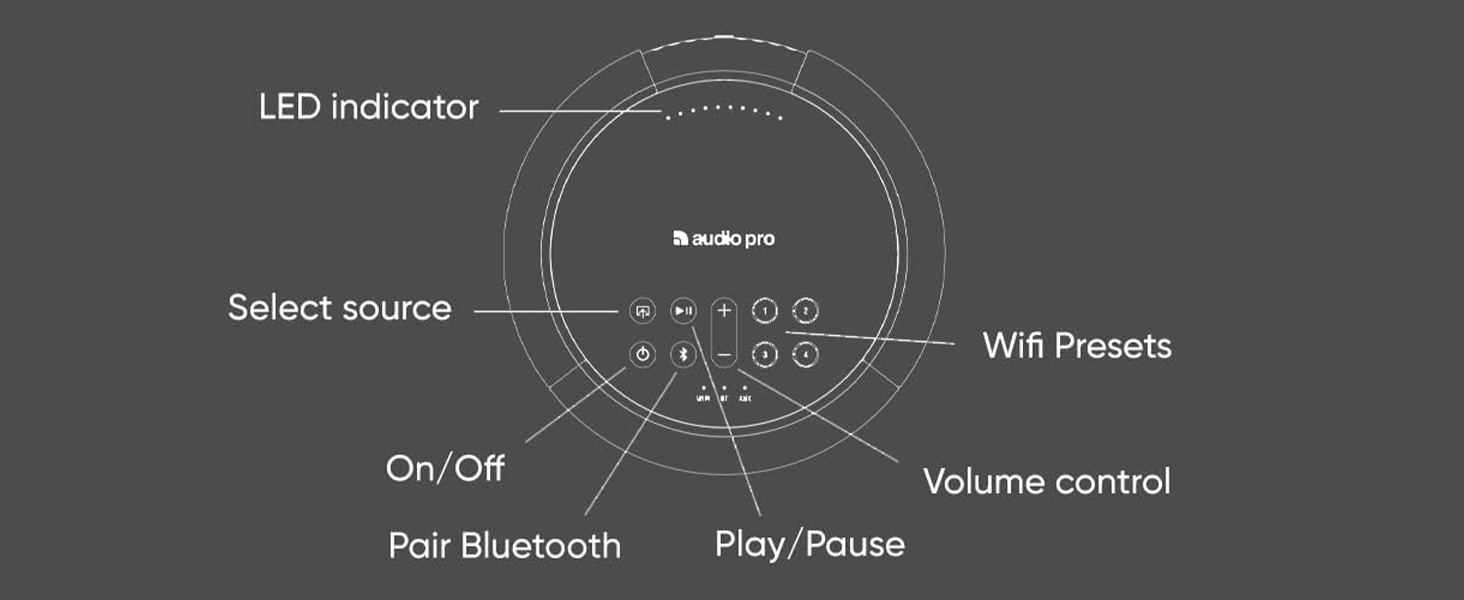
4.2 Top Panel Controls

- LED Indicator: Displays status (e.g., power, connectivity).
- Source Select: Buttons to switch between Wi-Fi, Bluetooth, and AUX inputs.
- On/Off: Power button.
- Pair Bluetooth: Initiates Bluetooth pairing mode.
- Play/Pause: Controls audio playback.
- Volume Control: Adjusts audio output level.
- Wi-Fi Presets (1-4): Programmable buttons for quick access to favorite radio stations or playlists.
5. Setup
5.1 Initial Power-On
- Connect the power cable to the speaker and a wall outlet.
- Press the On/Off button on the top panel to power on the speaker.
5.2 Connecting to Wi-Fi (Audio Pro Control App)
For full functionality, including multiroom audio and streaming services, connect your speaker to your Wi-Fi network using the Audio Pro Control app.

- Download the 'Audio Pro Control' app from the Apple App Store or Google Play Store.
- Open the app and follow the on-screen instructions to connect your A10 MKII to your home Wi-Fi network. The speaker supports both 2.4GHz and 5GHz bands.
5.3 Bluetooth Pairing
- Press the Bluetooth pairing button on the top panel of the speaker. The LED indicator will flash to show it's in pairing mode.
- On your device (smartphone, tablet, computer), go to Bluetooth settings and select 'Audio Pro A10 MKII' from the list of available devices.
- Once connected, the LED indicator will show a solid light.
5.4 3.5 mm Audio Cable Input (AUX)
Connect any audio source with a 3.5 mm output directly to the AUX input on the speaker using a standard 3.5 mm audio cable.
5.5 Wall Mounting
The Audio Pro A10 MKII is designed to be wall-mountable. Ensure you use appropriate wall mounts (sold separately) and follow their installation instructions for secure placement.

6. Operating
6.1 Multiroom Functionality
With the Audio Pro Control app, you can group multiple Audio Pro speakers to play the same music in different rooms or play different music on each speaker. This creates a flexible multiroom audio system.

6.2 Wi-Fi Presets
The A10 MKII features programmable preset buttons (1-4) on its top panel. These allow you to quickly access your favorite radio stations or playlists without needing to use your phone.
How to save presets on the speaker:
- Play any streamed audio.
- Press and hold a preset button (1-4) for 3 seconds. The preset is now saved.
Video 1: Demonstrates how to save presets directly on the Audio Pro speaker by playing audio and holding a preset button.
How to save presets in the Audio Pro app:
- Play any streamed audio and open the player window in the app.
- Click on the options menu, then click on 'Preset'.
- Click on an empty preset slot to save your current audio as a preset.
Video 2: Illustrates the process of saving presets within the Audio Pro mobile application.
6.3 Spotify Connect
Use Spotify Connect to play music directly from the Spotify app to your A10 MKII speaker over Wi-Fi.
- Start the Spotify app on your device.
- Press the Spotify Connect icon (speaker icon with Wi-Fi waves).
- Choose your A10 MKII speaker from the list.
- Press Play to start streaming.
Video 3: A guide on how to use Spotify Connect to stream music to your Audio Pro speaker.
Additional Spotify Connect Features:
- Use any of your devices (phone, tablet, computer) as a remote to control playback.
- Join a group session with friends on the same Wi-Fi network to collaboratively add songs to the queue.
- Save Spotify playlists as presets on your Audio Pro speaker or remote for quick access.
Video 4: Explores three additional functionalities available when using Spotify Connect with Audio Pro speakers.
6.4 AirPlay2
Stream audio from your Apple devices to the A10 MKII using AirPlay2.
- On your iPhone, swipe down from the top-right corner to open Control Center.
- Tap the AirPlay symbol (concentric circles with a triangle).
- Choose your A10 MKII speaker from the list to play audio.
Video 5: Demonstrates how to use AirPlay for audio streaming from an Apple device to the speaker.
6.5 Google Cast
Cast audio from compatible apps on your Android device, Chromebook, or Google Chrome browser to your A10 MKII speaker.
- On your Android device, swipe down from the top to access quick settings.
- Tap the Google Cast symbol (a screen with Wi-Fi waves).
- Choose your A10 MKII speaker from the list to play audio.
Video 6: Explains how to use Google Cast for audio streaming to the speaker.
6.6 Connecting a Turntable
You can connect a turntable to your Audio Pro speaker. If using cables, your turntable needs a built-in or external RIAA amplifier. If your speaker has Wi-Fi, you can re-stream the turntable audio to other speakers in your multiroom system.
Video 7: Provides instructions on how to connect a turntable to an Audio Pro speaker.
6.7 Wi-Fi vs. Bluetooth
Understanding the differences between Wi-Fi and Bluetooth connectivity can optimize your listening experience. Wi-Fi unlocks advanced features like multiroom audio and presets, while Bluetooth offers direct, convenient connection for individual devices.
Video 8: Compares Wi-Fi and Bluetooth connectivity options for Audio Pro speakers, highlighting their respective benefits.
7. Maintenance
To ensure the longevity and optimal performance of your Audio Pro A10 MKII speaker, follow these maintenance guidelines:
- Cleaning: Use a soft, dry cloth to wipe the speaker's surfaces. Avoid abrasive cleaners or solvents that could damage the finish or fabric.
- Dust: Regularly dust the speaker, especially the fabric grille, to prevent dust buildup from affecting sound quality.
- Placement: Place the speaker on a stable surface or securely mount it to a wall. Avoid placing it in direct sunlight or in areas with extreme temperatures or humidity.
- Cables: Periodically check all cable connections for any signs of wear or damage.
8. Troubleshooting
If you encounter issues with your Audio Pro A10 MKII, refer to the following common problems and solutions:
8.1 No Sound
- Power: Ensure the speaker is powered on and the power cable is securely connected.
- Volume: Check that the volume on both the speaker and your audio source is turned up.
- Source Selection: Verify that the correct input source (Wi-Fi, Bluetooth, AUX) is selected on the speaker.
- Mute: Confirm that neither the speaker nor the audio source is muted.
8.2 Connectivity Issues (Wi-Fi/Bluetooth)
- Wi-Fi Signal: Ensure your speaker is within range of your Wi-Fi router and has a strong signal.
- Router Restart: Try restarting your Wi-Fi router.
- Bluetooth Pairing: For Bluetooth, ensure the speaker is in pairing mode and your device's Bluetooth is enabled and searching for devices. Try unpairing and re-pairing.
- Interference: Move the speaker away from other electronic devices that might cause interference.
8.3 App Not Responding
- App Update: Ensure your Audio Pro Control app is updated to the latest version.
- Restart App/Device: Close and reopen the app, or restart your mobile device.
- Network: Confirm your mobile device is connected to the same Wi-Fi network as the speaker.
8.4 Sound Distortion
- Volume Level: Reduce the volume on both the speaker and the audio source to prevent clipping.
- Audio Source Quality: Ensure the audio source file or streaming quality is high.
- Cable Connection: If using AUX, check the cable for damage and ensure it's fully inserted.
9. Specifications
| Model Name | Audio Pro A10 MKII Wireless Multiroom Speaker |
| Speaker Type | Multi Room |
| Special Feature | Bluetooth |
| Recommended Uses | Indoor |
| Color | MKII Black |
| Product Dimensions | 7.5"D x 5.5"W x 5.5"H |
| Item Weight | 5.32 pounds (2.42 Kilograms) |
| Item Model Number | A10 MKII |
| Brand | Audio Pro |
| Speaker Maximum Output Power | 52 Watts |
| Connectivity Technology | Auxiliary, Bluetooth, Wi-Fi (2.4GHz & 5GHz) |
| Mounting Type | Tabletop Mount (Wall mountable with separate accessories) |
| Material | Fabric, Plastic |
10. Warranty
Audio Pro products are covered by a limited warranty against defects in materials and workmanship. The specific terms and duration of your warranty may vary by region and retailer. Please retain your proof of purchase for warranty claims. For detailed warranty information, refer to the documentation included with your product or visit the official Audio Pro website.
11. Support
For further assistance, technical support, or to access additional resources, please visit the official Audio Pro website or contact their customer support:
- Audio Pro Website: www.audiopro.com
- Audio Pro Store on Amazon: Visit the Audio Pro Store


