
1. Product Overview
The Mcdodo CH-2462 MagQ Qi2 is a versatile 3-in-1 magnetic wireless charging stand designed to efficiently charge your iPhone, AirPods, and Apple Watch simultaneously. It integrates Qi2 technology for optimized performance and features a compact, foldable design for portability and adjustable viewing angles.

Image 1.1: The Mcdodo CH-2462 charging stand with an iPhone, Apple Watch, and AirPods in charging positions.
2. Package Contents
Please verify that all items are present in the package:
- Mcdodo MagQ 3-in-1 Wireless Charging Stand (x1)
- USB-C Charging Cable (x1)
- User Manual (x1)
- Warranty Card (x1)

Image 2.1: The retail packaging for the Mcdodo CH-2462, illustrating the product and its key features.
3. Setup Instructions
- Unpack the Stand: Carefully remove the charging stand and all accessories from the packaging.
- Connect Power: Insert the provided USB-C charging cable into the USB-C port on the back of the charging stand. Connect the other end of the USB-C cable to a compatible power adapter (PD/QC supported, 30W recommended for optimal performance, not included).
- Placement: Place the charging stand on a stable, flat surface away from direct sunlight or heat sources.
- Power On: Once connected to a power source, the stand is ready for use. There is no separate power button.

Image 3.1: The Mcdodo CH-2462 stand set up on a desk, charging an iPhone, Apple Watch, and AirPods.
4. Operating Instructions
4.1 Charging Your iPhone
- Ensure your iPhone is compatible with MagSafe/Qi2 wireless charging (iPhone 12 and later models).
- Place your iPhone onto the magnetic charging pad. The magnets will automatically align your device for optimal charging.
- A charging indicator will appear on your iPhone screen, confirming that charging has begun.
4.2 Charging Your AirPods
- Place your AirPods charging case (compatible with wireless charging) onto the designated flat charging area at the base of the stand.
- The charging indicator on your AirPods case will illuminate, indicating that charging is active.
4.3 Charging Your Apple Watch
- Place your Apple Watch onto the dedicated charging puck located on the stand.
- Ensure the watch is properly seated on the puck. The watch display will show a charging icon.
4.4 Adjustable Viewing Angles
The stand features an adjustable design for comfortable viewing:
- Tilt Adjustment: The iPhone charging pad can be tilted up to 30 degrees for an optimal viewing angle.
- Rotation: The iPhone can be rotated 360 degrees while on the magnetic pad, allowing for both portrait and landscape orientations.
- Foldable Design: The entire stand can be folded for compact storage and easy transport.
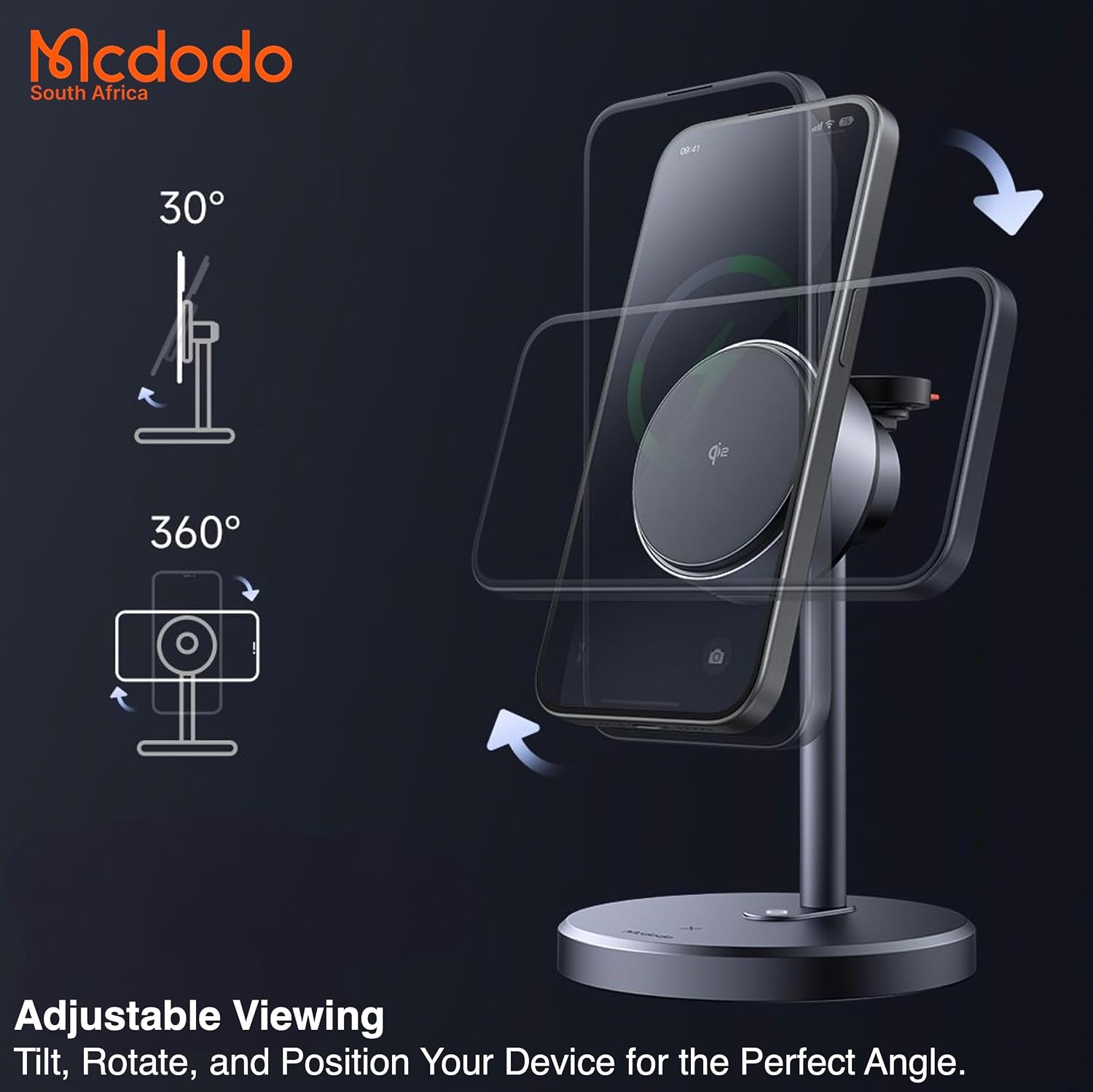
Image 4.1: Diagram illustrating the 30-degree tilt and 360-degree rotation features of the charging stand.
5. Maintenance
- Cleaning: Disconnect the power before cleaning. Use a soft, dry cloth to wipe the surface of the charging stand. Do not use abrasive cleaners, solvents, or immerse the device in water.
- Storage: When not in use, especially during travel, fold the stand to its compact form. Store it in a cool, dry place.
- Avoid Obstructions: Ensure no foreign objects are placed between your devices and the charging surfaces, as this can hinder charging efficiency and potentially cause overheating.
6. Troubleshooting
- Device Not Charging:
- Ensure the charging stand is properly connected to a working power outlet and a compatible power adapter.
- Verify that your device is correctly aligned on the charging pad. For iPhones, ensure MagSafe alignment.
- Check if your device is wireless charging compatible.
- Remove any thick phone cases or metallic objects that might interfere with wireless charging.
- Slow Charging:
- Ensure you are using a Power Delivery (PD) or Quick Charge (QC) compatible power adapter with sufficient wattage (30W recommended). Lower wattage adapters may result in slower charging speeds.
- Confirm your device supports fast wireless charging.
- Overheating:
- Some heat generation during wireless charging is normal. If the device or charger becomes excessively hot, remove the device immediately.
- Ensure there is adequate ventilation around the stand and no foreign objects are present.
- If overheating persists, discontinue use and contact support.
7. Specifications
| Feature | Specification |
|---|---|
| Model Number | CH-2462 |
| Total Output | 22.5W Max |
| iPhone Charging Output | 15W / 10W / 7.5W / 5W |
| AirPods Charging Output | 5W |
| Apple Watch Charging Output | 2.5W |
| Input | USB-C (PD/QC Supported) |
| Input Voltage | 15V (AC) |
| Output Current | 10A |
| Power Adapter Wattage (Recommended) | 30W |
| Certifications | Qi2, CE, FCC |
| Compatibility | iPhone 12 and later, Qi-supported earbuds, Apple Watch models |
| Material | PC / Aluminum Alloy / Silicone |
| Product Weight | 10 Grams |

Image 7.1: A document confirming Qi2 certification for the Mcdodo CH-2462 charging stand.
8. Warranty and Support
8.1 Warranty Information
This Mcdodo CH-2462 charging stand is covered by a Distributor Warranty. Please refer to the included Warranty Card for specific terms, conditions, and duration of the warranty period. Keep your proof of purchase for warranty claims.
8.2 Customer Support
For technical assistance, troubleshooting not covered in this manual, or warranty inquiries, please contact your local distributor or the retailer from whom you purchased the product. Contact information can typically be found on the product packaging or the retailer's website.