
1. Product Overview
The SIXTOP Android Car Stereo is a 10.1-inch touchscreen infotainment system designed to upgrade the in-car experience for specific Lexus IS models. It integrates modern features such as wireless Carplay and Android Auto, GPS navigation, Bluetooth connectivity, and multimedia playback, enhancing both convenience and entertainment during driving.
This unit is compatible with Lexus IS250, IS200, IS220, IS300, and IS350 models manufactured between 2006 and 2012. Important: This car radio is designed for original radios with a black air conditioner panel and is not compatible with original radios featuring a white air conditioner panel. Please verify your vehicle's air conditioner panel color before installation.

Image: Comparison of the dashboard before and after installing the SIXTOP Android Car Stereo, highlighting compatibility with vehicles equipped with a black air conditioner panel.
2. Package Contents
Verify that all components are present in your package:
- Car Stereo with Frame
- Backup Camera
- Microphone
- RCA Cable
- GPS Antenna
- Power Cable
- USB Cable
- Canbus Box
- Rear View Input Cable
- Installation Tools
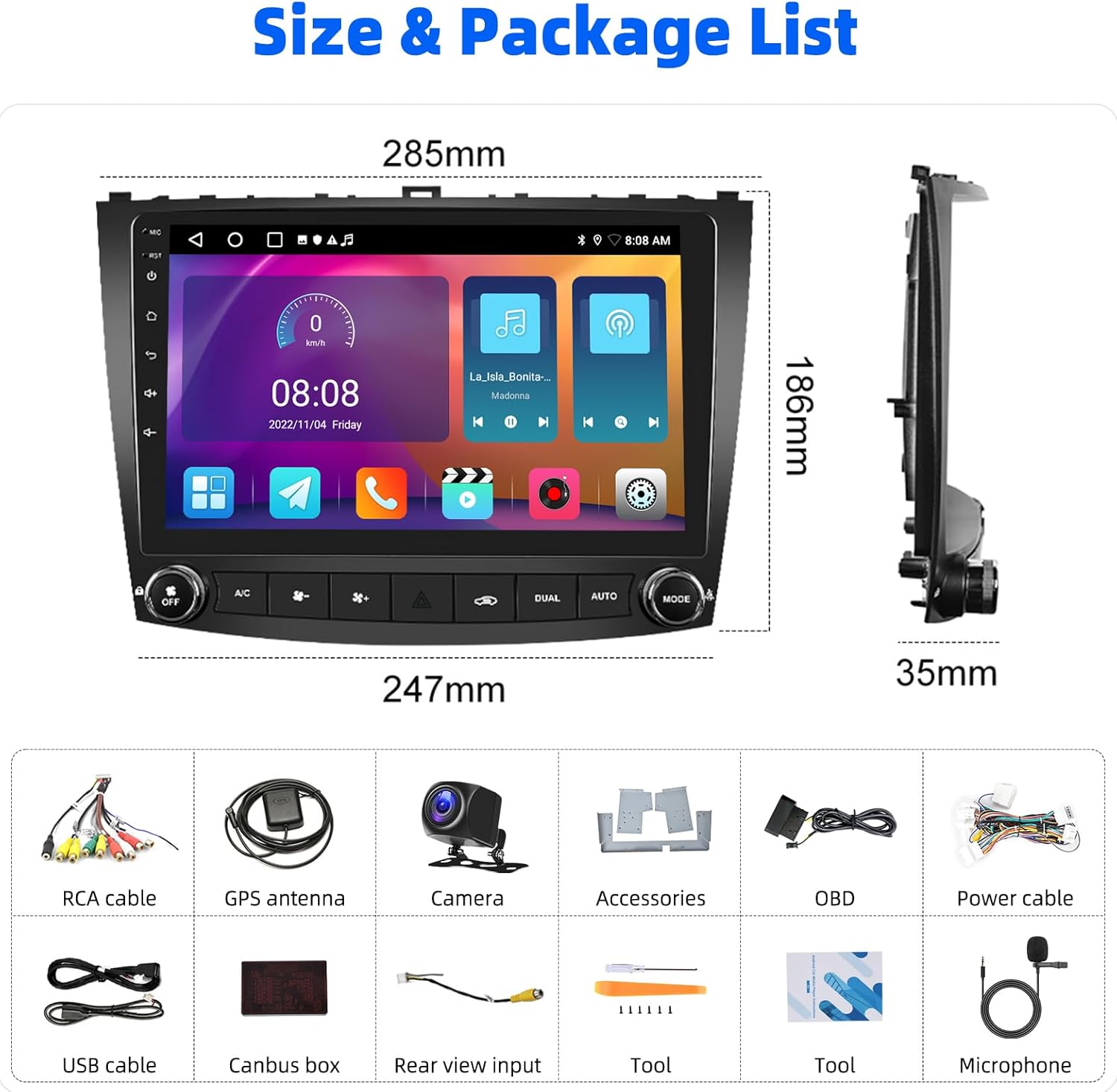
Image: Visual representation of all items included in the product package.
3. Setup and Installation
Installation of this Android car stereo requires technical knowledge and experience with car audio systems. It is recommended that installation be performed by a qualified professional to ensure proper functionality and avoid damage to the vehicle or the unit. If you choose to perform a DIY installation, please proceed with caution.
3.1 Pre-Installation Check
- Confirm vehicle compatibility (Lexus IS 2006-2012 with black AC panel).
- Ensure all package contents are present.
- Disconnect the vehicle's battery before starting installation.
3.2 Wiring Diagram for Rear Camera
The backup camera requires specific wiring connections. Refer to the diagram below for correct setup:

Image: Detailed wiring diagram illustrating connections for the backup camera, including power, RCA, USB, radio antenna, and GPS antenna.
3.3 Steering Wheel Control Setup
After physical installation, the steering wheel controls need to be configured through the system's interface. This process involves mapping the vehicle's steering wheel buttons to corresponding functions on the stereo.
Video: This video demonstrates the process of setting up steering wheel controls on an upgraded car infotainment system, showing how to map physical buttons to digital functions.
4. Operating Instructions
4.1 Wireless Carplay and Android Auto
The stereo supports wireless Carplay for iOS devices and Android Auto for Android devices. This allows synchronization of phone functions like navigation, calls, messages, and music directly to the stereo display.
- Connection: Ensure Bluetooth and Wi-Fi are enabled on your smartphone. Open the "ZLINK5" application on the stereo and follow the on-screen prompts to connect your device.
- Voice Control: For iOS phones, you can use "Siri" for voice commands.

Image: Display of Apple Carplay and Android Auto interfaces, demonstrating phone synchronization for navigation, music, and communication.
Video: This video provides a general overview of wireless Carplay and Android Auto functionality, including music playback, navigation, and hands-free calling.
4.2 Mirror Link Function
Mirror Link allows you to cast your smartphone screen directly to the car stereo. This is useful for viewing content like downloaded videos or other applications.
- Activation: Select the "ZLINK5" app and switch to the "Mirror Link" connection option.
- Connection Type: Supports both USB and Wi-Fi connections for mirroring.

Image: The Mirror Link feature in action, showing a smartphone screen duplicated on the car stereo display.
4.3 Split Screen Function
The split-screen feature allows two applications to run simultaneously on the display, such as navigation and music playback.
- Usage: Click the rectangle icon at the top of the screen, select a browsing page, and drag it to either the left or right side of the screen. Both screens can be operated independently.
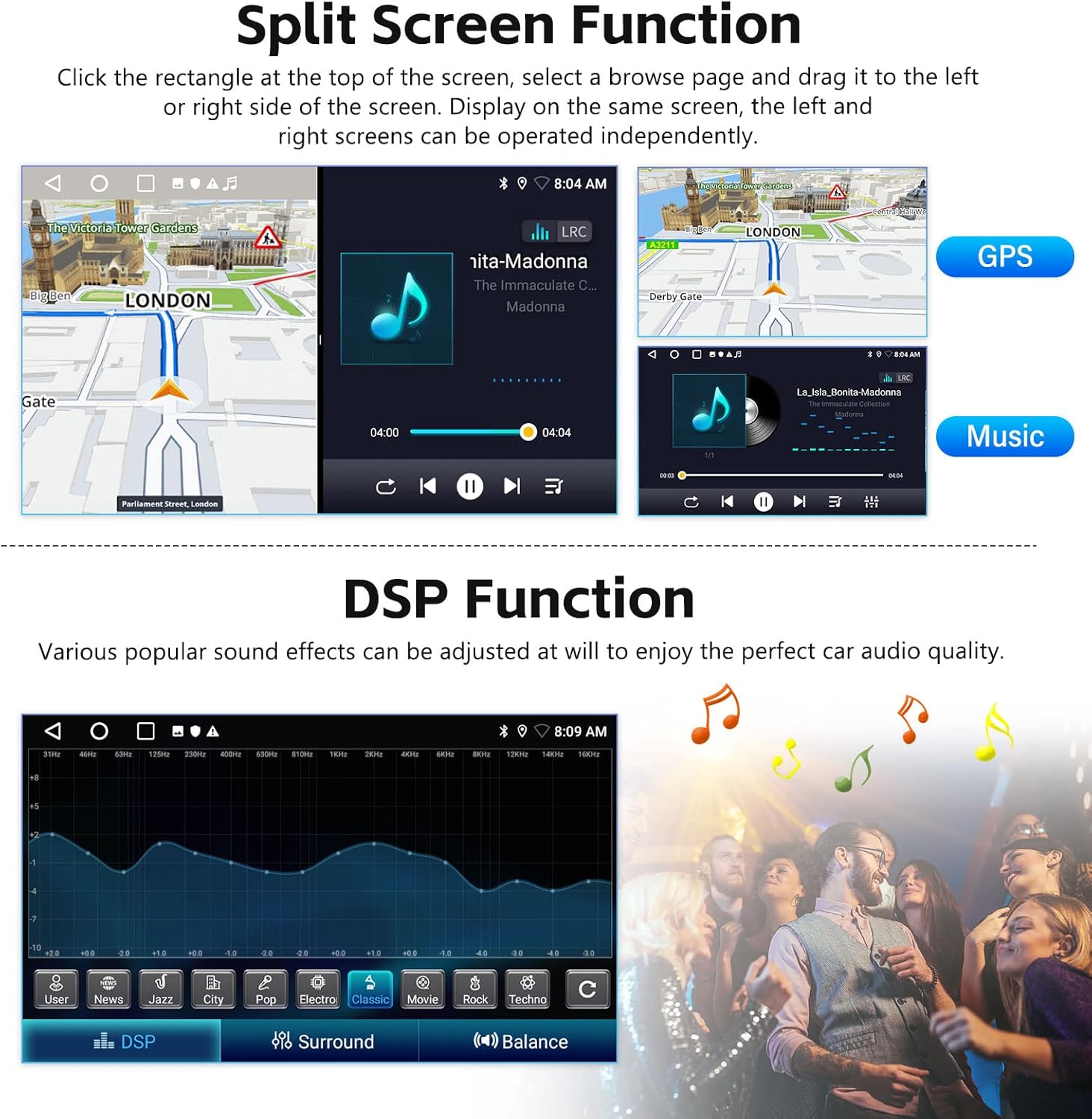
Image: The split-screen feature displaying a navigation map on one side and a music player on the other.
4.4 GPS Navigation
The unit includes built-in GPS navigation. You can download offline navigation apps from the Play Store or use online maps when connected to Wi-Fi.
- Online Maps: Connect to Wi-Fi to use online mapping services.
- Offline Maps: Download maps from the Play Store for use without an internet connection.

Image: The GPS navigation screen showing a map with route guidance.
4.5 Wi-Fi Connection
Connect the stereo to a Wi-Fi network to access online features, download applications, stream music, and watch videos.
- Access: Navigate to the system settings to connect to available Wi-Fi networks.
- Applications: Once connected, you can download various apps from the Play Store.

Image: The Wi-Fi connection screen, illustrating how to connect to a network and the range of applications accessible online.
4.6 Bluetooth & FM/RDS Radio
Enjoy hands-free calling, music streaming, and radio broadcasts.
- Bluetooth: Supports incoming/outgoing calls, phone book synchronization, and mobile music playback.
- FM/RDS Radio: Tune into FM radio stations (87.5-108 MHz) for news, music, and traffic information.

Image: Bluetooth settings for pairing devices and the FM radio interface showing station tuning.
4.7 Audio Settings (DSP, EQ, Balance)
Customize your audio experience with various sound effects and adjustments.
- DSP Function: Adjust various popular sound effects.
- Equalizer (EQ): Fine-tune audio frequencies for optimal sound quality.
- Sound Field Balance: Adjust the audio output balance across the vehicle's speakers.

Image: The DSP and Equalizer settings interface, allowing users to customize sound profiles and adjust frequency bands.
4.8 Reversing Display (Backup Camera)
The included waterproof night vision camera provides a clear reversing image, automatically activating when the vehicle is in reverse gear.
- Resolution: Ensure the camera resolution is set to AHD 720/25fps in Factory Settings (Factory Set Password: 000000).

Image: The reversing display showing the view from the backup camera with parking guidelines.
4.9 Changing Radio Themes
The stereo offers 26 different desktop themes to personalize the visual interface.
- Customization: Long-press on a blank space on the homepage to access theme options and select your preferred desktop theme.
5. Maintenance
To ensure the longevity and optimal performance of your SIXTOP Android Car Stereo, follow these maintenance guidelines:
- Cleaning: Use a soft, dry cloth to clean the touchscreen. Avoid abrasive cleaners or solvents that could damage the screen.
- Software Updates: Periodically check for and install software updates via Wi-Fi to ensure the system has the latest features and security patches.
- Temperature: Avoid exposing the unit to extreme temperatures, both hot and cold, for extended periods.
- Power: Ensure the vehicle's electrical system is stable. Avoid frequent power interruptions.
6. Troubleshooting
If you encounter issues with your car stereo, refer to the following common troubleshooting steps:
- No Power: Check the power cable connections and the vehicle's fuse box. Ensure the battery is properly connected.
- No Sound: Verify speaker connections, volume settings, and audio balance/fader settings. Check if the mute function is active.
- Carplay/Android Auto Not Connecting: Ensure Bluetooth and Wi-Fi are enabled on your phone and the stereo. Restart both devices. Try connecting via USB if wireless fails.
- Steering Wheel Controls Not Working: Re-enter the steering wheel control learning interface in the settings and re-map the buttons. Check the Canbus box connection if applicable.
- Backup Camera Not Displaying: Check the camera's power and video input connections. Verify the camera resolution setting in Factory Settings (Password: 000000).
- Screen Unresponsive: Try restarting the unit. If the issue persists, a factory reset might be necessary (note: this will erase all user data).
- AC Controls Not Working (as reported in reviews): This can indicate a wiring issue or a blown fuse. Professional inspection is recommended.
7. Specifications
| Feature | Specification |
|---|---|
| Item Weight | 4.62 pounds |
| Package Dimensions | 11.66 x 8.04 x 4.89 inches |
| Display Size | 10.1 Inches |
| Operating System | Android |
| Connectivity Technology | Bluetooth, Wi-Fi |
| Special Features | AHD Backup Camera, Steering Wheel Control, Touchscreen, Split Screen, WiFi, GPS Navigation, Wireless CarPlay and Android Auto, Mirror Link |
| Audio Output Mode | Stereo |
| Mounting Type | Dashboard Mount |
| Vehicle Service Type | Compatible with Lexus IS250 IS200 IS220 IS300 IS350 2006-2012 |
8. Warranty
The SIXTOP Android Car Stereo comes with a 1-year warranty. For warranty claims or service, please contact customer support.
9. Support
For technical assistance, troubleshooting, or any product-related inquiries, please contact SIXTOP customer support:
- Email: SIXTOP123@163.com
- Online Support: Refer to the seller's contact information on the purchase platform for direct messaging.
SIXTOP is committed to providing 24/7 quick response, 1-year replacement, and lifetime technical support.

Image: Visual representation of SIXTOP's customer support options and commitment to service.


