
1. Introduction
The TMEZON H4 Trail Camera is designed for wildlife monitoring, security surveillance, and game tracking. It features 4K video recording, 48MP still image capture, integrated WiFi and Bluetooth connectivity, and a solar panel for extended operation. This manual provides detailed instructions for setting up, operating, and maintaining your camera to ensure optimal performance.
2. Package Contents
- TMEZON H4 Trail Camera
- Solar Panel
- Mounting Strap
- Mounting Screws
- USB Cable
- 64GB SD Card
- User Manual
3. Product Overview
Familiarize yourself with the main components of your TMEZON H4 Trail Camera.
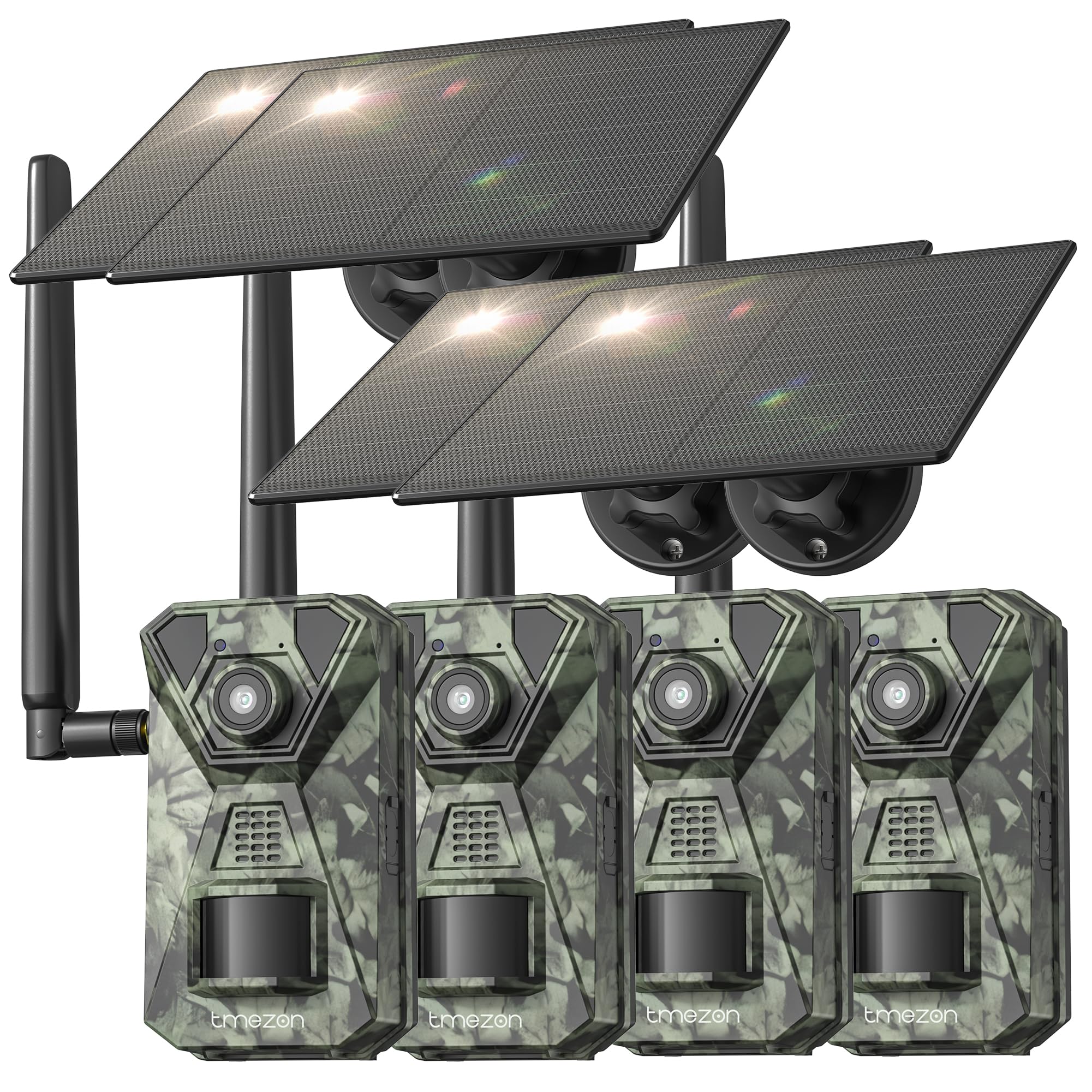
Image 1: Front view of the TMEZON H4 Trail Camera, showing the lens, PIR sensors, and integrated solar panel. This image illustrates the compact, camouflage design suitable for outdoor environments.
Camera Components:
- Lens: Captures images and videos.
- PIR Sensors: Passive Infrared sensors detect motion.
- IR LEDs: Infrared LEDs for night vision.
- LCD Screen: For menu navigation and viewing captured media.
- Control Buttons: Navigate menus and settings.
- SD Card Slot: Insert the provided 64GB SD card.
- USB Port: For connecting to a computer.
- External Power Port: For connecting the solar panel or external power source.
- Battery Compartment: Holds 8 AA batteries (not included) for backup power.
4. Setup
4.1. Battery and Solar Panel Installation
- Open the battery compartment on the camera.
- Insert 8 new AA batteries (alkaline or rechargeable NiMH recommended) according to the polarity indicators. These batteries serve as a backup to the solar panel.
- Connect the solar panel cable to the camera's external power port. Ensure the solar panel is positioned to receive maximum sunlight.
4.2. SD Card Insertion
- Locate the SD card slot on the side or bottom of the camera.
- Insert the provided 64GB SD card with the metal contacts facing the correct direction until it clicks into place.
- To remove, push the card in gently until it springs out.
4.3. Mounting the Camera
- Use the included mounting strap to secure the camera to a tree or pole. Thread the strap through the slots on the back of the camera and tighten.
- Alternatively, use the mounting screws to attach the camera to a wall or other flat surface.
- Position the camera at a height of 3-6 feet (1-2 meters) and aim it towards the desired monitoring area. Ensure no obstacles block the PIR sensors.
4.4. App Download and Pairing
- Download the official TMEZON app from your smartphone's app store (iOS or Android). Search for "TMEZON Trail Camera" or scan the QR code provided in the quick start guide.
- Enable Bluetooth on your smartphone.
- Turn on the camera.
- Open the TMEZON app, select "Add Device," and follow the on-screen instructions to connect via Bluetooth.
- Once connected via Bluetooth, the app will prompt you to connect to the camera's WiFi network for faster data transfer and live view.
5. Operating the Camera
5.1. Power On/Off and Mode Selection
- OFF: Power off the camera.
- SETUP: Enter setup mode to configure settings, view photos/videos, or connect to the app.
- ON: Activate the camera for monitoring. The camera will enter monitoring mode after a short countdown.
5.2. Menu Navigation and Settings
In SETUP mode, use the control buttons to navigate the menu on the LCD screen. Press the 'MENU' button to access settings. Key settings include:
- Mode: Select Photo, Video, or Photo+Video (Hybrid).
- Photo Resolution: 48MP, 30MP, 20MP, etc.
- Video Resolution: 4K, 2.7K, 1080P, 720P.
- PIR Sensitivity: High, Medium, Low. Adjust based on environment to avoid false triggers.
- PIR Interval: Time delay between detections.
- Time Lapse: Capture images at set intervals regardless of motion.
- Date & Time: Set current date and time.
- Format SD Card: Erase all data on the SD card. Caution: This will delete all files.
5.3. Remote Monitoring via App
Once connected to the TMEZON app:
- View live footage from the camera.
- Adjust camera settings remotely.
- Browse and download captured photos and videos to your smartphone.
- Receive notifications for detected motion (if 4G LTE cellular transmission is enabled and configured).
6. Maintenance
6.1. Cleaning
- Wipe the camera lens and PIR sensors with a soft, dry cloth to remove dust or smudges.
- Ensure the solar panel is clean for efficient charging.
- Do not use abrasive cleaners or solvents.
6.2. Storage
- If storing the camera for an extended period, remove the AA batteries.
- Store the camera in a cool, dry place away from direct sunlight.
7. Troubleshooting
- Camera not powering on: Check battery installation and charge level. Ensure solar panel is connected and receiving sunlight.
- Poor image/video quality: Clean the lens. Ensure sufficient lighting or proper night vision settings. Check resolution settings.
- No motion detection: Adjust PIR sensitivity (High for sparse areas, Low for busy areas). Ensure PIR sensors are not obstructed. Check PIR interval settings.
- SD card error: Format the SD card in the camera's settings. If the issue persists, try a different compatible SD card.
- App connection issues: Ensure Bluetooth and WiFi are enabled on your phone. Restart both the camera and the app. Ensure the camera is in SETUP mode for initial pairing.
- Solar panel not charging: Ensure the solar panel is clean and positioned to receive direct sunlight. Check the connection cable.
8. Specifications
| Model Name | H4 |
| Effective Still Resolution | 48 MP |
| Effective Video Resolution | 4K |
| Connectivity Technology | Wireless (WiFi, Bluetooth, 4G LTE) |
| Power Source | Solar Powered, 8x AA Battery Backup |
| Flash Memory Type | SD Card (64GB included, max 64GB supported) |
| Night Vision Range | 65 Feet |
| Trigger Speed | 0.2s |
| PIR Detection Angle | 120° |
| Waterproof Rating | IP66 |
| Item Dimensions | 4 x 3.5 x 6 inches |
| Material | Metal, Plastic |
9. Warranty and Support
TMEZON products come with a standard manufacturer's warranty. For detailed warranty information, technical support, or service inquiries, please refer to the warranty card included in your package or visit the official TMEZON website. You can also contact customer support through the TMEZON app or the contact information provided on the product packaging.