
1. Product Overview
The HUION Keydial Remote is a programmable keypad designed to enhance workflow efficiency for digital artists, designers, and other creative professionals. It features dual dials, 8 customizable keys, and an OLED display, offering versatile control across various software applications.

Image 1.1: Front view of the HUION Keydial Remote, showcasing its compact design and OLED display.
Package Contents
- Keydial Remote
- Quick Start Guide
- Storage Bag
Key Components
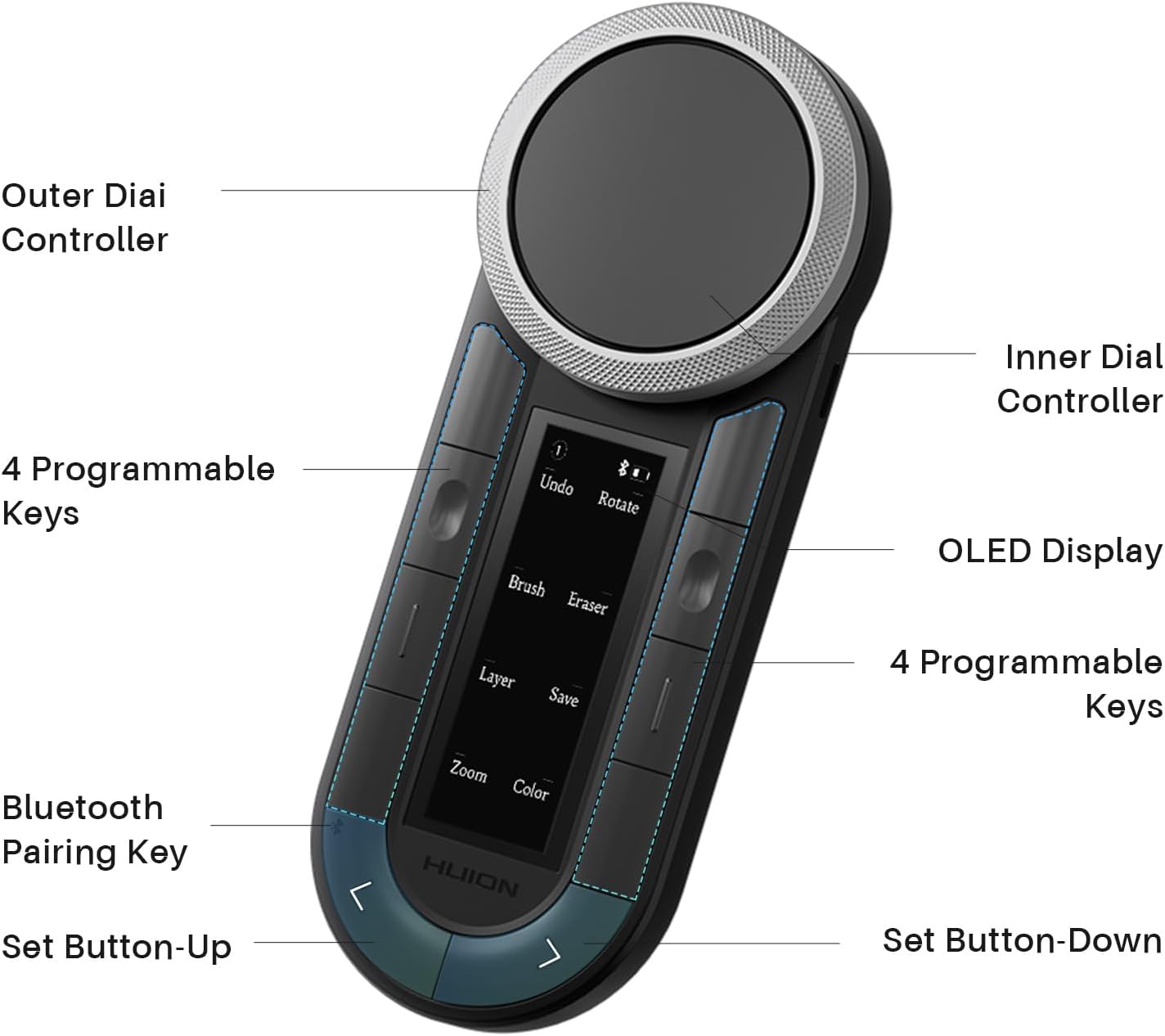
Image 1.2: Labeled diagram of the Keydial Remote, indicating the Outer Dial Controller, Inner Dial Controller, 4 Programmable Keys (left and right), OLED Display, Bluetooth Pairing Key, and Set Button-Up/Down.
- Outer Dial Controller: Used for precise adjustments like brush size or canvas rotation.
- Inner Dial Controller: Used for smooth actions such as zooming, scrolling, or volume control.
- Programmable Keys (x8): Customizable shortcut buttons.
- OLED Display: Shows current key functions, group, battery level, and connection status.
- Bluetooth Pairing Key: Initiates Bluetooth pairing mode.
- Set Button-Up/Down: Used to switch between customized key groups.
2. Setup
2.1 Charging the Device
Before first use, ensure the Keydial Remote is fully charged. Connect the device to a power source using the provided USB-C cable. The OLED display will indicate charging status.
2.2 Connectivity Options
The Keydial Remote supports two primary connection methods:
- Dual Channel Bluetooth 5.0: Allows connection to two wireless devices simultaneously, with seamless switching.
- Wired Mode: Connects directly to a PC via USB-C cable.
2.3 Bluetooth Connection
- Ensure the Keydial Remote is powered on.
- Press and hold the Bluetooth Pairing Key on the side of the device until the Bluetooth icon on the OLED display flashes.
- On your computer (Mac/Windows) or mobile device (iPadOS/iOS/Android), navigate to Bluetooth settings.
- Select "HUION Keydial Remote" from the list of available devices to pair.
- Once paired, the Bluetooth icon on the OLED display will become solid.
To switch between two paired Bluetooth devices, use the dedicated side keys on the Keydial Remote.
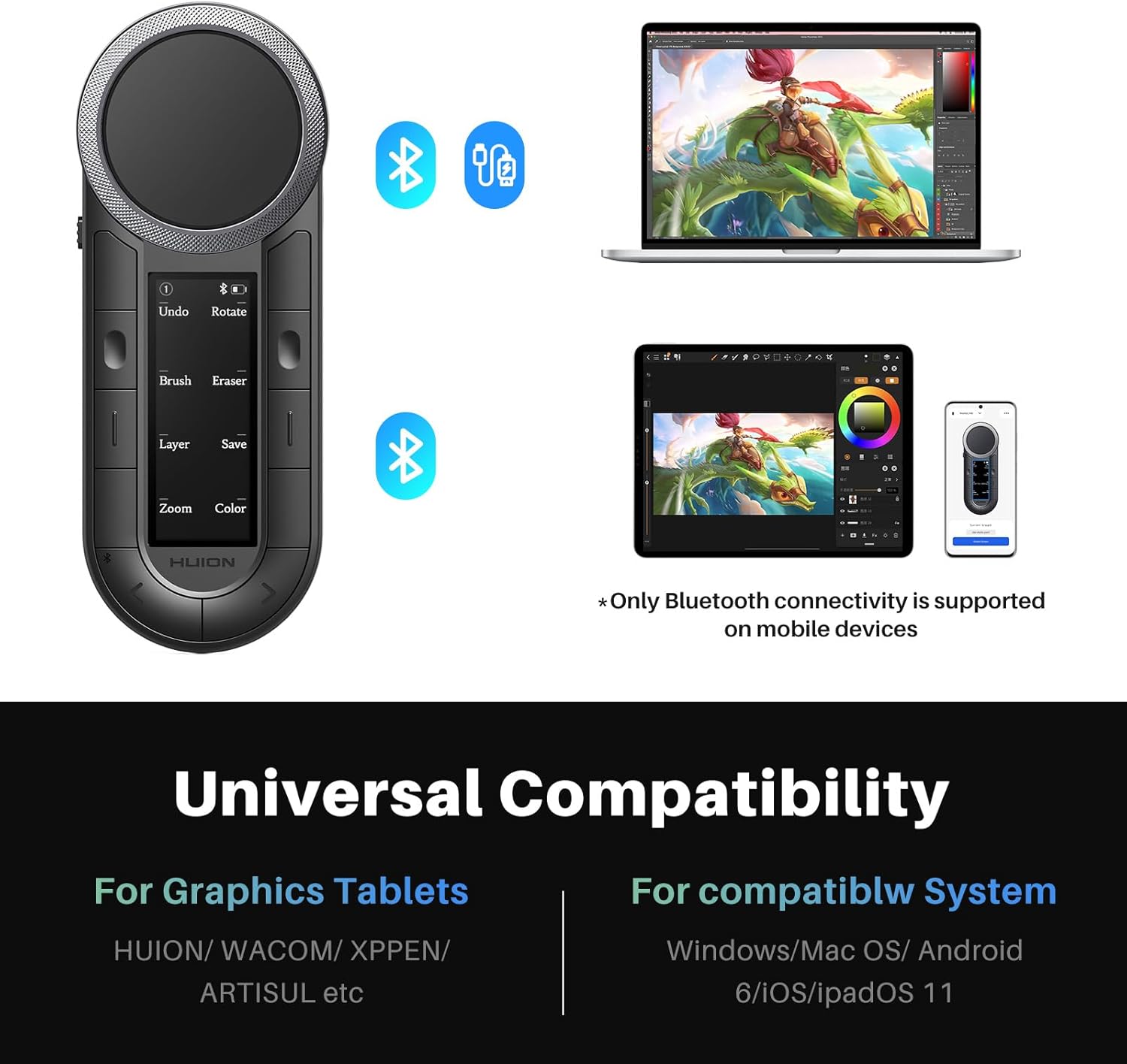
Image 2.1: The Keydial Remote shown with a laptop, tablet, and smartphone, illustrating its universal compatibility across different operating systems and devices.
2.4 Driver and App Installation
- For PC (Windows/Mac): Download and install the Huion V20 Driver from the official HUION website. This driver allows for comprehensive customization of keys and dials.
- For Mobile (iPadOS/iOS/Android): Download the HUION Keydial App from your device's app store. This app provides customization options for mobile use.
Note: Customizing shortcuts requires that the painting software itself supports the feature.
3. Operating the Keydial Remote
3.1 Using the Dual-Dial Controllers
The Keydial Remote features two distinct dial controllers:
- The outer ring, with its Clous de Paris pattern, is designed for precise, incremental adjustments. Examples include fine-tuning brush size, adjusting canvas rotation, or sliding parameters.
- The inner circle provides smooth, continuous control for actions such as zooming in/out, scrolling through documents, or adjusting system volume.

Image 3.1: A hand demonstrating the use of the dual dials on the Keydial Remote, highlighting the inner and outer ring functionality.
3.2 Customizing Keys and Dials
The Keydial Remote offers extensive customization:
- There are 8 ergonomic micro-arc keys.
- These keys support 6 customizable groups, providing a total of 48 key functions.
- The dials also support 12 customizable functions (6 per dial, across 6 groups).
- Use the Set Button-Up/Down keys to switch between these customized groups.
- Each group can be renamed via the driver/app for easy identification.

Image 3.2: Visual representation of the multiple paging key value groups, showing how 8 press keys across 6 groups offer 48 shortcut functions.
3.3 OLED Display Functionality
The integrated OLED display provides real-time information, eliminating the need for memorization:
- Displays the current group of key functions.
- Shows the battery level.
- Indicates the connection status (Bluetooth or wired).
- Shows the assigned functions for each press key.
- Indicates sleep mode status.

Image 3.3: A close-up view of the OLED screen on the Keydial Remote, displaying various key functions and status indicators.
3.4 Anti-Ghosting Performance
The Keydial Remote incorporates advanced anti-ghosting technology. This ensures that all inputs are registered accurately, even when multiple keys are pressed simultaneously or in combination with dial rotations. This feature supports more flexible and complex shortcut customizations.
3.5 Software Compatibility
The Keydial Remote is compatible with a wide range of creative software, including but not limited to:
- Adobe Photoshop, Lightroom, Illustrator
- Final Cut Pro X, Premiere Pro, DaVinci Resolve
- Capture One, Clip Studio Paint, Paint Tool SAI
- Other graphics tablets and creative applications.
Note: Customizing shortcuts requires that the specific software itself supports the feature.
4. Maintenance
4.1 Cleaning
To clean the Keydial Remote, use a soft, dry, lint-free cloth. Avoid using harsh chemicals, abrasive cleaners, or excessive moisture, as these can damage the device or its display.
4.2 Storage
When not in use, store the Keydial Remote in its provided storage bag to protect it from dust and scratches. Keep it in a cool, dry place away from direct sunlight and extreme temperatures.
4.3 Battery Care
The device contains a Lithium Ion battery. For optimal battery life:
- Avoid fully discharging the battery frequently.
- Do not expose the device to high temperatures.
- If storing for an extended period, charge the battery to approximately 50% before storage.
The Keydial Remote offers over 30 hours of battery life on a full charge, supporting extended creative sessions.

Image 4.1: An image highlighting the compact dimensions (152x56x13.5mm), 30+ hour battery life, and ergonomic design of the Keydial Remote.
5. Troubleshooting
5.1 Connection Issues
- Device not connecting via Bluetooth: Ensure the Keydial Remote is charged and in pairing mode (flashing Bluetooth icon). Check your device's Bluetooth settings and try re-pairing.
- Wired connection not recognized: Ensure the USB-C cable is securely connected to both the Keydial Remote and your PC. Try a different USB port or cable.
- macOS compatibility issues: Recent macOS updates may affect external USB device recognition. If experiencing connection problems on macOS, please contact HUION customer support for assistance.
5.2 Key/Dial Functionality Issues
- Keys/Dials not responding: Ensure the correct driver (for PC) or app (for mobile) is installed and running. Check the OLED display to confirm the active key group.
- Custom shortcuts not working: Verify that the software you are using supports custom shortcuts. Ensure the shortcuts are correctly configured in the Huion V20 Driver or Keydial App.
- OLED display not showing information: Check battery level. If the device is on but the display is blank, try restarting the Keydial Remote.
6. Specifications
| Model Name | Keydial Remote |
| Item Model Number | K40 |
| Product Dimensions | 5.98 x 2.2 x 0.53 inches (152 x 56 x 13.5 mm) |
| Item Weight | 12 ounces |
| Connectivity Technology | Bluetooth 5.0 (Dual Channel), USB-C |
| Keyboard Description | Macro Keypad |
| Special Features | 48 Programmable Press Keys & 12 Dial Functions, Dual Channel Bluetooth 5.0, Keys and Dials Anti-ghosting, OLED Display, One-handed Operation |
| Compatible Devices | Android Tablet, Drawing Tablets, Laptop, PC, Smartphone |
| Batteries | 1 Lithium Ion battery (included) |
| Included Components | Keydial Remote, Quick Start Guide, Storage Bag |
7. Warranty and Support
7.1 Warranty Information
For detailed warranty information regarding your HUION Keydial Remote, please refer to the official HUION website or the warranty card included with your product. Warranty terms and conditions may vary by region and retailer.
7.2 Customer Support
If you encounter any issues or have questions not covered in this manual, please contact HUION customer support through their official website. You can also find additional resources, FAQs, and driver updates on the HUION support page.
For specific software customization, ensure you have the latest Huion V20 Driver (for PC) or HUION Keydial App (for mobile) installed.