
TABWEE TABWEE T20 Tablet
TABWEE T20 Android Tablet User Manual
Model: TABWEE T20 Tablet | Brand: TABWEE
1. Introduction
This user manual provides comprehensive instructions for the TABWEE T20 Android Tablet. It covers setup, operation, maintenance, and troubleshooting to help you maximize your device's performance and ensure a smooth user experience. Please read this manual thoroughly before using your tablet.
2. Package Contents
Verify that all items listed below are present in your package:
- TABWEE T20 Android Tablet
- Detachable Keyboard
- Stylus Pen
- Mouse
- Protective Case
- Tablet Stand
- Screen Protector (pre-applied or separate)
- USB Type-C Charging Cable
- Power Adapter (5V/2A)
- User Manual (this document)
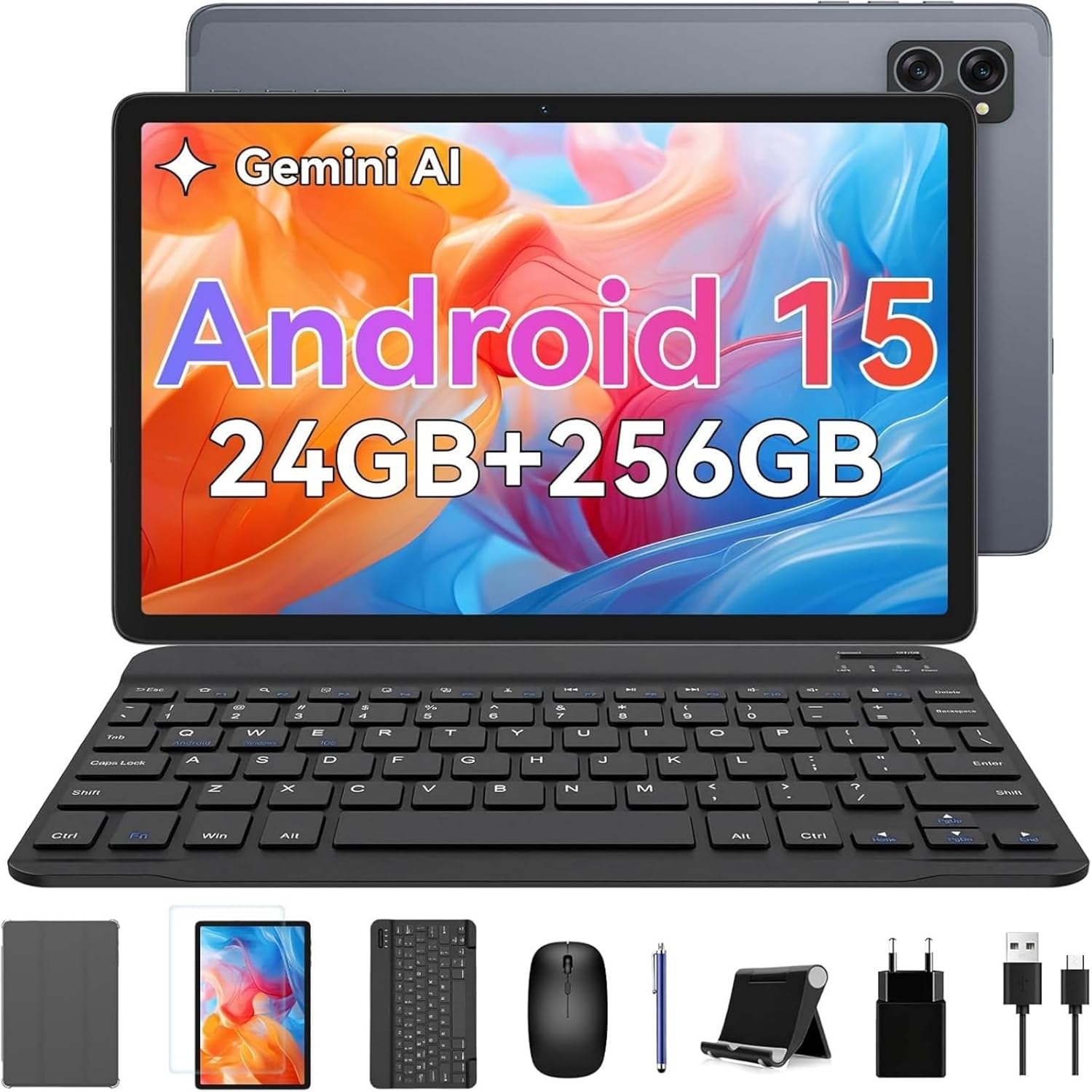
Image: The TABWEE T20 tablet displayed with its full set of accessories, including the detachable keyboard, mouse, stylus, protective case, tablet stand, charging cable, and power adapter.
3. Product Overview
3.1 Key Features
- Operating System: Android 15 with Gemini AI 2.0
- Processor: Octa-Core Unisoc T606, 1.6 GHz
- Memory (RAM): 24 GB (8GB built-in + up to 16GB expansion)
- Storage (ROM): 256 GB internal, expandable up to 2 TB via TF card
- Display: 10.1-inch HD+ IPS (1280 x 800 pixels), Widevine L1 support, 350 nits brightness
- Cameras: 5 MP Front Camera, 8 MP Rear Camera
- Battery: 5000 mAh, providing extended usage times
- Connectivity: Dual-band 2.4G/5G Wi-Fi (802.11ac/b/g/n), Bluetooth 5, GPS
- Audio: Dual smart speakers for stereo sound, 3.5mm headphone jack
- Security: Face ID
- Dimensions: 24.64 x 15.49 x 0.76 cm (L x W x H)
- Weight: Approximately 412 grams
3.2 Tablet Layout
Familiarize yourself with the physical components of your TABWEE T20 Tablet.


Image: Left: Rear view of the TABWEE T20 tablet, highlighting its camera array and slim profile. Right: Front view of the tablet in use, demonstrating the vibrant display.
- Front Camera: Located at the top center when held vertically, used for video calls and selfies.
- Rear Camera: Located on the back, used for taking photos and videos.
- Power Button: Typically on the side, used to turn the tablet on/off or wake/sleep the screen.
- Volume Buttons: Adjacent to the power button, used to adjust audio volume.
- USB Type-C Port: For charging and data transfer.
- 3.5mm Headphone Jack: For connecting wired headphones.
- Speaker Grilles: Dual speakers for enhanced audio output.
- MicroSD Card Slot: For expanding storage with a TF card.
4. Setup
4.1 Initial Charging
Before first use, fully charge your tablet. Connect the USB Type-C cable to the tablet's charging port and the other end to the power adapter. Plug the adapter into a wall outlet. The charging indicator will show the charging status. A full charge typically takes a few hours.
4.2 Power On/Off
- To Power On: Press and hold the Power button until the TABWEE logo appears on the screen.
- To Power Off: Press and hold the Power button until a power menu appears. Select "Power off" and confirm.
- To Sleep/Wake: Briefly press the Power button to turn the screen off/on without powering down the tablet.
4.3 Initial Setup Wizard
Upon first power-on, the tablet will guide you through an initial setup process:
- Select your preferred Language.
- Connect to a Wi-Fi network to enable internet access.
- Sign in with your Google Account or create a new one. This is essential for downloading apps from the Google Play Store and syncing data.
- Set up Face ID for convenient and secure unlocking.
- Review and accept the terms and conditions.
- Complete the setup to access the Android home screen.
4.4 Inserting a TF (MicroSD) Card
To expand the tablet's storage up to 2TB:
- Locate the TF card slot on the side of the tablet.
- Gently insert the TF card into the slot with the gold contacts facing down until it clicks into place.
- The tablet will detect the new storage. You may be prompted to format it for internal or portable storage.
4.5 Connecting Accessories (Keyboard, Mouse, Stylus)
The included keyboard and mouse connect via Bluetooth. The stylus may connect via Bluetooth or be passive, depending on its type.
Bluetooth Keyboard and Mouse:
- Ensure the keyboard/mouse are charged and powered on.
- On your tablet, go to Settings > Connected devices > Bluetooth.
- Turn on Bluetooth. The tablet will scan for available devices.
- Select the keyboard or mouse from the list of available devices (e.g., "Bluetooth Keyboard", "Bluetooth Mouse").
- Follow any on-screen prompts to complete pairing.
Stylus Pen:
If your stylus is Bluetooth-enabled, follow the same Bluetooth pairing steps as for the keyboard/mouse. If it's a passive stylus, no pairing is required; simply use it directly on the screen.
5. Operating Your Tablet
5.1 Basic Navigation
- Tap: Select an item or open an app.
- Touch and Hold: Access contextual menus or move icons.
- Swipe: Scroll through pages, home screens, or menus.
- Pinch-to-Zoom: Zoom in or out on photos, maps, or web pages.
5.2 Android 15 Features
Your TABWEE T20 runs on Android 15, offering enhanced performance and features:
- Gemini AI 2.0: Utilize the integrated AI for smart suggestions, personalized settings, and intelligent automation.
- Split Screen Mode: Run two apps simultaneously side-by-side for improved multitasking. To activate, open an app, swipe up from the bottom to view recent apps, tap the app icon at the top of its card, and select "Split screen".
- Multi-User Modes: Create separate user profiles for different family members or work/personal use, ensuring data privacy and customized experiences. Access via Settings > System > Multiple users.
- Enhanced Privacy & Security: Benefit from advanced encryption, granular permission management, and private notification modes.
5.3 Wi-Fi Connection
To connect to a Wi-Fi network:
- Go to Settings > Network & internet > Internet.
- Ensure Wi-Fi is turned on.
- Select your desired network from the list.
- Enter the password if prompted and tap Connect.
5.4 Camera Usage
The tablet features a 5MP front camera and an 8MP rear camera.
- Open the Camera app.
- Tap the camera switch icon to toggle between front and rear cameras.
- Tap the shutter button to take a photo or start/stop video recording.
- Access settings within the camera app to adjust modes, resolution, and other parameters.
5.5 Media Playback and Widevine L1
The TABWEE T20 supports Widevine L1, allowing you to stream high-definition content from popular streaming services like Netflix, Amazon Prime Video, and Disney+ in full HD resolution.
- Download your preferred streaming apps from the Google Play Store.
- Ensure a stable internet connection for optimal streaming quality.
- Utilize the dual smart speakers for an immersive audio experience, or connect headphones via the 3.5mm jack or Bluetooth.
6. Maintenance
6.1 Cleaning Your Tablet
- Use a soft, lint-free cloth (e.g., microfiber) to clean the screen and body.
- For stubborn smudges, slightly dampen the cloth with water or a screen cleaner designed for electronics.
- Avoid using harsh chemicals, abrasive materials, or excessive moisture.
6.2 Software Updates
Regularly check for and install software updates to ensure optimal performance, security, and access to new features.
- Go to Settings > System > System update.
- Tap Check for updates.
- If an update is available, follow the on-screen instructions to download and install it. Ensure your tablet has sufficient battery life or is connected to power during updates.
6.3 Storage Management
To maintain smooth operation, periodically manage your tablet's storage:
- Go to Settings > Storage to view storage usage.
- Uninstall unused apps.
- Clear cache data for apps.
- Move large files (photos, videos) to the TF card or cloud storage.
6.4 Battery Care
- Avoid extreme temperatures, as they can degrade battery life.
- Do not let the battery completely drain frequently.
- Use the original charger and cable provided.
7. Troubleshooting
| Problem | Possible Solution |
|---|---|
| Tablet does not power on. | Ensure the tablet is charged. Connect to the charger and wait a few minutes before attempting to power on again. If unresponsive, press and hold the Power button for 10-15 seconds to force a restart. |
| Wi-Fi connection issues. | Restart the tablet and your Wi-Fi router. Forget the network in Wi-Fi settings and reconnect. Ensure you are within range of the Wi-Fi signal. |
| Slow performance or apps crashing. | Close unused apps running in the background. Clear app cache (Settings > Apps > [App Name] > Storage & cache > Clear cache). Ensure sufficient free storage space. Restart the tablet. |
| Touchscreen unresponsive. | Restart the tablet. If the issue persists, ensure the screen is clean and free of debris. |
| Battery drains quickly. | Reduce screen brightness. Close background apps. Disable Wi-Fi/Bluetooth/GPS when not in use. Check battery usage in Settings to identify power-hungry apps. |
| Cannot connect Bluetooth accessories. | Ensure the accessory is in pairing mode and charged. Turn Bluetooth off and on again on the tablet. Restart both devices. |
| Tablet freezes or crashes frequently. | Perform a factory reset as a last resort. Warning: This will erase all data on your tablet. Back up important data before proceeding. Go to Settings > System > Reset options > Erase all data (factory reset). |
8. Specifications
| Feature | Detail |
|---|---|
| Brand | TABWEE |
| Model Name | Tabwee Tablet T20 2025 |
| Model Number | TABWEE T20 Tablette |
| Operating System | Android 15 & Gemini AI 2.0 |
| Processor | Unisoc Octa-Core, 1.6 GHz |
| RAM | 24 GB (8GB built-in + 16GB virtual) |
| Internal Storage | 256 GB |
| Expandable Storage | Up to 2 TB via Micro SD (TF) card |
| Screen Size | 10.1 Inches |
| Display Resolution | 1280 x 800 Pixels (HD+ IPS) |
| Graphics Chipset | Unisoc T606 (Integrated) |
| Front Camera | 5 MP |
| Rear Camera | 8 MP |
| Battery Capacity | 5000 mAh (Lithium-Polymer) |
| Connectivity | Wi-Fi (802.11a/b/g/n/ac, 2.4G/5G), Bluetooth 5, GPS |
| Ports | USB Type-C, 3.5mm Audio Jack, Micro SD Slot |
| Dimensions (L x W x H) | 24.64 x 15.49 x 0.76 cm |
| Weight | 412 Grams |
| Special Features | Stereo Speakers, Expandable Storage, USB OTG Support, Detachable Keyboard Support, Stylus Support |
9. Warranty and Support
9.1 Product Warranty
The TABWEE T20 Tablet comes with a 24-month warranty from the date of purchase. This warranty covers manufacturing defects and malfunctions under normal use. Please retain your proof of purchase for warranty claims.
The warranty does not cover damage caused by:
- Accidents, misuse, or abuse.
- Unauthorized repairs or modifications.
- Operating the device outside the specified environmental conditions.
- Normal wear and tear.
9.2 Customer Support
For technical assistance, troubleshooting, or warranty inquiries, please contact TABWEE customer support:
- Email: Refer to the contact information provided on the official TABWEE website or your purchase platform (e.g., Amazon seller contact).
- Online Support: Visit the official TABWEE website for FAQs, support articles, and contact forms.
TABWEE is committed to providing professional technical support and excellent customer service to resolve any issues you may encounter.
Related documentsTABWEE T20 Tablet


Ask a question about this manual
Ask about setup, troubleshooting, compatibility, parts, safety, or missing instructions. Manuals+ will review the question and use this page’s manual context to help answer it.