Introduction
This manual provides comprehensive instructions for the installation, operation, maintenance, and troubleshooting of your new Fuluku Android Car Radio. Please read this manual thoroughly before using the product to ensure proper functionality and safety. This unit is designed to enhance your driving experience with advanced features like wireless CarPlay, Android Auto, GPS navigation, and multimedia capabilities.
Product Specifications
| Feature | Detail |
|---|---|
| System | Android 13 |
| CPU | RK3326S, 4 Cores |
| Memory | 4GB RAM + 64GB ROM |
| Screen Size | 8 inches |
| Screen Resolution | 1024 x 600 IPS |
| Radio Chip | UMW2652 |
| Output Power | 4 x 45 W (YD7388 Amplifier Chip) |
| Bluetooth Version | 5.0 |
| Operating Temperature | -20 ℃ to 75 ℃ |
| Radio Band | FM/RDS |
| Rear Camera Input | AHD / CVBS Support |
| External Microphone | Supported |
| Split Screen | Supported |
| Maps | Built-in offline maps (requires internet for data download) |
| Wi-Fi | Supported |
| CarPlay / Android Auto | Wireless connection (USB only for some functions) |
| USB Interface | Dual USB |
| Audio Formats | APE / FLAC / WAV / MP3 / WMA etc. |
| Video Formats | MKV / RMVB / AVI / MP4 / MDV etc. |
| Image Formats | PNG / JPEG / JPG / GIF / WBMP / BNP etc. |
| Factory Settings Keyword | 8317 |
| Supported Languages | Chinese, English, French, Italian, Korean, Japanese, Arabic, Spanish, Portuguese, Russian, Turkish, Vietnamese, Hebrew, Polish, German |
Package Contents
The following items are included in your product package:
- Main Head Unit
- Power Cable
- Radio Antenna
- RCA Cable
- Camera Input Cable
- GPS Antenna
- USB Cable (Dual Interface)
- Canbus Box
- Rear Camera
- External Microphone

Installation Guide
1. Pre-Installation Check
Before beginning installation, verify that your vehicle's central console is compatible with this unit. This car radio is specifically designed for Renault Dacia Duster, Sandero, Dokker, Logan, Lodgy, and Captur models. No additional accessories are typically required due to its plug-and-play wiring.

2. Wiring Diagram
Refer to the detailed wiring diagram provided with your unit for precise connections. Ensure all cables are securely connected to their corresponding ports (power, speakers, antenna, USB, camera input, etc.).
3. Mounting the Unit
Carefully insert the head unit into the designated slot in your vehicle's dashboard. Secure it using the provided mounting brackets and screws. Ensure the unit is firmly in place and does not obstruct any vehicle controls.
Operating Instructions
1. Basic Operation
- Power On/Off: Press and hold the power button on the front panel to turn the unit on or off.
- Volume Control: Use the volume buttons or the on-screen controls to adjust the audio level.
- Screen Navigation: The 8-inch IPS touchscreen allows for intuitive navigation through menus and applications. Swipe, tap, and pinch to zoom as you would on a smartphone.

2. Connectivity
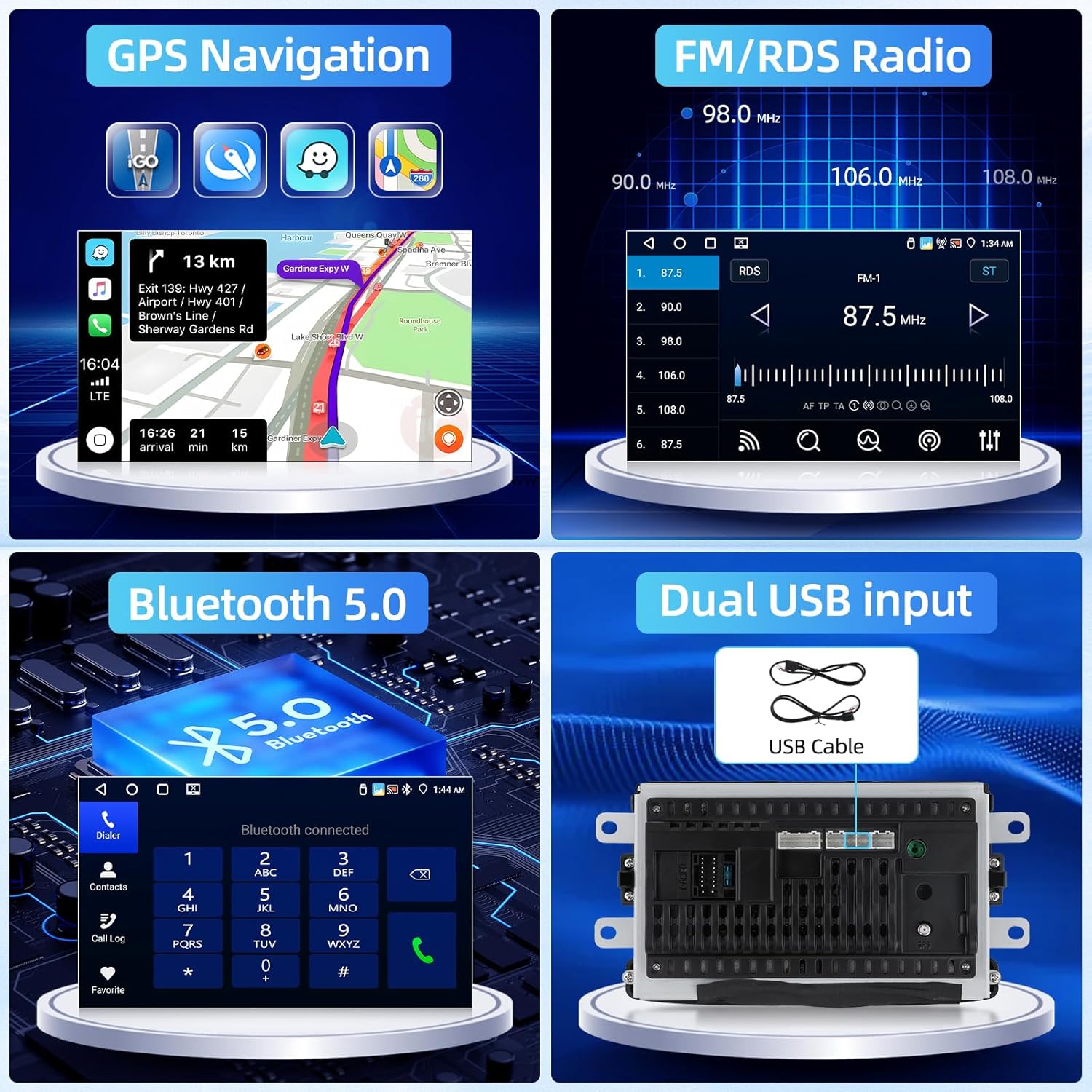
Bluetooth 5.0
To pair your smartphone or other Bluetooth devices, go to the Bluetooth settings menu on the car radio. Enable Bluetooth on your device and select the car radio from the list of available devices. Confirm the pairing code if prompted. Once connected, you can make hands-free calls, stream audio, and sync contacts.
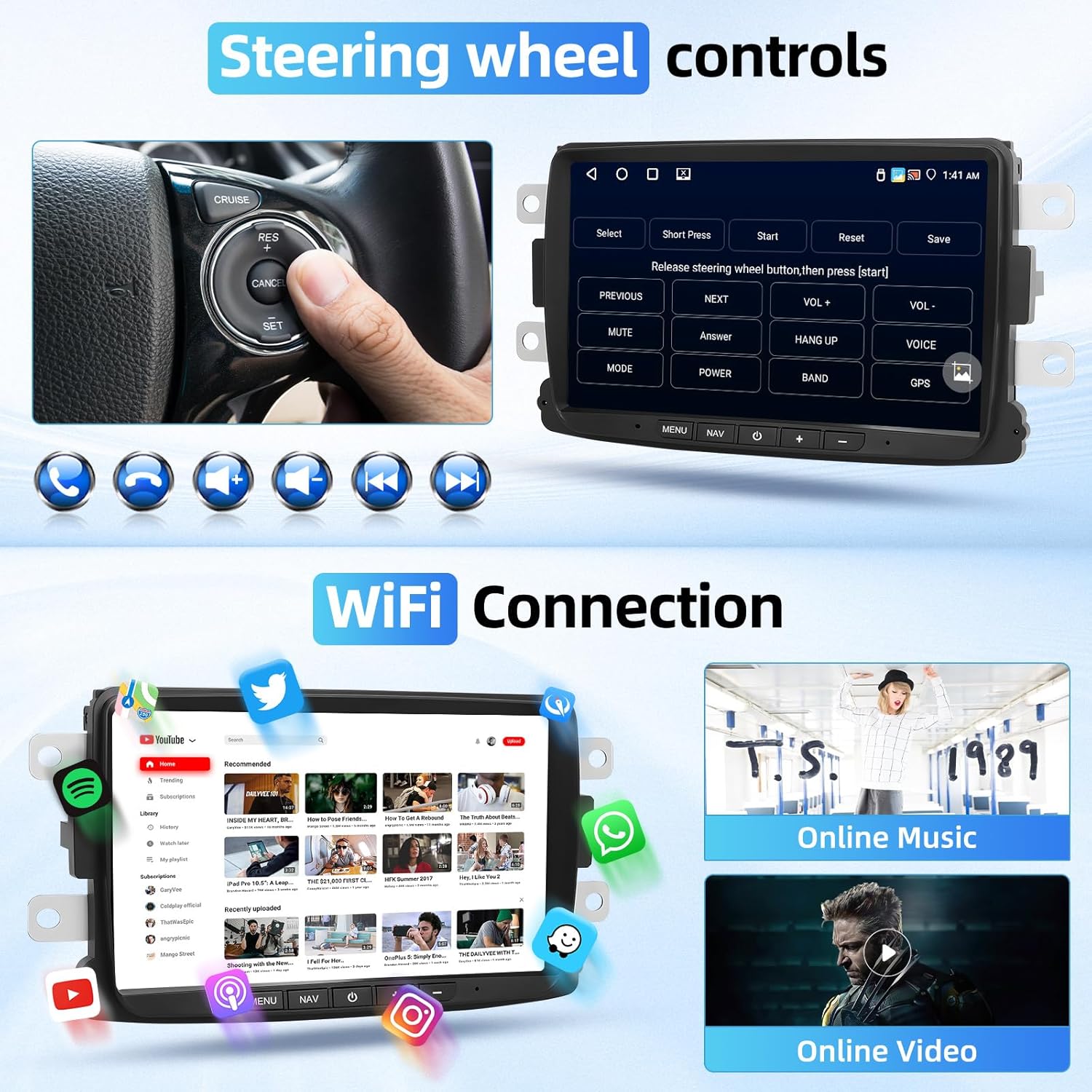
Wi-Fi Connection
Connect the car radio to a Wi-Fi hotspot (e.g., from your smartphone) to access online features, download apps, and stream content. Navigate to Wi-Fi settings, select your network, and enter the password.
Dual USB Input
The unit features dual USB interfaces. Connect USB drives for media playback (audio/video/images) or use them for charging compatible devices. Ensure your media files are in supported formats (APE, FLAC, WAV, MP3, WMA for audio; MKV, RMVB, AVI, MP4, MDV for video; PNG, JPEG, JPG, GIF, WBMP, BNP for images).
3. Smart Features
Wireless CarPlay & Android Auto
Connect your iPhone or Android smartphone wirelessly to access CarPlay or Android Auto. This allows you to use navigation, make calls, send messages, and listen to music directly from your car's display. Follow the on-screen prompts for initial setup, typically involving Bluetooth pairing and Wi-Fi connection.
Mirror Link
The Mirror Link function allows you to mirror your iOS or Android phone's screen onto the car radio display. This enables you to view and control your phone's applications directly from the car stereo. Refer to the specific Mirror Link app on the unit for connection instructions.

GPS Navigation
The unit comes with built-in offline maps. For updated map data or online navigation, connect to Wi-Fi. The GPS antenna ensures accurate positioning. Access the navigation application from the main menu to plan routes and receive turn-by-turn directions.
FM/RDS Radio
Tune into your favorite FM radio stations. The RDS (Radio Data System) feature displays station information, song titles, and traffic announcements where available.
Steering Wheel Controls (SWC)
If your vehicle supports steering wheel controls, you can program them to operate the car radio's functions (e.g., volume, track change, mode). This provides convenient and safe control while driving. Access the SWC settings in the unit's menu to configure.
Rear Camera Input
The unit supports AHD/CVBS rear camera input. When the vehicle is shifted into reverse gear, the screen will automatically display the rear camera feed, assisting with parking and maneuvering.
Audio Equalizer (32-band EQ)
Customize your audio experience with the built-in 32-band equalizer. Adjust frequency levels to suit your preferences and optimize sound quality for different music genres. The Digital Sound Processor (DSP) further enhances audio output.

Split Screen Function
The split-screen feature allows you to run two applications simultaneously on the display. For example, you can have navigation on one side and music playback on the other. This enhances multitasking and convenience.

Maintenance
- Cleaning the Screen: Use a soft, lint-free cloth to gently wipe the touchscreen. Avoid abrasive cleaners or harsh chemicals that could damage the display.
- Software Updates: Periodically check for software updates through the unit's system settings (requires Wi-Fi connection). Keeping the software updated ensures optimal performance and access to new features.
Troubleshooting
Common Issues and Solutions
- No Power: Ensure all power cables are securely connected. Check the vehicle's fuse box for any blown fuses related to the car stereo.
- No Sound: Verify that the volume is not muted or set too low. Check speaker connections and ensure they are properly wired.
- GPS Signal Loss: Ensure the GPS antenna is installed in a location with a clear view of the sky and is not obstructed by metal objects.
- Bluetooth Pairing Issues: Try restarting both the car radio and your Bluetooth device. Clear any previous pairings on both devices and attempt to pair again.
- Touchscreen Unresponsive: Perform a soft reset of the unit (refer to the power button instructions). If the issue persists, contact support.
Warranty and Support
Fuluku provides comprehensive customer support for its products. For technical assistance, warranty claims, or any inquiries regarding your car radio, please utilize the following contact methods:
You can contact Fuluku Direct via the Amazon platform's messaging system or send an email to fulukusupports@126.com.
Fuluku offers a 60-day no-worry return policy, 365-day replacement availability, and lifetime technical support. Customer inquiries typically receive a quick reply within 24 hours.