
Introduction
This manual provides detailed instructions for the ZIOCOM USB-C Bluetooth Adapter (Model DG11). This device is designed to transmit audio wirelessly from your PS5, PC, Mac, or Nintendo Switch to Bluetooth-enabled headphones or earbuds, offering a seamless and low-latency audio experience. Please read this manual thoroughly before using the product to ensure proper setup and operation.

Image: ZIOCOM USB-C Bluetooth Adapter (Model DG11).
Package Contents
Verify that all items are present in your package:
- 1 x ZIOCOM USB-C Bluetooth Adapter (Model DG11)
- 1 x Instruction Manual (this document)
Product Overview and Features
The ZIOCOM USB-C Bluetooth Adapter is a compact and efficient device designed for wireless audio transmission. Key features include:
- Bluetooth 5.3 Technology: Ensures stable connectivity and strong anti-interference capabilities, reducing audio dropouts.
- aptX Low Latency & aptX-Adaptive: Provides perfectly synchronized audio and visual experiences, ideal for gaming and media consumption, when paired with compatible headphones.
- Plug and Play: No drivers required for most compatible devices.
- Wide Compatibility: Works with PS5, Mac, laptops, and PCs via USB-C port.
- Compact Design: Small and lightweight for easy portability and minimal obstruction of other ports.
- Long Range: Offers a transmission distance of up to 33 feet (10 meters) in open spaces.

Image: The ZIOCOM USB-C Bluetooth Adapter features a mini design, measuring approximately 1.248 inches (31.7mm) in length, 0.630 inches (16mm) in width, and 0.236 inches (6mm) in thickness, making it easy to carry.

Image: The adapter connected to a PS5, highlighting Bluetooth 5.3, 33ft range, music & calls, aptX Low Latency, aptX HD, and Plug & Play features.

Image: Diagram illustrating the adapter's long-range capability of up to 10 meters (33 feet) within a home environment.
Compatibility
The ZIOCOM USB-C Bluetooth Adapter is compatible with a variety of devices for audio transmission:
- Compatible Devices: PS5, Nintendo Switch, Laptops, PCs, Mac.
- Compatible Audio Devices: Bluetooth Headphones, Bluetooth Speakers, AirPods.
Important Note:
- This adapter is for AUDIO devices only; it does not support data transmission.
- Not compatible with: PS4, TVs, keyboards, mice, or car systems.
- We do not recommend using it with Sony headphones. It is incompatible with the LDAC protocol used by Sony headphones. Even if a connection is established, it will automatically match the SBC protocol, which may affect the audio quality and overall user experience.

Image: A visual guide showing compatible devices (Laptop, PS5, Nintendo Switch, PC, Bluetooth Headphones, Bluetooth Speaker, AirPods) and incompatible devices (Keyboard, Mouse, TV, Car).
Setup Instructions
Follow these steps to connect your Bluetooth headphones to your device using the ZIOCOM USB-C Bluetooth Adapter:
- Plug In: Insert the ZIOCOM USB-C Bluetooth Adapter into an available USB-C port on your PS5, PC, Mac, or Nintendo Switch. The adapter's indicator light will begin to flash.
- Enter Pairing Mode on Headphones: Put your Bluetooth headphones or earbuds into pairing mode. Refer to your headphone's manual for specific instructions on how to do this. For AirPods, open the case and press and hold the button on the back until the indicator light flashes white.
- Initiate Pairing on Adapter: Double-click the button on the ZIOCOM adapter. The adapter's indicator light will flash rapidly, indicating it is searching for devices.
- Connect: Once your headphones are in pairing mode and the adapter is searching, they should automatically connect. The adapter's indicator light will turn solid, indicating a successful connection.
- Adjust Audio Settings (PS5 Example): On your PS5, navigate to Settings > Sound. Under Audio Output, select the DG11 as the Output Device. If your headphones have a microphone, also select DG11 as the Input Device under Microphone.

Image: Step-by-step visual guide on connecting a Bluetooth headset to a PS5 using the ZIOCOM USB-C adapter, including plugging in, turning off other Bluetooth devices, activating pairing mode on AirPods, pairing the dongle, and adjusting PS5 sound settings.
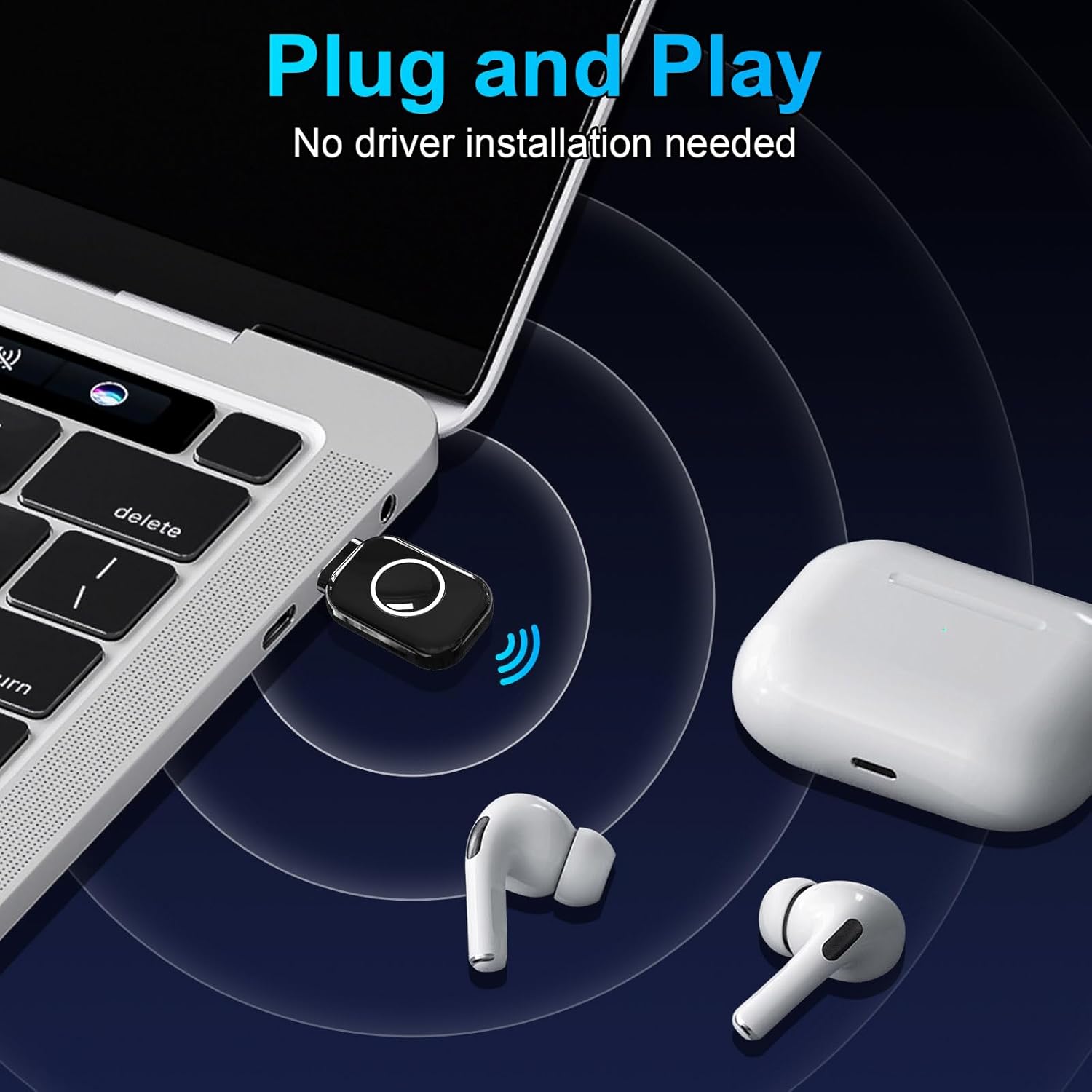
Image: The ZIOCOM USB-C Bluetooth Adapter plugged into a laptop, demonstrating its plug-and-play functionality with no driver installation needed, connecting to AirPods.
Operating Instructions
Once successfully paired, the ZIOCOM USB-C Bluetooth Adapter will automatically connect to your headphones when both devices are powered on and within range. Enjoy your wireless audio experience for gaming, music, or calls.
- Automatic Reconnection: After the initial pairing, the adapter will automatically recognize and connect to your previously paired headphones when they are turned on and within range.
- Volume Control: Adjust volume directly on your connected headphones or through the audio settings of your connected device (PS5, PC, Mac, Nintendo Switch).
- Switching Devices: To pair with a new device, ensure the adapter is in pairing mode (double-click the button) and your new headphones are also in pairing mode.
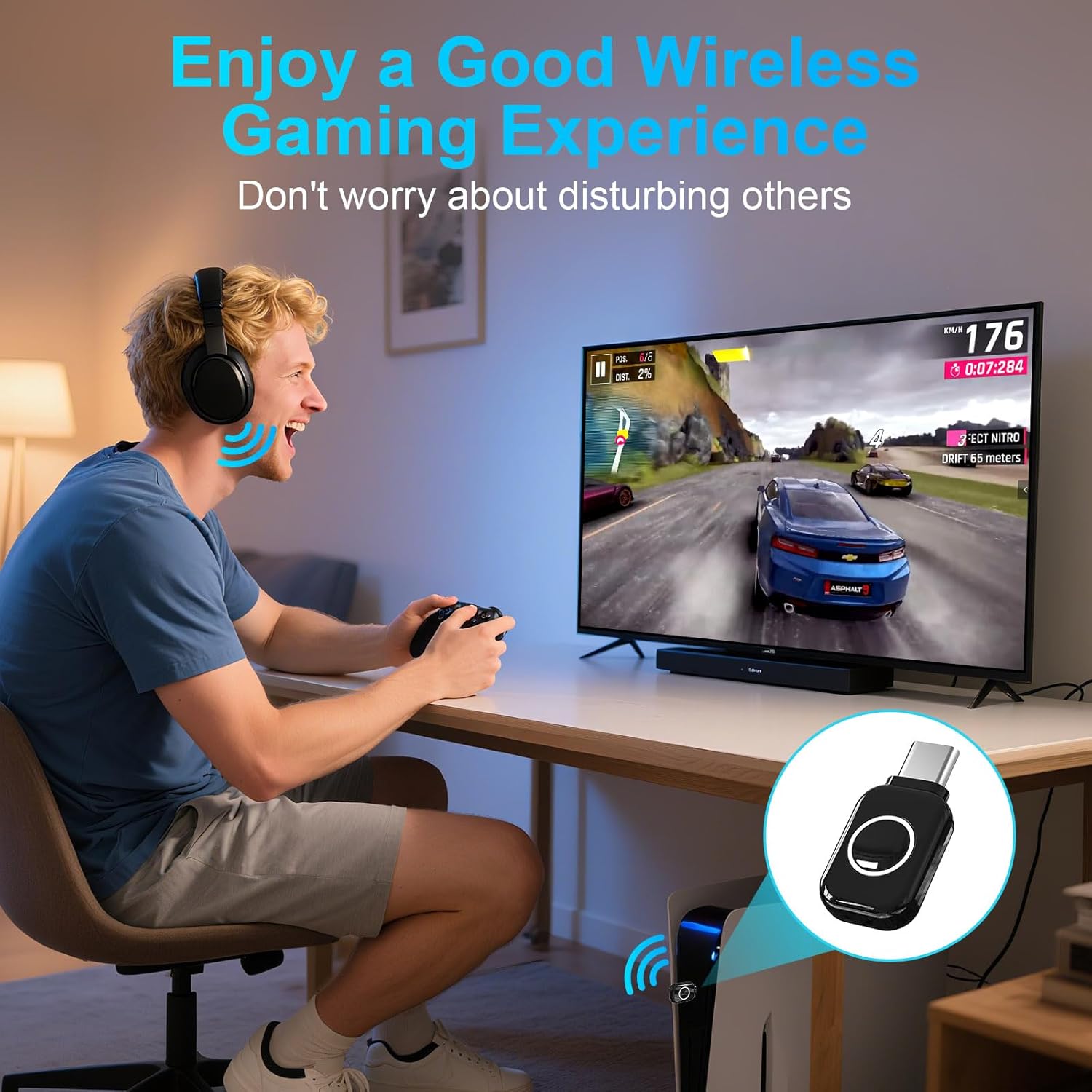
Image: A person enjoying a wireless gaming experience on a PS5 with headphones connected via the ZIOCOM USB-C Bluetooth Adapter, emphasizing undisturbed play.
Care and Maintenance
To ensure the longevity and optimal performance of your ZIOCOM USB-C Bluetooth Adapter, follow these guidelines:
- Keep the adapter dry. Moisture can damage internal circuits.
- Avoid extreme temperatures. High temperatures can shorten the life of electronic devices.
- Do not drop, knock, or shake the device. Rough handling can break internal circuit boards.
- Clean the adapter with a soft, dry cloth. Do not use harsh chemicals or detergents.
- Store the adapter in a clean, dust-free environment when not in use.
Troubleshooting
If you encounter issues with your ZIOCOM USB-C Bluetooth Adapter, refer to the following common solutions:
- No Audio / Poor Audio Quality:
- Ensure the adapter is securely plugged into the USB-C port.
- Verify your headphones are fully charged and in pairing mode.
- Check the audio output settings on your device (e.g., PS5 Sound Settings) to ensure DG11 is selected.
- If using Sony headphones, be aware that the LDAC protocol is not supported, which may result in lower audio quality (SBC protocol will be used).
- Ensure your headphones support aptX-LL or aptX-Adaptive for optimal low-latency performance.
- Cannot Pair:
- Make sure the adapter is in pairing mode (rapidly flashing light after double-clicking the button).
- Ensure your headphones are in pairing mode and close to the adapter.
- Turn off Bluetooth on any other nearby devices (e.g., smartphones) to prevent interference.
- Confirm your device (e.g., PS5, PC) is compatible with the adapter (refer to the Compatibility section).
- Intermittent Connection / Short Range:
- Reduce the distance between the adapter and your headphones.
- Remove any obstacles (walls, large electronic devices) that might be blocking the signal.
- Avoid areas with high Wi-Fi or other wireless interference.
Specifications
| Feature | Detail |
|---|---|
| Brand | ZIOCOM |
| Model Number | DG11 |
| Bluetooth Version | 5.3 |
| Audio Codecs | APTX Low Latency, aptX-Adaptive (and others like SBC) |
| Connector Type | USB Type C |
| Compatible Devices | Headphones, Earbuds (for PS5, MAC, Laptop, PC, Nintendo Switch) |
| Transmission Distance | Up to 33 feet (10 meters) in open space |
| Color | Black |
| Item Weight | 2.5 Grams |

Image: Diagram illustrating the Bluetooth 5.3 chipset, highlighting its faster and more stable connection capabilities.
Warranty Information
The ZIOCOM USB-C Bluetooth Adapter (Model DG11) comes with a 1-year warranty from the date of purchase. This warranty covers manufacturing defects and malfunctions under normal use. Please retain your proof of purchase for warranty claims. The warranty does not cover damage caused by misuse, accidents, unauthorized modifications, or natural disasters.
Customer Support
If you require further assistance or have questions not covered in this manual, please contact ZIOCOM customer support. Refer to the product packaging or the official ZIOCOM website for the most current contact information.
For online support and FAQs, visit the ZIOCOM store on Amazon: ZIOCOM Store
