
1. Introduction
This manual provides essential information for the safe and efficient operation of your Machenike Machcreator N17A laptop. Please read this manual thoroughly before using the device and retain it for future reference.
2. Package Contents
Verify that all items are present in the package:
- Machenike Machcreator N17A Laptop
- Power Adapter
- User Manual (this document)
3. Product Overview
The Machenike Machcreator N17A is a 17.3-inch laptop designed for daily computing tasks. It features an Intel N100 Processor, 8GB DDR5 RAM, and a 256GB PCIe SSD for responsive performance. The 17.3" Full HD 120Hz display provides clear visuals, and the laptop runs on Windows 11 Home.
3.1. Laptop Components

Figure 3.1: Front view of the Machenike Machcreator N17A laptop.
This image shows the overall design of the Machenike Machcreator N17A laptop, highlighting its large 17.3-inch display and sleek chassis.

Figure 3.2: The 17.3-inch Full HD 120Hz display.
A detailed view of the laptop's 17.3-inch Full HD display, emphasizing its narrow bezels and 120Hz refresh rate for smooth visuals.

Figure 3.3: Backlit keyboard and touchpad.
This image highlights the backlit keyboard and the spacious touchpad, designed for comfortable typing and navigation.
3.2. Ports and Connectors
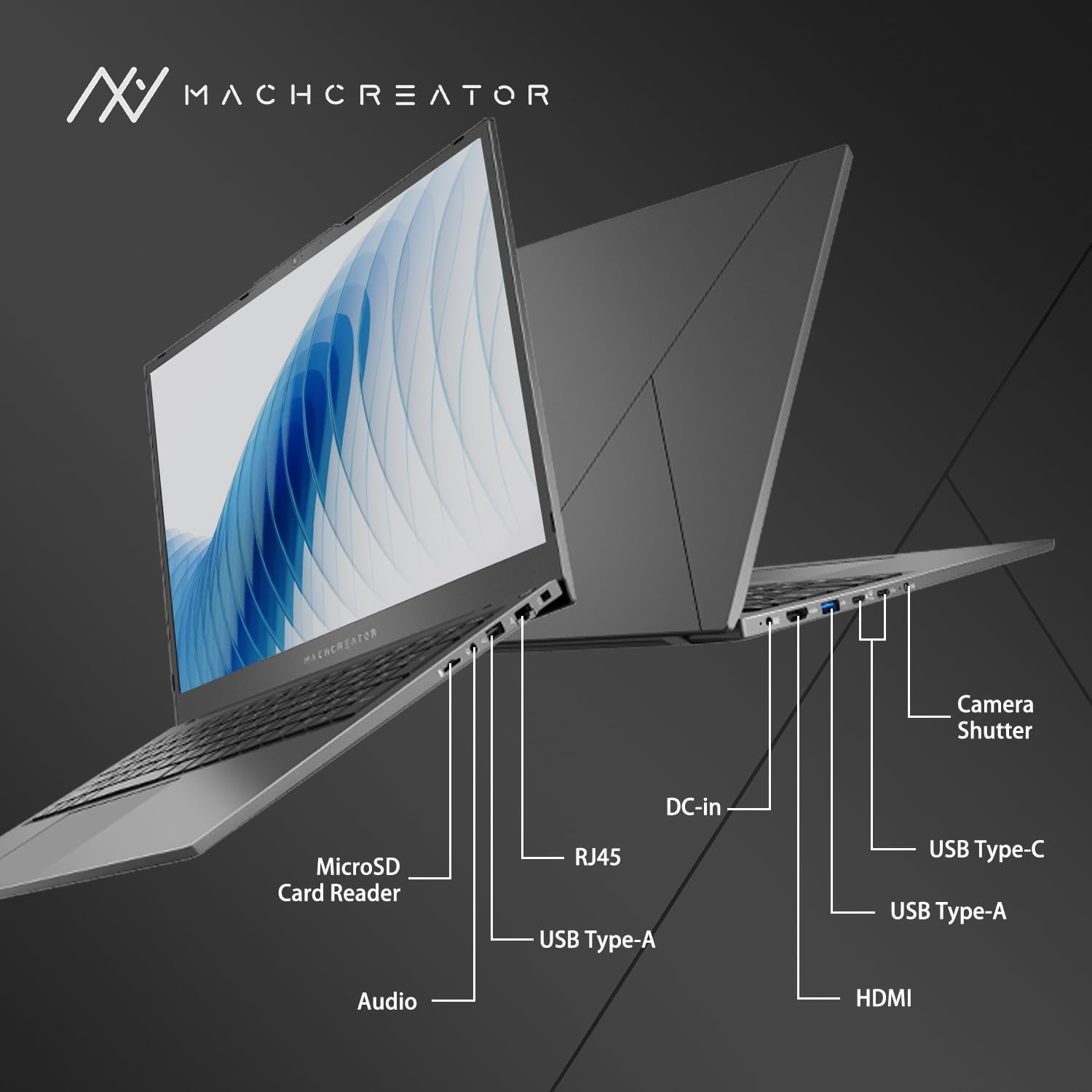
Figure 3.4: Side view with port labels.
An illustration detailing the various input/output ports available on the laptop, including USB, HDMI, and the SD card reader.
- MicroSD Card Reader: For reading and writing data to MicroSD cards.
- DC-in: Connect the power adapter for charging and power supply.
- Thunderbolt 4 (x2): High-speed data transfer, video output, and power delivery.
- USB 2.0 Type-A (x2): Connect USB devices.
- HDMI: Connect to external displays or projectors.
- RJ45: Ethernet port for wired network connection.
- Audio Jack: Connect headphones or external speakers.
4. Setup
4.1. Initial Power On
- Unpack the laptop and all accessories from the box.
- Connect the power adapter to the DC-in port on the laptop and then to a power outlet.
- Open the laptop lid.
- Press the power button located on the keyboard to turn on the laptop.
- Follow the on-screen instructions to complete the Windows 11 Home setup process. This includes selecting your region, language, and setting up your user account.
4.2. Connecting to Wi-Fi
- During the Windows setup, you will be prompted to connect to a Wi-Fi network. Select your desired network from the list.
- Enter the Wi-Fi password if prompted and click "Connect".
- If you skip this step, you can connect later via Windows Settings: Go to Start > Settings > Network & internet > Wi-Fi.
5. Operating Instructions
5.1. Using the Keyboard and Touchpad
The laptop features a full-size keyboard with a numeric keypad and a large touchpad. The keyboard is backlit, which can be activated or adjusted using the function keys (e.g., Fn + F5).
Figure 5.1: Keyboard and touchpad layout.
This image illustrates the keyboard and touchpad, showing the key layout and the size of the touchpad for user interaction.
5.2. Connecting External Devices
Utilize the available ports to connect external devices:
- USB Devices: Plug USB drives, mice, or keyboards into the USB Type-A or Thunderbolt 4 (USB-C) ports.
- External Display: Connect an external monitor or TV using the HDMI port or one of the Thunderbolt 4 ports (with an appropriate adapter, if needed).
- SD Cards: Insert a MicroSD card into the MicroSD Card Reader slot to access its contents.
- Wired Network: Connect an Ethernet cable to the RJ45 port for a stable wired internet connection.
5.3. Adjusting the Display Angle
The laptop screen can be adjusted up to a 170-degree angle, providing flexibility for various viewing positions, presentations, or collaborative work.
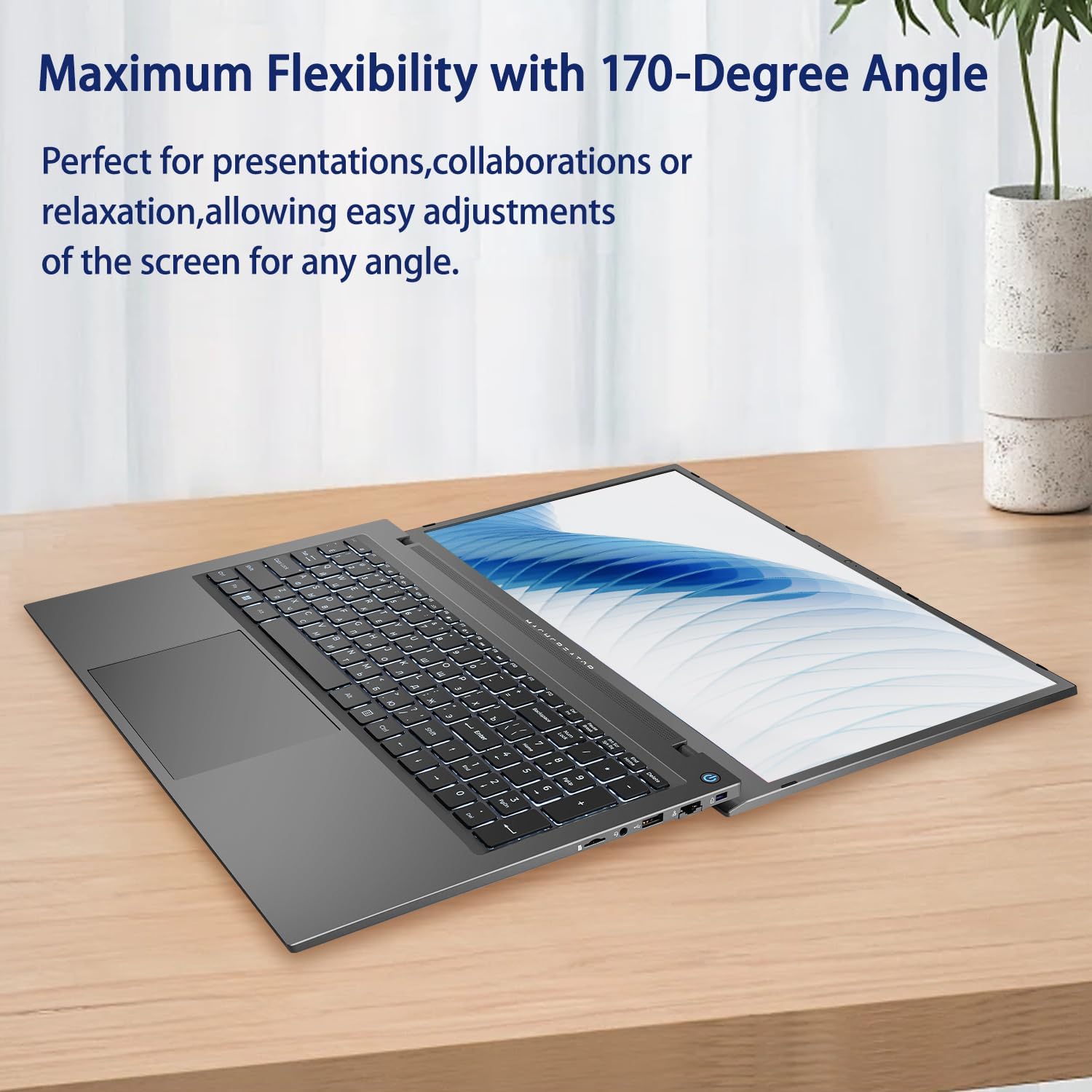
Figure 5.2: Laptop display at 170-degree angle.
This image demonstrates the laptop's ability to open its screen to a wide 170-degree angle, useful for various viewing scenarios.
5.4. Charging the Laptop
Connect the provided power adapter to the DC-in port. The laptop also supports fast charging via its USB-C (Thunderbolt 4) ports with a compatible USB-C Power Delivery charger.
6. Maintenance
6.1. Cleaning
- Use a soft, lint-free cloth to clean the screen. For stubborn marks, lightly dampen the cloth with water or a screen-cleaning solution.
- Wipe the keyboard and chassis with a soft, dry cloth. Avoid using harsh chemicals or abrasive materials.
- Ensure the laptop is powered off and unplugged before cleaning.
6.2. Battery Care
- Avoid fully discharging the battery frequently.
- Do not expose the laptop to extreme temperatures.
- If storing the laptop for an extended period, charge the battery to approximately 50-70% before turning it off.
6.3. Software Updates
Regularly update your Windows operating system and drivers to ensure optimal performance and security. Go to Start > Settings > Windows Update to check for updates.
7. Troubleshooting
| Problem | Possible Solution |
|---|---|
| Laptop does not power on. |
|
| No Wi-Fi connection. |
|
| Screen is blank or flickering. |
|
| Keyboard backlight not working. |
|
8. Specifications
| Feature | Detail |
|---|---|
| Model Name | Machenike Machcreator N17A |
| Processor | Intel N100 (4 Cores, up to 3.4 GHz) |
| RAM | 8GB DDR5 (4800 MHz) |
| Storage | 256GB PCIe SSD |
| Graphics | Intel UHD Graphics (Integrated) |
| Display | 17.3" FHD (1920x1080) IPS, 120Hz |
| Operating System | Windows 11 Home |
| Ports | 2x Thunderbolt 4, 2x USB 2.0 Type-A, 1x HDMI, 1x RJ45, 1x MicroSD Card Reader, 1x Audio Jack, 1x DC-in |
| Wireless Connectivity | Wi-Fi (802.11n) |
| Special Features | Backlit Keyboard, Numeric Keypad |
| Dimensions (LxWxH) | 15.6 x 10.32 x 1.02 inches |
| Weight | 5.78 lbs |
| Color | Gray |
9. Warranty and Support
For warranty information and technical support, please refer to the documentation provided with your purchase or visit the official Machenike website. Keep your proof of purchase for warranty claims.
Online Resources:
- Machenike Official Website: www.machenike.com (Note: This is a placeholder URL, please refer to your product's specific warranty card for the correct support contact.)
10. Product Demonstration Video
Video 10.1: Machcreator N17A Laptop Overview.
This video provides a visual overview of the Machenike Machcreator N17A laptop, showcasing its design, key features, and various ports. It demonstrates the unboxing experience, the backlit keyboard, and the available connectivity options.


