Introduction
This manual provides detailed instructions for the installation, operation, and maintenance of your 70mai Dash Cam 4K Omni and the accompanying UP05 Hardwire Kit. Please read this manual thoroughly before using the product to ensure proper functionality and safety.
The 70mai Dash Cam 4K Omni is a high-performance car camera system designed to capture clear footage of your journeys and provide advanced security features for your vehicle. It features 4K 60FPS recording, Sony STARVIS 2 sensor for superior night vision, 4G LTE connectivity, AI motion detection, ADAS, Wi-Fi 6, and comprehensive parking monitoring.
What's in the Box
Verify that all items are present in the package:
- 70mai Dash Cam 4K Omni
- UP05 Hardwire Kit
- Quick Guide
- User Manual (this document)
- Dual USB Car Charger
- Electrostatic Sticker
- Power Cable
- Rear Cam Signal Cable (if applicable for rear camera model)
- 128GB SD Card (if included in package)
- Adhesive Sticker
- Wiring Crowbar
- Rear Cam User Manual (if applicable for rear camera model)

Image: Overview of the 70mai Dash Cam 4K Omni and included accessories.
Key Features
4K 60FPS Front Dash Cam
Experience true-to-life clarity with 3840×2160P 4K dash cam, capturing every detail in stunning resolution. With 60FPS high-speed recording, fast-moving scenes are smooth and sharp. The Maicolor Vivid+ Solution enhances color accuracy, while ROI technology intelligently enhances license plate areas for better visibility. The 146° wide-angle lens covers 8 lanes, and with 340° rotation, it achieves 360° coverage—minimizing blind spots even in low light.

Image: Demonstration of 4K 60FPS recording quality and license plate clarity.
Super STARVIS 2 Night Vision
Equipped with STARVIS 2, this dash cam front and rear captures 88% more light for sharper, more detailed footage in low-light conditions. Combined with 70mai Lumi Vision, the dash camera for cars delivers full-color recording even in near-total darkness. The Night Owl Vision further enhances nighttime clarity with balanced exposure, reduced noise, and improved glare control, ensuring distant license plates and road signs remain clear and distinguishable.

Image: Example of superior night vision capabilities with STARVIS 2.
4G Remote & 24/7 Parking Monitor
Stay connected to your car anytime, anywhere with 4G LTE. The front and rear dash cameras provide real-time alerts, using AI algorithms to distinguish between people, cars, and animals while ignoring false alarms (e.g., wind-blown leaves). Use the App to locate your car remotely, view live footage, or review historical recordings. Time-lapse compresses 24 hours into 2 minutes, saving storage space without missing critical events. (Requires the UP05 Hardwire Kit, which is included in this bundle).

Image: Visual representation of 24/7 buffered parking mode.
Wi-Fi 6 5GHz + GPS Accurate Positioning
Enjoy lightning-fast 4K video transfers at 20MB/s with Wi-Fi 6 5GHz, making it easy to download and share footage on your phone. The GPS system of the dashcam ensures precise location tracking and speed monitoring, perfect for driving safety and route analysis. Whether you're using it as a car security camera or a dash cam for semi trucks, this feature ensures reliable performance in any scenario.

Image: High-speed data transfer via Wi-Fi 6 5GHz.
AI Motion Detection & Emergency Video Lock
The rotating front camera automatically follows moving objects, ensuring no suspicious activity goes unnoticed. In case of collisions or sudden shakes, the dash cam saves 10 seconds before and 20 seconds after the event (30 seconds total), securely locking the clip to preserve critical evidence.

Image: AI Motion Detection and Automatic Tracking in action.
Setup and Installation
Dash Cam Placement
Choose a location on your windshield that does not obstruct your view of the road. Typically, this is behind the rearview mirror. Ensure the camera lens has a clear view of the road ahead.
Mounting the Dash Cam
- Clean the chosen area on the windshield thoroughly.
- Apply the electrostatic sticker to the cleaned area.
- Attach the dash cam mount to the electrostatic sticker.
- Slide the dash cam onto the mount until it clicks into place.
Hardwire Kit (UP05) Installation
The UP05 Hardwire Kit enables 24/7 parking monitoring and 4G LTE features. Professional installation is recommended for the hardwire kit if you are not familiar with vehicle electrical systems.
- Connect the ACC wire (red) to a fuse that provides power only when the ignition is on.
- Connect the B+ wire (yellow) to a fuse that provides constant power (even when the ignition is off).
- Connect the GND wire (black) to a metal part of the vehicle chassis for grounding.
- Connect the hardwire kit's output to the dash cam's power input.

Image: Basic wiring diagram for the hardwire kit.
Rear Camera Installation (if applicable)
If your package includes a rear camera, mount it on the rear windshield, ensuring a clear view. Route the rear camera signal cable to the main dash cam unit.
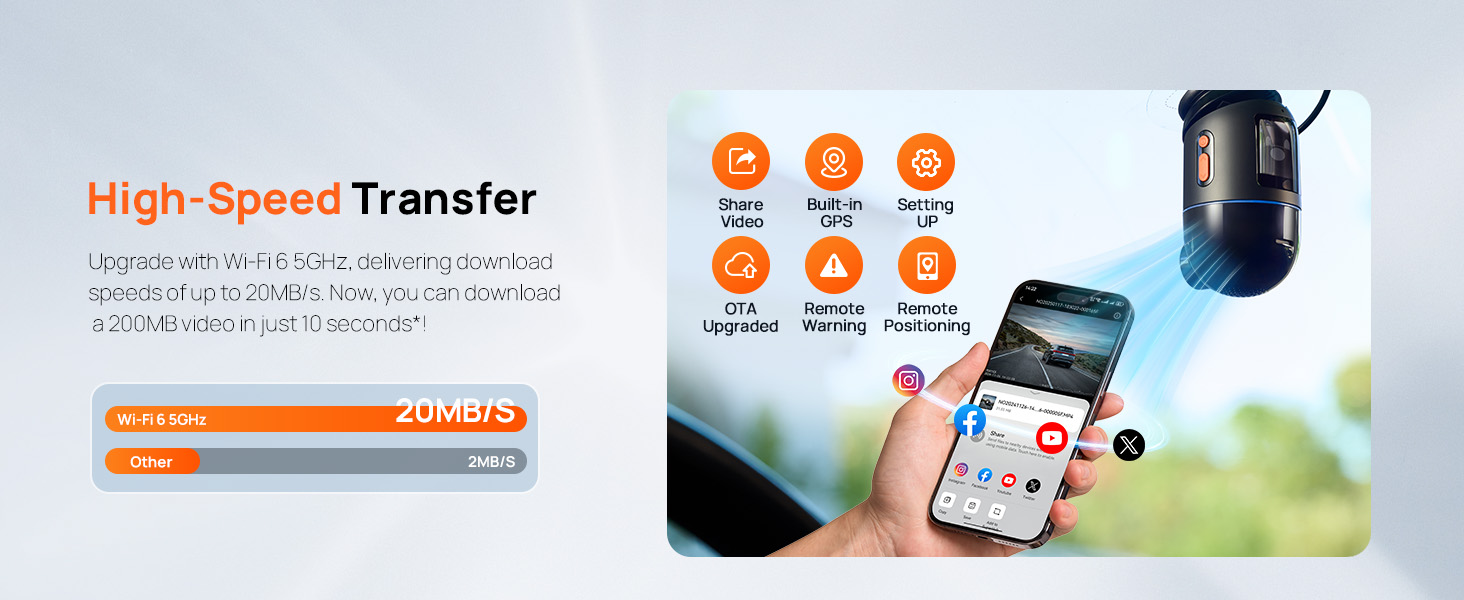
Image: Easy installation guide showing cable routing for front and rear cameras.
Operating Instructions
Powering On/Off
The dash cam will automatically power on and begin recording when your vehicle's ignition is turned on (if connected via the car charger or hardwire kit). It will power off automatically when the ignition is turned off.
Basic Recording
Once powered on, the dash cam will automatically start loop recording. Footage is saved to the inserted microSD card. Older files will be overwritten by new recordings when the card is full, unless they are locked emergency videos.
Voice Control
The 70mai Dash Cam 4K Omni supports voice commands for hands-free operation. Common commands include:
- "Take Photo": Captures a still image.
- "Record Video": Starts or stops video recording.
- "Lock Video": Locks the current recording to prevent it from being overwritten.
- "Turn on/off Wi-Fi": Controls Wi-Fi connectivity.

Image: Voice control feature for hands-free operation.
Using the 70mai App
Download the 70mai app from the App Store or Google Play. Connect your smartphone to the dash cam's Wi-Fi network to access features such as:
- Live Preview: View real-time footage from the dash cam.
- Video Playback & Download: Review recorded videos and download them to your phone.
- Settings Adjustment: Configure camera settings, resolution, and other preferences.
- Firmware Updates (OTA): Keep your dash cam's software up-to-date.
- GPS Tracking: View your driving route and speed data.
- Remote Features (with UP05 Hardwire Kit): Remote viewing, car tracking, instant alerts, and real-time battery monitoring.
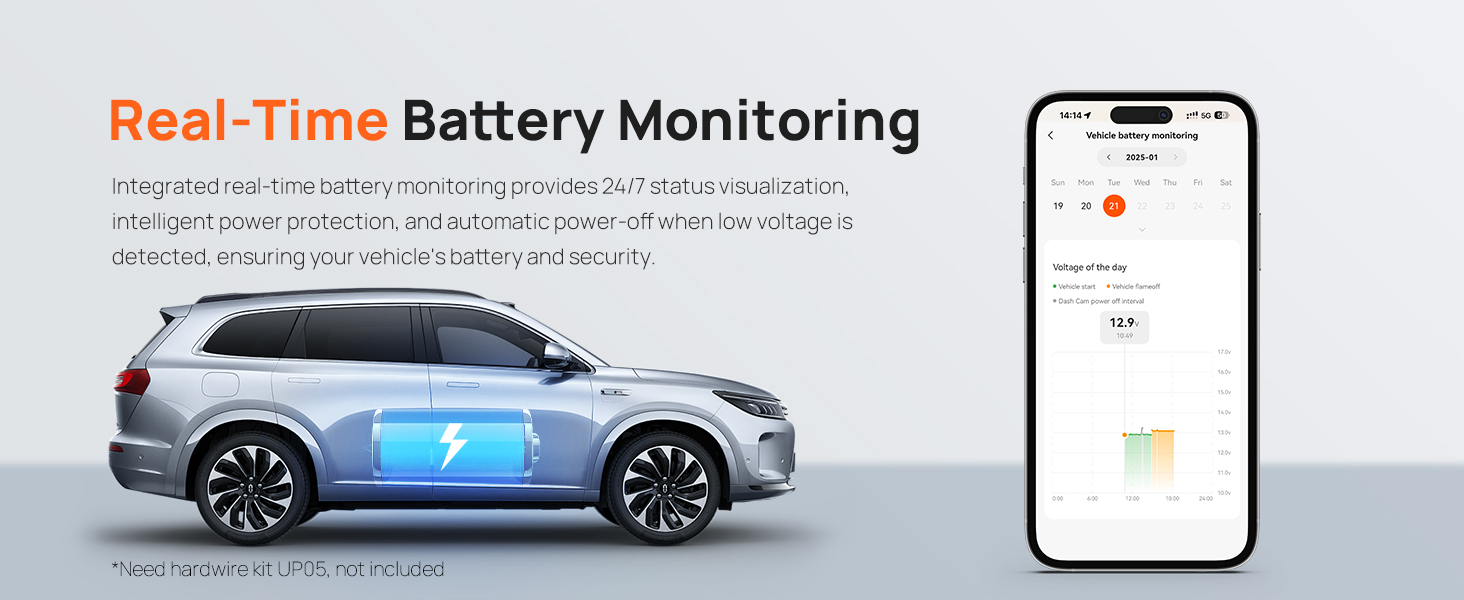
Image: Smart APP and OTA Upgrade features.
Parking Monitoring & Security
24/7 Buffered Parking Mode
With the UP05 Hardwire Kit installed, the dash cam provides continuous monitoring even when your vehicle is parked. It automatically detects collisions and suspicious movements.
Emergency Lock
Upon detecting a collision or sudden shake (via the G-sensor), the dash cam automatically records and locks a 30-second video clip (10 seconds before and 20 seconds after the event) to ensure critical evidence is preserved and not overwritten.
AI Motion Detection 2.0
The AI recognition system tracks and records suspicious individuals around your vehicle. Combined with integrated sensors and a magnetic system, it ensures precise lens positioning and smooth 340° rotation, leaving no potential threat unnoticed.

Image: AI Motion Detection 2.0 in parking mode.
Time-lapse Recording
In parking mode, the dash cam can record at 1FPS (frames per second) to save memory card space while still providing a comprehensive overview of events. This compresses 24 hours of footage into a short video.
Advanced Driving Assistance System (ADAS)
The 70mai Dash Cam 4K Omni includes ADAS features to enhance driving safety:
- Lane Departure Alert: Warns you if you drift out of your lane.
- Forward Collision Alert: Notifies you of potential frontal collisions.
- Forward Vehicle Start Alert: Informs you when the vehicle in front starts moving.
- Pedestrian Alert: Detects and warns about pedestrians in your path.
- Cyclists Alert: Detects and warns about cyclists in your path.
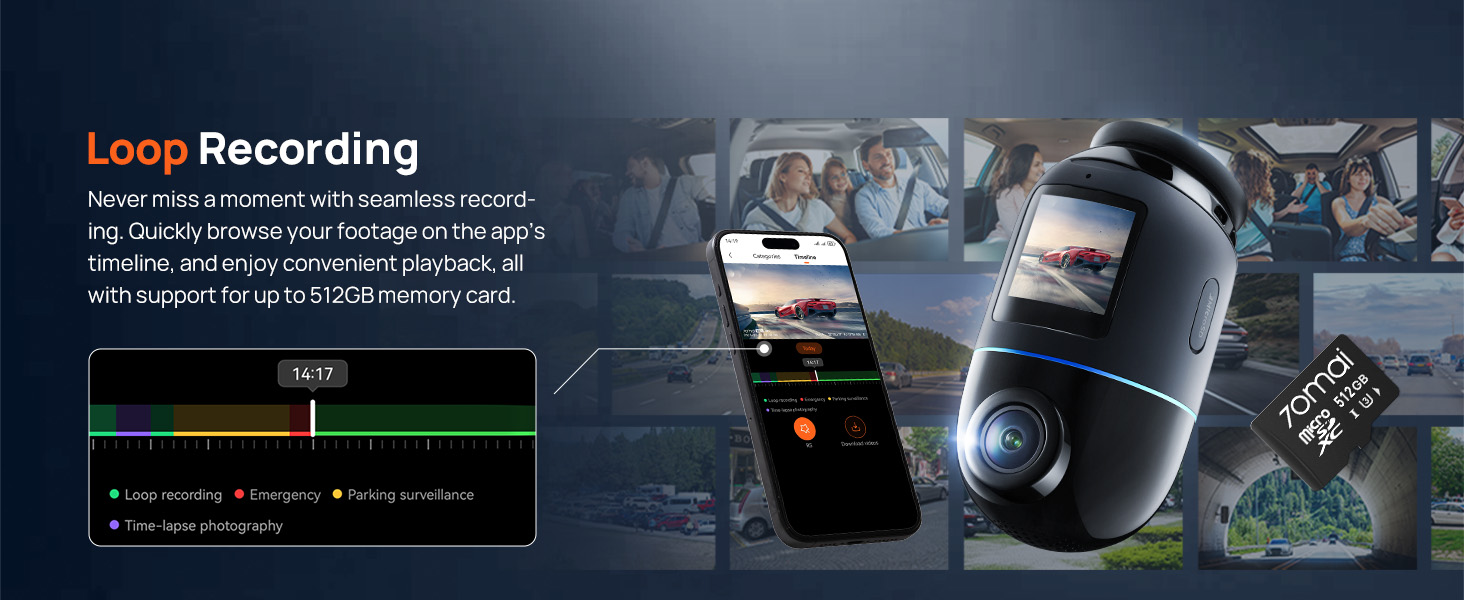
Image: Advanced Safety Alerts provided by ADAS.
Maintenance
Cleaning the Device
Use a soft, dry cloth to clean the dash cam's body and lens. Do not use chemical cleaners or abrasive materials, as they may damage the device.
MicroSD Card Management
Regularly format your microSD card (at least once a month) through the dash cam's settings or the 70mai app to ensure optimal performance and prevent data corruption. Use a high-quality Class 10 or U3 microSD card from a reputable brand.
Firmware Updates
Check for firmware updates periodically via the 70mai app. Keeping your device updated ensures you have the latest features and bug fixes.
Troubleshooting
| Problem | Possible Cause / Solution |
|---|---|
| Dash cam does not power on. | Check power connection. Ensure the car charger or hardwire kit is properly connected and receiving power. Check vehicle's fuse box if using hardwire kit. |
| Recording stops unexpectedly. | MicroSD card may be full or corrupted. Format the card. Ensure you are using a compatible, high-speed microSD card. |
| Wi-Fi connection issues. | Ensure Wi-Fi is enabled on the dash cam. Restart both the dash cam and your phone. Try forgetting the network on your phone and reconnecting. |
| Poor video quality at night. | Ensure the windshield is clean. Check if the lens is clean. Verify that the latest firmware is installed. |
| Parking monitoring not working. | Ensure the UP05 Hardwire Kit is correctly installed and providing constant power. Check parking monitoring settings in the 70mai app. |
Specifications
| Feature | Detail |
|---|---|
| Model Name | 70mai Dash Cam 4K Omni |
| Video Capture Resolution | 4K (3840 x 2160 pixels) |
| Sensor | Sony IMX678 (Front), Sony IMX662 (Rear, if applicable) |
| Night Vision Technology | STARVIS 2, 70mai Lumi Vision, Night Owl Vision |
| Connectivity Technology | Wi-Fi 6 5GHz, 4G LTE (with UP05 Hardwire Kit), GPS |
| Lens Angle | 146° Wide-Angle |
| Rotation | 340° (Front Camera) |
| Storage | Supports up to 512GB microSD card (128GB included in some bundles) |
| Power Source | Supercapacitor (for durability in extreme temperatures) |
| Operating Temperature | -4°F to 185°F (-20°C to 85°C) |
| Included Components | Dash Cam, Hardwire Kit, Quick Guide, User Manual, etc. |
Warranty and Support
For warranty information, please refer to the warranty card included in your product packaging or visit the official 70mai website. Keep your purchase receipt as proof of purchase for warranty claims.
If you encounter any issues or have questions not covered in this manual, please contact 70mai customer support through their official website or the contact information provided in the Quick Guide.
Official 70mai Website: www.70mai.com


