1. Introduction
This manual provides essential instructions for the installation, operation, and maintenance of your Lockly Smart Lock Secure Pro with Knob. Please read this manual thoroughly before installation and retain it for future reference. This smart lock offers multiple access methods including fingerprint, PIN Genie keypad, smartphone app, and traditional physical keys, along with built-in Wi-Fi connectivity.
2. Safety Information
- Do not attempt to disassemble or repair the lock yourself. This may void the warranty and cause damage.
- Use only the specified battery type (AA alkaline batteries). Do not mix old and new batteries or different types of batteries.
- Ensure all components are securely fastened during installation to prevent malfunction.
- Keep physical keys in a secure location away from the lock.
- Protect the keypad from direct sunlight and extreme weather conditions to prolong its lifespan.
3. Product Overview
The Lockly Smart Lock Secure Pro with Knob integrates advanced security features into a convenient door locking solution. It features a biometric fingerprint sensor, a patented PIN Genie keypad, and Wi-Fi for remote access.

Image: Lockly Smart Lock Secure Pro with Knob illustrating its various unlocking methods: fingerprint, PIN Genie keypad, physical key, and smartphone app control.
4. Door Preparation & Compatibility
Before installation, verify your door's dimensions meet the requirements for the Lockly Smart Lock Secure Pro with Knob. Proper door preparation is crucial for correct functionality.

Image: Diagram showing required door measurements for Lockly Smart Lock installation, including door thickness (1 3/8" - 2") and backset (2 3/8" or 2 3/4").

Image: Front view diagram detailing standard door bore hole (2 inch / 50mm) and backset (2.8 inch / 71mm) dimensions for knob installation.
Ensure your door thickness is between 1 3/8 inches and 2 inches. The backset should be either 2 3/8 inches or 2 3/4 inches. The bore hole diameter for the knob should be 2 inches (50mm).
5. Installation Guide
This section provides a general overview of the installation process. For detailed step-by-step instructions, refer to the dedicated installation guide included with your product packaging.
5.1 Mechanical Installation
- Prepare the Door: Ensure the door is properly drilled according to the compatibility requirements.
- Install the Latch: Insert the latch into the door edge and secure it with screws.
- Install the Exterior Assembly: Place the exterior lock assembly onto the door, ensuring the spindle passes through the latch.
- Install the Interior Mounting Plate: Secure the interior mounting plate to the exterior assembly using the provided screws.
5.2 Electronic Installation
- Connect Cables: Carefully connect the cable from the exterior assembly to the interior assembly.
- Install the Interior Assembly: Mount the interior assembly onto the mounting plate and secure it.
- Insert Batteries: Open the battery cover on the interior assembly and insert four (4) AA alkaline batteries.
- Perform Handing Process: Follow the on-screen or app instructions to calibrate the lock for your door's handing (left or right).
6. Initial Setup & App Pairing
After physical installation, download the Lockly App from your device's app store to complete the setup and connect your smart lock to Wi-Fi.
- Download Lockly App: Search for "Lockly" in the App Store or Google Play Store.
- Create Account: Open the app and follow the prompts to create a new user account.
- Add New Device: Select "Add New Device" and choose your Lockly Smart Lock model.
- Pair Lock: Follow the in-app instructions to pair your lock via Bluetooth and connect it to your home Wi-Fi network. This enables remote control and monitoring.
7. Operating Your Lockly Smart Lock
7.1 Unlocking with Fingerprint
The Lockly Smart Lock features AI Biometric Fingerprint Technology for quick access.

Image: A finger placed on the Lockly Smart Lock's biometric sensor, demonstrating its 0.2-second recognition speed and capacity for up to 99 unique fingerprints.
- Register Fingerprints: Use the Lockly App to register up to 99 unique fingerprints.
- Place Finger: Gently place your registered finger on the fingerprint sensor.
- Unlock: The lock will unlock in approximately 0.2 seconds if the fingerprint is recognized.
7.2 Unlocking with PIN Genie Keypad
The patented PIN Genie keypad prevents code guessing by dynamically shuffling numbers.

Image: Close-up view of the Lockly Smart Lock's PIN Genie keypad, illustrating how the digit locations dynamically shuffle after each use to prevent password guessing.
- Activate Keypad: Touch the screen to activate the keypad.
- Enter PIN: Enter your 6-8 digit PIN code. The numbers will shuffle after each digit entry.
- Confirm: Press the Lockly button (bottom center) to confirm.
7.3 Unlocking with Lockly App
Control your lock remotely using the Lockly App via built-in Wi-Fi.
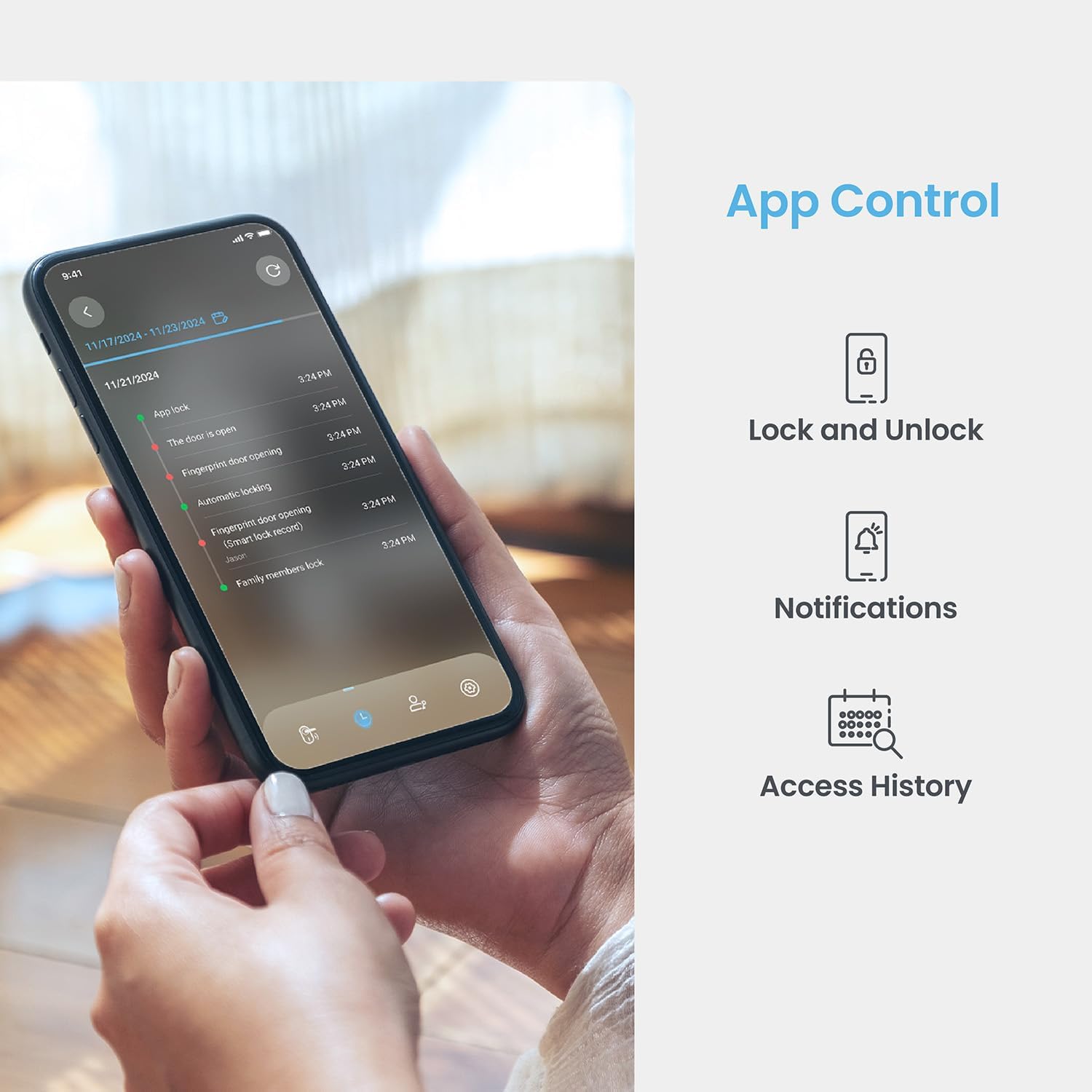
Image: A smartphone displaying the Lockly App, showing options for remote lock/unlock, notifications, and access history logs.
- Open App: Launch the Lockly App on your smartphone.
- Select Lock: Choose the desired lock from your device list.
- Lock/Unlock: Tap the lock/unlock icon to control the deadbolt.
7.4 Unlocking with Physical Key
Two physical backup keys are provided for manual unlocking.
- Insert Key: Insert the physical key into the keyhole located on the exterior assembly.
- Turn Key: Turn the key to unlock the deadbolt.
7.5 Auto-Lock Feature
The programmable auto-lock feature ensures your door is always secured.
- Enable/Disable: Configure auto-lock settings via the Lockly App.
- Set Delay: Customize the delay time before the lock automatically engages after being closed.
7.6 Voice Control Integration
Integrate your Lockly Smart Lock with smart home assistants.
- Connect to Alexa/Google Assistant: Follow the instructions in the Lockly App to link your lock with Amazon Alexa or Google Assistant.
- Voice Commands: Use voice commands to lock or unlock your door (e.g., "Alexa, lock the front door").
8. User Management
Manage access for multiple users through the Lockly App.
- Add/Remove Users: Create or delete user profiles, assigning unique fingerprints or PIN codes.
- eKeys/eBadges: Grant temporary or permanent access to guests via eKeys or eBadges, which can be sent directly from your smartphone.
- Offline Access Codes: Generate time-sensitive or single-use access codes that do not require internet connectivity for the recipient.
- Activity Logs: Review a detailed history of lock activity, including who accessed the door and when.
9. Maintenance
9.1 Battery Replacement
The lock operates on 4 AA alkaline batteries, providing approximately 8 months of battery life. Replace batteries when the low battery indicator appears on the lock or in the app.
- Access Battery Compartment: Remove the battery cover on the interior assembly.
- Replace Batteries: Remove old batteries and insert four new AA alkaline batteries, ensuring correct polarity.
- Close Cover: Replace the battery cover.
9.2 Cleaning
Clean the lock's exterior with a soft, damp cloth. Avoid abrasive cleaners or solvents that could damage the finish or electronic components.
10. Troubleshooting
- Lock Not Responding: Check battery levels. Replace batteries if low. Ensure cables are securely connected.
- Keypad Not Activating: Ensure the screen is clean and free of debris. Try touching different areas of the screen.
- Fingerprint Not Recognized: Ensure your finger is clean and dry. Re-register your fingerprint if issues persist.
- App Connectivity Issues: Verify your home Wi-Fi network is active and the lock is within range. Restart the lock and your router if necessary.
- Auto-Lock Malfunction: Check auto-lock settings in the Lockly App. Ensure the door sensor is not obstructed.
11. Specifications
| Feature | Detail |
|---|---|
| Model | Secure Pro with Knob |
| ASIN | B0DZXB86LZ |
| Unlocking Methods | Fingerprint, PIN Genie Keypad, Lockly App, Physical Key |
| Fingerprint Recognition | 0.2 seconds, up to 99 fingerprints |
| Keypad Technology | Patented PIN Genie (dynamic number shuffling) |
| Connectivity | Built-in Wi-Fi, Bluetooth |
| Power Source | 4 x AA Alkaline Batteries |
| Battery Life | Approximately 8 months |
| Door Thickness Compatibility | 1 3/8" - 2" |
| Backset Compatibility | 2 3/8" or 2 3/4" |
| Voice Control | Alexa, Google Assistant compatible |
| Standard | Built-to ANSI Standard |
12. Warranty and Support
For warranty information, technical support, or to register your product, please visit the official Lockly website or contact Lockly customer service. Keep your purchase receipt as proof of purchase.
Online Support: www.lockly.com/support


