
NEWFAST U357
NEWFAST WiFi 6E USB Adapter U357 Instruction Manual
1. Introduction
This manual provides detailed instructions for the installation, operation, and maintenance of your NEWFAST WiFi 6E USB Adapter U357. This device is designed to upgrade your desktop PC's wireless capabilities, offering tri-band connectivity (2.4 GHz, 5 GHz, and 6 GHz) with WiFi 6E technology for enhanced speed, lower latency, and improved network efficiency. Please read this manual thoroughly before using the product.

Image 1.1: The NEWFAST WiFi 6E USB Adapter U357, showcasing its design with four adjustable antennas.
2. Package Contents
Verify that all items are present in the package:
- 1 x NEWFAST AXE5400 USB WiFi Adapter for Desktop PC (Model: U357)
- 1 x Type-C to USB 3.0 Interface Data Cable
- 1 x User Manual
3. Product Overview
The NEWFAST U357 is an AXE5400 Tri-Band WiFi 6E USB adapter designed for high-performance wireless connectivity. It supports the latest WiFi 6E standard, offering significant improvements in speed, efficiency, and security.
Key Features:
- Tri-Band Connectivity: Operates on 2.4 GHz, 5 GHz, and 6 GHz bands, providing a combined speed of up to 5400 Mbps (2402 Mbps on 6 GHz, 2402 Mbps on 5 GHz, and 574 Mbps on 2.4 GHz).
- WiFi 6E Technology: Utilizes the 6 GHz band for dedicated, interference-free connections, offering wider channels and lower latency.
- Advanced Security: Supports WPA3-SAE encryption for enhanced network protection against cyber threats.
- Superior Signal Reception: Equipped with four external adjustable antennas and Beamforming technology to focus signals for a more reliable connection.
- USB 3.0 Interface: Ensures high-speed data transfer, up to 10 times faster than USB 2.0.
- Wide Compatibility: Supports Windows 11 and Windows 10 operating systems.
- AP Mode: Allows the adapter to function as a Wi-Fi hotspot for other devices.

Image 3.1: Visual representation of the adapter's tri-band speed capabilities.

Image 3.2: Explanation of WiFi 6E advantages, particularly the 6 GHz band.

Image 3.3: Overview of WPA3 security features protecting your network.
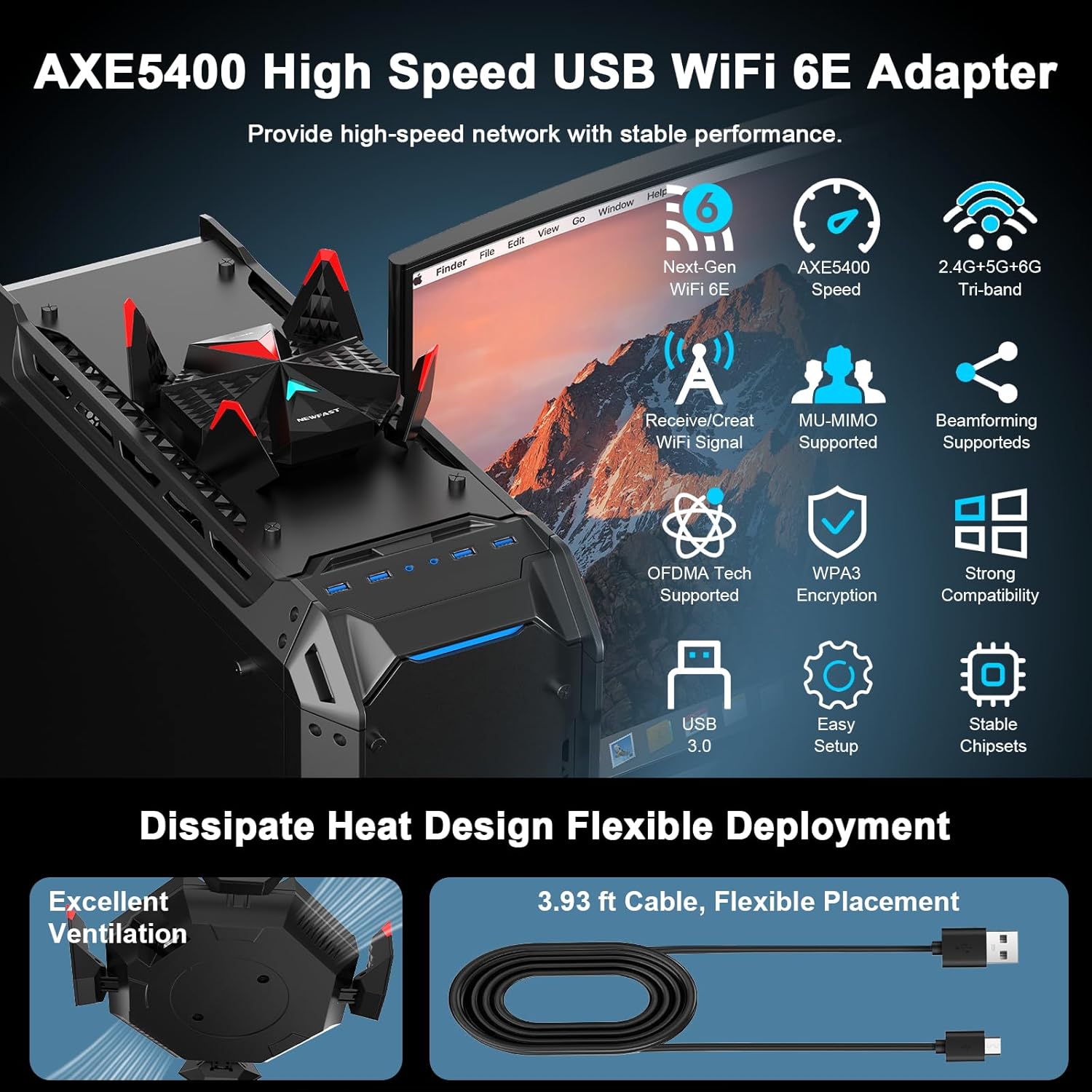
Image 3.4: Detailed view of the adapter's features, design, and connectivity options.
4. Setup and Installation
Follow these steps to install your NEWFAST WiFi 6E USB Adapter U357:
4.1 System Requirements
- Operating System: Windows 11 or Windows 10
- Available USB 3.0 port (for optimal performance)
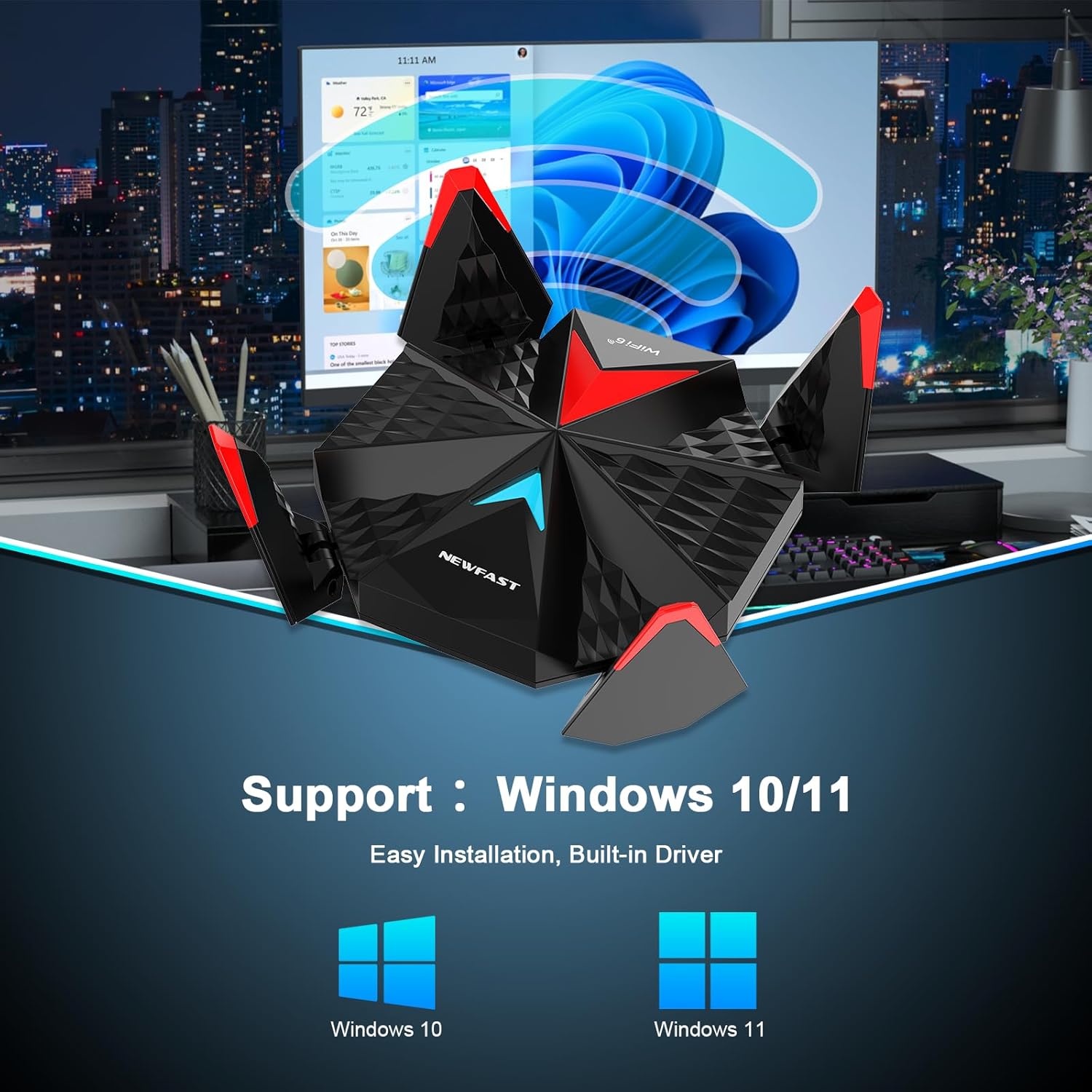
Image 4.1: The adapter supports both Windows 10 and Windows 11.
4.2 Installation Steps
- Connect the Adapter: Plug the NEWFAST WiFi 6E USB Adapter into an available USB 3.0 port on your desktop PC using the provided Type-C to USB 3.0 cable. Ensure the connection is secure.
- Driver Installation: The adapter features a built-in driver. Upon connecting, your Windows system should automatically detect the device and initiate driver installation. If the driver does not install automatically, you may need to manually install it. The driver can typically be found on the NEWFAST official website or on a provided mini-CD (if included).
- Connect to Wi-Fi: Once the driver is installed, navigate to your computer's network settings. Select the desired Wi-Fi network (2.4 GHz, 5 GHz, or 6 GHz) and enter the password to connect.

Image 4.2: Visual guide for the three main steps of adapter installation.
Note:
- To utilize the 6 GHz WiFi band, your operating system must be Windows 11.
- Windows 10 supports the 2.4 GHz and 5 GHz bands only.
5. Operating the Adapter
5.1 Receiving Mode (Client Mode)
In Receiving Mode, the adapter connects your PC to an existing Wi-Fi network. After successful driver installation, the adapter will appear as a wireless network device in your system's network settings. You can then select and connect to available Wi-Fi networks as you would with any other wireless adapter.
5.2 Soft AP Mode (Access Point Mode)
The Soft AP Mode allows your NEWFAST U357 adapter to create a Wi-Fi hotspot, sharing your PC's internet connection with other wireless devices (e.g., smartphones, tablets). This feature is useful when you have a wired internet connection on your PC and want to share it wirelessly.
- Ensure your PC has an active internet connection (e.g., via Ethernet).
- Access your Windows network settings (e.g., 'Mobile hotspot' in Windows 10/11).
- Enable the mobile hotspot feature and configure the network name (SSID) and password.
- Other devices can now connect to the Wi-Fi hotspot created by your adapter.

Image 5.1: Depiction of Receiving Mode and Soft AP Mode functionalities.
5.3 Band Selection and Usage
The adapter supports three frequency bands, each suitable for different uses:
- 2.4 GHz Band: Offers wider coverage and better penetration through walls. Ideal for general web browsing, email, and devices further away from the router.
- 5 GHz Band: Provides faster speeds and lower interference in closer proximity to the router. Suitable for dedicated gaming and high-definition streaming.
- 6 GHz Band (Windows 11 only): The newest band, offering the fastest speeds, lowest latency, and minimal interference due to less congestion. Best for 4K/8K video streaming, virtual reality, and competitive online gaming.

Image 5.2: Recommended usage for each Wi-Fi frequency band.
6. Maintenance
To ensure optimal performance and longevity of your NEWFAST WiFi 6E USB Adapter U357, follow these maintenance guidelines:
- Keep Clean: Regularly wipe the adapter with a soft, dry cloth to remove dust. Avoid using liquid cleaners or solvents.
- Proper Ventilation: Ensure the adapter is placed in an area with adequate airflow to prevent overheating. The adapter features a dissipate heat design for efficient cooling.
- Avoid Physical Damage: Handle the adapter carefully. Do not drop it or expose it to excessive force.
- Environmental Conditions: Keep the adapter away from extreme temperatures, direct sunlight, and high humidity.
- Firmware/Driver Updates: Periodically check the NEWFAST official website for updated drivers or firmware to ensure compatibility and performance improvements.
7. Troubleshooting
If you encounter issues with your NEWFAST WiFi 6E USB Adapter U357, refer to the following common problems and solutions:
| Problem | Possible Cause | Solution |
|---|---|---|
| No Wi-Fi connection or adapter not detected. |
|
|
| Slow Wi-Fi speed or unstable connection. |
|
|
| Cannot connect to 6 GHz band. |
|
|
| Soft AP mode not working. |
|
|
8. Specifications
| Feature | Detail |
|---|---|
| Model | U357 |
| Brand | NEWFAST |
| Wireless Standard | IEEE 802.11ax/ac/a/b/g/n (WiFi 6E) |
| Data Transfer Rate | Up to 5400 Mbps (2402 Mbps @ 6 GHz, 2402 Mbps @ 5 GHz, 574 Mbps @ 2.4 GHz) |
| Frequency Bands | 2.4 GHz, 5 GHz, 6 GHz (Tri-Band) |
| Hardware Interface | USB 3.0 (compatible with USB 2.0) |
| Antennas | 4 External Adjustable Antennas |
| Security Encryption | WPA3-SAE |
| Compatible Devices | Desktop PCs |
| Operating System Support | Windows 11, Windows 10 |
| Product Dimensions | 4.13 x 1.26 x 4.13 inches |
| Item Weight | 6.4 ounces |
| Special Features | Beamforming, MU-MIMO, OFDMA, Soft AP Mode, Dissipate Heat Design |
9. Warranty and Support
For warranty information and technical support, please refer to the documentation included with your product or visit the official NEWFAST website. You can also contact NEWFAST customer service through their official channels for assistance with product inquiries, troubleshooting, or warranty claims.
For additional support and product information, please visit the NEWFAST Store on Amazon.
Related documentsU357


Ask a question about this manual
Ask about setup, troubleshooting, compatibility, parts, safety, or missing instructions. Manuals+ will review the question and use this page’s manual context to help answer it.