
1. Introduction
The SEUNKWANG EWEADN X23Pro is a versatile wireless gaming mouse designed for optimal performance and comfort. It features a lightweight design, multiple connectivity options, adjustable DPI settings, and programmable buttons to enhance your gaming and productivity experience.

Image: Overview of the X23Pro Wireless Gaming Mouse highlighting its main features.
2. What's in the Box
Verify that all items are present in the package:
- Gaming Mouse
- USB Cable
- Instruction Manual
- Non-slip stickers (6 Pcs)
3. Product Overview
The X23Pro mouse is engineered for precision and comfort. Key features include:
- Tri-Mode Connection: Supports 2.4G wireless, BT5.0 wireless, and USB-C wired connections.
- Long-lasting Battery: Built-in 800mAh rechargeable battery provides extended usage.
- Lightweight Design: Weighs approximately 49g for reduced hand fatigue.
- Adjustable DPI: 6 levels of DPI (800-1600-2400-3200-6400-12,000) for precise control.
- Adjustable Polling Rate: 4 polling rates (125Hz-250Hz-500Hz-1000Hz) for responsive tracking.
- Programmable Buttons: 6 customizable buttons for macro programming.
- Ergonomic Design: Designed to fit various grip styles (palm, fingertip, claw).

Image: Multi-function buttons diagram.
4. Setup Instructions
4.1. Tri-Mode Connection
The X23Pro mouse offers three connection methods: 2.4G wireless, Bluetooth 5.0, and USB-C wired. You can switch between modes using the switch button located on the bottom of the mouse.

Image: Tri-Mode Gaming Mouse connection overview.
4.2. 2.4G Wireless Mode
- Locate the USB receiver stored in the compartment on the bottom of the mouse.
- Plug the USB receiver into an available USB port on your computer.
- Slide the switch on the bottom of the mouse to the '2.4G' position.
- Long press the 'Code Key' button on the bottom of the mouse. The top indicator light will flash green, indicating pairing mode.
- The mouse should automatically connect to your device.
4.3. Bluetooth 5.0 Mode
- Slide the switch on the bottom of the mouse to the 'BT' position.
- Long press the 'Code Key' button on the bottom of the mouse. The top indicator light will flash blue, indicating pairing mode.
- On your device (PC, laptop, Mac, Android), go to Bluetooth settings and search for 'X23Pro'.
- Select the mouse to pair.
4.4. USB-C Wired Mode
- Connect the provided USB-C cable to the front port of the mouse.
- Plug the other end of the USB-C cable into an available USB port on your computer.
- The mouse will automatically switch to wired mode and begin charging.

Image: How to connect the mouse in different modes.
Video: Demonstrates the tri-mode connection, showing the USB receiver, USB-C cable, and DPI adjustment on the white X23Pro mouse.
5. Operating Instructions
5.1. DPI Adjustment
The mouse features 6 adjustable DPI levels: 800, 1600 (default), 2400, 3200, 6400, and 12,000. To change the DPI:
- Press the 'DPI' toggle button located on the bottom of the mouse to cycle through the preset DPI levels.
- For custom DPI values, use the dedicated driver software (refer to the manual for download instructions).

Image: Six speed DPI change illustration.
5.2. Polling Rate Adjustment
The mouse supports 4 adjustable polling rates: 125Hz, 250Hz, 500Hz, and 1000Hz. These can be adjusted via the driver software to optimize response time.
5.3. Programmable Buttons
The 6-button configuration can be customized using the driver software. Each button supports macro programming, allowing you to assign complex commands for gaming or office tasks.
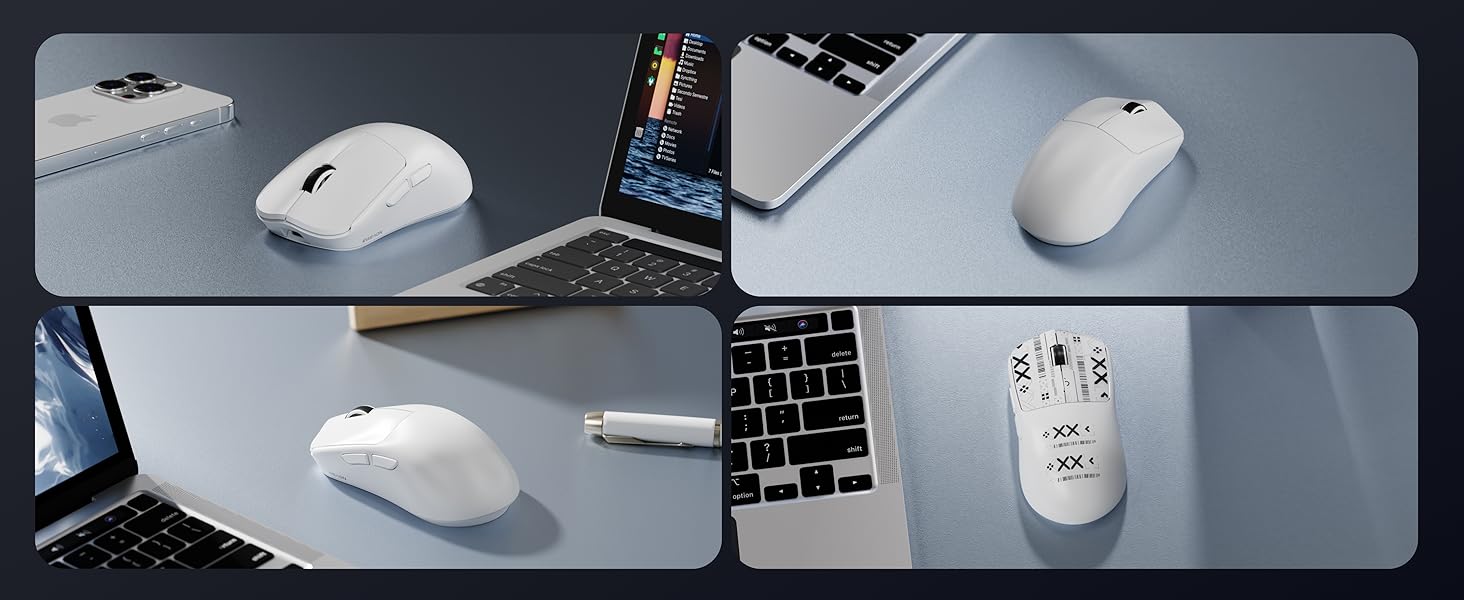
Image: Additional features including receiver storage and anti-slip tape.
6. Charging the Mouse
The X23Pro mouse has a built-in 800mAh rechargeable battery. To charge:
- Connect the provided USB-C cable to the charging port on the front of the mouse.
- Plug the USB-A end of the cable into a power source (e.g., computer USB port, USB wall adapter).
- The mouse can be used in wired mode while charging.
The mouse enters a primary sleep mode after 1 minute of inactivity to conserve battery. It supports button and movement wake-up.

Image: 800mAh High Capacity Battery feature.
7. Maintenance
- Keep the mouse clean by wiping it with a soft, dry cloth.
- Avoid exposing the mouse to extreme temperatures or humidity.
- Do not disassemble the mouse, as this may void the warranty.
- Use the provided non-slip stickers to maintain grip and prevent wear.
8. Troubleshooting
8.1. Mouse Not Responding
- Ensure the mouse is charged. Connect it via USB-C cable to charge.
- Check the connection mode switch on the bottom of the mouse (2.4G, BT, or OFF). Ensure it is set to the desired mode.
- For 2.4G mode, ensure the USB receiver is securely plugged into your device.
- For Bluetooth mode, ensure Bluetooth is enabled on your device and the mouse is paired.
- Try restarting your computer or device.
8.2. Lag or Intermittent Connection
- Ensure the mouse is within the effective range of your device (for wireless modes).
- Minimize interference from other wireless devices.
- Ensure the battery is sufficiently charged. Low battery can affect wireless performance.
- Consider using the USB-C wired connection for a stable connection.
8.3. DPI Not Changing
- Ensure you are pressing the correct 'DPI' toggle button on the bottom of the mouse.
- If using custom DPI settings, verify the settings in the driver software.
Video: Demonstrates the lightweight design and various features of the X23Pro mouse, including its bottom panel and USB receiver.
9. Specifications
| Feature | Detail |
|---|---|
| Product Dimensions | 4.6 x 2.4 x 0.04 inches |
| Item Weight | 2.08 ounces (approx. 59g) |
| Item Model Number | X23Pro |
| Connectivity Technology | 2.4GHz, Bluetooth 5.0, USB-C Wired |
| Movement Detection Technology | Optical (PAW3311 Sensor) |
| DPI Levels | 800-1600-2400-3200-6400-12,000 |
| Polling Rate | 125Hz-250Hz-500Hz-1000Hz |
| Battery Capacity | 800mAh Rechargeable |
| Special Features | Portable, Rechargeable, Soundless, Touch Scroll, Programmable Buttons |
| Compatibility | Windows 7/8/10/XP/Vista, Mac OS, Linux, Android |
10. Warranty and Support
For any inquiries, technical support, or warranty claims, please contact EWEADN customer service:
- Email Support: eweadnkeyboard@outlook.com
Additional support resources may be available through the seller's Amazon store page.

Image: After-sales support information.