
Product Overview
The EWEADN X23Pro Wireless Gaming Mouse is a high-performance peripheral designed for both gaming and office use. It features a lightweight design, multiple connection modes, and customizable buttons to enhance user experience.

Figure 1: Top view of the EWEADN X23Pro Wireless Gaming Mouse.

Figure 2: Key features of the X23Pro mouse, including Tri-Mode Connection, up to 12000 DPI, 59g lightweight design, and long battery life.
Setup Guide
What's in the Box
- EWEADN X23Pro Gaming Mouse
- USB Cable (for charging and wired connection)
- User Manual
- Non-slip stickers
Connection Modes
The EWEADN X23Pro mouse supports three connection modes:
- 2.4G Wireless: Utilizes a USB receiver for a stable wireless connection.
- Bluetooth 5.0 Wireless: Connects wirelessly via Bluetooth, ideal for devices without USB ports or for saving USB ports.
- USB-C Wired: Provides a direct, low-latency connection and simultaneously charges the mouse.
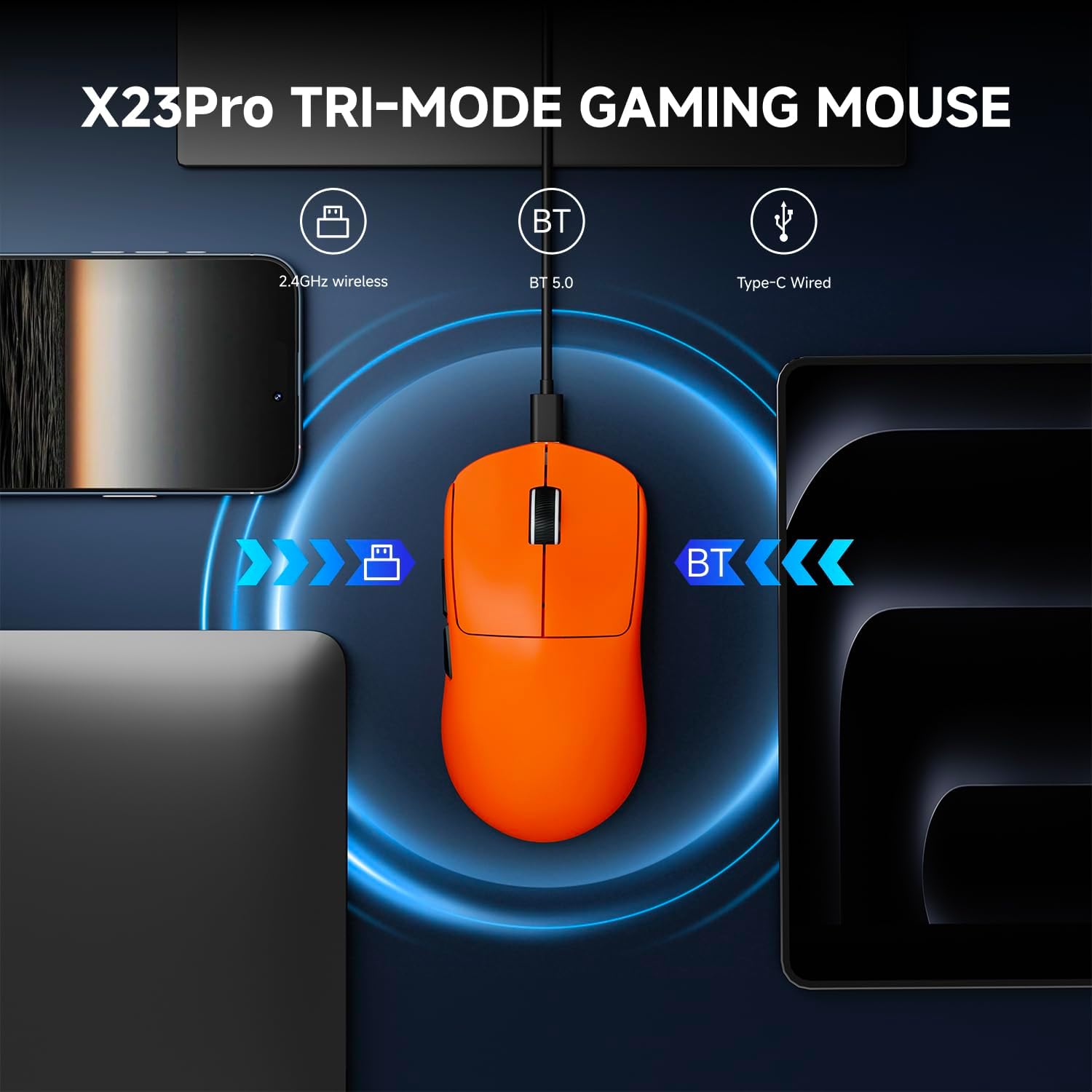
Figure 3: Illustration of the three connection modes: 2.4GHz wireless, Bluetooth 5.0, and Type-C wired.

Figure 4: Steps for connecting the mouse in 2.4G and Bluetooth modes, including the location of the on/off switch and code key.
Initial Setup Steps
- Charge the Mouse: Connect the included USB-C cable to the mouse and a power source (e.g., computer USB port, USB wall adapter). The mouse has an 800mAh rechargeable battery.
- Select Connection Mode: Use the switch on the bottom of the mouse to select your desired connection mode (2.4G, BT, or OFF).
- For 2.4G Wireless:
- Locate the USB receiver stored in the compartment on the bottom of the mouse.
- Plug the USB receiver into an available USB port on your computer.
- Pull the switch on the bottom of the mouse to the 2.4G position. The top indicator light will flash green.
- The mouse should automatically connect.
- For Bluetooth 5.0 Wireless:
- Pull the switch on the bottom of the mouse to the BT position. The top indicator light will flash blue.
- On your computer or device, go to Bluetooth settings and search for new devices.
- Select "EWEADN X23Pro" (or similar name) from the list of available devices to pair.
- The mouse can save up to 4 devices simultaneously and allows for quick switching by the bottom switch button.
- For USB-C Wired:
- Connect the USB-C cable directly from the mouse to your computer's USB port.
- The mouse will function as a wired mouse and charge simultaneously.

Figure 5: Detailed view of the mouse's buttons and bottom features, including the USB-C interface, code key, DPI button, and USB receiver storage.
Applying Non-slip Stickers
The X23Pro mouse comes with 6 pieces of non-slip stickers to prevent oil and sweat, allowing for a more secure grip. You can apply these stickers to the designated areas on the mouse for improved handling.

Figure 6: The lightweight design of the X23Pro mouse and the included anti-slip tape for enhanced grip, suitable for various grip styles (Palm, Fingertip, Claw).
Operating Instructions
DPI Adjustment
The mouse is equipped with 6 adjustable DPI levels for precise control. You can quickly switch DPI by pressing the DPI toggle button located on the bottom of the mouse. The default DPI is 1600. DPI values can also be customized using the dedicated driver software.
- Available DPI Levels: 800-1600-2400-3200-6400-12,000

Figure 7: The X23Pro mouse supports up to 12,000 DPI, allowing users to set different DPI levels via the DPI button or custom software.
Polling Rate Adjustment
The mouse offers 4 adjustable polling rates to optimize responsiveness and tracking accuracy for different tasks, from casual browsing to intense gaming.
- Available Polling Rates: 125Hz-250Hz-500Hz-1000Hz

Figure 8: The mouse supports a 1000Hz polling rate for smooth and accurate tracking, minimizing lag.
Programmable Buttons
The X23Pro features a 6-button configuration that can be fully customized using the driver software. Each button supports macro programming, allowing you to assign complex commands for improved efficiency in gaming or office tasks.

Figure 9: Screenshot of the EWEADN software interface, showing options for key assignment, macro editor, DPI settings, lighting, polling rate, and sensor advanced settings.
Maintenance
Cleaning the Mouse
- Use a soft, dry cloth to wipe the surface of the mouse.
- For stubborn dirt, slightly dampen the cloth with water or a mild cleaning solution. Avoid excessive moisture.
- Do not use harsh chemicals or abrasive materials, as they may damage the mouse's finish.
- Regularly clean the optical sensor on the bottom of the mouse with a cotton swab to ensure accurate tracking.
Battery Care
The mouse features an 800mAh rechargeable battery. To maximize battery lifespan:
- Avoid fully discharging the battery frequently.
- Charge the mouse using the provided USB-C cable.
- When not in use, the mouse enters primary sleep mode after 1 minute of inactivity to conserve power. It supports button and movement wake-up.
- Store the mouse in a cool, dry place when not in use for extended periods.

Figure 10: The 800mAh high-capacity battery provides over 130 hours of use on a full charge.
Troubleshooting
Mouse Not Responding
- Check Battery: Ensure the mouse is charged. Connect it via USB-C cable to see if it powers on.
- Check Connection Mode: Verify the switch on the bottom of the mouse is set to the correct mode (2.4G or BT).
- Re-pair (Bluetooth): If using Bluetooth, remove the mouse from your device's Bluetooth list and attempt to re-pair it.
- Re-connect (2.4G): For 2.4G wireless, try unplugging and re-plugging the USB receiver. Ensure the receiver is connected directly to a USB port, not a hub.
- Try a Different Port/Device: Test the mouse on a different USB port or another computer/device to rule out port or device issues.
Tracking Issues / Cursor Jumps
- Clean Sensor: Dust or debris on the optical sensor can cause tracking problems. Clean the sensor as described in the Maintenance section.
- Surface: Ensure you are using the mouse on a suitable, non-reflective surface. A mouse pad is recommended.
- DPI Setting: Adjust the DPI setting to a lower value if the cursor is too sensitive or erratic.
- Polling Rate: Experiment with different polling rates. A lower polling rate might be more stable on some systems.
Buttons Not Functioning
- Software Conflict: If you have customized button functions, temporarily reset them to default using the driver software to see if the issue resolves.
- Reinstall Driver: If issues persist, try uninstalling and reinstalling the mouse driver software.
Specifications
| Feature | Detail |
|---|---|
| Model Number | X23Pro |
| Brand | SEUNKWANG (Manufacturer: EWEADN) |
| Connectivity Technology | 2.4GHz Wireless, Bluetooth 5.0, USB-C Wired |
| Movement Detection Technology | Optical (PAW3311 Sensor) |
| DPI Levels | 800-1600-2400-3200-6400-12,000 |
| Polling Rate | 125Hz-250Hz-500Hz-1000Hz |
| Buttons | 6 Programmable Buttons |
| Battery Capacity | 800mAh Rechargeable |
| Lifespan | Up to 10 million clicks |
| Weight | 49g (approx. 2.08 ounces) |
| Product Dimensions | 4.6 x 2.4 x 0.1 inches |
| Compatibility | Windows 7/8/10/XP/Vista, Mac OS, Linux, Android |
Warranty and Support
Product Warranty
This EWEADN product is covered by a manufacturer's warranty against defects in materials and workmanship. Please refer to the specific warranty terms provided at the time of purchase or contact customer support for detailed information regarding warranty coverage and duration.
Customer Support
For any questions, technical assistance, or support inquiries, please contact our customer service team:
- Email Support: eweadnkeyboard@outlook.com
- For Amazon customers, you can also contact the seller directly through your Amazon order details by finding the store and clicking "Ask a question".

Figure 11: Overview of EWEADN's after-sales support, including Q&A, troubleshooting, accessories reissue, and returns/exchanges.