
Introduction
Thank you for choosing the LeadsaiL K786 Wireless Keyboard and Mouse Combo. This combo is designed for comfort and efficiency, featuring a full-size ergonomic keyboard and a silent mouse, both operating on a stable 2.4GHz wireless connection. This manual provides detailed instructions for setup, operation, maintenance, and troubleshooting to ensure optimal performance.

Image: The LeadsaiL K786 wireless mouse, highlighting its silent operation suitable for quiet environments.
Setup
Package Contents
- LeadsaiL K786 Wireless Keyboard
- LeadsaiL Wireless Mouse
- USB Receiver (stored inside the mouse)
- User Manual
Battery Installation
The keyboard requires 1 AAA battery and the mouse requires 1 AA battery (batteries are not included). Ensure correct polarity when inserting batteries.
- Locate the battery compartment on the underside of the keyboard and mouse.
- Open the battery compartment cover.
- Insert the required batteries, matching the +/- indicators.
- Close the battery compartment cover securely.

Image: The underside of the LeadsaiL K786 mouse, illustrating the battery compartment and the convenient storage location for the USB receiver.
Connecting the Devices
The keyboard and mouse operate via a single USB receiver, offering plug-and-play simplicity without requiring additional software.
- Remove the USB receiver from its storage slot inside the mouse's battery compartment.
- Plug the USB receiver into an available USB port on your computer (desktop, laptop, notebook, Chromebook, MacBook, or iMac).
- The devices should automatically connect within a few seconds. If not, ensure the mouse and keyboard are powered on (check the ON/OFF switch on the mouse).

Image: The LeadsaiL K786 wireless keyboard and mouse, demonstrating the simple plug-and-play setup with the 2.4GHz USB receiver.
Unboxing and Setup Video
Video: A closer look and review of the LeadsaiL Wireless Keyboard, demonstrating its features and setup process.
Video: An unboxing and initial impression video of the LeadsaiL Wireless Keyboard and Mouse Combo.
Operating Instructions
Ergonomic Design and Typing Comfort
The LeadsaiL K786 keyboard features adjustable tilt legs, allowing you to customize the height and angle for reduced wrist strain during prolonged typing sessions. The soft membrane keys provide a comfortable and nearly silent typing experience.
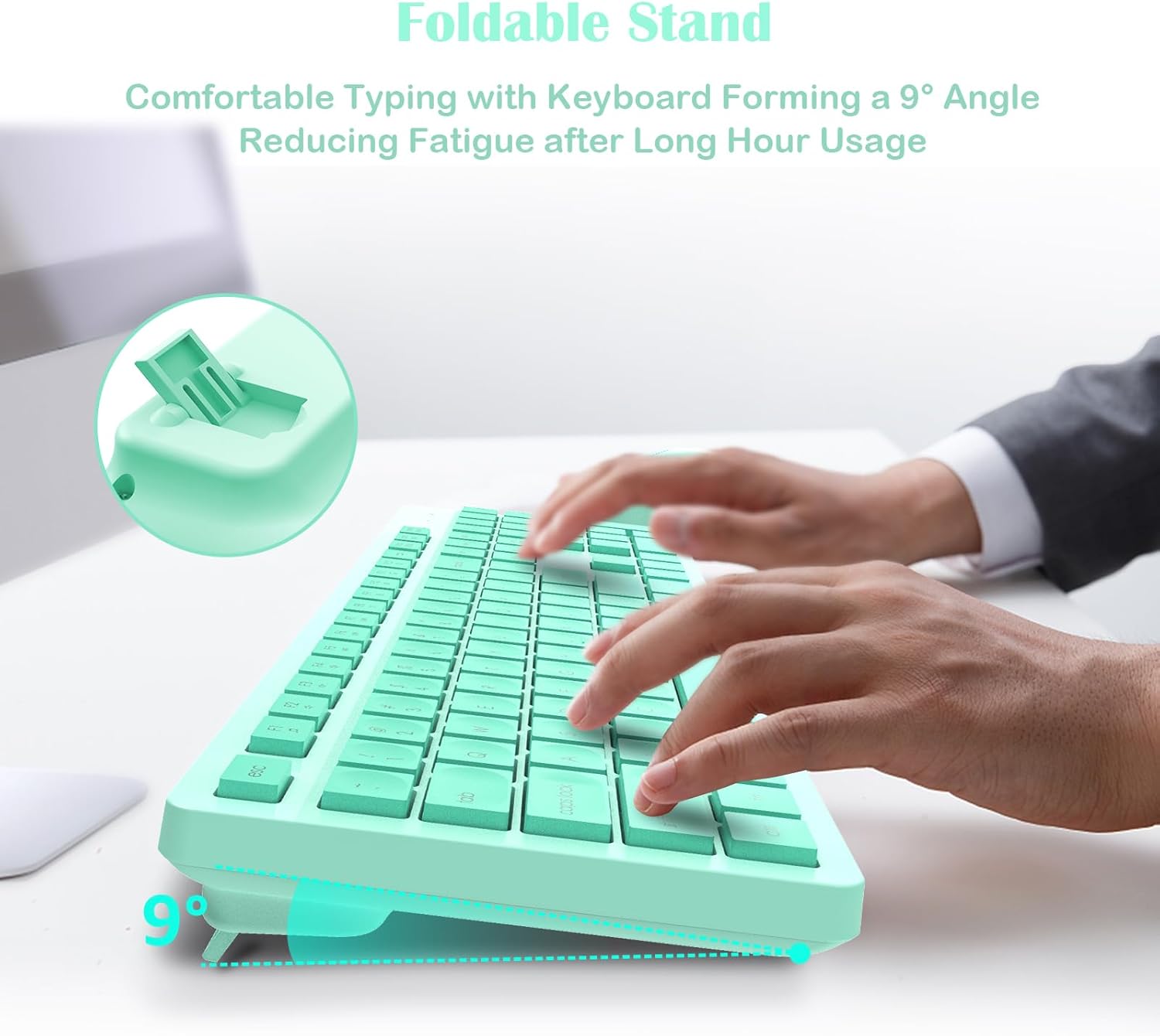
Image: The LeadsaiL K786 keyboard showcasing its foldable stand for comfortable typing at a 9-degree angle.
Multimedia Shortcut Keys
The full-size keyboard includes 12 multimedia shortcut keys to streamline your workflow:
- Play/Pause
- Volume Control
- And more...

Image: The LeadsaiL K786 wireless keyboard with callouts for its 12 multimedia keys, designed to increase efficiency.
Silent Mouse Operation
The optical mouse features silent micro-click technology, ensuring quiet operation ideal for shared spaces. It offers smooth, precise tracking with 1600 DPI sensitivity.
Auto Power-Saving
To conserve battery life, both the keyboard and mouse automatically enter sleep mode after 10 minutes of inactivity. Simply click any key on the keyboard or move/click the mouse to wake them up.
Indicators
The keyboard includes indicators for Num Lock, Caps Lock, and Low Battery to keep you informed of its status.
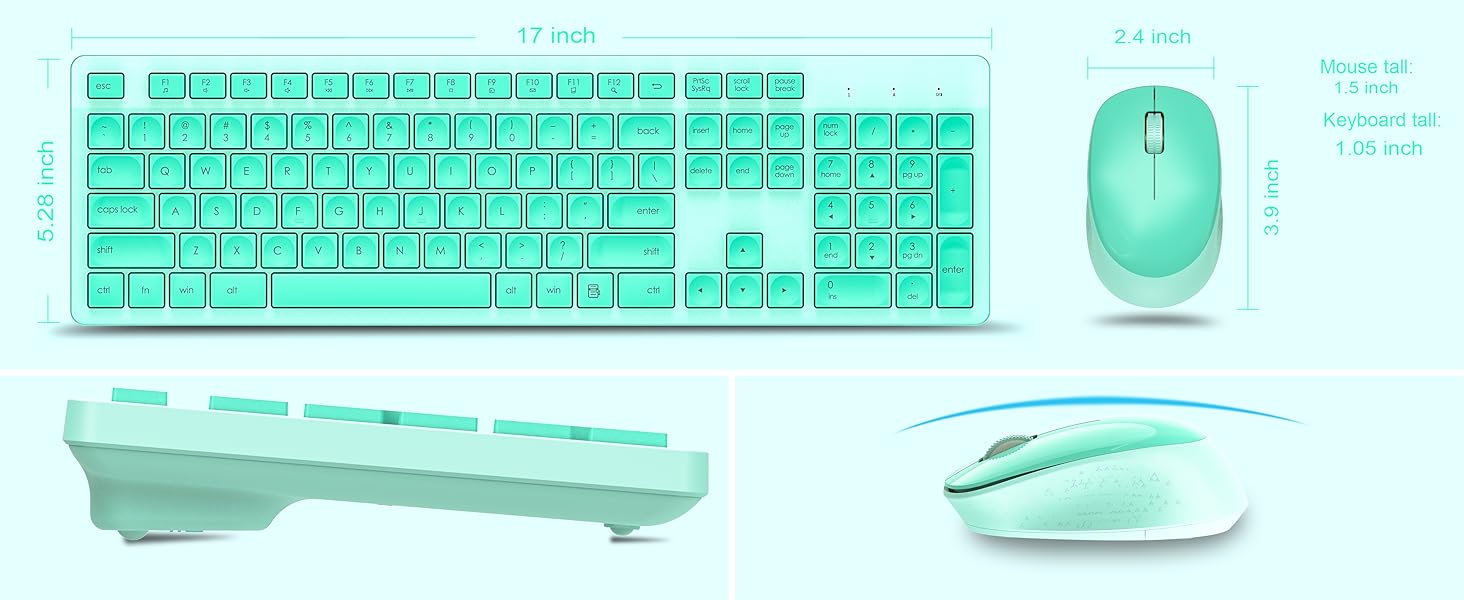
Image: Close-up of the LeadsaiL K786 keyboard's indicator lights for Num Lock, Caps Lock, and Low Battery.
Compatibility
The LeadsaiL K786 combo is broadly compatible with:
- Windows 11/10/8/7
- Mac OS
- Chrome OS
- Linux
It works seamlessly with desktops, laptops, notebooks, Chromebooks, MacBooks, and iMacs.
Maintenance
To ensure the longevity and optimal performance of your LeadsaiL K786 Wireless Keyboard and Mouse Combo, follow these simple maintenance guidelines:
- Cleaning: Use a soft, dry cloth to wipe down the surfaces of the keyboard and mouse. For stubborn dirt, a slightly damp cloth can be used, but ensure no moisture enters the device. Avoid harsh chemicals or abrasive cleaners.
- Battery Replacement: Replace batteries promptly when the low battery indicator illuminates to avoid interruption in use. Always use fresh, high-quality AAA batteries for the keyboard and AA batteries for the mouse.
- Storage: When not in use for extended periods, turn off the mouse using the ON/OFF switch on its underside to further conserve battery life. Store the USB receiver inside the mouse's battery compartment to prevent loss.
- Avoid Extreme Conditions: Do not expose the devices to extreme temperatures, direct sunlight, or high humidity. Keep them away from liquids and dust.
Troubleshooting
If you encounter any issues with your LeadsaiL K786 Wireless Keyboard and Mouse Combo, please try the following steps:
- No Connection:
- Ensure the USB receiver is securely plugged into a working USB port on your computer.
- Check if the mouse and keyboard are powered on using their respective ON/OFF switches.
- Replace the batteries in both the keyboard and mouse with fresh ones.
- Try plugging the USB receiver into a different USB port on your computer.
- Restart your computer.
- Lag or Intermittent Connection:
- Ensure there are no large metal objects or other wireless devices (like Wi-Fi routers) interfering with the 2.4GHz signal between the receiver and the devices.
- Move the keyboard and mouse closer to the USB receiver. The optimal range is up to 33 feet (10m).
- Replace batteries.
- Keys Not Responding:
- Check battery levels and replace if necessary.
- Ensure the keyboard is powered on.
- If specific keys are not working, gently clean around them to remove any debris.
- Mouse Not Tracking:
- Ensure the mouse is powered on and has fresh batteries.
- Clean the optical sensor on the underside of the mouse.
- Ensure you are using the mouse on a suitable surface (not clear glass or highly reflective surfaces).
If these steps do not resolve the issue, please refer to the Warranty and Support section for further assistance.
Specifications
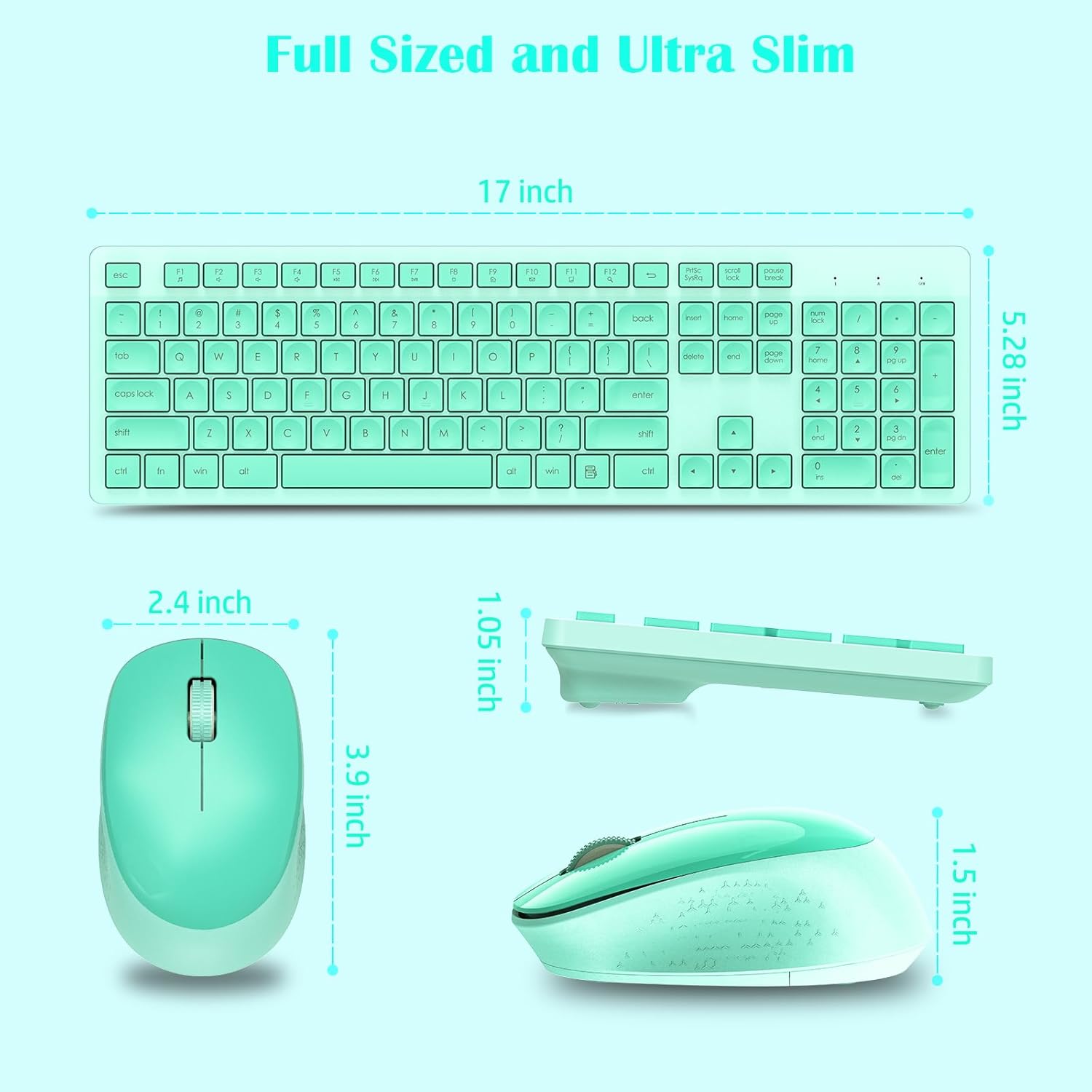
Image: The LeadsaiL K786 wireless keyboard and mouse, illustrating their full-size and ultra-slim dimensions.
| Feature | Detail |
|---|---|
| Product Dimensions | 16.93 x 5.04 x 0.98 inches |
| Item Weight | 1.59 pounds |
| Item Model Number | K786 |
| Keyboard Battery | 1 AAA battery (not included) |
| Mouse Battery | 1 AA battery (not included) |
| Connectivity Technology | 2.4GHz Wireless (USB Receiver) |
| Wireless Range | Up to 33 feet (10m) |
| Mouse DPI Sensitivity | 1600 DPI |
| Special Features | Lightweight, Portable, Ergonomic Design, Silent Click, Multimedia Keys, Auto Power-Saving |
| Compatible Devices | Laptop, Personal Computer (Windows 11/10/8/7, Mac OS, Chrome OS, Linux) |
Warranty and Support
The LeadsaiL K786 Wireless Keyboard and Mouse Combo is backed by a 12-month warranty. If you encounter any issues or require assistance, please contact LeadsaiL customer support via email for prompt support. Our team is dedicated to providing reliable assistance even after Amazon's return window.

