
Introduction
This manual provides detailed instructions for the SEUNKWANG EWEADN MK100 Wireless Low Profile Mechanical Keyboard. It covers setup, operation, maintenance, and troubleshooting to ensure optimal performance and user experience. The MK100 features 3-mode connectivity (Bluetooth, 2.4GHz wireless, USB-C wired), low-profile POM switches, white backlight, and compatibility with Windows and Mac operating systems.
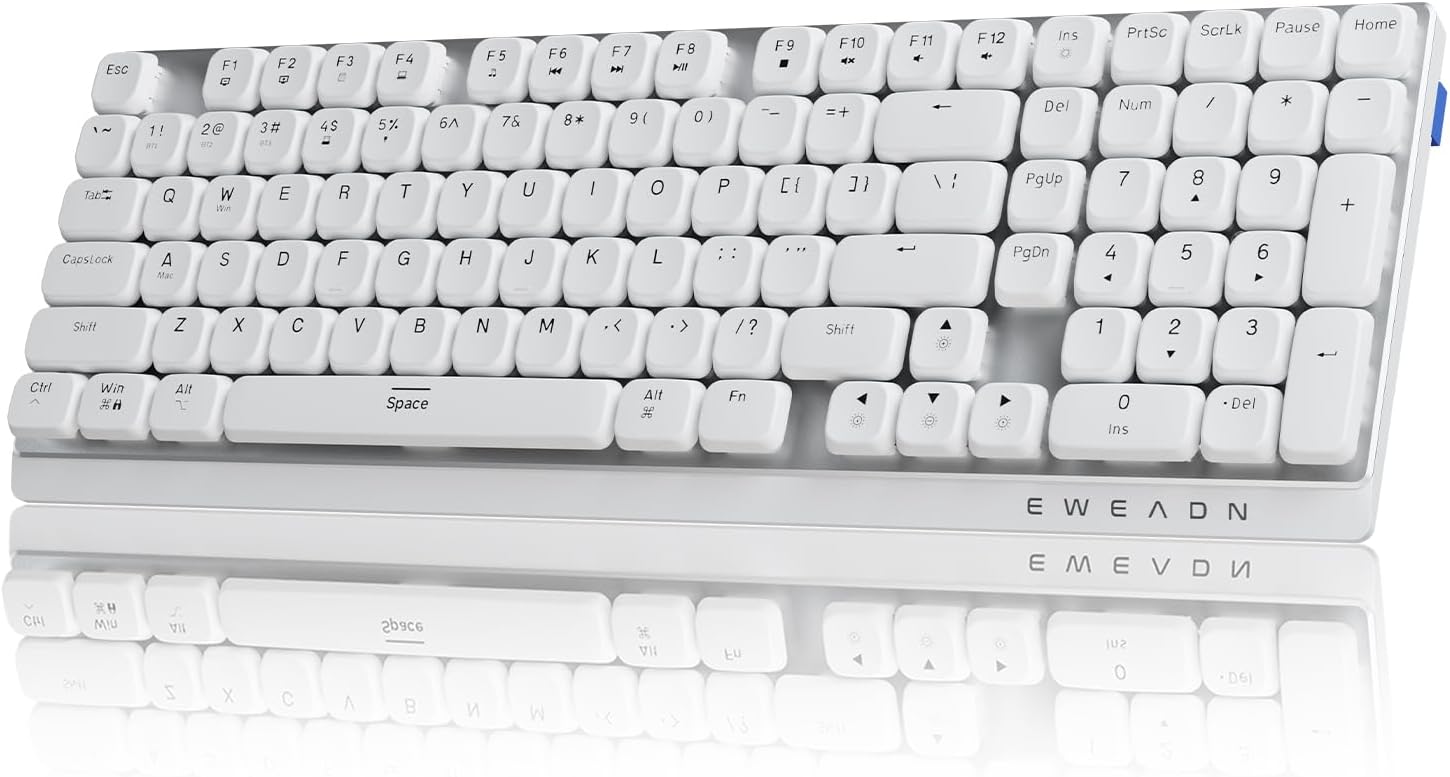
Image: The EWEADN MK100 Wireless Low Profile Mechanical Keyboard, showcasing its full layout and white keycaps.
Setup
1. Package Contents
- EWEADN MK100 Mechanical Keyboard
- USB-C Cable
- 2.4GHz USB Receiver (typically stored in the keyboard's battery compartment or a dedicated slot)
- Instruction Manual (this document)
2. Initial Charging
Before first use, it is recommended to fully charge the keyboard. Connect the provided USB-C cable to the keyboard's USB-C port and the other end to a powered USB port on your computer or a USB wall adapter. The keyboard features a 2000mAh battery.
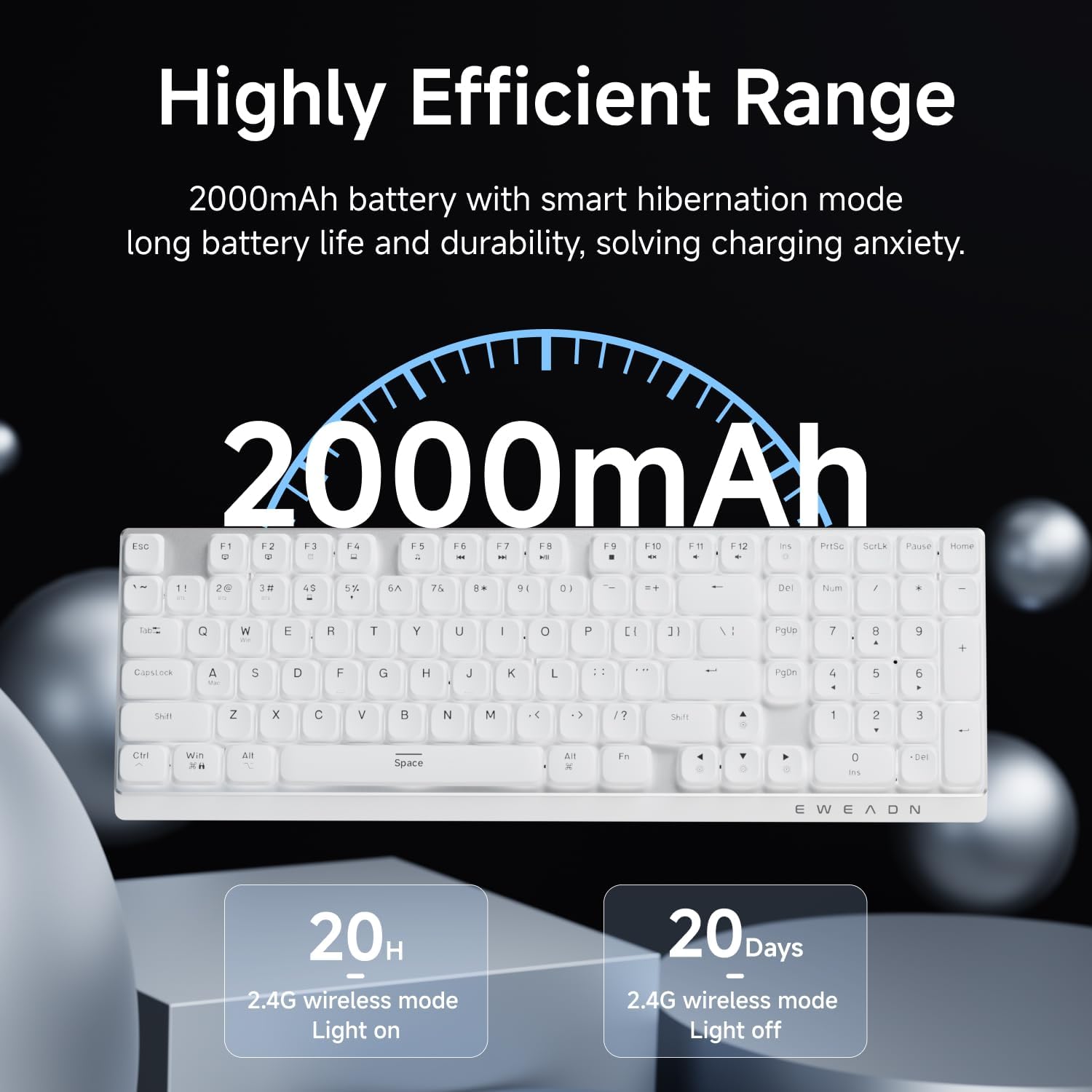
Image: Illustration of the keyboard's 2000mAh battery capacity and charging indication.
3. Connectivity Modes
The MK100 keyboard supports three connection methods:
- USB-C Wired Mode: Direct connection via the USB-C cable.
- 2.4GHz Wireless Mode: Uses the included USB receiver.
- Bluetooth 5.1 Mode: Connects wirelessly to compatible devices.

Image: Diagram illustrating the three connection modes: 2.4G wireless, USB-C wired, and Bluetooth 5.0.
3.1. 2.4GHz Wireless Connection
- Locate the 2.4GHz USB receiver. It is usually stored in a slot on the keyboard.
- Plug the USB receiver into an available USB port on your computer.
- Turn on the keyboard. The keyboard should automatically connect. If not, press FN + 4 to activate 2.4GHz mode.
3.2. Bluetooth Connection
- Turn on the keyboard.
- Press and hold FN + 1, FN + 2, or FN + 3 for 3-5 seconds to enter Bluetooth pairing mode. The indicator light will flash rapidly.
- On your device (computer, tablet, phone), open Bluetooth settings and search for "EWEADN MK100" (or similar).
- Select the keyboard to pair. The indicator light will stop flashing once connected.
- You can pair up to three Bluetooth devices and switch between them using FN + 1/2/3.
3.3. USB-C Wired Connection
- Connect the USB-C cable to the keyboard's port.
- Connect the other end of the USB-C cable to your computer's USB port.
- The keyboard will automatically switch to wired mode. This mode also charges the keyboard.
4. System Compatibility
The keyboard is compatible with Windows, macOS, iOS, and Android devices. To switch between Windows and Mac modes, press and hold FN + W/A.
The keyboard features two-level adjustable feet. Flip them out to adjust the typing angle for improved ergonomics and reduced hand fatigue.
Operating Instructions
1. Backlight Control
The MK100 features a white backlight with various modes and brightness levels.
- Brightness Adjustment: Use FN + ↑ (increase brightness) and FN + ↓ (decrease brightness).
- Mode Switching: Use FN + → (cycle through backlight modes) and FN + ← (cycle through backlight modes in reverse).
- Specific key combinations for backlight patterns may be detailed in the included quick start guide.
2. Function Keys
The F1-F12 keys have secondary functions accessible by pressing FN in combination with the desired F-key. Refer to the keycap legends for specific functions (e.g., media control, volume, application shortcuts).
3. Low Profile POM Switches
The keyboard is equipped with full POM low-profile mechanical switches, designed for a light touch pressure and smooth typing experience. These switches contribute to a quieter operation compared to traditional mechanical switches.

Image: Close-up view of the low-profile POM switches and keycaps on the EWEADN MK100 keyboard.
4. PBT Keycaps
The keyboard features double-shot PBT keycaps. This manufacturing process ensures that the keycap legends are durable, clear, and resistant to fading over time.
5. Anti-Ghosting
The MK100 supports full anti-ghosting, meaning multiple key presses are registered accurately and simultaneously, which is beneficial for fast typing and gaming.
Maintenance
1. Cleaning the Keyboard
- Disconnect the keyboard from all power sources and devices before cleaning.
- Use a soft, lint-free cloth slightly dampened with water or a mild cleaning solution to wipe the keycaps and chassis.
- For dust and debris between keys, use compressed air.
- Avoid using harsh chemicals, abrasives, or solvents, as these can damage the keycaps and finish.
2. Battery Care
- To prolong battery life, avoid fully discharging the keyboard frequently.
- Charge the keyboard using the provided USB-C cable.
- If storing the keyboard for an extended period, charge it to approximately 50% and store it in a cool, dry place.
Troubleshooting
1. Connectivity Issues (Wireless/Bluetooth)
- Keyboard not connecting:
- Ensure the keyboard is charged.
- Verify the correct mode is selected (FN + 1/2/3 for Bluetooth, FN + 4 for 2.4GHz).
- For 2.4GHz, ensure the USB receiver is securely plugged into a working USB port. Try a different USB port.
- For Bluetooth, ensure Bluetooth is enabled on your device and the keyboard is in pairing mode. Remove "EWEADN MK100" from your device's Bluetooth list and re-pair.
- Try restarting both the keyboard and your computer/device.
- Frequent disconnections:
- Ensure there are no strong wireless interferences (e.g., other 2.4GHz devices, Wi-Fi routers) nearby.
- Keep the keyboard within the effective range of the receiver/Bluetooth device.
- Ensure the keyboard battery is not low.
- Update Bluetooth drivers on your computer if applicable.
2. Keyboard Not Responding After Sleep Mode
- The keyboard may take a few seconds to wake up from deep sleep mode to conserve battery. Press any key and wait briefly for it to reconnect.
- If the delay is excessive or it fails to wake, try switching the connection mode or reconnecting via USB-C.
3. Keys Not Functioning / Faulty Switch
- Ensure the keyboard is clean and no debris is obstructing the key switch.
- If a specific key is consistently unresponsive, it might indicate a faulty switch. Contact customer support for assistance.
Specifications
| Model | MK100 |
| Connectivity | Bluetooth 5.1, 2.4GHz Wireless, USB-C Wired |
| Switches | Low Profile POM Mechanical Switches |
| Keycaps | Double-shot PBT |
| Backlight | White Backlight (Single Color) |
| Battery Capacity | 2000mAh |
| Compatible Devices | Windows, macOS, iOS, Android |
| Material | Aluminum, Plastic |
| Dimensions | 16.57 x 6.5 x 1.69 inches |
| Item Weight | 1.61 pounds |
| Manufacturer | EWEADN |
Support and Warranty
For technical support, warranty claims, or any questions regarding your SEUNKWANG EWEADN MK100 keyboard, please contact customer service through the following channels:
- Amazon Seller Page: Visit the SEUNKWANG store on Amazon and click the "Ask a question" option.
- Email Support: You can reach out via email at zack@eweadn.cn.
Please retain your proof of purchase for warranty purposes. Specific warranty terms and conditions may vary by region and retailer.

Image: Contact details for customer support, including Amazon seller page and email address.