
YABER V2
YABER V2 Mini Projector User Manual
Model: V2 | Brand: YABER
1. Introduction
Thank you for choosing the YABER V2 Mini Projector. This portable projector is designed to provide a versatile and immersive viewing experience, supporting Full HD 1080P resolution and offering wireless mirroring capabilities for various devices. Its compact design and advanced features make it ideal for home theaters, outdoor entertainment, gaming, and presentations. This manual provides detailed instructions for setup, operation, maintenance, and troubleshooting to ensure optimal performance and longevity of your device.
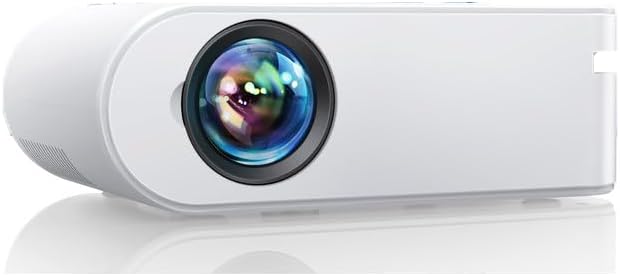
Image 1.1: Front view of the YABER V2 Mini Projector, showcasing its compact and sleek white design with the lens prominently featured.
2. Product Features
2.1 WiFi Connection & Wide Compatibility
The YABER V2 projector supports wireless connectivity for both iOS and Android devices, allowing you to wirelessly mirror movies, photos, games, and other content from your smartphone or Miracast-compatible devices onto a large screen. Equipped with HDMI, USB, VGA, AV, audio ports, and a TF card slot, this projector is compatible with TV sticks, laptops, smartphones, PS4, and various other devices, meeting diverse connectivity needs.

Image 2.1: Diagram illustrating the compact size of the YABER V2 projector and its wide compatibility with devices such as TV sticks, laptops, mobile phones, DVD players, Switch, Xbox/PS4, external speakers, Chromecast, USB disks, and headphones.
2.2 Native 1280×720p Resolution (Supports 1080p)
The V2 WiFi projector features a native 1280×720p resolution, with support for 1920×1080p input. It boasts high brightness, a 6,000:1 high contrast ratio, and supports 16:9 / 4:3 aspect ratios, providing a clearer and more detailed image for an exceptional visual experience.
2.3 Zoom Function & Portable Design
A built-in zoom function allows you to adjust the screen size from 100% to 75% using the remote control, eliminating the need to physically move the device. Weighing only 2.2 lbs, its compact and portable design makes it suitable for various settings, including home theaters, gaming, and parties.

Image 2.2: The YABER V2 projector in an outdoor setting, projecting an image onto a screen during an evening gathering, highlighting its portability and suitability for outdoor use.
2.4 Innovative SCT Projection Screen & High-Fidelity Sound
The V2 projector includes an SCT projection screen, which uses advanced light focusing technology to increase brightness and clarity by 25% when viewed from the front. This optimizes the projection effect and enhances image depth. The projector is also equipped with 3W dual stereo speakers and an SRS sound system, delivering a stunning auditory experience without external speakers.

Image 2.3: An overhead view of a couple relaxing on a couch, with the YABER V2 projector positioned to project an image onto the ceiling, illustrating the immersive surround stereo sound experience.
2.5 Smart Cooling System
The newly upgraded silent cooling system features three synchronously running fans, efficiently reducing operating noise while optimizing heat dissipation. This ensures long-term stable performance. The latest Smareco technology effectively reduces bulb power consumption, extending the light source lifespan up to 100,000 hours, significantly enhancing durability.
3. Setup Guide
3.1 Unpacking and Initial Inspection
- Carefully remove the projector and all accessories from the packaging.
- Check for any signs of damage during transit. If any damage is found, contact customer support immediately.
- Verify that all listed components are present: Projector unit, Remote control, Power cable, HDMI cable, AV cable, User manual.
3.2 Placement
Choose a stable, flat surface for the projector. Ensure adequate ventilation around the unit. The optimal projection distance for a clear image is approximately 2.95 meters (9.7 feet), which yields a screen size of about 100 inches. Refer to the projection distance chart for other sizes.

Image 3.1: A visual guide demonstrating various projection distances and corresponding screen sizes (e.g., 1.5m for 50", 2.15m for 72", 2.95m for 100", 3.95m for 120", 5.0m for 200"), along with examples of tabletop and ceiling mounting.
3.3 Power Connection
- Connect the power cable to the projector's power input port.
- Plug the other end of the power cable into a standard electrical outlet.
- The power indicator light on the projector will illuminate.
3.4 Connecting Devices
The YABER V2 projector offers multiple connectivity options:
- HDMI: Connect your laptop, TV stick, game console (PS4), or Blu-ray player using an HDMI cable.
- USB: Insert a USB flash drive to play media files directly.
- VGA: Connect older computers or laptops using a VGA cable.
- AV: Use the provided AV cable to connect devices with RCA outputs (e.g., DVD players).
- TF Card: Insert a TF (Micro SD) card into the dedicated slot.
- Audio Out: Connect external speakers or headphones via the 3.5mm audio jack.
4. Operating Instructions
4.1 Powering On/Off
- Power On: Press the power button on the projector or the remote control. The projector will start up, and the YABER logo will appear.
- Power Off: Press the power button again. A confirmation message may appear; select 'Yes' to shut down. Allow the fan to run for a few moments to cool down the lamp before unplugging.
4.2 Focus and Keystone Correction
- Focus: Rotate the focus ring on the projector lens until the projected image is clear and sharp.
- Keystone Correction: Adjust the keystone correction ring (if available) or use the digital keystone correction in the menu to correct trapezoidal distortion, ensuring a rectangular image.
4.3 Input Source Selection
After connecting your device, press the 'Source' button on the remote control or projector. Use the arrow keys to navigate and select the appropriate input source (e.g., HDMI1, USB, AV, VGA) and press 'OK'.
4.4 Wireless Screen Mirroring (iOS/Android)
To mirror your smartphone or tablet screen wirelessly:
- Ensure your projector and mobile device are connected to the same Wi-Fi network.
- On the projector's main menu, select 'Screen Mirroring' or 'Wireless Display'.
- For iOS devices (AirPlay): Open Control Center on your iPhone/iPad and tap 'Screen Mirroring' or 'AirPlay Mirroring'. Select the projector's name from the list.
- For Android devices (Miracast): Go to your Android device's settings, find 'Wireless Display', 'Cast', 'Smart View', or 'Screen Mirroring' (names vary by device). Select the projector's name from the list.
- The mobile device's screen will now be mirrored on the projector.

Image 4.1: A visual representation of the YABER V2 projector's wireless screen mirroring capability, showing a mobile phone and laptop wirelessly connected to the projector, displaying content on a large screen.
4.5 Adjusting Projection Size (Zoom Function)
Use the 'Zoom' function on the remote control to adjust the image size from 100% down to 75% without moving the projector. This is useful for fine-tuning the image to fit your screen or wall.
5. Maintenance
5.1 Lens Cleaning
Use a professional lens cleaning cloth or cotton swab with lens cleaning fluid. Do not touch the lens directly with your hands or use abrasive cleaners, as this can scratch the lens and affect image quality.
5.2 Ventilation and Dust
- Regularly check the ventilation ports for dust accumulation.
- Use a soft brush or compressed air to gently clean the vents to ensure proper airflow and prevent overheating.
- Do not block the ventilation openings during operation.
5.3 Storage
When not in use for extended periods, store the projector in a cool, dry, and dust-free environment. Use the original packaging or a protective case to prevent damage.
6. Troubleshooting
| Problem | Possible Cause | Solution |
|---|---|---|
| No image projected | Power cable loose; Incorrect input source; Device not connected properly. | Check power connection; Select correct input source; Reconnect HDMI/USB cable. |
| Image is blurry | Focus not adjusted; Projector too far/close to screen. | Adjust focus ring; Adjust projection distance. |
| Image is trapezoidal | Projector not perpendicular to screen. | Adjust keystone correction. |
| No sound | Volume too low; Muted; External speakers not connected; Audio format not supported. | Increase volume; Unmute; Check external speaker connection; Try different audio format. |
| Wireless mirroring fails | Not on same Wi-Fi network; Device compatibility issue; Network interference. | Ensure both devices are on the same Wi-Fi; Check device's mirroring capability; Try restarting router/projector. |
7. Specifications
| Feature | Value |
|---|---|
| Brand | YABER |
| Model | V2 |
| Native Resolution | 1280 x 720p |
| Supported Resolution | 1920 x 1080p |
| Image Contrast Ratio | 6000:1 |
| Aspect Ratio | 4:3 / 16:9 |
| Display Type | LED |
| Light Source Lifespan | Up to 100,000 hours |
| Connectivity Technology | Wi-Fi |
| Hardware Interface | HDMI, USB, VGA, AV, TF Card |
| Compatible Devices | TV sticks, laptops, smartphones, PS4, Miracast-compatible devices |
| Special Features | Lightweight, Built-In Wi-Fi, Built-In Speaker, Zoom Function |
| Built-in Speakers | 3W Dual Stereo Speakers with SRS Sound System |
| Form Factor | Portable |
| Mounting Type | Tabletop Mount |
| Parcel Dimensions | 31.5 x 22.3 x 13 cm |
| Item Weight | 1.92 kg (4.23 lbs) |
8. Warranty and Support
YABER products are designed and manufactured to the highest quality standards. For information regarding warranty coverage, technical support, or service inquiries, please refer to the warranty card included with your product or visit the official YABER website. Our customer service team is available to assist you with any questions or issues you may encounter.
Related documentsV2


Ask a question about this manual
Ask about setup, troubleshooting, compatibility, parts, safety, or missing instructions. Manuals+ will review the question and use this page’s manual context to help answer it.