
1. Introduction
This manual provides detailed instructions for the KEEPRO Stylus Pen, designed to enhance your iPad experience. Featuring USB-C fast charging, pixel-perfect precision, tilt sensitivity, and palm rejection, this stylus offers a natural and seamless writing and drawing experience. It also includes convenient shortcut functions for improved productivity.
2. Compatibility
The KEEPRO Stylus Pen is compatible with all iPad models released in 2018 or later. Please verify your iPad's model before use.
Compatible Models:
- iPad A16 (11th/10th/9th/8th/7th/6th Gen)
- iPad mini A17 Pro, iPad Mini (7th/6th/5th Gen)
- iPad Air (13-inch M3/M2, 11-inch M3/M2, 7th/6th/5th/4th/3rd Gen)
- iPad Pro (13-inch M5/M4, 11-inch M5/M4, 12.9-inch 3rd/4th/5th/6th Gen, 11-inch All Generations)

Image: Visual guide to compatible iPad models.
3. Product Overview
The KEEPRO Stylus Pen is designed for comfortable and efficient use. It features a sleek design with essential components for optimal performance.
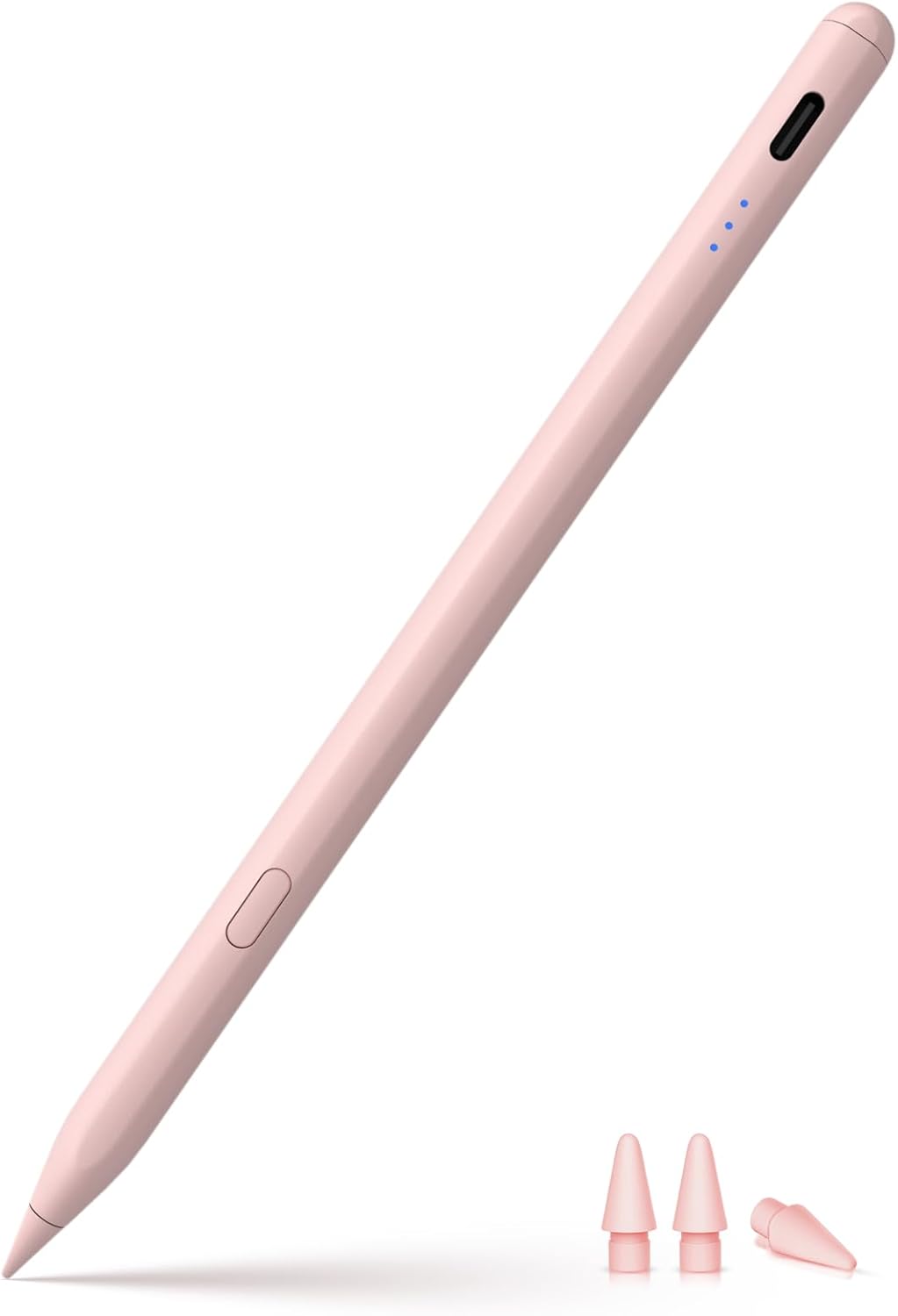
Image: KEEPRO Stylus Pen and included extra tips.
Components:
- Stylus Body: Ergonomically designed for comfortable grip.
- Control Button: Used for power ON/OFF and shortcut functions.
- LED Indicator Lights: Display battery status and connection status.
- USB-C Charging Port: For fast charging the stylus.
- Replaceable Tip: Provides pixel-perfect precision. Three extra tips are included.
4. Setup
4.1. Charging the Stylus
The KEEPRO Stylus Pen features USB-C fast charging. Use a compatible USB-C cable to charge the pen.
- Charges to 80% within 15 minutes.
- Fully charges within 30 minutes.
- Provides up to 10 hours of continuous use on a full charge.

Image: Stylus pen charging via USB-C.
4.2. Power On/Off
To turn the stylus ON or OFF, long press the control button for 3 seconds. The LED indicator lights will illuminate when powered on.
4.3. Bluetooth Pairing (for Advanced Features)
For full functionality, including battery percentage display on your iPad and shortcut features, connect the stylus via Bluetooth.
- Ensure your iPad's Bluetooth is enabled.
- Long press the control button on the stylus for 3 seconds to turn it ON. The indicator light will flash, indicating it's discoverable.
- On your iPad, go to Settings > Bluetooth.
- If you have previously connected an Apple Pencil, tap the "i" icon next to "Apple Pencil" and select "Forget this device" to disconnect it.
- Select "Pen-C" from the list of available devices to pair.
- Once connected, the indicator lights will stop flashing, and the battery percentage will be visible on your iPad.
Note: The stylus can be used directly without a Bluetooth connection for basic writing and drawing, but shortcut functions and battery display will not be available.
Video: Demonstrates the KEEPRO Stylus Pen's features including palm rejection, tilt sensitivity, smart doodle, one-click undo, quick screenshot, USB-C fast charging, and magnetic attachment.
5. Operation
5.1. Writing and Drawing
Once powered on and optionally paired, simply touch the stylus tip to your iPad screen to begin writing, drawing, or navigating. The stylus offers pixel-perfect precision and low latency for a smooth experience.
5.2. Tilt Sensitivity
The stylus supports tilt sensitivity, allowing you to adjust the thickness of your lines by tilting the pen, similar to a traditional pencil. This feature is ideal for shading and varied strokes in drawing applications.

Image: Illustration of tilt sensitivity.
Note: This pen does NOT have pressure sensitivity.
5.3. Palm Rejection
Rest your hand naturally on the iPad screen while using the stylus. The palm rejection feature ensures that only the stylus input is registered, preventing accidental marks from your hand.

Image: Demonstration of palm rejection.
5.4. Shortcut Functions (Requires Bluetooth Connection)
When connected via Bluetooth, the control button on the stylus enables convenient shortcut functions:
- One-Click Undo: Press the control button once to undo the previous action in compatible applications.
- Quick Screenshot: Swipe the stylus from the bottom left to the top right of the screen to capture a screenshot.
- Quick Memo: Double-tap the screen with the stylus to open the Notes app for a quick memo.

Image: Illustrates the intuitive side button for undo functionality.
6. Maintenance
6.1. Tip Replacement
The KEEPRO Stylus Pen uses replaceable tips. Three extra tips are included with your purchase. To replace a tip:
- Gently twist the old tip counter-clockwise to remove it.
- Align a new tip and twist it clockwise until it is securely in place. Do not overtighten.

Image: Close-up of the stylus tip, highlighting its compatibility and replaceability.
6.2. Cleaning
Wipe the stylus body with a soft, dry, lint-free cloth. Avoid using abrasive cleaners or solvents.
6.3. Storage
The KEEPRO Stylus Pen features magnetic attachment and can be conveniently stored on the side of compatible iPad models. This ensures it is always within reach and reduces the risk of misplacement.

Image: Stylus magnetically attached to an iPad.
Important: Magnetic attachment does NOT provide wireless charging for this model.
7. Troubleshooting
- Stylus not responding after turning on: If the pen does not work after turning on, ensure no other stylus (like an Apple Pencil) is connected to your iPad. Go to Settings > Bluetooth > Apple Pencil > tap "i" > Forget this device. Then re-pair the KEEPRO Stylus Pen.
- Shortcut functions not working: Ensure the stylus is successfully paired via Bluetooth to your iPad. Shortcut functions (one-click undo, quick screenshot, quick memo) require an active Bluetooth connection.
- Inaccurate or lagging performance: Check if the stylus tip is securely attached. If the issue persists, try replacing the tip with one of the spares provided. Ensure your iPad's software is up to date.
- Stylus not charging: Verify that the USB-C cable and power adapter are working correctly. Ensure the cable is fully inserted into the stylus's charging port.
- Accidental marks from palm: The stylus features palm rejection. Ensure your iPad's software is updated, and the stylus is properly connected.
8. Specifications
| Model | iPen-C |
| Dimensions (LxWxH) | 6.3 x 0.35 x 0.35 inches |
| Weight | 2.08 ounces |
| Material | Aluminum, Plastic |
| Battery Type | Lithium-Ion Polymer |
| Charging Time | 30 minutes (full charge), 15 minutes (80% charge) |
| Battery Life (Continuous Use) | Up to 10 hours |
| Auto Shut-off | After 5 minutes of inactivity |
9. Warranty and Support
For warranty information or technical support, please refer to the product packaging or contact KEEPRO customer service directly. You can typically find support contact details on the official KEEPRO website or through your purchase platform.
Manufacturer: Shenzhen shi Ruidian Tech Co., Ltd.