
1. Introduction
The SEUNKWANG EWEADN Q9 Wireless Clear Mouse is designed for versatile use across multiple devices, offering both Bluetooth and 2.4G wireless connectivity. Its transparent PC shell features multi-color RGB lighting, providing a modern aesthetic. The mouse is engineered for comfort, silent operation, and precise control, making it suitable for various environments from offices to gaming setups.
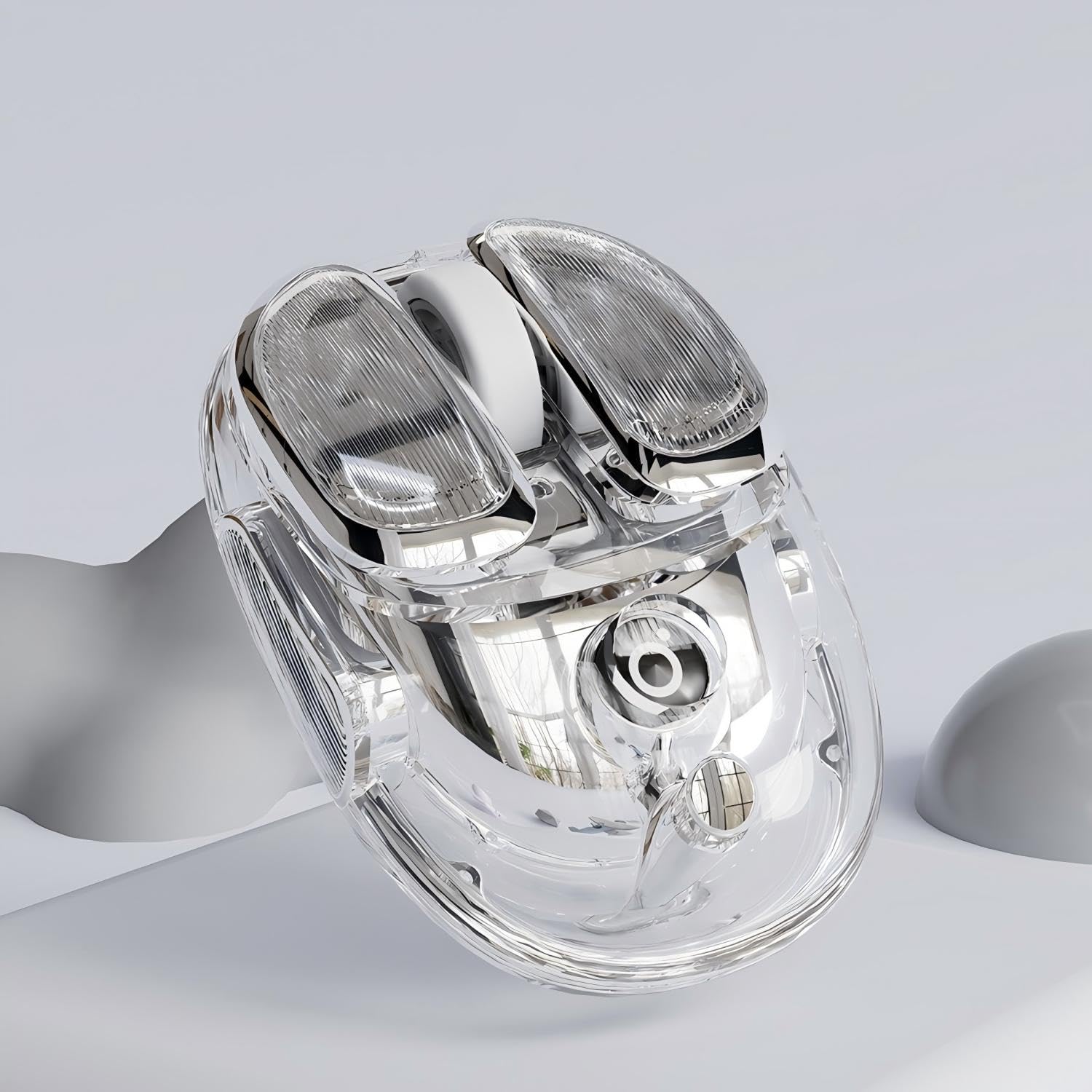
Figure 1: EWEADN Q9 Wireless Clear Mouse (Silver)
2. Setup
2.1 Connectivity Modes
The Q9 mouse supports dual-mode connectivity: Bluetooth (BT1, BT2) and 2.4G wireless. This allows seamless switching between up to three devices.

Figure 2: Dual-Mode Connectivity for up to 3 Devices
2.1.1 2.4G Wireless Connection
- Locate the USB 2.4G receiver. It is stored in a hidden compartment on the side of the mouse. Use a small tool (like the provided pick) to gently pry open the side panel and retrieve the receiver.
- Plug the 2.4G USB receiver into an available USB port on your computer or laptop.
- Flip the On/Off switch on the bottom of the mouse to the 'On' position.
- Press the 'Mode Switch' button on the bottom of the mouse until the indicator light turns red, indicating 2.4G mode.
- The mouse should automatically connect to your device.
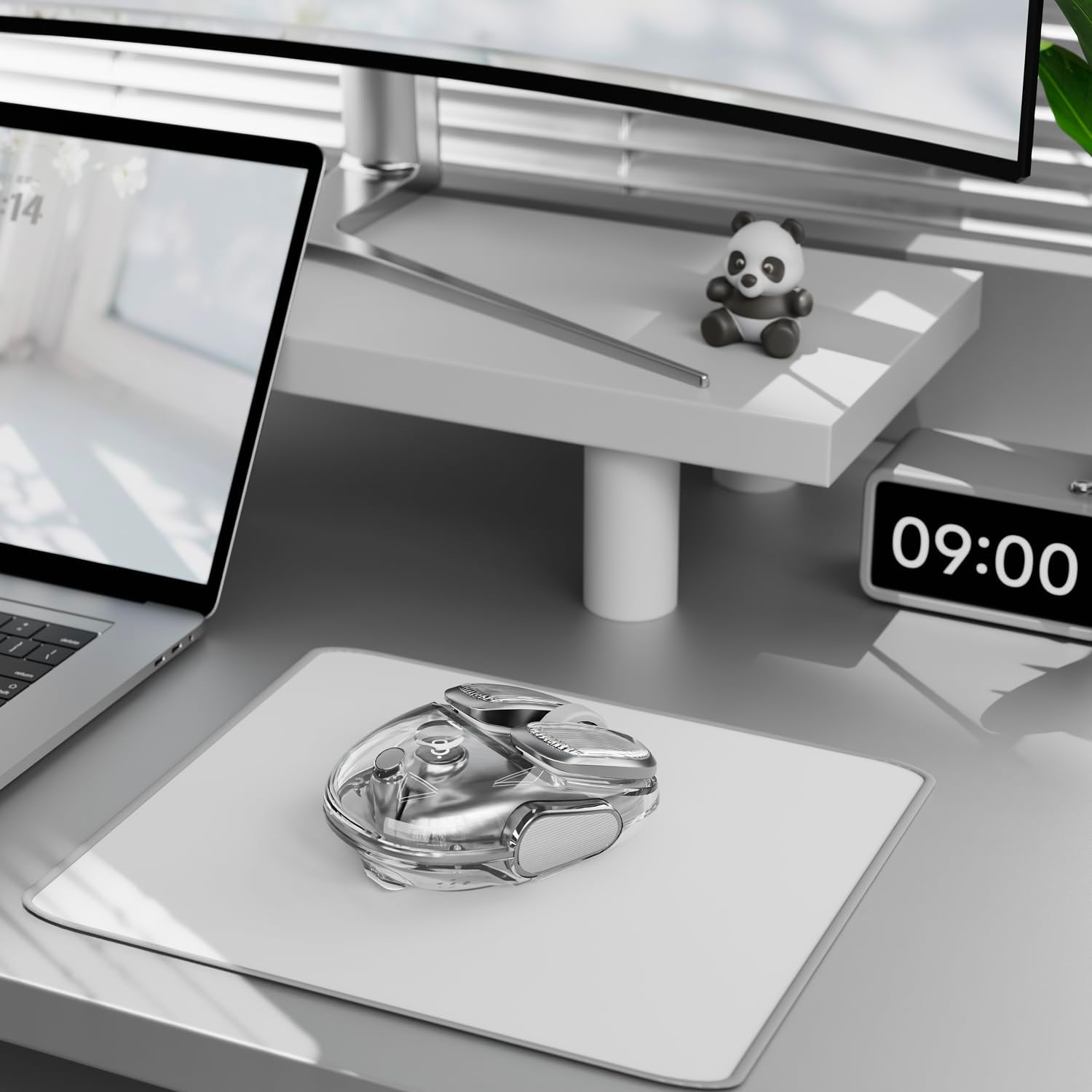
Figure 3: USB 2.4G Receiver Storage Location
2.1.2 Bluetooth Connection (BT1/BT2)
- Ensure the mouse is powered on using the On/Off switch on the bottom.
- Press the 'Mode Switch' button on the bottom of the mouse until the indicator light turns green (for BT1) or blue (for BT2).
- On your device (laptop, PC, MacBook, iPad), go to Bluetooth settings.
- Search for 'EWEADN Q9' in the list of available Bluetooth devices and select it to pair.
- Once paired, the mouse is ready for use. You can switch between BT1 and BT2 channels by pressing the 'Mode Switch' button.

Figure 4: Multi-OS Compatibility
2.2 Charging the Mouse
The Q9 mouse features a built-in 500mAh rechargeable battery. Use the provided USB-C charging cable to power the device.
- Connect the USB-C end of the cable to the charging port located near the scroll wheel on the front of the mouse.
- Connect the USB-A end of the cable to a power source (e.g., computer USB port, USB wall adapter).
- An LED indicator will display the charging status.

Figure 5: USB-C Charging Port
3. Operating Instructions
3.1 DPI Adjustment
The mouse offers adjustable DPI settings (800/1600/2400/4800) for precise control. To change the DPI, press the 'DPI Switch' button located on the bottom of the mouse. Each press cycles through the available DPI levels.

Figure 6: DPI Adjustment Button
3.2 Silent Clicks
The Q9 mouse features silent click buttons, minimizing noise for a quiet working or gaming environment.

Figure 7: Silent Click Design
3.3 RGB Lighting
The mouse is equipped with multi-color RGB breathing lights that cycle through various colors, adding a dynamic visual element to your workspace. The lighting can be turned off using the On/Off switch if preferred.
3.4 Auto-Sleep Function
To conserve battery life, the Q9 mouse features an auto-sleep function. After a period of inactivity, the mouse will automatically enter sleep mode. To wake it up, simply move or click the mouse.
3.5 Button Functions
The mouse includes 6 buttons for comprehensive control:
- Right Button: Standard right-click function.
- Left Button: Standard left-click function.
- Scroll Wheel: For vertical scrolling and middle-click.
- Receiver Storage: Compartment for the 2.4G USB receiver.
- DPI Switch: Adjusts mouse sensitivity (DPI levels).
- Mode Switch: Toggles between 2.4G, Bluetooth 1, and Bluetooth 2 modes.
- On/Off Switch: Powers the mouse on or off.
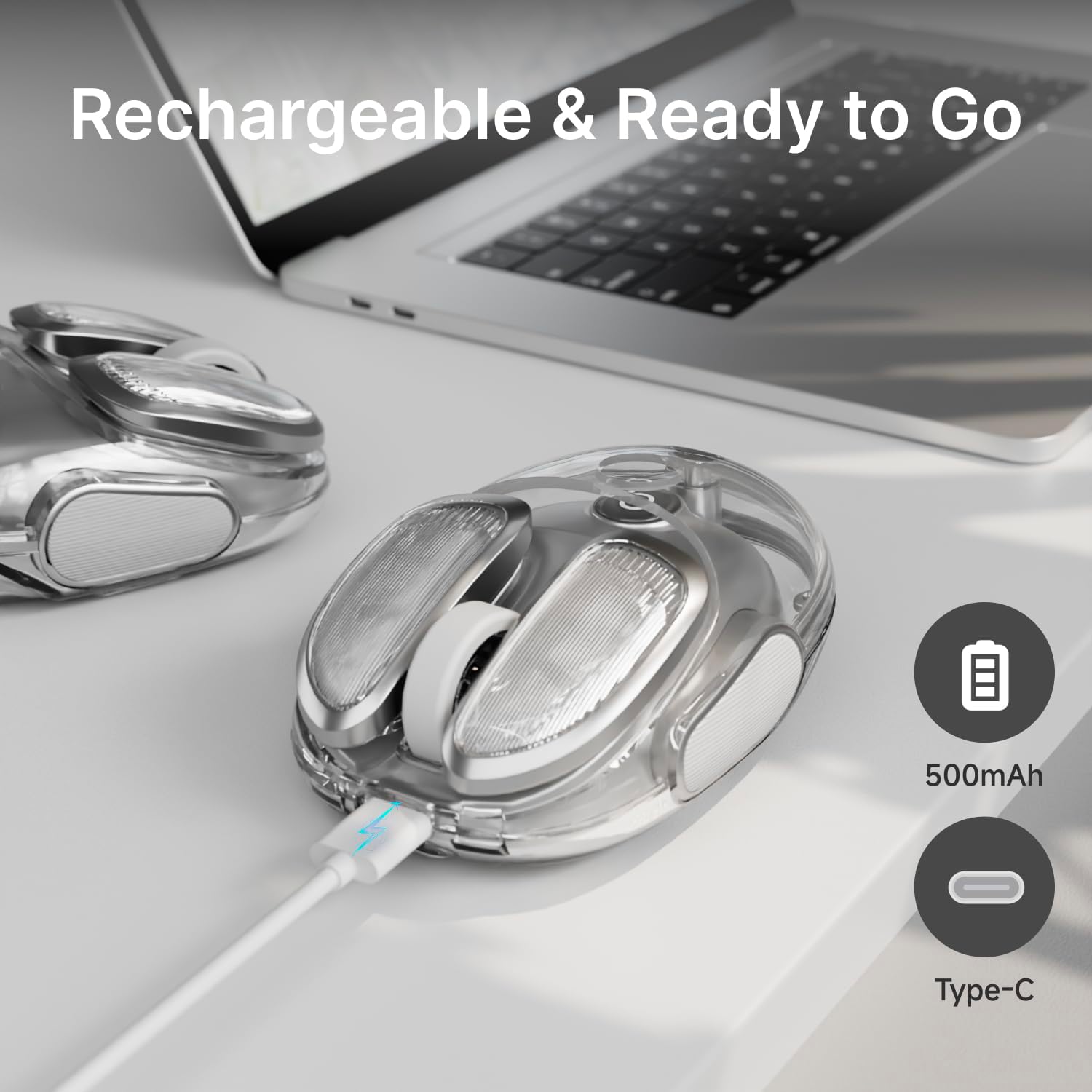
Figure 8: EWEADN Q9 Mouse Button Overview
4. Maintenance
To ensure the longevity and optimal performance of your EWEADN Q9 mouse, follow these simple maintenance guidelines:
- Cleaning: Use a soft, dry cloth to wipe the exterior of the mouse. For stubborn dirt, slightly dampen the cloth with water. Avoid using harsh chemicals or abrasive cleaners.
- Storage: When not in use, store the mouse in a clean, dry place away from extreme temperatures and direct sunlight.
- USB Receiver: Always store the 2.4G USB receiver in its designated compartment within the mouse to prevent loss or damage.
5. Troubleshooting
If you encounter any issues with your EWEADN Q9 mouse, please try the following steps:
- Mouse not responding: Ensure the mouse is powered on and fully charged. Check the connection mode (2.4G or Bluetooth) and ensure it matches your device's connection. For 2.4G, try re-inserting the USB receiver. For Bluetooth, try re-pairing the device.
- Intermittent connection: Move the mouse closer to your device to rule out range issues. Ensure there are no other devices causing interference.
- Cursor erratic or slow: Adjust the DPI settings using the DPI switch on the bottom of the mouse. Ensure the mouse is used on a clean, non-reflective surface.
- RGB lights not working: Check if the mouse is powered on. The lights may be in auto-sleep mode; move or click the mouse to wake it up.
If these steps do not resolve the issue, please refer to the Warranty and Support section for further assistance.
6. Specifications
| Model Number | Q9-02 |
| Connectivity Technology | 2.4G, Bluetooth |
| Compatible Devices | Gaming Console, Personal Computer, Smartphone, Tablet |
| Special Features | LED Lights, Lightweight, Portable, Rechargeable, Soundless, Touch Scroll, Wireless |
| Battery Capacity | 500mAh (Built-in rechargeable) |
| DPI Settings | 800/1600/2400/4800 |
| Item Weight | 7.8 ounces |
| Package Dimensions | 4.84 x 4.53 x 2.44 inches |
| Color | Silver |
| Material | Metal, Plastic |
| Included Components | USB-C Charging Cable |
7. Warranty and Support
For warranty information, troubleshooting assistance beyond the basic steps, or any other product-related inquiries, please contact the seller, Yiershi Store, directly through the Amazon platform. They offer comprehensive after-sales support including pre-sales Q&A, troubleshooting, accessories reissue, and returns/exchanges.

Figure 9: Customer Support Contact Details
Official Product Video
Video 1: Overview of the EWEADN Q9 Wireless Mouse features and aesthetics.