
JCHICI 1x3 HDMI Switch 4k
JCHICI HDMI Switch 3 in 1 Out User Manual
Model: 1x3 HDMI Switch 4k
1. Introduction
The JCHICI HDMI Switch 3 in 1 Out is designed to expand your display's HDMI input capabilities, allowing you to connect up to three HDMI source devices to a single HDMI display. This switcher supports high-resolution video up to 4K@60Hz, including HDR and 3D, and delivers high-fidelity audio. With convenient auto-switching, remote control, and button switching options, it provides a seamless multimedia experience for gaming consoles, Blu-ray players, PCs, and more.

Figure 1: JCHICI HDMI Switch 3 in 1 Out, showing the main unit, remote control, and USB power cable.
2. Package Contents
Please verify that all items are present in the package:
- HDMI Switch Unit (1)
- Remote Control (1)
- USB Power Cable (1)
- Anti-slip Pads (4)
- English/Japanese User Manual (1)
3. Product Features
- 3 Inputs 1 Output: Connects up to three HDMI source devices to one HDMI display.
- 4K@60Hz Ultra HD: Supports 4K@60Hz, 2K@120Hz, and 1080P@240Hz resolutions with HDR/3D. Backward compatible with 480p to 4K@30Hz.
- High-Fidelity Audio: Supports DTS 5.1/7.1, Dolby Digital (including DTS-HD & Dolby TrueHD), and uncompressed LPCM 5.1/7.1.
- Multiple Switching Methods: Includes remote control, manual button, and intelligent auto-switching (can be disabled).
- Wide Compatibility: Compatible with PS5/PS4/PS3, Xbox, Nintendo Switch, Fire TV, PCs, cameras, monitors, HDTVs, projectors, and VR headsets.
- 18Gbps High-Speed Transfer: HDMI 2.0 certified with HDCP 2.2 support.
- Plug-and-Play: No additional drivers or software required.
4. Setup and Installation
Follow these steps to set up your HDMI Switch:
- Connect HDMI Input Devices: Connect up to three HDMI source devices (e.g., gaming console, Blu-ray player, PC) to the HDMI INPUT 1, INPUT 2, and INPUT 3 ports on the HDMI Switch.
- Connect HDMI Output Display: Connect an HDMI cable from the HDMI OUTPUT port on the switch to the HDMI input port on your display (e.g., TV, monitor, projector).
- Connect Power: Connect the provided USB power cable to the DC/5V port on the HDMI Switch and then to a 5V USB power adapter (not included) or a USB port on your display/device.
- Apply Anti-slip Pads: For stability, attach the four anti-slip pads to the bottom of the HDMI Switch.

Figure 2: Connection diagram for the HDMI Switch, illustrating inputs from various devices and output to a display.

Figure 3: Product interface description, highlighting DC 5V Power, HDMI Output, and HDMI Input ports, along with LED indicators and the input switching button.
Important Note: Ensure all HDMI cables used are version 2.0 or higher to support 4K@60Hz and 18Gbps bandwidth for optimal performance.
5. Operating Instructions
The HDMI Switch offers three methods for switching between input sources:
5.1. Button Switching
Press the "SELECT" button on the front panel of the HDMI Switch to cycle through the connected input sources (Input 1, Input 2, Input 3).
5.2. Remote Control Switching
Use the provided remote control to switch inputs. Point the remote towards the IR receiver on the HDMI Switch.
- Press the corresponding number button (1, 2, or 3) to directly select an input.
- The "Power" button turns the unit on/off.
- The "AUTO" button toggles the auto-switching function.
- The "IR" button toggles the infrared remote control reception.

Figure 4: Overview of the three switching methods: Button Switching, Remote Control Switching, and Automatic Switching.

Figure 5: Wide compatibility of the HDMI Switch with input devices like laptops, PCs, TV boxes, PS&Switch, Steam Deck, security cameras, and output devices such as monitors, HDTVs, projectors, and VR headsets.
5.3. Auto-Switching
When enabled, the switch will automatically detect and switch to the newly active HDMI input source. If multiple sources are active, it will prioritize the last active one. This feature can be turned off using the remote control's "AUTO" button if undesired.
5.4. Indicator Lights
The LED indicators on the front panel show which input is currently active (1, 2, or 3), and the status of AUTO and IR functions.

Figure 6: Visual comparison demonstrating the enhanced clarity and color depth of 4K Ultra HD with HDR+ compared to 1080p Full HD.
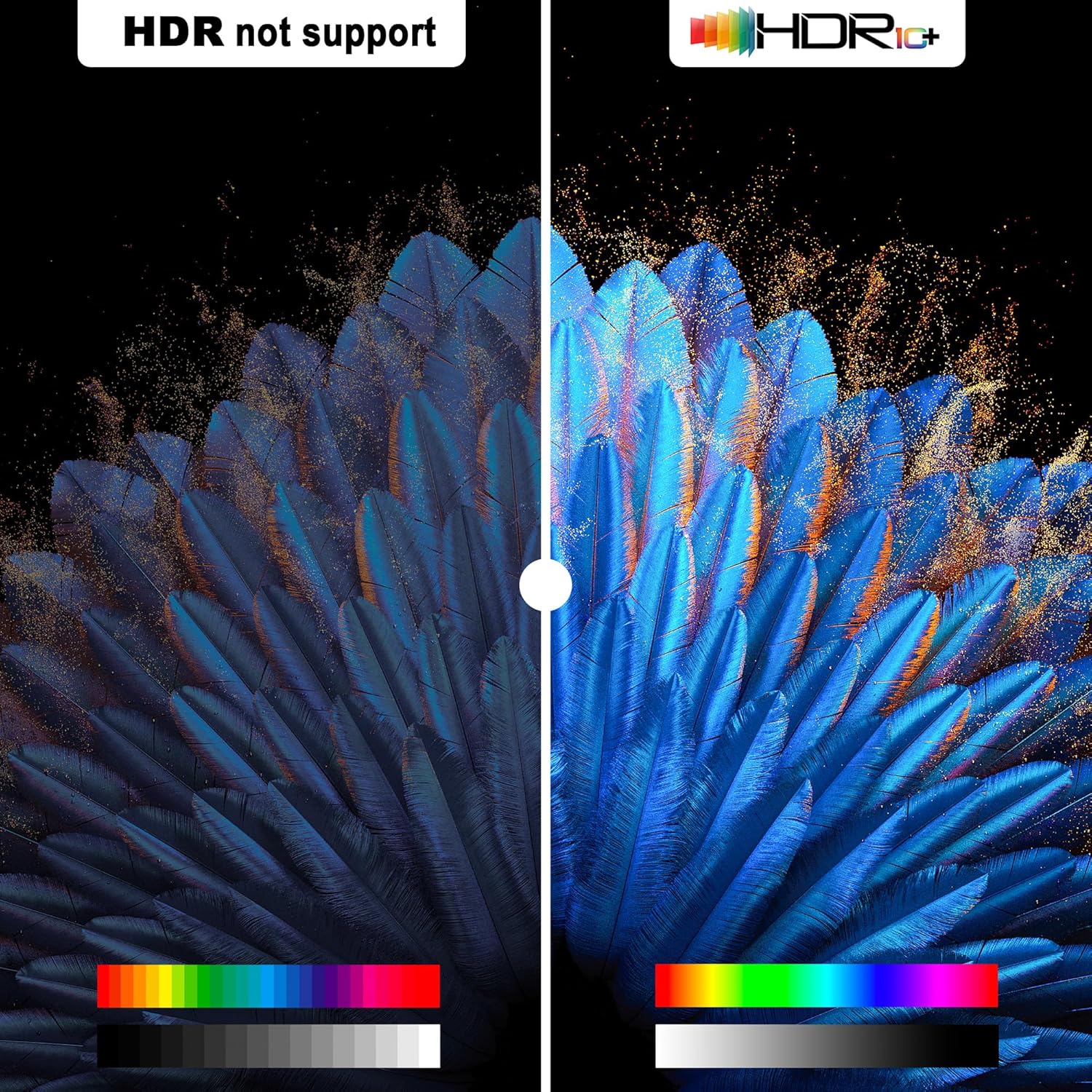
Figure 7: Illustrates the difference in visual quality between content without HDR support and with HDR+ support, showing richer colors and contrast.
Video 1: Demonstrates the JCHICI HDMI Switch in action, highlighting its 3-in-1 functionality, 4K@60Hz support, and various switching methods for gaming and movies.
6. Maintenance
- Keep the device in a cool, dry place away from direct sunlight and heat sources.
- Clean the unit with a soft, dry cloth. Do not use liquid or aerosol cleaners.
- Ensure proper ventilation around the device to prevent overheating.
- Avoid placing heavy objects on top of the switch.
7. Troubleshooting
| Problem | Possible Cause | Solution |
|---|---|---|
| No video or audio output. |
|
|
| Remote control not working. |
|
|
| Auto-switching not functioning as expected. |
|
|
| Image flickering or distortion. |
|
|
8. Specifications
| Feature | Detail |
|---|---|
| Brand | JCHICI |
| Model | 1x3 HDMI Switch 4k |
| Connector Type | HDMI |
| Number of Ports | 4 (3 Input, 1 Output) |
| HDMI Version | HDMI 2.0 |
| Bandwidth | 18Gbps |
| HDCP Support | HDCP 2.2 |
| Supported Resolutions | 4K@60Hz, 2K@120Hz, 1080P@240Hz (backward compatible) |
| HDR/3D Support | Yes |
| Audio Formats | DTS 5.1/7.1, Dolby Digital (DTS-HD & Dolby TrueHD), LPCM 5.1/7.1 |
| Switching Methods | Manual Button, Remote Control, Auto-Switching |
| Power Supply | DC 5V (via USB cable) |
| Item Weight | 9.6 ounces |
| Package Dimensions | 7.2 x 4.88 x 1.77 inches |
| Country of Origin | China |
9. Warranty and Support
The JCHICI HDMI Switch comes with a 24-Month Warranty. For any technical assistance or support inquiries, please contact JCHICI customer service via Amazon. Our US-based support team is available to provide lifetime technical assistance.
For further information or to report an issue, please visit the JCHICI Store on Amazon.
Ask a question about this manual
Ask about setup, troubleshooting, compatibility, parts, safety, or missing instructions. Manuals+ will review the question and use this page’s manual context to help answer it.