
ATTACK SHARK X68HE
ATTACK SHARK X68PRO HE Rapid Trigger Wireless Keyboard User Manual
Model: X68HE
Introduction
This manual provides detailed instructions for the setup, operation, and maintenance of your ATTACK SHARK X68PRO HE Rapid Trigger Wireless Keyboard. Designed for high-performance gaming, this keyboard features magnetic switches, adjustable actuation, and multi-mode connectivity.
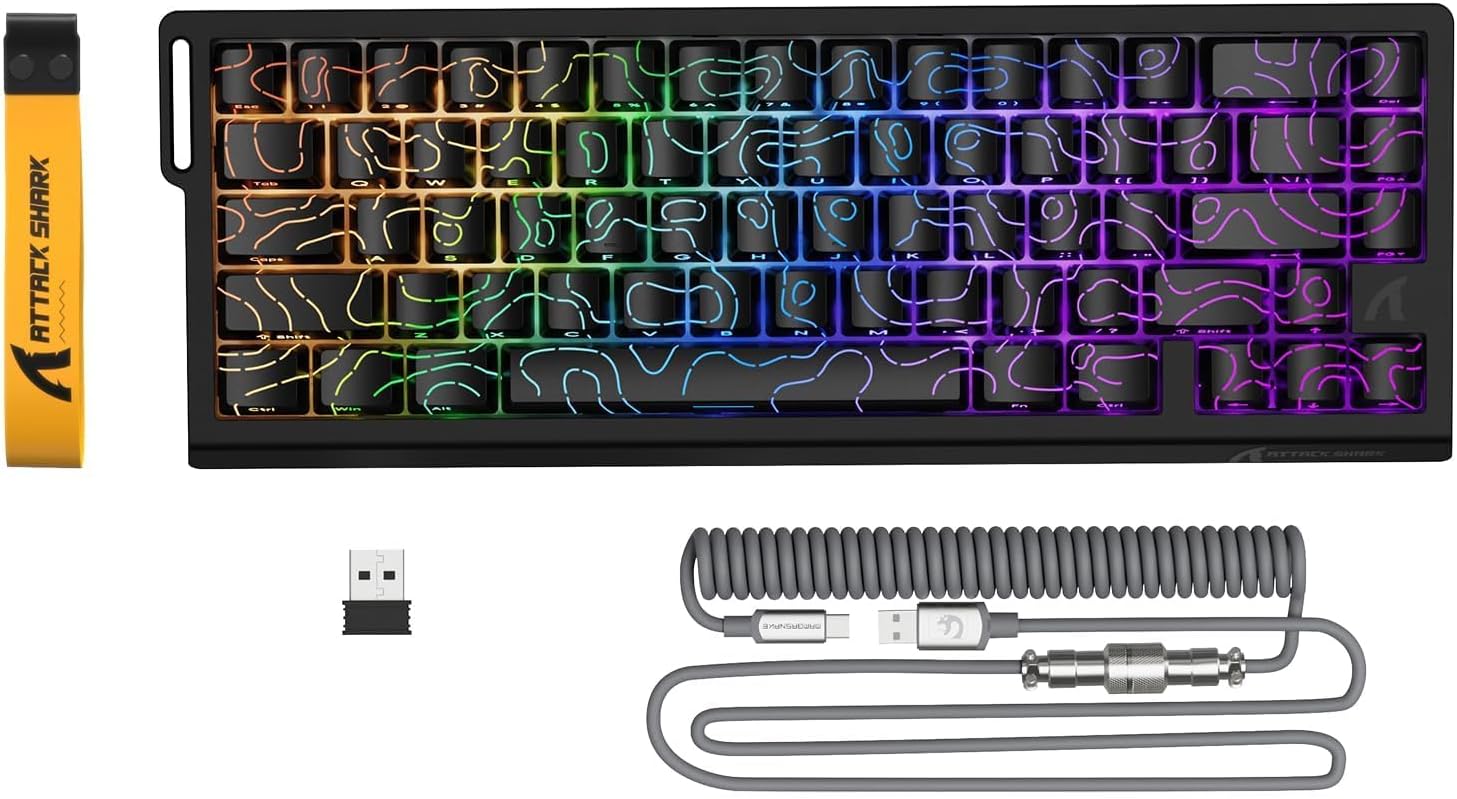
Image: The ATTACK SHARK X68PRO HE keyboard, showing its compact layout, along with the USB receiver and coiled USB-C cable.
Package Contents
- ATTACK SHARK X68PRO HE Keyboard
- USB-C Coiled Cable
- 2.4GHz Wireless Receiver
- Keycap Puller
- User Manual (this document)
Setup
Connectivity Options
The X68PRO HE keyboard supports three connectivity modes: 2.4GHz wireless, Bluetooth, and USB-C wired.

Image: The keyboard connected to a laptop via USB-C, with icons indicating 2.4G wireless and Bluetooth connectivity options.
1. USB-C Wired Connection
- Connect the provided USB-C coiled cable to the keyboard's USB-C port.
- Connect the other end of the cable to an available USB port on your computer.
- The keyboard will automatically be detected and ready for use. This mode supports an 8000Hz polling rate.
2. 2.4GHz Wireless Connection
- Locate the 2.4GHz wireless receiver (dongle) included in the package.
- Plug the receiver into an available USB port on your computer.
- On the keyboard, switch to 2.4G wireless mode using the side button or by pressing FN + R.
- The keyboard will connect automatically. This mode supports a 1000Hz polling rate.
3. Bluetooth Connection
- On the keyboard, switch to Bluetooth mode by pressing FN + Q, FN + W, or FN + E to select one of three available Bluetooth channels.
- The keyboard's indicator light will flash, indicating it is in pairing mode.
- On your device (computer, tablet, etc.), open Bluetooth settings and search for "ATTACK SHARK X68PRO HE".
- Select the keyboard to pair. Once paired, the indicator light will become solid.
- You can switch between paired Bluetooth devices using FN + Q/W/E. This mode supports a 1000Hz polling rate.
Operating Instructions
Rapid Trigger and Adjustable Actuation
The X68PRO HE features Hall Effect magnetic switches with 0.01mm trigger accuracy and adjustable actuation from 0.1mm to 3.4mm. This allows for precise control and rapid key presses, ideal for gaming.

Image: A visual comparison illustrating the difference between a regular switch and a rapid trigger switch, highlighting the instant reset capability of the latter for improved accuracy in games.

Image: A detailed view of the adjustable magnetic switch, showing its linear type, 100 million click lifespan, 0.1-3.4mm actuation range, and support for N-pole-down magnetic switches.
Adjustments for Rapid Trigger sensitivity, Dynamic Keystrokes (DKS), Mod-Tap (MT), and Toggle Key (TGL) can be made via the dedicated QMK web driver. Refer to the "Driver Customization" section for more details.
Polling Rate and Latency
The keyboard offers an 8000Hz polling rate in wired mode and 1000Hz in wireless modes, ensuring ultra-low latency of 0.125ms for quick response times.

Image: The keyboard with a graphic illustrating the 8000Hz polling rate and 0.125ms response time, emphasizing its speed.
RGB Lighting Control
The X68PRO HE features south-facing RGB lighting with 16.8 million color options and over 20 dynamic effects. You can customize these effects using the following key combinations:
- FN + \|: Switch Light Mode
- FN + Backspace: Light on/off
- FN + -/=: Backlit Speed +/-
- FN + Enter: Switch Light Color
- FN + Tab: White Light
- FN + ↑/↓: Backlit Brightness +/-

Image: The keyboard displaying its dynamic RGB lighting effects, with a diagram showing the key combinations for controlling light modes, colors, speed, and brightness.
Driver Customization (QMK Web Driver)
The keyboard supports customization via a QMK web driver, allowing you to adjust key functions, macros, RGB effects, and more without software downloads. The hot-swappable PCB also allows for changing magnetic switches.
To access the driver, visit: bit.ly/X68HESOFT

Image: Screenshots of the QMK web driver interface, demonstrating options for key settings, stroke settings, shaft settings, macros, and RGB lighting customization.
Maintenance
- Cleaning: Use a soft, dry cloth to wipe down the keyboard. For deeper cleaning, use a keycap puller to remove keycaps and compressed air to clear debris.
- Storage: Store the keyboard in a cool, dry place away from direct sunlight and extreme temperatures.
- Battery Care: The keyboard is powered by a 3000mAh battery. For optimal battery life, avoid fully discharging the battery frequently. Charge it regularly using the provided USB-C cable.
- Switch Replacement: The keyboard is hot-swappable. If a switch needs replacement, gently pull it out using a switch puller and insert a new compatible magnetic switch.
Troubleshooting
| Problem | Possible Cause | Solution |
|---|---|---|
| Keyboard not responding (Wired) | Loose cable connection; Faulty USB port; Driver issue. | Ensure USB-C cable is securely connected. Try a different USB port. Restart your computer. |
| Keyboard not responding (Wireless) | Low battery; Receiver not plugged in; Incorrect mode selected; Pairing issue. | Charge the keyboard. Ensure 2.4GHz receiver is plugged in or Bluetooth is paired. Switch to the correct mode (FN+R for 2.4G, FN+Q/W/E for Bluetooth). Re-pair if necessary. |
| RGB lighting not working | Lighting turned off; Software conflict. | Press FN + Backspace to toggle lighting. Check driver settings for RGB customization. |
| Keys not registering or double-typing | Debris under keycap; Faulty switch; Software calibration issue. | Clean under the keycap. If hot-swappable, try replacing the switch. Recalibrate actuation points via the QMK web driver. |
| Poor wireless range/connection | Interference; Distance from receiver. | Move closer to the receiver. Remove obstacles between keyboard and receiver. Avoid placing near other wireless devices. |
Specifications

Image: The back of the product packaging, displaying key specifications and manufacturer information.
| Feature | Detail |
|---|---|
| Model | X68PRO HE |
| Layout | 60% ANSI, 66 Keys |
| Switch Type | Hall Effect Amber Magnetic Switches |
| Actuation Range | 0.1mm - 3.4mm (Adjustable) |
| Trigger Accuracy | 0.01mm |
| Polling Rate (Wired) | 8000Hz |
| Polling Rate (Wireless) | 1000Hz (2.4GHz & Bluetooth) |
| Latency | 0.125ms |
| Connectivity | USB-C Wired, 2.4GHz Wireless, Bluetooth |
| Battery Capacity | 3000mAh |
| Backlighting | RGB (16.8 million colors, 20+ effects) |
| Keycaps | Dye-sub PBT |
| Dimensions | 32.5 x 11.8 x 4 cm |
| Weight | 1.12 kg |
| Compatible OS | Windows, macOS |
Warranty and Support
ATTACK SHARK products come with a standard manufacturer's warranty. For specific warranty terms and conditions, please refer to the warranty card included with your product or visit the official ATTACK SHARK website.
For technical support, troubleshooting assistance, or warranty claims, please contact ATTACK SHARK customer service through their official channels. You can find contact information on the product packaging or their website.
Manufacturer: ATTACK SHARK
Item Model Number: X68HE
ASIN: B0DZSY3HW4
Related documentsX68HE


Ask a question about this manual
Ask about setup, troubleshooting, compatibility, parts, safety, or missing instructions. Manuals+ will review the question and use this page’s manual context to help answer it.