
1. Introduction
This manual provides essential information for the safe and efficient operation of your Xiaomi L1 Pro Portable Projector. Please read it thoroughly before using the device and retain it for future reference.

The Xiaomi L1 Pro Portable Projector, showcasing its compact design and front lens.
2. Key Features
- Google TV & Voice Control: Integrated Google TV for seamless content access and Google Assistant for voice commands.
- 400 ISO Lumens Brightness: Certified brightness for clear visuals in various lighting conditions.
- Full HD 1080p Resolution: Delivers crisp and detailed images, supporting up to 120-inch projection.
- 4 Automatic Correction Functions: Includes auto vertical/horizontal trapezoid correction, focusing adjustment, screen fit, and obstacle detection.
- Connectivity: Features USB 2.0, HDMI 2.1 (ARC), and a 3.5mm headphone jack.

An overview of the Xiaomi L1 Pro Projector's key features, including Google TV, optical engine, brightness, auto-focus, and keystone correction.
3. Setup
3.1 Unboxing and Initial Inspection
Carefully remove all components from the packaging. Verify that all items listed in the packing list are present and undamaged. The package typically includes the projector unit, remote control, power adapter, and user manual.
This video provides an overview of the Xiaomi Smart Projector L1 Pro, including its unboxing, physical features, and demonstrations of projected content.
3.2 Power Connection
- Connect the power adapter to the 'DC IN' port on the projector.
- Plug the 3-pin power cord into a grounded electrical outlet.
3.3 Initial Placement
Place the projector on a stable, flat surface. Ensure there are no obstructions in front of the lens or around the ventilation areas. The projector will automatically adjust the image for optimal viewing.
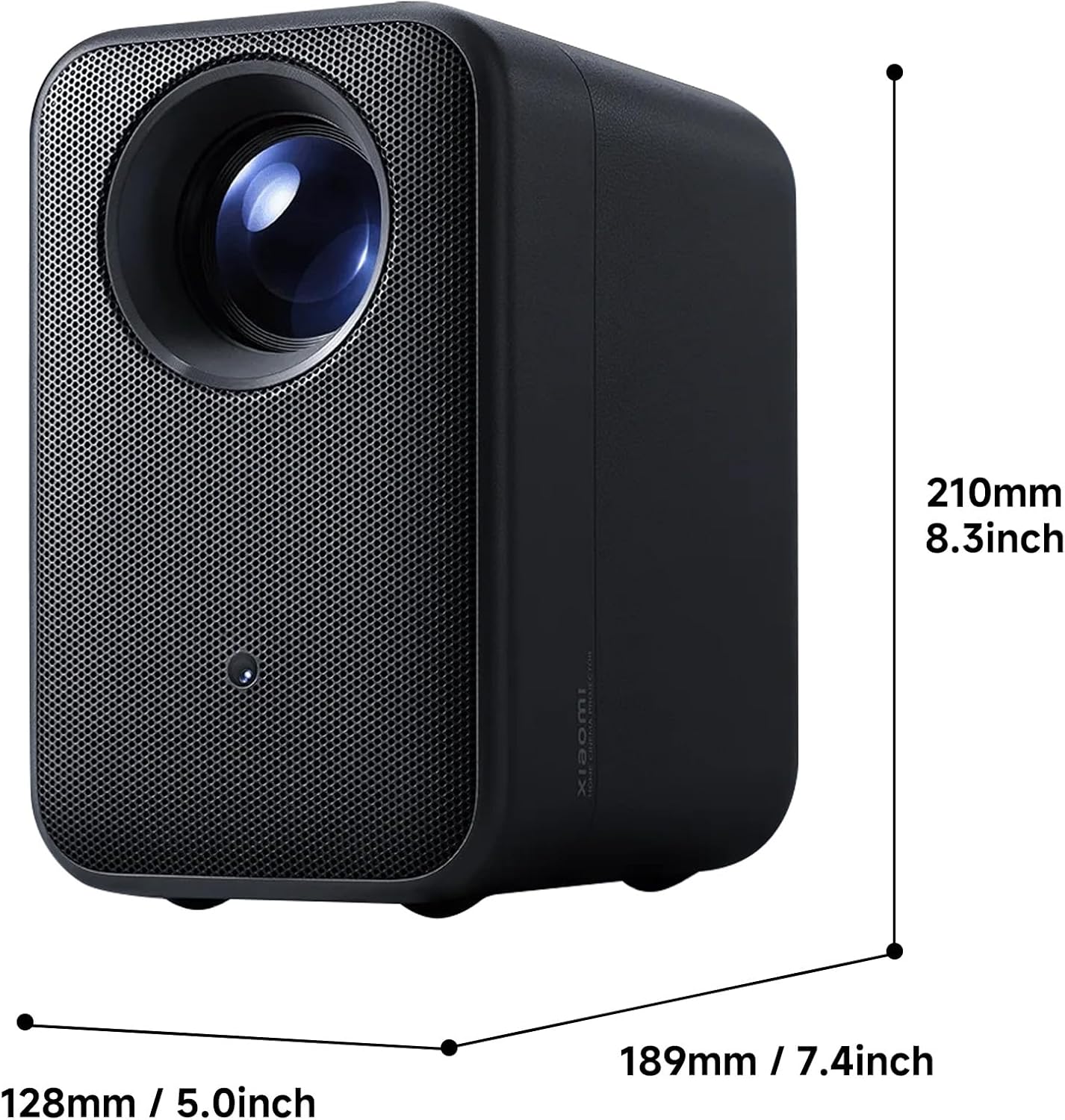
The Xiaomi L1 Pro Portable Projector with its physical dimensions indicated, showing its compact size.
4. Operating Instructions
4.1 Powering On/Off
Press the power button on the projector or the remote control to turn the device on or off.
4.2 Navigating Google TV
Use the directional pad and select button on the remote control to navigate the Google TV interface. Access your favorite streaming apps, movies, and shows directly from the home screen.

A screenshot of the Google TV interface, showing various streaming apps and content recommendations.
4.3 Voice Control with Google Assistant
Press the Google Assistant button on your remote control and speak your commands. You can search for content, control playback, adjust settings, and more, all hands-free.

The Xiaomi L1 Pro Projector alongside its remote control, displaying the Google TV interface on a projected screen.
5. Image Quality and Projection
5.1 Resolution and Brightness
The projector features Full HD 1080p native resolution, delivering sharp and clear images. With 400 ISO lumens of brightness, it provides vibrant visuals suitable for dimly lit rooms and can be enjoyed in moderately lit spaces.
A visual comparison demonstrating the clear image quality of the Xiaomi L1 Pro Projector, contrasting 720p and 1080p resolutions.

A visual representation of the 400 ISO lumens brightness, ensuring accurate brightness representation and visible details.
5.2 Optical Engine
The projector incorporates a fully-sealed optical engine with a high-definition optical lens. This design protects against dust and ensures excellent light transmission, resulting in clearer images with high color accuracy.

An internal view diagram of the Xiaomi L1 Pro's fully-sealed optical engine, illustrating its high-definition optical lens for superior picture quality.
5.3 Automatic Correction Functions
The Xiaomi L1 Pro features advanced automatic correction capabilities:
- Omnidirectional Auto Keystone Correction: Automatically adjusts the image to a perfect rectangle, even when projected at an angle.
- Auto-Focusing: Ensures the projected image is instantly clear and sharp without manual adjustment.
- Automatic Obstacle Avoidance: Detects objects in the projection path and adjusts the image to avoid them, maintaining an uninterrupted viewing experience.

A projected image demonstrating the automatic keystone correction feature of the Xiaomi L1 Pro, showing a perfectly rectangular image despite an angled projection.

A projected image illustrating the auto-focusing capability of the Xiaomi L1 Pro, ensuring instantly clear images.
6. Audio
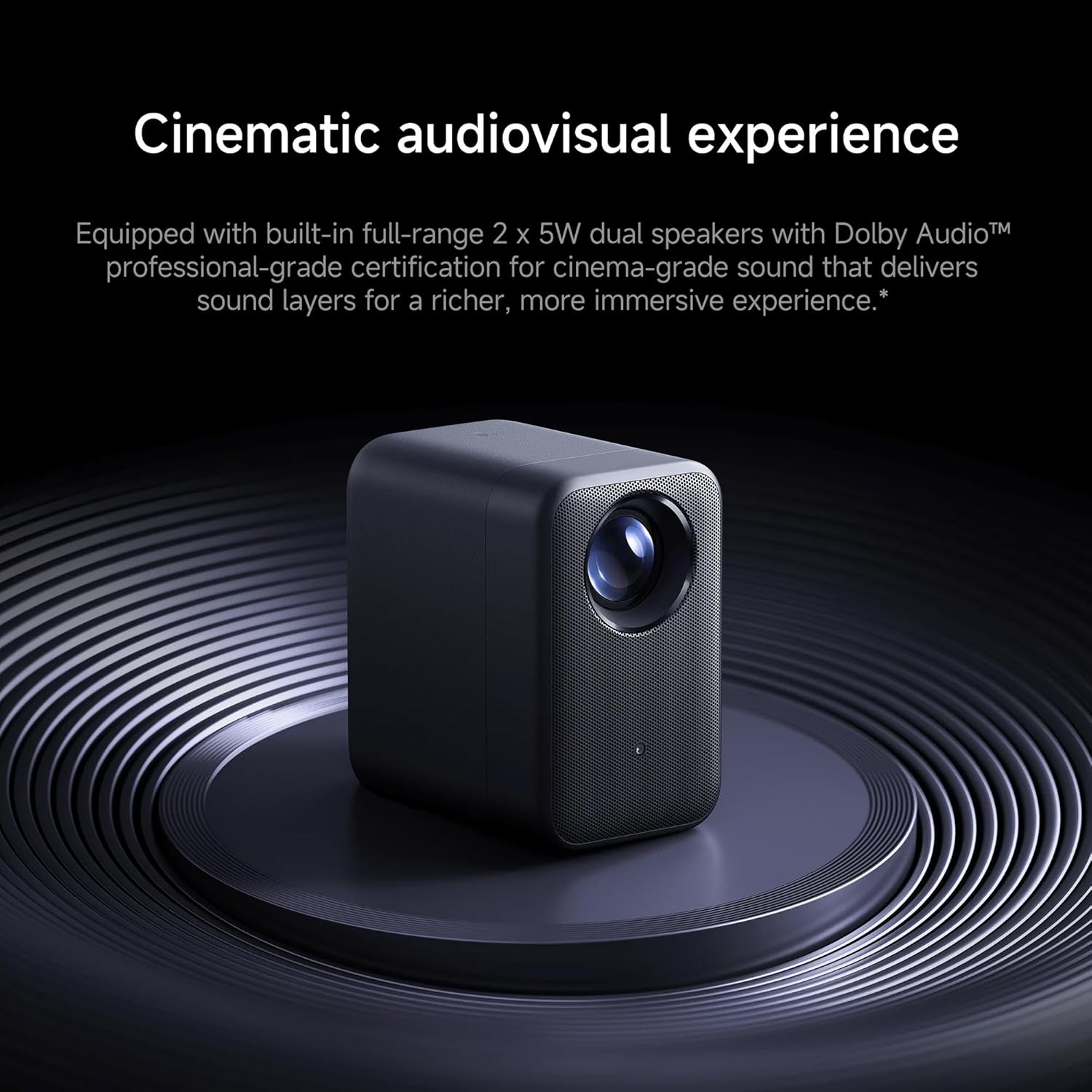
The Xiaomi L1 Pro is equipped with built-in full-range 2 x 5W dual speakers. It supports Dolby Audio, providing clear and immersive sound to complement the high-definition visuals. For private listening, a 3.5mm headphone jack is available.

The Xiaomi L1 Pro Projector positioned on a circular stand, emphasizing its cinematic audio-visual experience with Dolby Audio.
7. Connectivity
The projector offers various connectivity options:
- USB 2.0: For connecting external storage devices.
- HDMI 2.1 (ARC): For connecting laptops, gaming consoles, and other HDMI-enabled devices. ARC (Audio Return Channel) allows audio to be sent back to an audio receiver or soundbar.
- 3.5mm Headphone Jack: For connecting headphones or external speakers.
- Bluetooth: For wireless connection to headphones, speakers, or game controllers.

A side view of the Xiaomi L1 Pro Portable Projector, highlighting its textured casing and ventilation, with ports visible.
8. Practical Applications
The Xiaomi L1 Pro is designed for versatile use:
- Home Theater: Transform any room into a cinematic experience with a large 120-inch projection.
- Outdoor Entertainment: Enjoy movies or sports outdoors under the night sky.
- Gaming: Connect your gaming console for an immersive, larger-than-life gaming experience.
- Presentations & Study: Ideal for group presentations, study sessions, or professional meetings.
9. Specifications
| Feature | Specification |
|---|---|
| Brand | XIAOMI |
| Model | L1 Pro |
| Display Resolution | 1920 x 1080 (Full HD) |
| Brightness | 400 ISO Lumens |
| Max Projection Size | 120 inches |
| Connectivity Technology | Bluetooth, USB 2.0, HDMI 2.1 (ARC), 3.5mm Headphone Jack |
| Special Features | 3D-Ready, Built-In 3D, Internet Ready, Speakers, Automatic Obstacle Avoidance, Omnidirectional Auto Keystone Correction, Auto-Focusing |
| Operating System | Google TV with Google Assistant |
| Product Dimensions | 10.87 x 9.69 x 10.24 inches |
| Item Weight | 7.09 pounds |
10. Maintenance
To ensure the longevity and optimal performance of your projector, follow these maintenance guidelines:
- Cleaning the Lens: Use a soft, lint-free cloth specifically designed for optical lenses. Avoid abrasive materials or harsh chemicals.
- Ventilation: Keep the projector's ventilation openings clear of dust and debris to prevent overheating. Do not block the air vents during operation.
- Storage: When not in use for extended periods, store the projector in a cool, dry place, away from direct sunlight and extreme temperatures.
- Software Updates: Regularly check for and install software updates to ensure your Google TV system and projector firmware are up-to-date.
11. Troubleshooting
If you encounter issues with your projector, refer to the following common troubleshooting steps:
- No Image: Ensure the projector is powered on and the input source (HDMI, USB, or internal Google TV) is correctly selected. Check all cable connections.
- Blurred Image: Allow the automatic focus to complete. If the image remains blurry, gently move the projector slightly to trigger re-focusing or check for any obstructions near the lens.
- Distorted Image (Trapezoid Effect): The projector features automatic keystone correction. If the image appears distorted, ensure the projector is placed on a stable surface and allow the automatic correction to adjust. Avoid placing the projector at extreme angles.
- No Sound: Check the volume level on the projector and any connected external audio devices. Ensure the correct audio output is selected in the projector's settings. If using external speakers, verify their connection and power.
- Remote Control Not Responding: Replace the batteries in the remote control. Ensure there is a clear line of sight between the remote and the projector.
- Obstacles in Projection Path: The automatic obstacle avoidance feature should adjust the image. If an object is still interfering, manually reposition the projector or remove the obstacle.
12. Warranty and Support
Your Xiaomi L1 Pro Portable Projector is covered by a manufacturer's warranty. For detailed information regarding warranty terms, conditions, and duration, please refer to the warranty card included in your product packaging or visit the official Xiaomi support website. For technical assistance, product registration, or service inquiries, please contact Xiaomi customer support.
Online Support: Visit the official Xiaomi website for FAQs, troubleshooting guides, and contact information.
Customer Service: Refer to your product documentation for regional customer service contact details.


